Why Is My Matter Smart Lighting Setup Draining Network Bandwidth?
You set up your Matter smart lights with the expectation of seamless control. Instead, your network has slowed to a crawl. Videos buffer. Calls drop. Your smart home feels anything but smart.
You are not alone. Many homeowners report unexpected bandwidth consumption after adding Matter smart lighting to their networks. The problem is real, and it has clear technical causes. Matter uses protocols like mDNS, IPv6 multicast, and Wi Fi to keep devices connected.
Each of these protocols generates network traffic that can pile up fast, especially if your setup has grown to include dozens of bulbs, switches, and sensors.
The good news? You can fix this. This guide walks you through every common cause of Matter related bandwidth drain and gives you clear, actionable steps to reclaim your network performance.
Key Takeaways
- Matter devices use mDNS (multicast DNS) for device discovery and ongoing communication. This multicast traffic can flood your local network if your router does not handle it properly, causing noticeable slowdowns across all connected devices.
- Matter over Wi Fi devices share your 2.4 GHz band with every other wireless gadget in your home. Too many devices on this frequency creates congestion that mimics a bandwidth drain, even though each device sends very little data individually.
- Multi admin pairing doubles or triples network traffic from each device. If you have paired your Matter lights to both Apple Home and Home Assistant, for example, each device must send status updates and receive commands from multiple controllers simultaneously.
- Thread and Wi Fi channel overlap can cause RF interference. Apple Thread Border Routers often default to Thread Channel 25, which overlaps directly with Wi Fi Channel 11. This interference degrades both network types.
- Outdated firmware on Matter devices and border routers can cause excessive retransmissions, failed handshakes, and unstable connections that generate unnecessary traffic on your network.
- A dedicated VLAN or separate SSID for IoT devices is one of the most effective ways to isolate smart home traffic and protect your primary network from congestion caused by Matter’s multicast behavior.
How Matter Smart Lighting Actually Uses Your Network
Matter is a software control protocol built on IPv6. It runs on top of existing network technologies like Wi Fi, Thread, and Ethernet. Every Matter smart light on your network communicates using IP based messages.
When you turn a light on or off, your Matter controller sends an encrypted IPv6 command to the light’s address. The light responds with a status update. This exchange uses very little data. A single command might be only a few hundred bytes.
The problem is not the commands themselves. The problem is the background traffic. Matter devices use mDNS (multicast DNS) to announce their presence on the network. They broadcast discovery packets at regular intervals. Every device on your local network receives these packets, whether it needs them or not.
This multicast traffic adds up. If you have 20 Matter smart lights, each one sends periodic mDNS announcements. Your controller also sends discovery queries. Border routers publish mDNS packets on behalf of Thread devices. All of this runs continuously in the background, even when no one is pressing a switch.
Why mDNS Traffic Creates Bandwidth Problems
mDNS stands for multicast Domain Name System. It allows devices on a local network to find each other without a central DNS server. Matter requires mDNS for device commissioning and ongoing communication. You cannot disable mDNS and still use Matter.
The issue is that multicast traffic goes to every device on your network segment. Your laptop, phone, tablet, and streaming devices all receive these packets. Older or basic routers struggle to manage this flood of multicast data efficiently.
IGMP snooping and MLD snooping are features that help routers limit multicast traffic to only the devices that need it. If your router lacks these features, or if they are disabled, every mDNS packet from every Matter device hits every port on your network. This creates unnecessary load.
A Cisco networking blog documented this exact issue, noting that mDNS floods remain a significant problem in Layer 2 networks without proper snooping enabled. Home routers from ISPs often have limited or broken multicast handling, making this problem worse.
Check your router settings for IGMP snooping and MLD snooping. Enable both if they are available. This single change can dramatically reduce the amount of multicast traffic reaching devices that do not need it.
The Multi Admin Traffic Multiplier
Matter introduced a feature called multi admin. This lets you pair a single smart light to multiple controllers at the same time. For example, you can control one bulb from Apple Home, Google Home, and Home Assistant simultaneously.
This sounds great in theory. In practice, it multiplies your network traffic.
Each controller maintains its own encrypted session with the device. Each controller sends subscription requests, receives status updates, and manages its own communication channel. If you pair a light to two controllers, you double the traffic. Three controllers means triple the traffic.
Experienced users who have scaled their networks past 50 Thread devices have reported severe network instability caused by multi admin traffic. Thread networks have very low bandwidth capacity. Adding multiple admin sessions to dozens of devices can saturate the Thread mesh and cause timeouts, dropped connections, and devices going offline.
The practical fix is to pick one primary controller and remove multi admin pairings from the others. If you use Home Assistant as your primary platform, you can expose devices back to Apple Home or Google Home through bridge integrations instead of direct multi admin pairing. This cuts the Thread and Wi Fi traffic per device significantly.
Wi Fi Channel Congestion From Matter Devices
Most Matter smart lights that use Wi Fi connect on the 2.4 GHz band. This is the same frequency used by baby monitors, Bluetooth headphones, microwaves, and many other household devices. Every Wi Fi Matter light adds another client to this already crowded band.
Individual smart lights use very little bandwidth. A single bulb might transmit only a few kilobytes per minute during normal operation. But channel congestion is different from bandwidth consumption. Even low data devices occupy airtime on the channel. When dozens of devices compete for the same channel, latency increases and throughput drops for everything.
Your router handles one transmission at a time on each channel. More devices means more waiting. This creates the perception of a bandwidth drain even though the actual data volume is small.
The fix is straightforward. Move your high bandwidth devices like laptops, streaming boxes, and gaming consoles to the 5 GHz or 6 GHz band. Leave the 2.4 GHz band for your smart home devices, which need range more than speed. If your router supports it, create a separate 2.4 GHz SSID dedicated to IoT devices. This keeps smart home traffic isolated from your primary network.
Thread and Wi Fi RF Interference
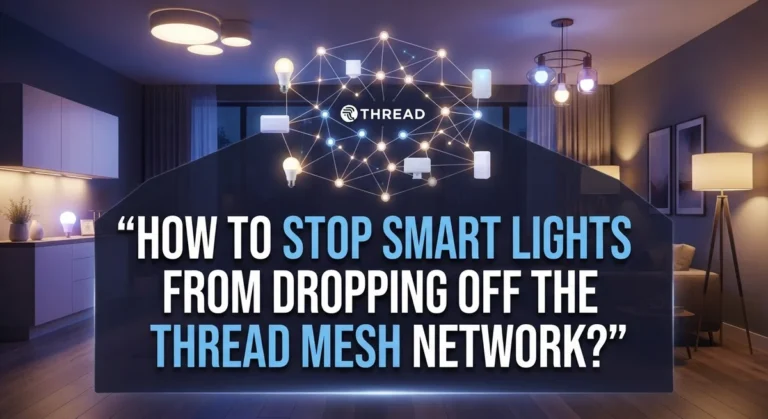
If your Matter lights use Thread instead of Wi Fi, they communicate through a separate mesh network managed by a Thread Border Router. Thread operates on the 802.15.4 radio standard in the 2.4 GHz spectrum. This means Thread and Wi Fi share the same radio space.
The overlap between specific Thread and Wi Fi channels is well documented. Apple Thread Border Routers commonly use Thread Channel 25, which overlaps directly with Wi Fi Channel 11. If your Wi Fi router broadcasts on Channel 11 and your Thread mesh runs on Channel 25, the two networks interfere with each other.
This interference causes packet loss and retransmissions on both networks. Your Wi Fi devices experience slower speeds. Your Thread devices experience timeouts and unresponsiveness. The combined retransmission traffic adds unnecessary load to your network.
To fix this, identify which Thread channel your border router uses. Then reconfigure your Wi Fi access points to avoid the overlapping channel. For example, if your Thread mesh uses Channel 25, set your Wi Fi to use only Channels 1 and 6 on the 2.4 GHz band. You can use a Wi Fi analyzer app on your phone to scan for the least congested channels in your environment.
Too Many Devices on One Router
Most residential routers support between 32 and 64 wireless clients. When you add smart lights to that count alongside phones, laptops, tablets, smart TVs, and other gadgets, you can approach or exceed this limit quickly.
A router that exceeds its client capacity will start dropping connections. Devices will repeatedly try to reconnect, generating additional traffic with each attempt. This creates a feedback loop where failed connections produce more network activity than successful ones would.
Matter lights that run over Wi Fi each count as a separate client. If you have 30 smart lights plus 15 other Wi Fi devices, you are already pushing the limits of a basic home router. Each reconnection attempt includes authentication handshakes, DHCP requests, and mDNS announcements, all of which consume airtime and bandwidth.
The solution is to upgrade your network infrastructure. A mesh Wi Fi system or multiple access points can distribute device connections across several radios. Wi Fi 6 and Wi Fi 7 routers handle many more simultaneous clients thanks to technologies like OFDMA and MU MIMO. Alternatively, moving your smart lights to Thread based Matter devices removes them from Wi Fi entirely, freeing up client slots and radio capacity.
Firmware Problems That Cause Excess Traffic
Outdated or buggy firmware on your Matter devices can cause significant network overhead. Many Matter lights shipped with version 1.0 of the specification. The protocol has since been updated to version 1.4, with each revision including dozens of stability improvements and traffic optimizations.
Devices running old firmware may fail to maintain stable subscriptions. When a subscription drops, the controller and device must renegotiate the connection. This process generates substantially more traffic than a stable connection would.
Some manufacturers have been slow to release firmware updates. Checking the CSA certification database can show you what firmware version has been certified for your specific device. However, certification does not guarantee the update has been pushed to consumers.
Take these steps to address firmware issues. First, check your Matter controller for available device updates. Apple Home and Home Assistant both support pushing firmware updates to Matter devices. Second, ensure your Thread Border Routers are updated. Apple TV, HomePod, and Google Nest devices receive regular updates that improve Thread network stability. Third, reboot devices that show frequent disconnection patterns, as this can clear stuck firmware states.
How to Set Up a Dedicated IoT VLAN
A VLAN (Virtual Local Area Network) creates a logically separate network within your existing infrastructure. Placing your Matter smart lights on a dedicated IoT VLAN isolates their traffic from your primary network. This is one of the most effective strategies for preventing smart home bandwidth drain.
When Matter devices are on their own VLAN, their mDNS broadcasts stay contained within that network segment. Your laptops, phones, and streaming devices never see this traffic. The multicast flood that was slowing your entire network now only affects the IoT segment where bandwidth demands are low.
Setting up an IoT VLAN requires a router that supports VLANs, such as a UniFi, pfSense, or OPNsense based system. Create a new VLAN and assign a dedicated SSID to it. Connect all Matter devices to this SSID. Configure firewall rules to allow your Matter controller (such as Home Assistant) to communicate across VLANs while blocking other cross VLAN traffic.
One important note: Matter requires mDNS and IPv6 to function across the network. If you place devices on a VLAN, you must ensure mDNS reflection or an mDNS gateway is configured between the IoT VLAN and the VLAN where your controller lives. Without this, your controller will lose the ability to discover and communicate with your Matter devices.
Optimizing Your Thread Border Router Placement
Thread Border Routers act as gateways between your Thread mesh network and your Wi Fi or Ethernet network. Their placement directly affects the performance of your Thread based Matter lights.
A poorly placed border router creates weak mesh connections. Thread devices that cannot reliably reach the border router will retry transmissions, increasing traffic on both the Thread mesh and your main network. Each failed delivery attempt results in a retransmission that doubles the traffic for that message.
Place your Thread Border Router in a central location with minimal physical obstructions. Thick walls, metal appliances, and concrete floors weaken 2.4 GHz signals. If you have a large home, deploy multiple border routers from the same ecosystem to extend mesh coverage. Two Apple TVs or two HomePods on Ethernet provide redundant border router coverage with strong backhaul connections.
Connecting border routers via Ethernet rather than Wi Fi is strongly recommended. An Ethernet connected border router does not compete with other wireless devices for airtime. It provides a stable, high capacity link between the Thread mesh and your main network. This reduces retransmissions and improves overall network efficiency.
The Right Way to Reboot Your Network
When Matter devices cause persistent network issues, a reboot can help. But rebooting everything at once often makes things worse. Matter relies on mDNS and IPv6 routing tables that take time to rebuild after a disruption.
A mass reboot forces every device on the network to simultaneously rediscover each other. This creates a massive burst of mDNS traffic that can overwhelm your router for several minutes. Devices may fail to rejoin properly, leading to a cycle of disconnections and reconnections.
Follow this sequential reboot process instead. Start with your ISP router or firewall. Wait 5 minutes. Then reboot your Wi Fi access points. Wait another 5 minutes. Next, reboot your Ethernet switches. Then reboot your Thread Border Routers one at a time, waiting 30 to 60 minutes between each. Finally, reboot your smart home controller.
This patient approach allows each layer of your network to stabilize before the next component comes online. mDNS tables rebuild cleanly. IPv6 routes are established properly. Thread mesh connections form without contention. The result is a much more stable network after the reboot process completes.
Reducing Cloud Polling and Background Syncs
Some Matter devices and their companion apps maintain cloud connections for features like remote access, firmware checks, and usage analytics. These cloud connections generate background traffic that runs continuously.
While Matter is designed for local control, many manufacturers add cloud features on top of the base protocol. A smart light might check for firmware updates every few hours. Its companion app might sync device states with a cloud server. Voice assistants like Alexa and Google Home route some commands through cloud servers even for local devices.
To reduce this background traffic, disable cloud features you do not use in each device’s companion app. Turn off automatic firmware checking if you prefer to update manually. Configure your voice assistant to use local processing where available. Google Home and Apple HomeKit both support local command execution for Matter devices, bypassing cloud servers entirely.
Review your router’s traffic logs to identify devices that send data to external IP addresses frequently. If a Matter light is making constant outbound connections, its firmware or companion app may be the source of unexpected bandwidth usage.
Using QoS Settings to Prioritize Important Traffic
Quality of Service (QoS) settings on your router let you assign priority levels to different types of network traffic. With QoS configured properly, your streaming, video calls, and gaming traffic take priority over smart home communication.
Matter device traffic is small but persistent. Without QoS, your router treats every packet equally. During peak usage, smart home multicast traffic competes with your video call packets for the same bandwidth. This competition causes lag and buffering on the applications you care about most.
To configure QoS, log into your router’s admin panel. Look for QoS or traffic management settings. Assign high priority to streaming services, video conferencing, and gaming. Assign low priority to your IoT VLAN or the IP range used by your smart home devices. This ensures that Matter traffic does not degrade the experience for bandwidth sensitive applications.
Most modern routers support either traditional QoS or adaptive QoS that automatically identifies traffic types. Either approach works well for smart home environments. The key is ensuring that your interactive, time sensitive traffic always gets served before background IoT communication.
Monitoring Your Network for Ongoing Issues
Fixing bandwidth problems once is good. Keeping them fixed requires monitoring. New devices, firmware updates, and network changes can reintroduce traffic issues at any time.
Install a network monitoring tool that tracks traffic by device and protocol. Options include your router’s built in traffic analyzer, a Pi Hole DNS server with logging, or a dedicated tool like ntopng. These tools show you exactly which devices generate the most traffic and what type of data they send.
Watch for these warning signs. A sudden increase in multicast traffic could mean a new device was added or a firmware update changed mDNS behavior. A single device generating significantly more traffic than others may have a firmware bug. Recurring spikes at specific times might indicate scheduled cloud syncs or firmware checks.
Set up alerts if your monitoring tool supports them. A notification when multicast traffic exceeds a threshold helps you catch problems early before they affect your daily network experience. Regular monitoring turns reactive troubleshooting into proactive maintenance, saving you time and frustration over the long term.
When to Consider Switching Transport Protocols
If your Matter smart lights run over Wi Fi and consistently cause network problems, switching to Thread based devices may be the best long term solution. Thread operates as a separate mesh network that does not use your Wi Fi bandwidth for device to device communication.
Thread based lights communicate over their own low power radio mesh. The only point where Thread traffic touches your main network is at the border router. This dramatically reduces the load on your Wi Fi and keeps multicast traffic contained within the Thread mesh.
Thread networks also self heal. If one device loses its connection, the mesh reroutes traffic through neighboring devices. This reduces failed transmissions and retransmission traffic. Thread version 1.4 introduces additional stability improvements that further reduce the network overhead per device.
The tradeoff is that Thread requires a Thread Border Router, such as an Apple TV 4K, HomePod, or Google Nest Hub. If you already own one of these devices, you may already have Thread capability without realizing it. Check your controller’s settings to see if a Thread Border Router is active on your network. Migrating your lights from Wi Fi to Thread can free up significant Wi Fi capacity and eliminate many of the bandwidth issues discussed in this guide.
Frequently Asked Questions
Does a single Matter smart light use enough bandwidth to slow my network?
No. A single Matter light uses only a few kilobytes of data per minute during normal operation. The problem occurs when many devices generate simultaneous multicast traffic or when routers cannot handle the number of connected clients efficiently. The cumulative effect of dozens of devices, not a single device, creates noticeable slowdowns.
Can I use Matter without mDNS enabled on my network?
No. Matter requires mDNS for device discovery and ongoing communication. Disabling mDNS will prevent your Matter devices from being found and controlled by your smart home controller. If mDNS traffic is causing issues, the better approach is to enable IGMP snooping on your router and isolate IoT devices on a separate VLAN.
Will Thread devices interfere with my Wi Fi network?
Thread operates on the 2.4 GHz band using the 802.15.4 radio standard, which overlaps with some Wi Fi channels. Proper channel planning eliminates most interference. Identify your Thread channel and configure your Wi Fi access points to avoid the overlapping Wi Fi channel. Channels 1, 6, and 11 on Wi Fi are non overlapping, so selecting the right ones avoids conflict.
How many Matter devices can my home network support?
This depends on your router and network setup. Basic home routers support 32 to 64 wireless clients. Wi Fi 6 routers can handle over 100. Thread networks scale to hundreds of devices. For large setups, using Thread based devices, multiple access points, and a dedicated IoT VLAN provides the best capacity and stability.
Should I pair my Matter lights to multiple controllers?
Pairing to multiple controllers (multi admin) doubles or triples the network traffic per device. For small setups with fewer than 20 devices, multi admin works fine. For larger setups, use one primary controller and expose devices to other platforms through bridge integrations. This approach maintains cross platform access while keeping network traffic manageable.
How often should I update my Matter device firmware?
Check for updates at least once a month. Firmware updates often include fixes for excessive traffic generation, improved subscription management, and better network stability. Keep your Thread Border Routers and smart home controllers updated as well, since they play a critical role in managing network traffic efficiently.