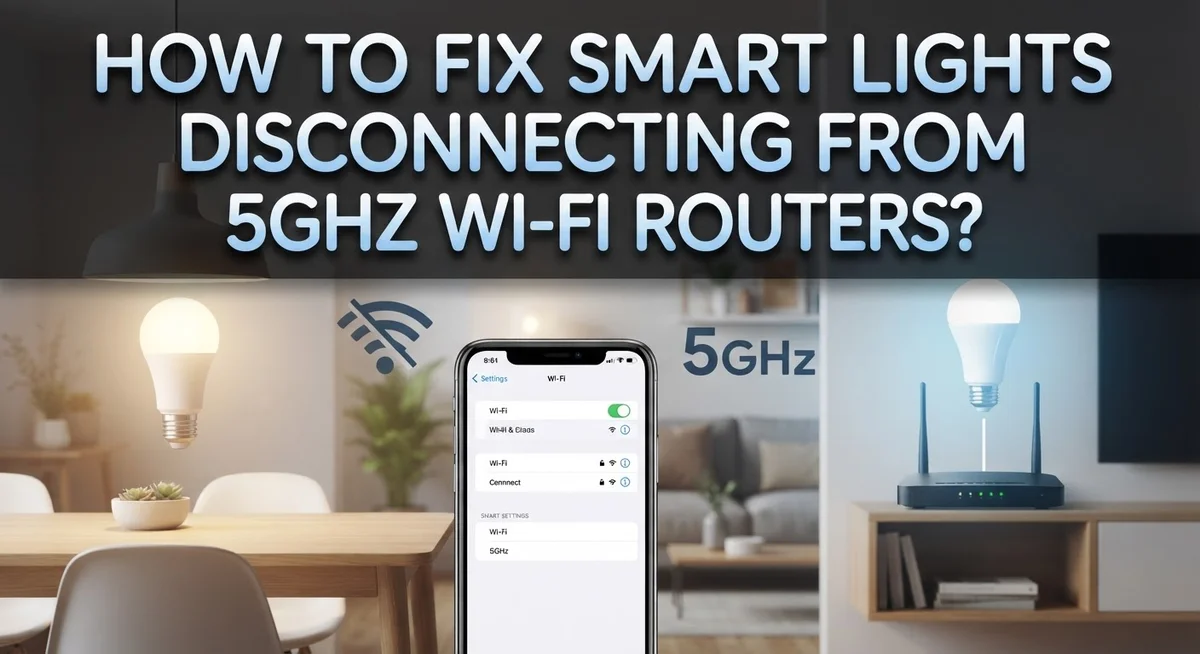
How to Fix Smart Lights Disconnecting From 5GHz Wi-Fi Routers?
Do your smart lights keep dropping offline every few hours? You are not alone.
This is one of the most common smart home problems today. It usually happens when your router pushes devices toward a 5GHz signal.
Here is the thing. Most smart bulbs only work on 2.4GHz networks. They simply cannot connect to 5GHz at all.
When your router combines both bands under one network name, it creates confusion. Your smart light tries to connect but gets stuck talking to the wrong band.
The good news? This problem has clear solutions.
In this guide, we will show you exactly why this disconnection happens. You will learn how to separate your network bands properly.
We will also cover simple router settings that fix this issue fast. From adjusting channel width to disabling Smart Connect features, we walk through each fix step by step.
You will also discover common mistakes people make when troubleshooting this issue. Some fixes actually make the problem worse.
By the end, your smart lights will stay connected reliably. No more manual resets or frustrating blackouts.
In a Nutshell
Here’s a quick summary to fix your smart light disconnection issue:
-
Check bulb compatibility first. Many smart bulbs only work on 2.4GHz networks. They cannot connect to 5GHz at all, no matter what settings you change.
-
Turn off Smart Connect on your router. This setting merges your 2.4GHz and 5GHz bands into one network. Turning it off stops the confusion.
-
Create a separate 2.4GHz network name. Give your smart devices their own SSID. This keeps them away from the 5GHz band completely.
-
Lower your 5GHz channel width to 20MHz. This small change reduces signal overlap. It also helps your devices stay connected longer.
-
Restart your router properly. Power it off, wait fifteen seconds, then turn it back on. This simple reset often clears connection glitches.
-
Watch for physical obstructions. Walls, cabinets, and metal objects weaken signal strength. Move your devices closer to the router if needed.
Follow these steps in order. Most users see improvement within minutes, not hours.
Why Smart Lights Struggle With 5GHz Networks
Smart lights struggle with 5GHz networks for one simple reason: most smart bulbs only support 2.4GHz connections. Your router broadcasts at two different frequencies, and many budget-friendly smart lights were built to work on the slower, older band only.
Here’s what happens. When your router combines both bands under a single network name, your smart light gets confused about which frequency to use. It may connect to 5GHz first, then realize it cannot stay stable there. The bulb drops offline trying to find a better connection.
The 5GHz band has real advantages. It offers faster speeds and fewer interference sources than 2.4GHz. However, it has a major drawback: shorter range. The signal does not travel as far through walls and floors. Your smart bulb sitting in the bedroom may receive a weak 5GHz signal even though it is close to the router.
Physical obstructions make this worse. Metal cabinets, thick walls, and even fish tanks block 5GHz signals more than 2.4GHz signals do. Your light might be in a location where the 5GHz signal barely reaches it.
Additionally, some routers use a feature called Smart Connect. This setting automatically switches devices between bands without your control. Your smart light gets pushed to 5GHz even though it works better on 2.4GHz.
The distance factor matters too. 5GHz networks require closer proximity to your router than 2.4GHz networks do. If your smart bulb sits far from the router, it simply cannot maintain a reliable 5GHz connection.
Understanding these technical differences helps you fix the problem effectively. Your smart lights are not broken. They simply need the right network environment to function properly.
Checking Your Smart Bulb’s Wi-Fi Compatibility
Before you start troubleshooting, check what your smart bulb actually supports. This one step saves hours of frustration.
Look at your bulb’s manual or the manufacturer’s website. Search for “Wi-Fi specifications” or “supported frequencies.” You will find either 2.4GHz, 5GHz, or both listed there. Most smart bulbs only work on 2.4GHz, even newer models.
Check your router’s current setup too. Open your router’s admin panel on your phone or computer. Look for wireless settings or band information. You need to know if your router broadcasts both 2.4GHz and 5GHz under one network name or separate names.
Here’s the key issue: when your router combines both bands into a single SSID (network name), your smart bulb gets confused. It tries to connect to 5GHz but cannot, then bounces back to 2.4GHz repeatedly. This creates the disconnection problem you experience.
Write down your findings. Note your bulb’s supported frequency and your current network setup. This information guides your next steps.
If your bulb only supports 2.4GHz and your router uses a combined network, you have found your root cause. The solution becomes clear: separate those bands or switch your bulb to the 2.4GHz network.
Some routers show dual bands in settings but hide them under technical names. Look for terms like “band steering” or “Smart Connect.” These features automatically choose bands for devices, which confuses 2.4GHz only bulbs.
Taking five minutes to verify compatibility prevents wasted troubleshooting. You will know exactly what needs fixing and why your lights keep disconnecting.
Step-by-Step: Disabling Smart Connect and Separating SSIDs
Smart Connect is a router feature that broadcasts both 2.4GHz and 5GHz bands under one network name. Your smart bulb cannot choose which band to use, so it jumps between them constantly. This jumping causes disconnections.
Disabling Smart Connect stops this switching problem. Log into your router’s admin panel using your computer or phone. Look for wireless settings or advanced options. Find the Smart Connect toggle and turn it off. Your router will now broadcast two separate networks instead of one combined network.
After disabling Smart Connect, you’ll see two network names appear on your device list. One will say 2.4GHz and one will say 5GHz. This separation lets your smart bulb connect to only 2.4GHz without confusion.
Creating separate SSIDs gives your smart devices their own dedicated network. Your router’s admin panel has a wireless settings section. Find where you can name your 2.4GHz network. Give it a clear name like “SmartHome24” or “Devices24GHz”. Write down this exact name and password for later use.
Some routers let you disable the 5GHz band entirely if you prefer. This forces all devices to use 2.4GHz automatically. Check your router settings to see if this option exists.
Once you’ve separated your networks, restart your router. Power it off completely, wait fifteen seconds, then turn it back on. This reset ensures your changes take effect properly.
Now your smart bulbs will connect to the 2.4GHz network only. They won’t experience the disconnection problem that combined networks create. Your other devices can still use 5GHz for faster speeds.
Adjusting Router Channel Width and Signal Settings
Your router’s channel width setting directly affects how your smart lights connect to 5GHz networks. Think of channel width like a highway lane. A wider lane moves more traffic, but it also causes more congestion and interference with other devices nearby.
Most routers default to 80MHz or 160MHz channel width on 5GHz bands. This wide setting works great for computers and streaming devices, but smart bulbs struggle with it. They need a narrower, more stable connection to stay online.
Here’s what you should do. Log into your router’s admin panel through your web browser. Look for wireless settings or advanced options. Find the 5GHz channel width setting. Change it from 80MHz or 160MHz down to 20MHz.
A 20MHz channel width gives smart lights a much clearer signal path. The connection becomes more stable, even though data moves slower. Your smart bulbs don’t need high speed anyway. They only transmit on and off commands and receive brightness updates.
After changing the channel width, restart your router completely. Power it off, wait 15 seconds, then turn it back on. This reset helps your devices recognize the new settings.
Test your smart lights now. Move closer to the router first to confirm they connect properly. If they stay connected at close range, gradually move them to their normal locations. Watch for disconnections.
Channel width adjustment alone often solves the problem. If your lights still disconnect after this change, move forward with separating your 2.4GHz and 5GHz networks into different SSIDs. This gives you another layer of control over device connections.
Resetting Your Router the Right Way
A router reset clears all settings and can fix connection problems. This process works best when your smart lights keep dropping from the network for no clear reason.
Start by locating your router’s power cable. Unplug it completely from the electrical outlet. Wait exactly 15 seconds. This pause lets the router’s memory clear and all connections stop completely.
Plug the power cable back in. Your router will restart and go through its boot sequence. This takes about 2 to 3 minutes. You’ll see lights blink on the device as it powers up. Wait until all lights stabilize before moving forward.
Important: a full reset returns your router to factory settings. This means you’ll lose your current network name, password, and all custom configurations. You’ll need to set up your Wi-Fi network again from scratch.
When your router finishes restarting, check if you can see the default network name. This usually appears as the router’s model number or manufacturer name. Connect to this temporary network using the default password (often printed on your router’s label).
Log into your router’s admin panel. You’ll find instructions in your router’s manual or on the manufacturer’s website. From here, you can create your network name and password again.
This time, remember to disable Smart Connect and create separate 2.4GHz and 5GHz networks. This prevents your smart lights from connecting to the wrong band.
After completing the reset and reconfiguring your networks, reconnect your smart lights to the 2.4GHz network. Test the connection for 24 hours to confirm stability. Most users see immediate improvement after a proper reset combined with correct network separation.
Using a Phone Hotspot as a Temporary Workaround
Your phone’s hotspot can serve as a quick fix when your smart lights keep dropping from your router’s 5GHz network. This method works best as a temporary solution while you work on permanent fixes.
Here’s how to set up your phone hotspot as a workaround: Open your phone’s settings and find the hotspot or tethering option. Create a new hotspot network and name it the same SSID as your router’s 2.4GHz network. Make sure your hotspot broadcasts on 2.4GHz only, not 5GHz. Set a strong password to keep your network secure.
Next, disconnect your smart lights from your main router. Open your smart light’s app and forget the existing network connection. Scan for available networks and select your phone’s hotspot. Enter the password you just created. Your smart lights should connect successfully since phone hotspots typically default to 2.4GHz.
Keep these points in mind: Your phone will use data or your home internet connection to power the hotspot. Phone hotspots have limited range compared to routers. Battery drain happens faster when your hotspot runs continuously. You’ll notice slower speeds since hotspots aren’t designed for multiple devices.
Why this works temporarily: Phone hotspots avoid the Smart Connect confusion that causes disconnections. They provide a clean 2.4GHz signal that most smart bulbs recognize easily. This gives you time to implement permanent solutions like disabling Smart Connect on your main router.
Use this hotspot method for a few days while you reconfigure your router settings. Once you’ve separated your 2.4GHz and 5GHz networks properly, switch your smart lights back to your main router for better stability and range.
Common Mistakes That Make Disconnections Worse
Many people make mistakes that actually make smart light disconnections worse instead of better. Understanding these errors helps you avoid wasting time on fixes that backfire.
Assuming all smart bulbs support 5GHz is a common mistake. Most smart lights only work on 2.4GHz networks. You might think upgrading to 5GHz improves everything, but your bulbs simply cannot connect to that band. Always check your device’s manual or specifications before changing your network setup.
Another error is adding extra routers to boost your signal. This sounds logical, but it actually increases interference and creates more problems. Your smart lights get confused about which router to connect to. Stick with your main router instead of expanding your network.
Ignoring physical obstructions around your smart lights causes real issues. Cabinets, walls, and metal objects block 5GHz signals more than 2.4GHz signals. People often assume their router placement is fine, but obstacles between the router and your bulbs kill the connection. Check what sits between your router and lights before troubleshooting anything else.
Overlooking your device’s actual compatibility is another trap. Just because your router supports 5GHz does not mean your smart lights do. Read the product information carefully.
Finally, many people skip the basic step of checking signal strength at the device location. Your router might have strong signal in one room but weak signal where your lights sit. Move closer to your router temporarily and test if the connection improves. This simple check reveals whether distance or compatibility is your real problem.
Troubleshooting Persistent Connection Drops
When your smart lights drop from 5GHz repeatedly, you need a step by step approach to find the real problem. Start by checking your router’s wireless settings to see if Smart Connect is enabled. This feature automatically switches devices between 2.4GHz and 5GHz bands, which confuses most smart bulbs that only support 2.4GHz.
Disable Smart Connect in your router’s admin panel. This single change fixes many connection issues. Your smart lights will stop bouncing between bands and losing their connection.
Next, reduce your 5GHz channel width to 20MHz. Wider channels like 40MHz or 80MHz can cause stability problems with older smart devices. Check your router settings and adjust this value down.
Verify signal strength at your smart light’s location. Walk to where your bulbs are installed and check the Wi-Fi signal bars on your phone. Weak signals cause constant disconnections. If the signal is poor, move your router closer or remove physical obstructions like cabinets and metal objects blocking the path.
Create separate network names for 2.4GHz and 5GHz bands. Instead of one combined network, set up two distinct SSIDs. This prevents your smart lights from attempting to connect to the 5GHz band where they don’t work.
Test each fix one at a time. Change one setting, then reconnect your smart lights and observe for 24 hours. This helps you identify which change actually solved your problem.
If disconnections persist after these steps, your smart lights may simply lack 5GHz support. Check your device manual to confirm its actual wireless capabilities before trying other solutions.
Final Thoughts
Smart lights disconnecting from your router feels frustrating. But the fix is usually simple.
Most disconnection problems come down to one thing: band compatibility. Your smart lights likely need 2.4GHz, not 5GHz.
Start with the easy fixes first. Disable Smart Connect on your router. Split your network into separate 2.4GHz and 5GHz names. These two steps solve most connection issues.
If problems continue, check your channel width settings. A narrower 5GHz channel sometimes helps devices communicate better. Small router tweaks often fix big headaches.
Remember that physical distance matters too. Smart lights far from your router struggle to maintain a stable connection. Walls and metal objects make this worse.
Before blaming your router, verify your smart light model. Some bulbs simply cannot connect to 5GHz networks. No amount of troubleshooting changes that fact.
Test changes one at a time. This helps you understand what actually fixes your specific problem. Random changes create confusion later.
Patience pays off here. Give each fix at least a day before trying something new. Smart home networks need time to stabilize after changes.
If nothing works, consider your network setup itself. Combined 2.4G and 5G networks under one name cause ongoing confusion for many smart devices.
Separate networks often solve what nothing else can. This single change prevents your devices from getting stuck between bands.
Smart lighting should work quietly in the background. You should not think about your Wi-Fi settings daily.
With the right band settings and a stable connection, your lights will stay connected. Take these steps, and enjoy reliable smart lighting again.
Frequently Asked Questions
Why do my smart lights keep disconnecting from 5GHz Wi-Fi?
Most smart bulbs only work on 2.4GHz networks. When you connect them to a 5GHz router, they cannot stay online. Your router may have a feature called Smart Connect that combines both bands into one network name. This confuses your smart lights because they search for 2.4GHz but find 5GHz instead.
The solution is simple: disable Smart Connect in your router’s admin settings. This separates your network bands so your smart lights can find the 2.4GHz signal they need.
Can I use my smart lights on 5GHz networks?
No, most smart lights cannot use 5GHz at all. Check your device manual or manufacturer website to confirm what your bulbs support. Some newer models work on both bands, but this is still rare.
If your smart lights only support 2.4GHz, you must use a 2.4GHz network. Trying to force them onto 5GHz will fail every time. Create a separate network name just for your smart home devices if your router allows it.
What should I do if my smart lights still disconnect?
Try these steps one at a time. First, reduce your 5GHz channel width to 20MHz in router settings. Next, check the Wi-Fi signal strength where your bulbs sit. Walk to that location with your phone and test the signal bars.
Physical obstructions like walls, cabinets, and metal objects block Wi-Fi signals. Move your router closer or remove obstacles if possible. If disconnections continue after these fixes, your smart lights likely lack 5GHz support entirely.
Should I add another router to fix this problem?
No. Adding extra routers creates more interference, not less. This usually makes your connection problems worse.
Instead, focus on your current router settings and network separation. A single router with proper configuration works better than multiple routers fighting each other.