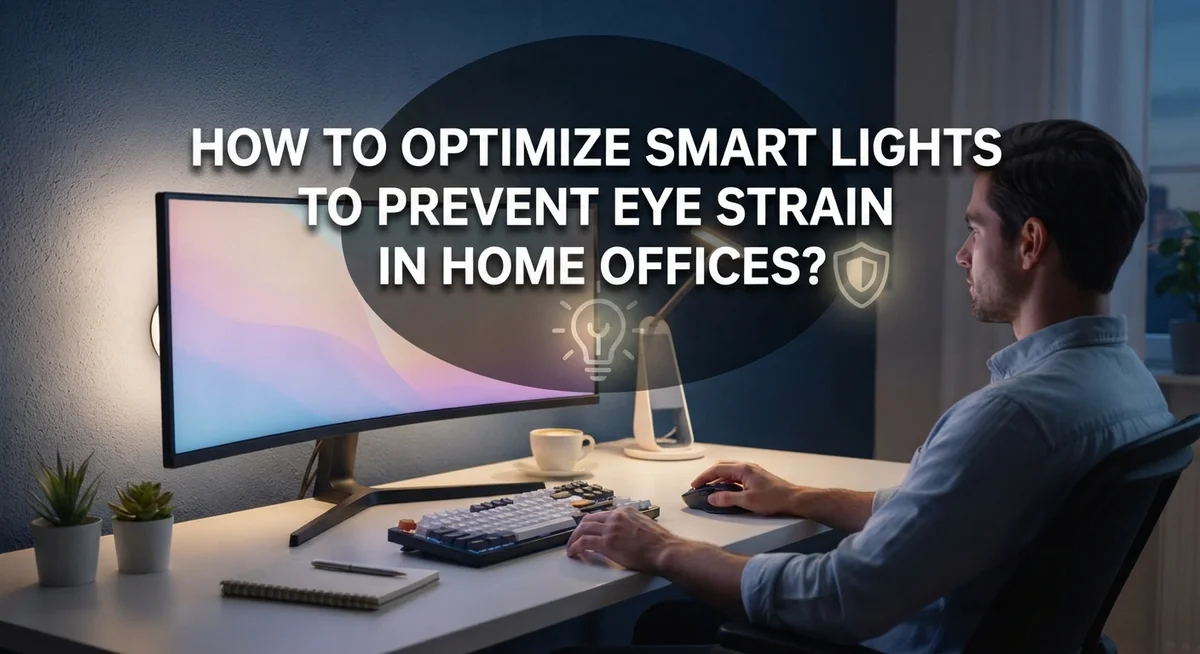
How to Optimize Smart Lights to Prevent Eye Strain in Home Offices?
Do your eyes feel tired after a long day at your home desk? Poor lighting could be the hidden cause.
Many people blame their screens for eye strain. But the real problem often sits above your head or beside your monitor.
Smart lights can fix this problem fast. They let you control brightness and color temperature with just a few taps.
This guide shows you how to set up smart lighting the right way. You will learn simple steps to reduce glare and protect your eyes.
In a Nutshell
- Layer your light sources. Combine natural light, task lamps, and ambient overhead lighting. This mix reduces shadows and keeps your eyes comfortable all day.
- Pick the right color temperature. Aim for 3500K to 5000K on your smart lights. This range feels natural and supports better focus.
- Position lights smartly. Place lamps to the side or slightly behind your monitor. This simple step avoids glare and screen reflections.
- Match your monitor brightness. Keep your screen brightness close to your room’s ambient light. Big contrasts force your eyes to work harder.
- Follow the 20-20-20 rule. Every 20 minutes, look at something 20 feet away for 20 seconds. Your eyes get a quick, needed break.
- Skip harsh overhead-only lighting. Relying on one bright ceiling light creates uneven shadows. Indirect lighting works much better for daily comfort.
Why Lighting Matters for Eye Health and Productivity
Your eyes work hard throughout the day. When lighting is poor, they strain to focus on your screen and documents. This strain builds up quickly and leaves you tired and unfocused by afternoon.
Good lighting directly impacts your eye health. Proper illumination reduces the effort your eyes need to process visual information. Your pupils adjust more easily. Your eye muscles relax instead of tensing up. This simple change boosts your ability to concentrate for longer periods.
Lighting also affects your mood and energy levels. Bright, cool light (around 4000K to 5000K) signals your brain to stay alert. Your body produces more serotonin. You feel more motivated to work. Dim or overly warm light makes you feel sluggish and tired.
Productivity increases when eye strain decreases. Research shows workers in well lit spaces make fewer errors. They complete tasks faster. They report better satisfaction with their work environment. Your home office is no different.
The problem is that most home offices rely on one harsh overhead light. This creates dark shadows in some areas and bright spots in others. Your eyes constantly adjust between these zones. This constant adjustment exhausts your eye muscles and causes headaches.
Smart lights solve this problem by letting you control brightness and color temperature. You can adjust them throughout the day to match your natural energy rhythms. You can reduce glare on your screen. You can create even, balanced illumination across your entire workspace.
The key is understanding that lighting is not just about brightness. It’s about quality, placement, and balance. When you get these elements right, your eyes feel comfortable. Your mind stays sharp. Your productivity soars. Your home office becomes a place where you actually want to work.
Understanding Color Temperature and Brightness for Smart Lights
Color temperature measures how warm or cool light appears. It’s measured in Kelvin (K). Lower values like 2700K produce warm, yellowish light. Higher values like 6500K create cool, bluish light.
For home offices, aim for 3500K to 5000K. This range sits in the middle ground. It’s bright enough to keep you alert without feeling harsh. Your eyes won’t strain as much in this sweet spot.
Why does this matter? Warm light (below 3000K) can make you drowsy in the afternoon. Cool light (above 6000K) may feel too clinical and cause eye fatigue. The 3500K to 5000K range supports focus while staying comfortable for extended work sessions.
Brightness matters just as much as color temperature. Measure brightness in lumens. Your desk should get 300 to 500 lumens for general office work. For detailed tasks like reading small text, aim for 500 to 1000 lumens in that specific area.
Here’s the practical part: match your monitor brightness to your room’s lighting. If your screen glows brighter than your surroundings, your eyes work harder to adjust. This causes strain and fatigue. Dim your monitor when ambient light is low. Brighten it when your room gets more light.
Smart lights let you adjust both color temperature and brightness throughout the day. In the morning, use cooler temperatures (4500K to 5000K) to boost alertness. As evening approaches, shift toward warmer tones (3500K to 4000K) to prepare your body for rest.
The key is consistency. Keep your lighting stable during work hours. Sudden brightness or temperature changes force your eyes to readjust constantly. This creates unnecessary strain.
Auditing Your Current Home Office Lighting Setup
Start by examining what you currently have in your home office. Walk around your workspace and notice where light comes from. Do you have windows? Is there a ceiling fixture? Are there desk lamps already installed?
Take photos of your office at different times of day. Morning light differs from afternoon light. This helps you see patterns you might miss otherwise. Notice which areas feel too bright and which feel too dark.
Check your monitor setup next. Position yourself at your desk and look at your screen. Do you see reflections or glare on the display? Glare means light is bouncing directly onto your screen, which strains your eyes significantly.
Measure the brightness of your current lights if possible. Most smartphones have light meter apps that show brightness levels in lux. This gives you baseline data to compare against later.
Identify shadows in your workspace. Uneven lighting creates dark spots where you struggle to see clearly. Your eyes work harder in these areas, leading to fatigue.
Test your color temperature awareness. Does your office feel warm and cozy or cool and alert? Write down how you feel in different areas at various times.
Ask yourself these questions: Do overhead lights alone illuminate your workspace? Can you adjust brightness easily? Do you experience afternoon tiredness that might relate to lighting?
Document everything you find. Take notes about problem areas. List which times of day feel most uncomfortable for your eyes. This audit becomes your roadmap for optimization. You now understand your starting point, which makes improvements much easier to implement effectively.
Step-by-Step: Configuring Smart Lights for a Layered Lighting Approach
A layered lighting approach means combining multiple light sources instead of relying on one overhead fixture. This strategy reduces shadows, controls glare, and lets your eyes work less hard throughout the day.
Start by positioning your primary task light. Place it to the side of your monitor or slightly behind your work area. This angle prevents light from bouncing directly onto your screen. Direct reflections cause immediate eye fatigue and make it harder to see your display clearly.
Next, add ambient lighting to fill your entire workspace. This is your general background light. Use smart lights that let you adjust brightness and color temperature together. The goal is even illumination across your desk and surrounding area without harsh spots or dark corners.
Position accent lighting strategically. Point these lights at walls or ceilings rather than directly at your face. This creates soft, indirect light that bounces around your room. Indirect lighting eliminates glare while still brightening your space effectively.
Use your smart light controls to create a consistent setup. Set your overhead lights to around 50 percent brightness during the day. Add your task light at full strength for focused work. Keep your accent lights at lower levels for balance.
Test your setup by sitting at your desk and looking at your monitor. You should see your screen clearly without reflections. Your keyboard and papers should be easy to read without squinting. Shadows should be minimal across your work surface.
Adjust color temperature to match your time of day. Morning work benefits from cooler light around 5000K. Afternoon sessions work better with 3500K to reduce glare impact. Smart lights make these adjustments simple and automatic if you set schedules.
Optimal Smart Light Positioning to Eliminate Glare and Reflections
Smart light positioning is critical because glare and reflections directly cause eye strain. The wrong placement creates harsh spots on your monitor that force your eyes to work harder.
Position lights to the side of your workspace, never directly in front of your screen. Light coming from behind or to the side of your monitor prevents direct reflection. If light bounces off your screen surface, your eyes struggle to focus on text and images. This is the most common positioning mistake people make.
Place your primary task light at a 45 degree angle to your work surface. This angle delivers focused illumination without creating mirror like reflections on glass or glossy screens. Avoid positioning lights directly above your monitor, as overhead placement often causes glare on screen surfaces.
Use indirect lighting whenever possible. Bounce light off walls or ceilings instead of shining it directly at your workspace. This softens harsh shadows and creates even illumination across your entire desk area.
Test your setup by sitting at your desk and looking at your monitor. Do you see bright spots or reflections? If yes, adjust your light position slightly. Move it further to the side or higher up.
Natural light placement matters too. Position your desk perpendicular to windows rather than facing them directly. This prevents sunlight from creating glare on your screen while still allowing you to benefit from natural light.
Smart lights with adjustable brightness let you fine tune positioning effects. Lower the brightness gradually until you eliminate reflections. You may find that less intense light positioned correctly beats brighter light positioned poorly.
Syncing Smart Lighting with Natural Light and the 20-20-20 Rule
Your smart lights work best when they sync with daylight and follow the 20-20-20 rule. This combination keeps your eyes fresh throughout the workday.
Start by maximizing natural light from windows or skylights. Position your desk to receive daylight without creating screen glare. Smart lights should fill gaps where sunlight falls short. During morning hours, use cooler color temperatures around 5000K to match natural daylight. This brightness helps you stay alert and focused.
As afternoon arrives, gradually shift your smart lights to warmer tones around 3500K. This transition matches the sun’s natural movement across the sky. Your eyes adapt smoothly when lighting changes gradually rather than suddenly. Avoid sudden brightness drops that make your eyes work harder.
The 20-20-20 rule prevents cumulative strain from constant screen focus. Every 20 minutes, look at something 20 feet away for 20 seconds. Your smart lights play a key role here. When you glance away from your monitor, ensure your surrounding lighting is even and soft. Harsh overhead lights make this break less effective.
Set up your smart light app to remind you every 20 minutes. Pair this with a gentle brightness dip in your task lighting. This visual cue helps you remember to take the break without feeling jarring.
Consistency matters most. Keep your lighting schedule the same each workday. Your body adjusts to predictable light patterns, reducing eye fatigue over time. Smart lights that follow sunrise and sunset patterns work especially well. This approach aligns your home office with your natural circadian rhythm, which supports both vision comfort and overall wellness.
Common Mistakes That Undermine Eye Comfort
Many people make simple mistakes that hurt their eyes during work. Understanding these errors helps you fix them quickly.
Relying only on overhead lighting is the biggest problem. One harsh light source creates shadows and forces your eyes to work harder. Your eyes get tired faster because they struggle to adjust between bright and dark areas. Overhead lights alone rarely provide the even illumination your eyes need.
Ignoring color temperature causes strain too. Lights that are too blue make your eyes feel tense. Lights that are too warm may not give you enough clarity for detailed work. The sweet spot sits between 3500K and 5000K for most home offices. Your smart lights should match this range during work hours.
Placing lights directly in front of your screen creates glare. When light bounces off your monitor, your eyes work overtime to see the content. This reflection forces constant refocusing. Position lights to the side or slightly behind your workspace instead.
Neglecting natural light wastes a free resource. Windows provide the best light for reducing strain. Ignoring sunlight means your smart lights must do all the work alone. This creates an unbalanced, artificial environment that tires your eyes.
Forgetting the 20-20-20 rule builds up strain over time. Every 20 minutes, look 20 feet away for 20 seconds. This simple break lets your eye muscles relax. Without these breaks, strain accumulates even with perfect lighting.
Matching monitor brightness to your room matters too. If your screen is much brighter than your surroundings, your eyes strain to adjust. Dim your monitor when ambient light is low. This balance keeps your eyes comfortable throughout the day.
Troubleshooting Persistent Eye Strain Despite Smart Lighting
Eye strain persists even with smart lights when something in your setup still conflicts with your eyes’ needs. The problem usually isn’t the lights themselves. It’s how they work together with your monitor, desk, and habits.
Start by checking your monitor brightness. Many people set their screen too bright compared to their room’s light. Your eyes work harder when this mismatch exists. Reduce your monitor brightness until it matches your surrounding light level. This single change stops a lot of persistent strain.
Next, examine your monitor’s position. Your screen should sit 20 to 26 inches from your eyes, directly ahead or slightly below eye level. If your monitor sits too high or too low, your eyes strain to focus. Adjust it so you look straight ahead naturally.
Review your light color temperature throughout the day. If you keep your lights at 5000K all day, your eyes stay in “alert mode” constantly. Switch to warmer tones around 3500K during afternoon and evening work. This matches your body’s natural rhythm and reduces strain.
Check for hidden glare sources. Reflections from windows, glass surfaces, or shiny desk materials bounce light into your eyes. Reposition your desk, add a matte desk pad, or adjust your light angles to eliminate these reflections.
Don’t skip the 20-20-20 rule. Even perfect lighting won’t help if your eyes never rest from screen focus. Every 20 minutes, look 20 feet away for 20 seconds. This simple break lets your eye muscles relax completely.
Finally, assess whether you’re using enough task lighting. Overhead lights alone create uneven illumination. Add a desk lamp positioned to the side for balanced, focused light on your work area.
Final Thoughts
Smart lighting can transform how your eyes feel after a long workday. A few simple changes make a real difference. You do not need complex tools or expensive setups to see results.
Start with the basics. Layer your light sources and keep color temperature between 3500K and 5000K. These small habits protect your eyes every single day.
Remember that natural light comes first. Your smart lights should support daylight, not replace it. Open your blinds before you turn on any lamp.
Position matters just as much as brightness. Keep lights beside or behind your monitor. This simple step avoids glare and screen reflections.
The 20-20-20 rule remains your best friend. Set reminders and actually follow them. Your eyes need these short breaks to reset and relax.
Consistency beats perfection in this process. You do not need a flawless setup on day one. Small adjustments over time create lasting comfort.
Watch for warning signs like squinting or headaches. These signals tell you something needs adjustment. Do not ignore them and hope they pass.
Your home office lighting should feel invisible. Good lighting works quietly in the background. You should notice comfort, not the light itself.
Take time to test different settings. What works for morning tasks may not suit afternoon work. Your eyes will thank you for the effort.
Eye strain does not have to be part of your daily routine. With thoughtful lighting choices, you can work longer without discomfort. Small changes now lead to better comfort later.
Give these tips a real try this week. Your eyes deserve the attention.
Frequently Asked Questions
Why do my eyes still hurt even with smart lights installed?
Eye strain often persists because one element in your setup still conflicts with your vision. Start by checking if your monitor brightness matches your room’s light level. A screen that’s too bright compared to your surroundings forces your eyes to work harder.
Next, look at your light positioning. Lights placed directly in front of your screen create glare that bounces back at you. Move them to the side or slightly behind your work area instead.
Also review whether you’re actually taking breaks. The 20-20-20 rule (every 20 minutes, look 20 feet away for 20 seconds) is essential. Perfect lighting won’t help if your eyes never rest from screen focus.
What color temperature should I use all day long?
The ideal range is 3500K to 5000K for most work tasks. This range feels natural and supports focus without overstimulating your eyes.
However, color temperature shouldn’t stay constant. Warmer tones around 3500K work better in the afternoon and evening. Cooler tones near 5000K suit morning and midday work. If you keep your lights at 5000K all day, your eyes stay in a constant state of alertness, which builds fatigue.
Smart lights let you adjust automatically based on time. This flexibility helps your eyes adapt naturally throughout your workday.
How should I position my lights to avoid glare?
Place task lighting on your desk to the side of your monitor, not directly behind it or in front of it. Side positioning eliminates reflections on your screen. Overhead lights should spread evenly across your workspace without creating hot spots.
Use indirect lighting whenever possible. Bounce light off walls or ceilings instead of shining it straight down. This approach softens the light and reduces harsh shadows.
Can natural light replace smart lights completely?
Natural light is your best starting point, but it varies throughout the day and isn’t always available. Windows provide excellent light in the morning, but afternoon sun angles shift. Cloudy days reduce available light significantly.
Smart lights fill the gaps that natural light leaves. Use a layered approach: maximize window light first, then add task lighting for focused work, and use ambient smart lights to balance overall brightness. This combination prevents eye strain better than any single light source alone.