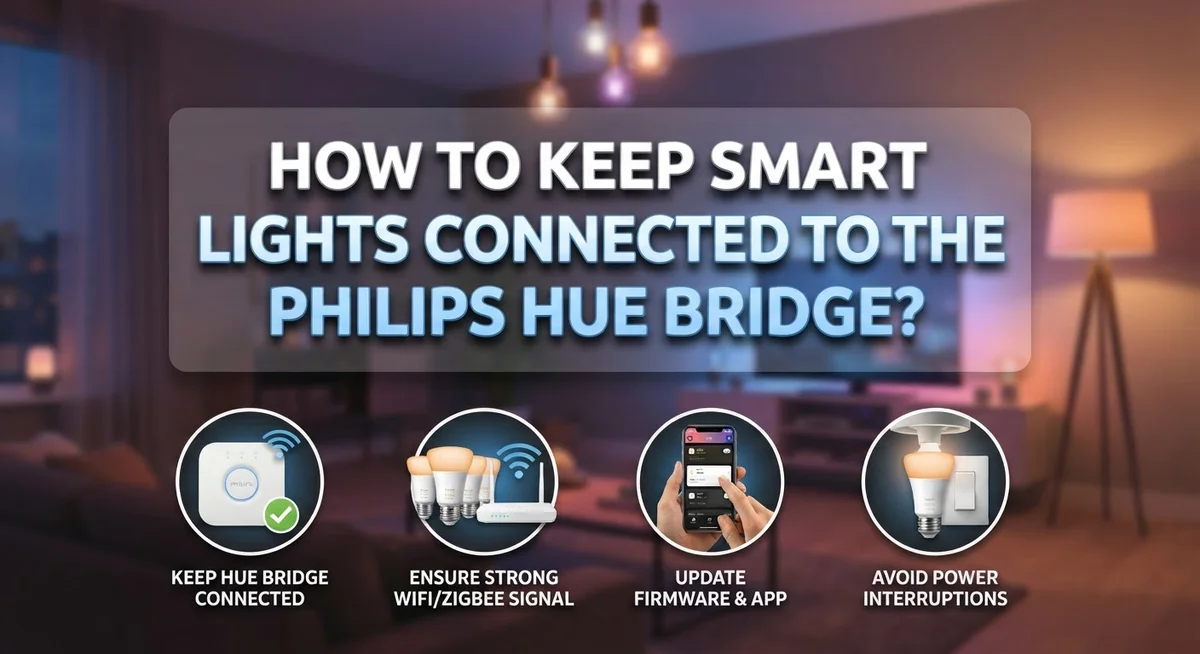
How to Keep Smart Lights Connected to the Philips Hue Bridge?
Smart lights make your home feel modern and fun. But nothing kills that magic faster than a light that suddenly goes offline.
If you use Philips Hue, the Bridge is the heart of your setup. It connects your lights to Wi-Fi and gives you access to advanced features like scenes, schedules, and remote control.
Without a strong connection, your lights might lag, freeze, or stop responding altogether. This can happen for many reasons, from Wi-Fi interference to outdated firmware.
The good news? Most connection issues are easy to fix. You don’t need to be a tech expert to solve them.
In this guide, we will show you how to set up your Hue Bridge correctly from the start. You will also learn simple troubleshooting steps to reconnect lights that drop offline.
By the end, you will know exactly how to keep your smart lights connected and working smoothly. Let’s get your Hue system running like it should.
In a Nutshell
- Use the Bridge for best results. It connects your lights to Wi Fi and gives you full control, even when you are away from home.
- Bluetooth works too, but with limits. It only controls lights close by and skips advanced features like schedules or remote access.
- Set up the app before plugging in the Bridge. Open the Hue app, go to Settings, then Devices, and tap the blue plus icon to start.
- Scan the QR code on your Bridge. This step links your Bridge to the app quickly and correctly.
- Reset the Bridge if lights stop responding. Press the button with a paperclip for about five seconds until the lights blink.
- A stable connection means fewer headaches. Once set up right, your lights should stay connected without lag or dropouts.
Understanding How the Hue Bridge Connects Your Lights
The Philips Hue Bridge acts as a central hub that connects all your smart lights to your home network. Think of it as a translator between your lights and your Wi-Fi. Without it, your lights can only connect via Bluetooth, which limits you to short distances and basic control.
When you use the Bridge, your lights connect through Wi-Fi instead. This gives you remote access from anywhere, even when you are away from home. You can control your lights from work, on vacation, or anywhere with internet. The Bridge also enables advanced features like automation, scheduling, and voice control integration.
The Bridge connects to your router using an Ethernet cable. This wired connection is more stable than Wi-Fi alone. Your lights then communicate with the Bridge wirelessly. This two-step process keeps everything reliable and responsive.
The setup process is straightforward. Open the Hue app and go to Settings, then Devices. Tap the blue plus icon to add new devices. You will scan the QR code on your Bridge to register it. The app guides you through each step clearly.
One important tip: do not plug in your Bridge until the app tells you to. This ensures proper pairing between your phone and the Bridge. Once the app confirms the connection, plug it in and wait for the lights to blink.
The Bridge typically works within 30 to 50 feet of your router. If your lights are far away, consider moving the Bridge closer or adding a range extender. A strong connection between your Bridge and router prevents lag and keeps your lights responsive to commands.
Setting Up the Bridge and Pairing Your Smart Lights
Your Philips Hue Bridge needs a few simple steps to work properly. Start by opening your Hue app on your phone or tablet.
Go to Settings first. Then select Devices from the menu. You will see a blue plus (+) icon at the top of the screen. Tap it to begin adding your lights.
The app will ask you to scan a QR code. This code sits on the back of your Bridge. Point your phone’s camera at it and let the app read it. This step links your Bridge to your account.
Here’s the important part: wait for the app to tell you before plugging in your Bridge. The setup process works best when you follow this order. Plug in your Bridge only when the app prompts you. This ensures your lights connect smoothly on the first try.
Once plugged in, your Bridge will search for your smart lights. The app shows you which lights it finds. Select the ones you want to add. The Bridge communicates with each light and adds them to your system.
Give the connection a moment to complete. Your lights may blink or flash during this time. This is normal and shows they are pairing with the Bridge.
After setup finishes, your lights will appear in the app. You can now control them from anywhere in your home. The Bridge handles all the communication between your phone and your lights.
Keep your Bridge plugged in and connected to your router at all times. This ensures your lights stay responsive. A stable connection means your lights respond instantly to commands.
Optimizing Wi-Fi and Network Settings for Stable Connections
Your Wi-Fi network quality directly affects how reliably your smart lights stay connected to the Bridge. A strong signal ensures your lights respond instantly to commands and maintain constant communication.
Start by checking your router placement. Position your router in a central location in your home. Keep it away from walls, metal objects, and appliances that emit radio signals like microwaves. These obstacles weaken your Wi-Fi strength.
Place your Bridge within 30 to 50 feet of your router for the best connection. The closer they are, the stronger the signal between them. If your Bridge sits too far away, lights may disconnect randomly or respond slowly.
Your Wi-Fi band matters too. Most modern routers broadcast on both 2.4 GHz and 5 GHz bands. The Hue Bridge works best on the 2.4 GHz band, which travels farther through walls. If your router lets you name each band separately, connect your Bridge to the 2.4 GHz network specifically.
Reduce interference in your home. Limit the number of devices connected to your Wi-Fi at once. Too many devices competing for bandwidth can cause your lights to lag or drop connection.
Check your router settings regularly. Update your router’s firmware when updates become available. This keeps your network secure and stable. Restart your router every few months. Power it off for 30 seconds, then turn it back on. This refreshes the connection and clears temporary issues.
Monitor your Wi-Fi signal strength using your phone. Walk around your home with the Hue app open. Notice where the signal weakens. If certain rooms have poor coverage, consider repositioning your router or Bridge to improve reach in those areas.
Best Practices to Prevent Lights From Dropping Offline
Your smart lights drop offline when the Bridge loses connection to your network or when interference disrupts the signal. Understanding what causes these disconnections helps you prevent them.
Keep your Bridge positioned correctly. Place it within 30 to 50 feet of your router for a strong connection. Avoid putting the Bridge in closets, cabinets, or behind metal objects. These locations block Wi-Fi signals and cause lights to disconnect frequently.
Check your Wi-Fi network stability. Overcrowded networks with too many devices struggle to maintain connections. Log into your router settings and see how many devices connect to it. If you have more than 20 devices, consider upgrading your router or adding a mesh network system.
Update your router firmware regularly. Manufacturers release updates that fix bugs and improve performance. Check your router’s admin panel monthly for available updates. New firmware often improves how your router handles smart home devices.
Reduce interference sources. Microwaves, cordless phones, and baby monitors operate on the 2.4 GHz frequency, the same band most smart lights use. Keep your Bridge away from these devices. If possible, position your router in a central location in your home.
Monitor your Wi-Fi signal strength. Use your phone to check signal bars near where your Bridge sits. Weak signals cause lights to drop offline randomly. If signal strength is poor, move your router closer or consider adding a Wi-Fi extender.
Restart your Bridge monthly. Unplug it for 30 seconds, then plug it back in. This simple step refreshes the connection and clears temporary issues. Regular restarts prevent most offline problems before they start.
Common Mistakes That Cause Connectivity Issues
Many people make simple mistakes that break their smart light connections. Understanding these errors helps you keep your lights working reliably.
Plugging in the Bridge too early is a common problem. You must wait for the app to tell you before connecting power. If you plug it in during setup, the Bridge may not find your lights properly. Always follow the app’s instructions step by step.
Ignoring the QR code scan causes connection failures too. The app needs to read your Bridge’s QR code to pair correctly. Skipping this step means your Bridge won’t sync with your phone or tablet. Take time to scan it clearly under good lighting.
Placing the Bridge in the wrong spot disrupts your entire system. Some people hide it in closets or cabinets to keep it out of sight. This blocks the signal between your Bridge and router. Keep it in an open area where signals travel freely.
Using the wrong Wi-Fi band creates ongoing problems. If your router broadcasts both 2.4 GHz and 5 GHz networks, stick with one consistently. Switching between bands confuses your Bridge and lights. Check your router settings to ensure stable connection.
Overcrowding your network with too many devices weakens connections. When dozens of devices compete for bandwidth, your lights drop offline frequently. Reduce the number of connected devices or upgrade your router capacity.
Forgetting to restart your Bridge when problems appear. A simple reset by pressing the button with a paperclip for about 5 seconds often fixes connection issues. This clears temporary glitches and restores proper function.
Avoiding these mistakes keeps your smart lights connected and responsive all day.
Troubleshooting Lights That Keep Disconnecting
When your smart lights disconnect from the Philips Hue Bridge repeatedly, the problem usually stems from a few specific causes. Understanding these issues helps you fix them quickly.
Check your Bridge power connection first. Make sure the power cable sits firmly in both the Bridge and the wall outlet. A loose connection causes instant disconnections. Inspect the cable for damage or wear as well.
Restart your Bridge using the reset button. Locate the small button on the back of your Bridge. Press it with a paperclip for about 5 seconds until you see the lights blink. This action clears temporary glitches that prevent connection stability.
Verify your router connection next. Open your router’s settings and confirm the Bridge appears in your connected devices list. If it doesn’t show up, your Bridge lost its network connection. Reconnect it through the Hue app by tapping Settings, then Devices, then the plus icon.
Test your Wi-Fi signal strength. Use your phone to check signal bars near your Bridge location. Weak signals cause constant disconnections. Move your Bridge closer to your router if the signal shows only one or two bars.
Look for interference sources nearby. Microwaves, baby monitors, and cordless phones operate on the same frequency as your Bridge. Move these devices away from your Bridge if possible.
Update your Hue app. Open your app store and check for updates. Outdated app versions sometimes struggle to maintain Bridge connections.
Restart your entire network. Unplug your router for 30 seconds, then plug it back in. Wait for it to fully restart before checking your lights again. This simple step resolves many connection problems that other fixes miss.
Resetting and Reconnecting the Bridge Safely
Resetting your Philips Hue Bridge is sometimes necessary when connection problems persist. This process clears all stored settings and returns the Bridge to factory conditions. A reset allows you to reconnect everything fresh and often solves stubborn connectivity issues.
Before you reset, understand what happens. All your light groupings, scenes, and automations will disappear. You’ll need to set up your lights again from scratch. Write down any important settings beforehand if you want to recreate them later.
The reset process is straightforward. Locate the small reset button on the back of your Bridge. You’ll need a paperclip or similar thin object to press it. Hold the button down for approximately 5 seconds. You’ll see the lights on your Bridge blink, which signals a successful reset.
After the reset completes, reconnect safely. Don’t plug the Bridge back in immediately. Wait about 30 seconds before reconnecting power. This brief pause helps clear any remaining connections from your network.
Once power returns, open your Philips Hue app on your phone. Navigate to Settings and then Devices. Tap the blue plus icon to add devices. Scan the QR code on the back of your Bridge. This code tells the app exactly which Bridge you’re connecting to.
Position your Bridge correctly during reconnection. Place it within 30 to 50 feet of your router for the strongest signal. Avoid enclosed spaces or metal shelves that block Wi-Fi signals.
Take your time with reconnection. Rush through these steps and you’ll face the same problems again. Patience during setup prevents future disconnections and keeps your smart lights responsive and reliable.
Maintaining Long-Term Reliability With Firmware Updates
Your Philips Hue Bridge needs regular firmware updates to stay reliable. These updates fix bugs and improve how your lights connect. Firmware updates happen automatically when your Bridge has an internet connection.
Check your app regularly to see if updates are available. Open the Philips Hue app on your phone. Go to Settings, then select your Bridge. Look for any notification about available updates. The app will tell you when a new version is ready.
Don’t unplug your Bridge during an update. The update process needs continuous power. Interrupting it can cause connection problems later. Let the update finish completely before touching anything. Your lights may blink or turn off briefly during the process. This is normal behavior.
Updates typically take 5 to 10 minutes. Your Bridge will restart automatically when done. After the restart, test your lights to confirm everything works. Try turning lights on and off from your phone.
Keep your Bridge in a stable location during updates. Move it away from other electronics that create interference. A central spot in your home works best for signal strength.
Enable automatic updates when possible. This keeps your Bridge current without extra effort. Your Bridge will update overnight when you’re not using it. This prevents interruptions during your day.
If an update fails, your Bridge may disconnect temporarily. Don’t panic. Restart your router and Bridge together. Wait 30 seconds between restarts. Then reconnect your lights through the app.
Regular updates prevent most connection issues. They ensure your smart lights stay responsive and secure. Make firmware maintenance part of your routine care for the Bridge.
Final Thoughts
Keeping your smart lights connected to the Philips Hue Bridge does not need to be complicated. Most problems come down to power, position, and updates.
Your Bridge needs a stable power source and a strong Wi Fi connection. Place it in an open area, away from thick walls and metal objects.
Check your router settings from time to time. Make sure the Bridge still shows up as a connected device.
Firmware updates matter more than people think. Skipping updates can lead to random disconnects and slow response times.
Turn on automatic updates in your Hue app. This keeps your Bridge running smoothly without extra work on your part.
If lights still drop connection, try a simple reset. Use the paperclip method and wait for the lights to blink before letting go.
After resetting, take your time reconnecting. Rushing this step often causes the same problems to return.
Remember that your Bridge acts as the brain of your smart lighting system. When it works well, everything else falls into place.
Bluetooth alone can control your lights, but it limits what you can do. A Bridge connection unlocks scenes, automations, and remote access.
Think of the Bridge as an investment in convenience. A few minutes of maintenance each month saves you from bigger headaches later.
Keep your Bridge in a central spot in your home. Avoid moving it too often, since this can disrupt its Wi Fi signal.
Stay consistent with checks and updates. Your smart lighting setup will stay reliable for years to come.
With steady power, good placement, and regular updates, your Hue system will keep working the way you expect. A little attention now means fewer disruptions down the road.
Frequently Asked Questions
Why does my Philips Hue light keep disconnecting from the Bridge?
Connection drops usually happen because your Bridge sits too far from your router or Wi Fi signal is weak. Move your Bridge to an open, central location in your home. Avoid placing it inside cabinets or behind thick walls. Check that your router is working properly. If lights still disconnect after moving your Bridge, the issue might be interference from other devices using the same Wi Fi channel.
Do I need a Bridge to control my Hue lights?
You can control Hue lights with direct Bluetooth, but a Bridge gives you much more power. A Bridge unlocks remote access, automations, and advanced scheduling. Without it, you only get basic on and off control through Bluetooth. Most users find a Bridge worth having because it makes your lighting system actually useful for daily life.
How do I add a new light to my existing Bridge connection?
Open your Hue app and go to Settings, then Devices. Tap the blue plus icon to start adding a device. The app will guide you through scanning your light’s QR code or searching for it. Make sure your new light is powered on and in pairing mode before you start the process.
What happens if my Bridge loses power?
Your lights stay off until power returns. Once your Bridge powers back up, it reconnects to your lights automatically. Your scenes, groupings, and automations all stay saved. The reconnection usually takes a few minutes, so be patient before assuming something broke.
Can I have multiple Bridges in one home?
Yes, you can use more than one Bridge in larger homes. Each Bridge controls its own set of lights. This setup helps if you have thick walls blocking your Wi Fi signal in certain rooms.