How to Maintain Smart Landscape Light Connections to Wi-Fi Extenders?
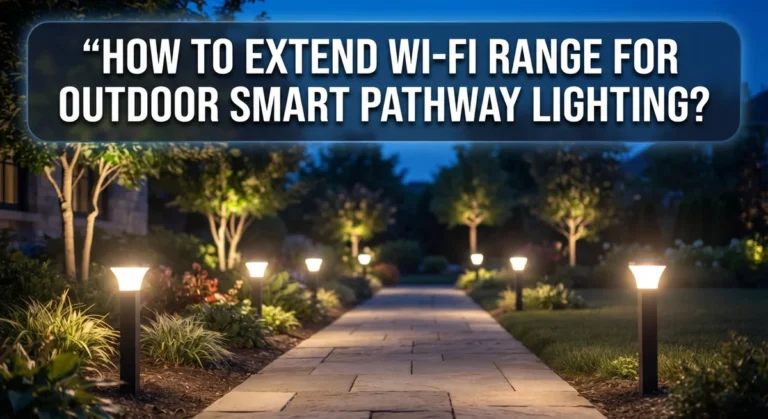
Smart landscape lights add beauty and safety to your yard. But they only work well when your Wi-Fi signal reaches them. Many outdoor areas sit too far from the router, causing lights to disconnect or lag.
This is where a Wi-Fi extender becomes helpful. It stretches your network’s reach to sheds, patios, and carports. Your smart lights then connect smoothly, without frustrating drop-offs.
But simply owning an extender is not enough. You need to place it correctly and manage it well. Poor placement or an overloaded extender can weaken your connection fast.
In this guide, we will show you how to maintain a strong link between your landscape lights and your Wi-Fi extender. You will learn the best spots for extender placement. We will also cover common mistakes that slow down your network.
In a Nutshell
- Place your extender wisely. Put it between your router and your outdoor lights. Keep it away from walls and large appliances.
- Limit connected devices. Too many gadgets on one extender slow things down. Keep landscape lights on a lighter load for better speed.
- Check signal strength often. Weak signals cause lights to disconnect or lag. Test the connection every few weeks.
- Update your extender’s firmware. New updates fix bugs and boost performance. Check your extender app for updates regularly.
- Restart devices when needed. A simple restart can fix many connection issues. Reboot your extender and lights if problems show up.
- Watch for interference. Other electronics or thick walls can block signals. Move your extender if you notice weak spots.
Understanding How Wi-Fi Extenders Support Smart Landscape Lighting
Wi-Fi extenders work by receiving your router’s signal and then broadcasting it to areas your main router cannot reach. Your smart landscape lights sit far from your house, so they need this extended signal to stay connected and responsive.
Think of your extender as a relay station. It picks up the wireless signal from your main router and sends it outward to cover your patio, garden, or backyard. Your landscape lights connect to this extended network just like any other device would.
The extender creates what is called a “mesh” or extended coverage zone. This zone allows your outdoor lights to communicate with your home network from a distance. Without it, your lights would lose connection and stop responding to app commands or automation schedules.
Your extender has its own settings and controls. You access these through a mobile app or web interface. From there, you can see which devices are connected, check signal strength, and adjust performance settings.
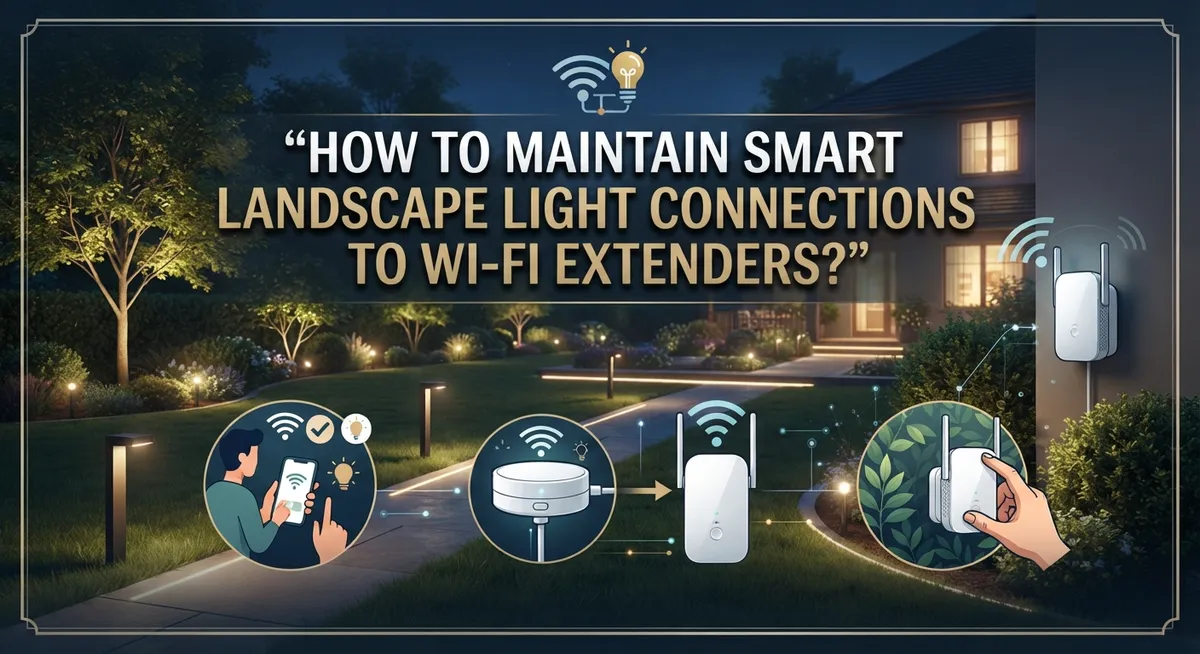
Proper placement is critical for success. Your extender should sit somewhere between your main router and your landscape lights. Avoid placing it inside cabinets, closets, or near metal objects. Open spaces work best.
The extender also needs power. Make sure you place it near an outlet or use an outdoor rated power solution. Some extenders are designed specifically for outdoor use, while others work better indoors with outdoor coverage as a bonus.
Your landscape lights will show up in the extender’s device list once connected. This tells you they are communicating properly. If they disappear from the list, your connection has dropped and needs attention.
Understanding this basic relationship helps you troubleshoot problems faster. You will know what to check when your lights stop responding or perform slowly.
Optimal Extender Placement for Reliable Outdoor Coverage
Your Wi-Fi extender’s location makes or breaks your outdoor lighting system. Position matters more than you think.
The best spot for your extender is halfway between your main router and your landscape lights. This placement lets the extender catch a strong signal from the router and push it far enough to reach your yard. Avoid placing it in corners or closets where walls block signals.
Keep your extender away from thick walls, metal objects, and appliances. Microwaves, refrigerators, and cordless phones create interference that weakens Wi-Fi signals. Metal gutters, fences, and water features also disrupt connections. Move your extender to an open area whenever possible.
Height matters too. Placing your extender higher up (on a shelf or wall mount) helps signals travel farther outdoors. Signals bounce better from elevated positions than from ground level. This simple change can double your coverage area.
Make sure your extender has good ventilation. Heat buildup reduces performance. Never place it in a sealed cabinet or inside a box. Your extender needs airflow to stay cool and work properly.
Test your signal strength before connecting your landscape lights. Use your phone to check Wi-Fi signal bars near your outdoor lights. You want at least two or three bars showing. If the signal is weak, move your extender closer to that area.
Consider obstacles between your router and lights. Trees, fences, and structures block signals. Sometimes moving your extender just a few feet makes a huge difference in coverage.
Once you find the sweet spot, mark it down. If problems start later, you’ll know where your extender should be. Consistent placement prevents connection drops and keeps your landscape lights responding quickly to commands.
Step-by-Step: Connecting Smart Landscape Lights to an Extended Network
Start by accessing your extender’s app or web interface on your smartphone or computer. Look for the option to add or pair new devices. Most extenders have a button labeled “Add Device” or “Pairing Mode.”
Put your smart landscape lights into pairing mode. Check your lights’ manual for exact steps, as this varies by brand. Some lights require you to press a button for several seconds. Others use a pin code or QR code scan.
Open your extender’s app and select the option to connect a new device. Your landscape lights should appear in a list of available devices. Tap on your lights to start the connection process.
Enter your Wi-Fi password if prompted. Your extender will ask you to confirm the network credentials. Make sure you use the correct password to avoid connection failures.
Wait for the connection to complete. This usually takes 30 to 60 seconds. Your app will show a confirmation message once the lights connect successfully.
Test your lights immediately after connecting. Use your app to turn them on and off remotely. Check that they respond quickly to commands. Slow responses mean your signal strength needs improvement.
If connection fails, restart both your extender and lights. Wait 30 seconds between restarts. Then repeat the pairing steps.
Verify your lights appear in your extender’s device list. This confirms they are registered on the extended network. You can now control them from anywhere within your home’s Wi-Fi range.
Keep your extender powered on at all times to maintain the connection. A powered off extender means your outdoor lights go offline. Set up a backup power option if outages happen in your area.
Save your connection settings in the app for future reference. This makes reconnection easier if something goes wrong.
Best Practices for Maintaining a Stable Connection Over Time
Regular maintenance keeps your smart landscape lights connected and working smoothly. Check your extender’s power supply weekly to ensure it stays plugged in and functioning. A dead extender means your lights go offline.
Monitor your Wi-Fi signal strength every month. Most extender apps show signal bars or percentage ratings. If your signal drops below 50%, your lights may disconnect randomly. Move your extender slightly or reposition antennas if available.
Restart your extender monthly to clear temporary glitches. Simply unplug it for 30 seconds, then plug it back in. This simple step fixes most connection issues before they become problems.
Keep your extender’s firmware updated. Check the app or web interface for software updates. Updates fix bugs and improve performance. Set reminders to check quarterly.
Clear the area around your extender. Remove boxes, plants, or other obstacles that block signals. Dust can also build up on vents. Wipe your extender clean every three months.
Monitor device count on your extender. If you connect too many devices, bandwidth decreases and lights may lag or disconnect. Limit outdoor connections to essential devices only.
Test your landscape lights monthly. Turn them on and off through the app. If response time slows down, your connection needs attention. Check signal strength and restart if needed.
Keep your router and extender separated properly. They should be 30 to 50 feet apart for best results. Too close together causes interference. Too far apart weakens your extended network.
Document your setup details. Write down your extender’s location, connected devices, and settings. This information helps you troubleshoot faster if problems occur.
Check weather conditions around outdoor areas. Heavy rain or snow can temporarily weaken signals. This is normal and usually resolves once weather clears.
Regular maintenance prevents most connection problems. Spend 15 minutes monthly on these tasks to keep your landscape lights reliable and responsive year round.
Common Mistakes That Weaken Landscape Light Connectivity
Overloading your extender is one of the biggest mistakes people make. When you connect too many devices to a single extender, the available bandwidth gets divided among all of them. Your landscape lights end up competing for signal with phones, tablets, security cameras, and smart speakers.
Each device you add reduces the speed and strength available to your lights. Think of bandwidth like water flowing through a pipe. More devices mean the water spreads thinner. Your lights may still connect, but they respond slowly to commands or drop offline during peak usage times.
Poor extender placement is equally damaging. Many people hide their extenders in closets or basements to keep them out of sight. This defeats the entire purpose. A hidden extender cannot send strong signals to your outdoor landscape lights. The signal has to travel through walls, doors, and obstacles, losing power along the way.
Position your extender in an open, central location between your router and your outdoor lights. Avoid placing it near metal objects, thick walls, or electrical appliances. These items absorb or block Wi-Fi signals. Even a microwave or refrigerator nearby can weaken your connection significantly.
Another common error is connecting bandwidth heavy devices to your extender. Streaming cameras, smart doorbells with video, and smart speakers that constantly download updates consume enormous amounts of data. Your landscape lights need consistent, available bandwidth to maintain their connection.
Check how many devices you currently have on your extender. If you have more than 10 to 15 devices, your lights will struggle. Consider moving some devices to your main router instead. Prioritize your landscape lights on the extender by removing unnecessary devices.
Finally, people often forget that extenders need regular restarts just like routers. Power cycling your extender monthly clears temporary glitches and improves performance. This simple step prevents many connection problems before they start.
Troubleshooting Dropped Signals and Slow Response Times
When your smart landscape lights disconnect or respond slowly, the issue usually stems from signal problems or extender overload. Let’s fix these problems quickly.
Check your signal strength first. Open your extender’s app and look at the Wi-Fi signal bars near your landscape lights. Weak signals cause dropped connections. If bars are low, your extender may be too far from the lights or blocked by obstacles like fences or walls.
Move your extender closer to your outdoor lighting area. Position it in an open space without metal objects or dense vegetation nearby. These materials block Wi-Fi signals and slow response times. Your lights should show stronger signal bars after repositioning.
Test your extender placement by moving it incrementally. Start closer to your lights and gradually move back until you find the sweet spot where signals stay strong and responses feel quick.
Next, check how many devices connect to your extender. Too many devices drain bandwidth, causing slow responses and dropped signals. Count your connected devices in the app. If you have more than 8 to 10 devices, consider moving some back to your main router or getting a second extender.
Restart your extender completely. Unplug it for 30 seconds, then plug it back in. This clears temporary glitches that slow down responses. Also check if your extender’s firmware needs updating. Updates often improve connection stability and speed.
Verify your landscape lights still appear in your extender’s device list. If they vanish, they’ve disconnected. Reconnect them through the app by putting lights into pairing mode again.
Finally, check for interference from other devices. Cordless phones, microwaves, and baby monitors operate on similar frequencies and cause slowdowns. Keep these devices away from your extender and lights.
These steps solve most dropped signal and slow response issues within minutes.
Managing Bandwidth When Multiple Smart Devices Share the Extender
When multiple smart devices share your Wi-Fi extender, bandwidth becomes your biggest concern. Think of bandwidth like a highway with limited lanes. More cars (devices) mean slower traffic for everyone.
Start by counting all devices connected to your extender. Smart landscape lights, outdoor cameras, smart speakers, and weather stations all compete for the same connection speed. Each additional device reduces the speed available to your lights.
Prioritize your landscape lights on the extender’s network. Most extenders let you adjust device priority through their app. Set your lights to high priority so they get consistent bandwidth first. This keeps them responsive even when other devices use the connection.
Remove devices that don’t need the extender. If your phone can connect to your main router instead, disconnect it from the extender. This frees up bandwidth for outdoor devices that truly need the extended coverage.
Monitor bandwidth usage patterns. Check your extender’s app during peak times when family members stream videos or work from home. Heavy internet use upstairs might slow your landscape lights downstairs. Schedule outdoor light adjustments during low traffic periods if you notice lag.
Limit bandwidth heavy devices near your extender. Video doorbells, outdoor cameras, and streaming devices consume significant bandwidth. If possible, keep these on your main router instead of the extender.
Consider separating device types across networks if your extender supports it. Some models let you create separate bands for different purposes. Outdoor lights on one band and entertainment devices on another reduces competition.
Restart your extender during low usage times. This clears temporary bandwidth bottlenecks and refreshes connections. A quick restart often restores normal speeds to all connected devices.
Test your landscape lights after making changes. Open your app and control a light to verify response time. Fast responses mean adequate bandwidth. Slow responses mean you need to reduce device count or adjust priorities.
Final Thoughts
Keeping your smart landscape lights connected to a Wi-Fi extender does not need to feel complicated. Once you understand placement, bandwidth, and regular maintenance, everything falls into place.
Your extender acts as a bridge between your router and your outdoor lights. Treat it with the same care you give your router. Small adjustments make a big difference over time.
Consistency matters more than perfection. You do not need a flawless setup on day one. Check your signal occasionally. Watch how many devices connect. Adjust as needed.
Remember that outdoor conditions change. Weather, new obstacles, or added devices can all affect performance. Stay alert to these shifts and respond quickly.
If your lights start acting up, go back to basics first. Check the extender’s placement. Look at connected devices. Restart the extender before assuming something is broken.
Most connection problems trace back to simple causes. Overcrowded networks, poor placement, or an extender that needs a restart cause most issues. You rarely need advanced technical skills to fix these problems.
Smart landscape lighting rewards patience and routine care. A few minutes each month spent checking your extender saves hours of frustration later. Prevention beats troubleshooting every time.
Think of your extender setup as an ongoing relationship, not a one time task. Networks shift. Devices get added. Your attention keeps everything running smoothly.
As you add more smart devices to your outdoor setup, keep bandwidth in mind. Your landscape lights deserve priority since they often control safety and ambiance around your home.
With the right habits, your outdoor lighting stays reliable through every season. Simple checks, smart placement, and regular restarts keep your connection strong.
Trust the process you have built. Your landscape lights will reward you with dependable performance, night after night, without constant intervention on your part.
Frequently Asked Questions
Why does my landscape light lose connection to the Wi-Fi extender?
Signal strength is the main culprit. Your extender may sit too far from your lights, or obstacles like walls block the signal. Move your extender closer to the outdoor lighting area and check the signal bars in your extender’s app. Physical barriers weaken connections faster than distance alone.
Another reason is too many devices competing for bandwidth. Count all devices using your extender. If you have more than eight to ten devices, your lights may struggle to stay connected. Prioritize your landscape lights in the extender’s settings.
Can I connect multiple landscape light zones to one Wi-Fi extender?
Yes, you can connect multiple zones to a single extender. However, each zone uses bandwidth. If you have three or four separate lighting zones, your extender may slow down.
Start by testing one zone first. Once that works smoothly, add your second zone. Monitor your extender’s performance after each addition. If your lights respond slowly or disconnect, you’ve reached the limit. Consider a second extender for additional zones.
How often should I check my extender connection?
Check your setup once every two weeks. Open your extender’s app and verify your lights still appear in the device list. This takes less than one minute.
During seasonal changes, check more frequently. Weather affects signal strength outdoors. Rain, wind, and temperature shifts can impact your connection quality. A quick monthly restart of your extender prevents most issues.
What should I do if my lights suddenly disconnect?
Restart your extender first. Unplug it for 30 seconds, then plug it back in. This fixes most temporary connection problems.
Next, verify your lights appear in the extender’s device list. If they vanished, they’ve disconnected completely. Reconnect them through your extender’s app using the same process you used initially. If problems continue, move your extender incrementally closer to your lights.