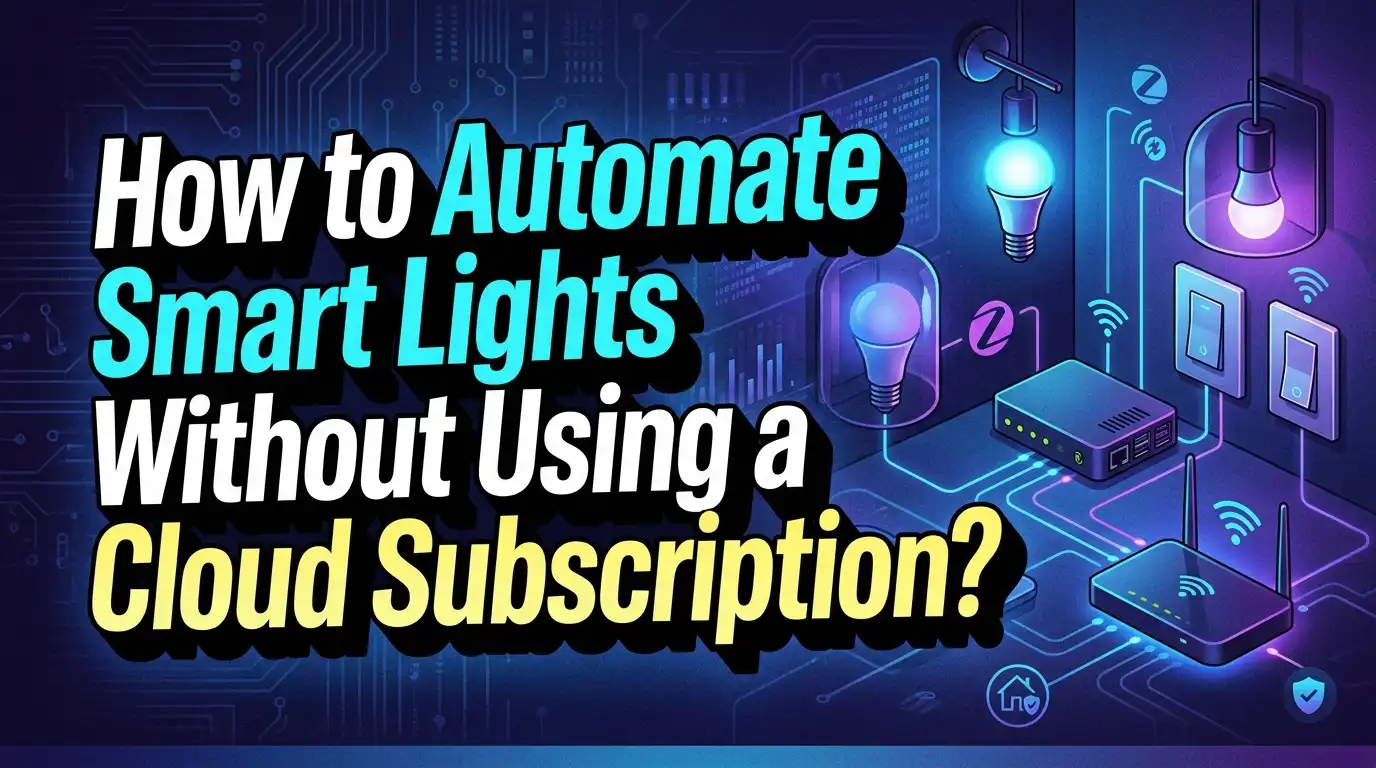
How to Automate Smart Lights Without a Cloud Subscription?
Are you tired of paying monthly fees just to turn your lights on and off? Do your smart bulbs stop working every time the internet goes down? You are not alone.
The good news is that you can fully automate your smart lights without any cloud subscription. Local control keeps everything running on your home network. Your lights respond faster, your privacy stays intact, and your automations never depend on a remote server.
This post covers everything from choosing the right protocol to setting up powerful automation platforms like Home Assistant and ESPHome. Let’s get your smart lights free from the cloud once and for all.
In a Nutshell
- Local control means your smart lights process all commands on your home network without sending data to external servers. This eliminates subscription costs and protects your privacy.
- Home Assistant is the most popular free platform for local smart light automation. It runs on a Raspberry Pi or mini PC and supports thousands of devices out of the box.
- Zigbee and Z-Wave are the best wireless protocols for local smart lighting. They create dedicated mesh networks that do not rely on your internet connection to function.
- Open source firmware like Tasmota and ESPHome can convert cheap Wi-Fi smart bulbs into fully local devices. You flash them once and never need a cloud account again.
- The Matter protocol is a newer standard that supports local control by default. It works across Apple Home, Google Home, and other ecosystems without requiring a cloud bridge.
- You do not need advanced technical skills to set up local smart light automation. Many devices now ship with local control built in, and step by step setup guides make the process straightforward for beginners.
Why Cloud Subscriptions Are a Problem for Smart Lights
Cloud subscriptions create a dependency on external servers that you do not own or control. Every time you tap a button on your phone to turn on a light, the command travels from your device to a distant server and back. This round trip adds delay and introduces a point of failure.
Server outages can leave your entire lighting system unresponsive. Major platforms have experienced outages lasting hours. During these events, users cannot control basic functions like turning lights on or off. Your own lights become inaccessible because a company’s server went down.
Privacy is another serious concern. Cloud platforms collect data about your lighting habits, schedules, and usage patterns. This data can reveal when you are home, when you sleep, and your daily routines. Some companies share or sell this data to advertisers.
Subscription fees also add up quickly. Many platforms have started charging $5 to $10 per month for features that were once free. Over a few years, these costs can exceed the price of the hardware itself. Local control eliminates all of these problems by keeping everything on your own network.
Pros of moving away from cloud: Zero recurring costs, faster response times, full data privacy, and reliability during internet outages.
Cons of moving away from cloud: Initial setup requires more effort, some voice assistant features may be limited, and certain brand specific features may not be available locally.
What Is Local Control and How Does It Work
Local control means your smart home devices communicate directly within your home network. Commands travel from your phone or hub to the device over Wi-Fi, Zigbee, Z-Wave, or Thread without ever leaving your home.
A local hub or controller sits at the center of this system. It receives your commands, processes automation rules, and sends signals directly to your lights. This hub can be a Raspberry Pi, a dedicated mini PC, or a purpose built device like a Hubitat Elevation hub.
The key difference from cloud control is speed and reliability. A locally processed command takes milliseconds. A cloud routed command can take one to three seconds, and sometimes much longer during peak usage. You will notice this difference immediately when you switch to local control.
Local control also means your automations keep running even if your internet goes down. Sunrise and sunset triggers, motion sensor responses, and scheduled routines all continue to function. Your smart home becomes truly independent of your internet service provider.
The technical requirement is simple. You need a device on your local network running automation software, and smart lights that support a local communication protocol. The rest of this guide explains exactly how to set this up.
Choosing the Right Protocol: Zigbee, Z-Wave, Wi-Fi, or Thread
Your choice of wireless protocol determines how your smart lights communicate with your hub. Each protocol has distinct strengths and trade offs.
Zigbee is the most popular protocol for smart lighting. It operates on the 2.4 GHz frequency band and supports mesh networking. Each powered device acts as a repeater, extending range throughout your home. Zigbee bulbs from brands like IKEA, Innr, and Sonoff are affordable and widely available. The downside is that Zigbee can experience interference from Wi-Fi routers since they share the same frequency band.
Z-Wave runs on a dedicated sub 1 GHz frequency, which means zero interference from Wi-Fi. It also forms a mesh network and supports up to 232 devices per network. Z-Wave devices tend to cost more than Zigbee equivalents, but the interference free operation makes them very reliable.
Wi-Fi smart bulbs connect directly to your router without a hub. However, many Wi-Fi bulbs require cloud connections by default. You can overcome this by flashing them with open source firmware like Tasmota or ESPHome. Too many Wi-Fi bulbs can also overwhelm your router.
Thread is the newest protocol and forms the backbone of the Matter standard. It creates an IPv6 mesh network that is very fast and reliable. Thread enabled lights from brands like Nanoleaf and Eve are now available.
Pros of Zigbee: Low cost, huge device selection, mesh networking, low power consumption.
Cons of Zigbee: Possible Wi-Fi interference, requires a coordinator dongle or hub.
Pros of Z-Wave: Interference free, very reliable mesh, strong encryption.
Cons of Z-Wave: Higher device cost, smaller product selection, regional frequency differences.
Setting Up Home Assistant for Local Light Automation
Home Assistant is a free, open source home automation platform that runs entirely on your local network. It is the gold standard for cloud free smart home control and supports over 2,000 device integrations.
You can install Home Assistant on a Raspberry Pi 4 or 5, an old laptop, or a mini PC. The recommended method is to use the Home Assistant Operating System image, which you flash onto a microSD card or SSD. Boot the device, connect it to your network, and access the setup wizard through your web browser at homeassistant.local:8123.
Once installed, you add your smart lights through the integrations menu. Navigate to Settings, then Devices and Services, then Add Integration. Search for your light brand or protocol. For Zigbee devices, you will add the ZHA (Zigbee Home Automation) integration and plug in a compatible USB coordinator like the Home Assistant SkyConnect or SONOFF Zigbee dongle.
Creating automations is straightforward. Go to Settings, then Automations, and click Create Automation. You can set triggers like time of day, motion sensor activation, or sunset. Then define actions like turning lights on, setting brightness, or changing color temperature.
All of these automations run locally on your Home Assistant device. They do not require internet access after initial setup. Your lights will respond in milliseconds, and your routines will execute reliably every single time.
Using Zigbee2MQTT for Advanced Local Light Control
Zigbee2MQTT is a powerful alternative to ZHA that bridges your Zigbee devices to an MQTT broker. This gives you more granular control and greater device compatibility.
To set up Zigbee2MQTT, you need three components. First, a Zigbee coordinator USB dongle plugged into your Home Assistant server or any Linux device. Second, an MQTT broker like Mosquitto running on the same machine. Third, the Zigbee2MQTT software itself, which you can install as a Home Assistant add on.
After installation, open the Zigbee2MQTT web interface and put your Zigbee devices into pairing mode. The software will detect them, identify the manufacturer and model, and expose all available controls. You can adjust brightness, color, color temperature, and transition speed directly from the interface.
The major advantage of Zigbee2MQTT is its massive device support database. It supports over 3,000 devices from hundreds of manufacturers. It also gives you access to advanced features that ZHA sometimes misses, like device specific configuration options and firmware updates.
MQTT (Message Queuing Telemetry Transport) is a lightweight messaging protocol perfect for home automation. Messages travel between your devices and hub instantly over your local network. You can also build complex automations using Node RED, a visual programming tool that connects directly to your MQTT broker.
Pros of Zigbee2MQTT: Huge device database, advanced configuration, MQTT flexibility, active community.
Cons of Zigbee2MQTT: Slightly steeper learning curve, requires separate MQTT broker setup, more components to maintain.
Flashing Smart Bulbs with Tasmota for Cloud Free Control
Tasmota is open source firmware that replaces the manufacturer’s cloud dependent software on ESP8266 and ESP32 based smart devices. Once flashed, your bulb communicates only on your local network.
Many cheap smart bulbs from Tuya based brands use ESP chips internally. You can flash these bulbs using a tool called Tasmotizer or through an over the air method. The over the air method, often done with tuya convert, creates a temporary Wi-Fi hotspot that pushes the Tasmota firmware onto the bulb without opening it.
Here is the basic process. Download the tuya convert tool on a Linux machine or Raspberry Pi. Run the script, which creates a fake update server. Put your smart bulb into pairing mode. The tool intercepts the bulb’s update request and installs Tasmota instead of the factory firmware.
After flashing, the bulb broadcasts its own Wi-Fi network called tasmota followed by a string of numbers. Connect to this network, open your browser, and configure the bulb to join your home Wi-Fi. You can then control it through its built in web interface, integrate it with Home Assistant, or connect it to an MQTT broker.
You should know that newer Tuya devices have started using chips that are harder to flash. Check the compatibility list on the Tasmota GitHub repository before purchasing bulbs. Alternatively, some vendors now sell bulbs pre flashed with Tasmota, which saves you the entire process.
Pros of Tasmota: Completely free, total local control, MQTT support, large community.
Cons of Tasmota: Flashing can be tricky, not all bulbs are compatible, newer chips may resist flashing.
Building Automations with ESPHome
ESPHome is another open source firmware option that is deeply integrated with Home Assistant. It is designed for ESP based devices and uses simple YAML configuration files to define device behavior.
The beauty of ESPHome is its simplicity. You write a short YAML file describing your device, its GPIO pins, and the light type. ESPHome compiles this into firmware and flashes it to the device over USB or wirelessly. Every update and configuration change happens through a clean, readable text file.
Here is a simple example. You create a YAML file that defines your bulb’s name, Wi-Fi credentials, and light platform. You specify whether it is an RGBW bulb, a dimmable white bulb, or a simple on/off switch. ESPHome handles the rest, including automatic discovery by Home Assistant.
ESPHome devices communicate using a native API that talks directly to Home Assistant. This is even faster and more efficient than MQTT. The device appears in Home Assistant automatically, ready for you to build automations around it.
You can also program automations directly into the ESPHome firmware itself. This means the bulb can run certain routines even if Home Assistant goes offline. For example, you can program a motion sensor connected to an ESP board to turn on a light without any hub involvement at all.
Pros of ESPHome: Seamless Home Assistant integration, simple YAML configuration, native API speed, on device automations.
Cons of ESPHome: Limited to ESP based hardware, requires basic understanding of YAML, initial setup needs a USB connection.
Using the Matter Protocol for Plug and Play Local Control
Matter is a smart home standard developed by the Connectivity Standards Alliance with support from Apple, Google, Amazon, and Samsung. Its core design principle is local first communication.
Matter devices communicate over your local network using Wi-Fi or Thread. Basic control commands like on, off, brightness, and color do not require any cloud connection. This makes Matter the easiest path to local smart light control for non technical users.
Setting up a Matter light is simple. You scan the QR code on the device packaging with your phone. Your chosen ecosystem app, whether Apple Home, Google Home, or Samsung SmartThings, pairs the device locally. The light starts responding immediately over your local network.
Home Assistant also supports Matter devices. You can add them through the Matter integration, giving you the full power of Home Assistant’s automation engine while using Matter lights. This combines the plug and play simplicity of Matter with the deep customization of Home Assistant.
The selection of Matter compatible smart lights has grown significantly. Brands like Nanoleaf, Eve, Wiz, and IKEA now offer Matter certified bulbs and switches. As the standard matures, expect even more devices to ship with Matter support built in.
Pros of Matter: Easy setup, local by default, cross platform compatibility, no hub required for basic control.
Cons of Matter: Still a maturing standard, not all device types supported yet, advanced automations still need a platform like Home Assistant.
Exploring Hubitat Elevation as a Dedicated Local Hub
Hubitat Elevation is a dedicated smart home hub that processes all automations locally. It requires no cloud connection for day to day operation and supports both Zigbee and Z-Wave out of the box.
The Hubitat hub is a small box that plugs into your router via Ethernet. You access its interface through a web browser on your local network. Adding devices is straightforward: select the device type, put the device in pairing mode, and the hub discovers it. The entire process takes a few minutes per device.
Hubitat supports a powerful rule engine called Rule Machine. This tool lets you build complex conditional automations without writing any code. You can create rules like “if motion is detected in the hallway after sunset and before sunrise, turn the hallway light on at 30% brightness for 5 minutes.” All of this runs locally.
For users who find Home Assistant too complex, Hubitat offers a polished middle ground. It provides local processing without requiring you to manage a Linux server. The trade off is less flexibility and a smaller integration library compared to Home Assistant.
Hubitat also supports a local dashboard for controlling your devices from a phone or tablet. You can customize this dashboard with buttons, sliders, and status tiles for all your lights.
Pros of Hubitat: Easy to set up, fully local processing, built in Zigbee and Z-Wave, no subscription needed.
Cons of Hubitat: Smaller integration library, interface is less polished than some competitors, limited community compared to Home Assistant.
Creating Time Based and Sensor Based Light Automations Locally
Once you have your local platform and lights set up, the real power comes from creating intelligent automations. Time based and sensor based triggers are the foundation of any useful smart lighting system.
Time based automations run on a schedule. You can set your porch lights to turn on at sunset and off at sunrise. You can dim your bedroom lights to 10% at 10 PM and turn them off at midnight. Home Assistant, Hubitat, and other local platforms calculate sunrise and sunset times based on your GPS coordinates without needing an internet connection.
Sensor based automations respond to real world events. A Zigbee motion sensor in your hallway can trigger the lights to turn on when you walk through. A door contact sensor can activate a welcome light sequence when you arrive home. A light level sensor can adjust your indoor brightness based on natural daylight.
Combining both types creates powerful results. For example, motion in the kitchen at night turns on soft warm lights at 20% brightness. The same motion during the day turns on lights at full brightness. Add a time condition so the automation only runs during specific hours.
You build these automations in your platform’s automation editor. In Home Assistant, you select a trigger, add optional conditions, and define actions. Every part of this chain processes locally on your hub, with response times measured in milliseconds rather than seconds.
Setting Up Voice Control Without Cloud Dependency
Many people assume voice control requires a cloud connection. There are now ways to add voice commands to your local smart home without sending audio to Amazon, Google, or Apple servers.
Home Assistant has a built in voice assistant project called Wyoming plus Whisper plus Piper. Whisper handles speech to text conversion locally. Piper converts text to speech locally. Together, they create a fully local voice assistant that can control your lights.
You run these services on your Home Assistant server or on a separate device like a Raspberry Pi. The system listens for wake words, processes your speech into text on your local hardware, interprets the command, and executes the automation. No audio data ever leaves your home network.
Setting this up requires installing the Whisper and Piper add ons in Home Assistant. You then configure a voice assistant pipeline that uses these local services. Pair a compatible microphone and speaker, such as an ESP32 S3 based voice satellite, and place it in any room.
The accuracy of local voice recognition has improved dramatically. While it is not yet as refined as Amazon Alexa or Google Assistant, it handles common commands like “turn on the living room lights” or “set bedroom to 50 percent” very well.
Pros of local voice control: Complete privacy, no cloud dependency, works during internet outages.
Cons of local voice control: Less accurate than major cloud assistants, requires additional hardware, setup is more involved.
Securing Your Local Smart Light Network
Running your smart lights locally does not automatically mean they are secure. You still need to take steps to protect your local network from unauthorized access.
Start by placing your smart home devices on a separate VLAN or network segment. Most modern routers support this feature. By isolating your smart lights from your main network, you prevent a compromised bulb from accessing your computers, phones, or personal data.
Change default passwords on every device and interface. This includes your Home Assistant login, your MQTT broker credentials, your Zigbee2MQTT dashboard, and your router admin panel. Use strong, unique passwords for each one.
Keep your automation software updated. Home Assistant, Zigbee2MQTT, Tasmota, and ESPHome all receive regular security patches. Enable automatic updates where possible, or check for updates at least once a month.
If you need remote access to your smart home while away, avoid port forwarding. Instead, use a VPN or Home Assistant’s Nabu Casa service, which provides a secure encrypted tunnel. Alternatively, you can set up a WireGuard VPN on your router for completely self hosted remote access.
Disable UPnP on your router. This feature can automatically open ports to the internet without your knowledge. Smart home devices sometimes use UPnP, creating potential entry points for attackers.
Troubleshooting Common Issues with Local Smart Light Setups
Even the best local setups encounter problems. Here are the most common issues and their solutions.
Lights not responding: Check that your Zigbee coordinator or Z-Wave stick is properly connected. Verify the device is still paired by checking your hub’s device list. Sometimes, simply restarting the coordinator resolves communication issues.
Slow response times: If your Zigbee lights take more than a second to respond, you may have a weak mesh network. Add more powered Zigbee devices (like smart plugs) between your coordinator and distant lights. These act as repeaters and strengthen the signal path.
Automations not triggering: Verify that your automation conditions are correct. A common mistake is setting a time condition that conflicts with the trigger. Check your automation trace or log in Home Assistant to see exactly where the automation failed.
Wi-Fi bulbs disconnecting: Cheap Wi-Fi bulbs running Tasmota or ESPHome may drop off your network if your router has band steering enabled. Disable band steering or create a dedicated 2.4 GHz network for your smart home devices. Most smart bulbs only support 2.4 GHz Wi-Fi.
Zigbee devices falling off the network: This often happens when you move or remove a device that was acting as a router in your mesh. Rebuild your Zigbee network by restarting the coordinator and allowing devices to find new routes. Add more permanently powered Zigbee devices to create redundant paths.
How to Migrate from Cloud to Local Control Step by Step
If you already have cloud based smart lights, you can transition to local control without replacing all your hardware.
Step 1: Install Home Assistant on a Raspberry Pi 4 or mini PC. Follow the official installation guide, which takes about 30 minutes. Connect it to your network via Ethernet for the best reliability.
Step 2: Identify which of your current devices support local control. Philips Hue bulbs work locally through the Hue bridge integration in Home Assistant. IKEA TRADFRI lights work with a Zigbee coordinator. Shelly devices support local HTTP and MQTT control.
Step 3: Purchase a Zigbee coordinator dongle if you plan to use Zigbee devices directly. The Home Assistant SkyConnect or SONOFF Zigbee 3.0 dongle are popular choices. Plug it in and set up the ZHA or Zigbee2MQTT integration.
Step 4: Pair your existing devices to your local hub. For devices already on a cloud platform, you may need to factory reset them first. Then pair them directly with your local Zigbee or Z-Wave coordinator.
Step 5: Recreate your automations in Home Assistant. Go through your cloud app and note every automation, schedule, and scene. Rebuild each one in Home Assistant’s automation editor. Test each automation to confirm it works correctly.
Step 6: Once everything works locally, disable or remove the cloud apps from your phone. Enjoy faster response times, better privacy, and zero subscription fees.
Frequently Asked Questions
Can I automate smart lights locally without any technical knowledge?
Yes, you can. Platforms like Hubitat Elevation offer a plug and play experience with built in Zigbee and Z-Wave support. Matter certified lights also work locally with minimal setup through Apple Home or Google Home. You do not need programming skills for basic automation. Home Assistant has also improved its user interface significantly, making it accessible to beginners who are willing to follow setup guides.
Will my smart lights still work if the internet goes down?
Absolutely. That is the entire point of local control. All commands and automations process on your home network. Your lights will respond to switches, sensors, schedules, and manual controls even without internet. The only feature you lose during an outage is remote access from outside your home, unless you have a VPN set up on your local network.
What is the cheapest way to automate smart lights without a cloud subscription?
The most affordable route is to buy Zigbee bulbs from brands like IKEA or Sonoff and pair them with a Zigbee coordinator connected to Home Assistant running on a Raspberry Pi. The total cost for a basic setup with a few bulbs, a coordinator dongle, and a Raspberry Pi is typically under $100. You can expand the system gradually over time.
Do I need a separate hub for Zigbee and Z-Wave devices?
You need a coordinator dongle for each protocol. A single USB Zigbee coordinator handles all your Zigbee lights. A separate Z-Wave USB stick handles Z-Wave devices. Both can plug into the same Home Assistant server. Some multi protocol coordinators support both Zigbee and Thread on one dongle, but Z-Wave always requires its own dedicated stick.
Is local voice control good enough to replace Alexa or Google Assistant?
Local voice assistants like the Whisper and Piper combination in Home Assistant handle basic smart home commands well. They can turn lights on and off, set brightness levels, and activate scenes. However, they are not yet as accurate or versatile as Alexa or Google Assistant for general questions, music playback, or advanced natural language understanding. For dedicated light control, local voice works reliably in most situations.
Can I use my existing Philips Hue bulbs without the Hue cloud?
Yes. Philips Hue bulbs use the Zigbee protocol. You can pair them directly with a generic Zigbee coordinator through ZHA or Zigbee2MQTT in Home Assistant, completely bypassing the Hue bridge and cloud. If you prefer to keep the Hue bridge, the Home Assistant Hue integration also communicates with it locally over your network without requiring cloud access for basic control.