How to Combine Smart Plugs With Traditional Lamps for Voice Control?
Do you have an old lamp that you love but wish it worked with voice commands? You do not need to buy a new smart bulb or throw out your favorite lamp. A simple smart plug can turn any traditional lamp into a voice controlled device in minutes.
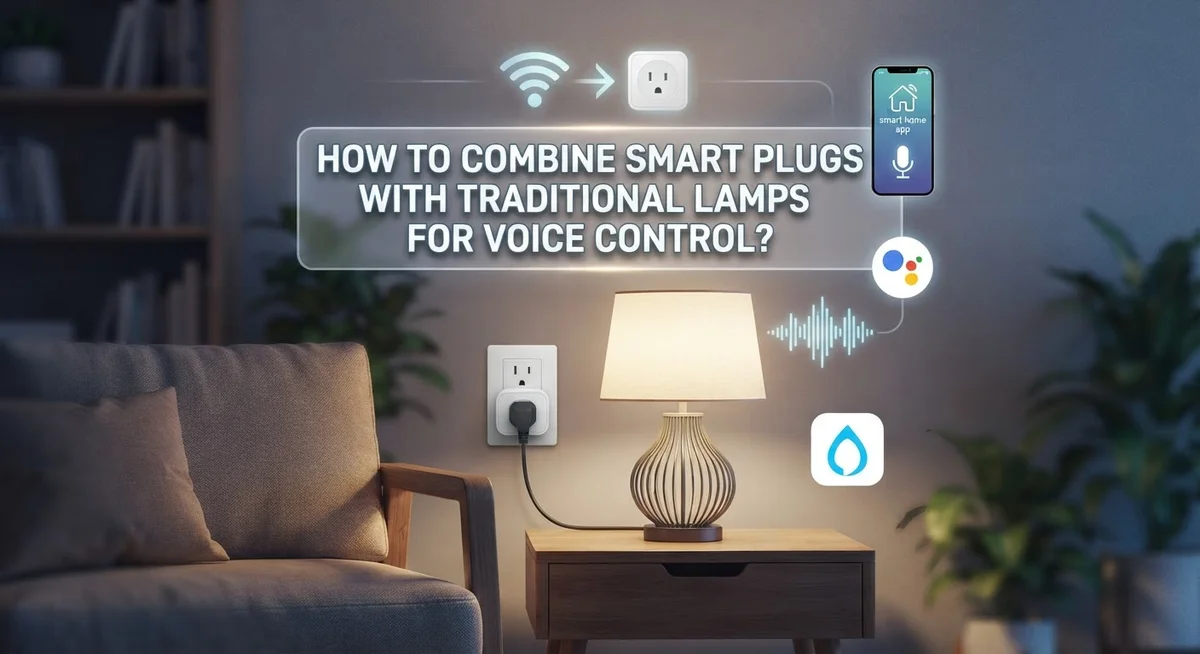
Smart plugs act as a bridge between your lamp and your voice assistant. They plug into your wall outlet, and your lamp plugs into them. This means you can say “turn on the lamp” and it just works.
This article will show you exactly how to set up this connection. We will cover everything from choosing the right plug to syncing it with Alexa or Google Home.
In a Nutshell
- Smart plugs work with any lamp. You do not need special bulbs. Just plug the device into your outlet and connect it to your lamp.
- Setup is simple. Download the app, connect to your 2.4 GHz Wi-Fi band, and sync the plug with your phone.
- Device type matters. Always set the plug to “Light” in the app settings. This helps your voice assistant understand commands correctly.
- Stick to one ecosystem. Choose either Alexa or Google Home and stay consistent. Mixing platforms often causes connection problems.
- Test before you expand. Get one lamp working smoothly first. Then add more smart plugs to other lamps in your home.
- Routines add convenience. Create simple automations, like turning lamps on at sunset, once your basic setup works well.
Smart Plugs vs. Smart Bulbs: Understanding Your Options
Smart plugs and smart bulbs serve different purposes. Understanding which option fits your needs helps you make the right choice for your home.
Smart plugs work with any existing lamp. You simply plug your traditional lamp into the smart plug, and the plug controls the power. This means your favorite vintage lamp, thrift store find, or any fixture you already own becomes voice controlled. You keep the original bulb and don’t need to replace anything inside the lamp itself.
Smart bulbs require you to screw them directly into compatible light fixtures. They work best in lamps designed to accept them. If your fixture has a special base or unusual socket, a smart bulb might not fit. Smart bulbs also cost more per unit than smart plugs.
Cost and flexibility matter too. Smart plugs typically cost less than smart bulbs. One smart plug can control multiple lamps if you use a power strip, though this requires caution. Smart bulbs offer individual control of each bulb but demand more upfront investment.
Setup complexity differs between the two. Smart plugs need your Wi-Fi network and a companion app. Smart bulbs also need Wi-Fi and an app, but they sometimes have additional pairing steps within your light fixture itself.
Compatibility is another key factor. Smart plugs work with any lamp brand or style. Smart bulbs depend on your lamp’s socket type and whether the fixture supports smart technology.
For most people, smart plugs offer simplicity. They preserve your existing lamps, cost less, and require minimal setup. Choose smart bulbs if you want individual brightness control or color options for each light source. Start with one smart plug to test the experience before deciding to expand your setup.
What You Need Before Getting Started
Before you start connecting your lamp to voice control, gather a few essential items. You need a smart plug that matches your voice assistant platform. If you use Alexa, pick a plug certified for Alexa. If you prefer Google Home, select one compatible with Google Home.
Next, confirm you have a stable Wi-Fi network at home. Smart plugs connect through your 2.4 GHz Wi-Fi band, not the 5 GHz band. Check your router settings to ensure this band is active and broadcasting. Many setup problems happen because people try to connect on the wrong frequency.
You also need the companion app for your smart plug installed on your smartphone or tablet. Download it from your device’s app store before you begin pairing. Have your Wi-Fi password ready so you can connect the plug quickly.
Make sure your traditional lamp works properly first. Plug it into a regular outlet and turn it on. Test the lamp’s physical switch to confirm the bulb lights up. This simple check prevents confusion later when you’re troubleshooting voice commands.
Consider your lamp’s location too. Place it near your router or in an area with strong Wi-Fi signal. Dead zones in your home can cause connection drops and unreliable voice control.
Finally, decide which voice assistant ecosystem you’ll use. Stick with one platform for your entire setup. Mixing Alexa and Google Home devices creates compatibility headaches and complicates voice commands.
With these basics in place, you’re ready to move forward with confidence and avoid common setup delays.
Step-by-Step: Connecting a Smart Plug to Your Lamp
Connecting a smart plug to your lamp involves a straightforward process. Start by choosing where you’ll place the plug. Most smart plugs go directly into a wall outlet near your lamp. Some models replace existing wall plates for a cleaner look.
Next, download the companion app for your specific smart plug. This app is your control center for setup and management. Open the app on your smartphone or tablet and create an account if needed.
Connect your smart plug to your home Wi-Fi network. Most smart plugs work best on the 2.4 GHz band, not 5 GHz. Check your router settings to ensure this frequency is available. The app will guide you through selecting your network and entering your password.
Put your smart plug into pairing mode. Usually, you press and hold the power button until an indicator light flashes. This tells the plug it’s ready to connect to your phone. The app will detect the plug and walk you through final pairing steps.
Once paired, plug your lamp into the smart plug. Turn on the lamp’s physical switch. The smart plug now controls power to the lamp.
Here comes an important step: set the device type to “Light” in your app settings. This tells your voice assistant to treat it as a light source. Without this setting, voice commands may not work properly.
Test your connection by using the app to turn the lamp on and off. If this works smoothly, you’re ready to link it to your voice assistant. Take time with each step rather than rushing through setup. A solid foundation now prevents frustration later.
Configuring Voice Assistant Compatibility (Alexa, Google Home, and More)
Configuring your voice assistant requires matching your smart plug to the right ecosystem. Choose one platform and stick with it. Alexa, Google Home, and other assistants each have their own app ecosystems. Mixing platforms creates conflicts and communication failures between devices.
Start by opening your smart plug’s companion app. Look for a section labeled “Voice Assistant” or “Smart Home Integration.” Select your chosen platform from the available options. Most apps display Alexa, Google Home, and sometimes additional assistants in a simple menu.
Next, link your smart plug to your voice assistant’s app. Open the Alexa app or Google Home app on your phone. Navigate to the “Devices” or “Add Device” section. Search for your smart plug by its device name. The app will discover it on your Wi-Fi network and add it automatically.
Verify the device type setting in both apps. In your smart plug app, confirm it’s set to “Light.” Then check your voice assistant app to ensure the same device appears as a light. This setting determines which voice commands work. Incorrect device types prevent voice control from functioning properly.
Test your setup with simple commands. Say “Alexa, turn on [lamp name]” or “Hey Google, turn off [lamp name].” If the command fails, return to your smart plug app and double check the device name. Make sure there are no extra spaces or special characters.
Create a custom name for your lamp if needed. Use clear, simple names like “living room lamp” instead of complicated labels. This makes voice commands easier to remember and more reliable. Once everything responds correctly, you’re ready to add routines and automations for advanced control.
Setting Device Type and Creating Voice Command Routines
Setting the device type correctly makes voice control work smoothly. When you open your smart plug’s app, look for a settings menu. Find the option that says “Device Type” or “Accessory Type.” Select “Light” from the available choices. This tells your voice assistant that you’re controlling a lamp, not a generic outlet.
Why does this matter? Voice assistants respond differently based on device type. When you set it to “Light,” you can say commands like “turn off the bedroom lamp.” If you leave it as a generic plug, voice commands may not work as expected. The system won’t recognize lamp specific requests.
After setting the device type to “Light,” verify the setting appears in your voice assistant’s app too. Open your Alexa or Google Home app. Check that your lamp shows up as a light device. Sometimes you need to refresh or resync the connection for changes to take effect.
Now create your first routine or automation. Routines let you trigger multiple actions with one voice command. For example, you could say “goodnight” and have your lamp turn off automatically. Start with simple routines before building complex ones.
Test each routine immediately after creating it. Say the voice command out loud and confirm the lamp responds. If nothing happens, double check the device type setting. Make sure your smart plug stays connected to Wi-Fi.
Keep your routine names simple and clear. Avoid confusing phrases your voice assistant might misunderstand. Use names like “bedtime” instead of something complex. This ensures your commands work reliably every single time you use them.
Best Practices for Reliable Voice Control
Reliable voice control depends on following a few core practices that prevent frustration and ensure smooth operation every time you speak a command.
First, stick with one voice assistant ecosystem. Mixing different platforms like Alexa and Google Home creates compatibility issues. Pick one and use it consistently across all your smart home devices. This single choice eliminates most voice control problems before they start.
Second, verify your Wi-Fi connection uses the 2.4 GHz band. Most smart plugs require this frequency, not the faster 5 GHz option. Check your router settings to confirm both bands are available. Your plug will struggle to stay connected if you’re on the wrong frequency.
Third, always set your device type to “Light” in the app settings. Voice assistants interpret commands based on this designation. If you skip this step, your assistant won’t respond to lamp-specific commands. Double check this setting appears correctly in both your smart plug app and your voice assistant app.
Fourth, test your setup before expanding it. Start with one lamp and one smart plug. Make sure voice commands work reliably for one week. Only then add more devices to your system.
Fifth, use simple, clear names for your devices. Avoid complex names that are hard to pronounce. “Living room lamp” works better than “lamp number three near the window.”
Finally, create routines one at a time and test immediately. Don’t build ten routines at once. Add one, test it, confirm it works, then move to the next. This approach helps you spot problems quickly and fix them before they compound.
Common Mistakes to Avoid When Setting Up Smart Plugs
Setting up smart plugs with traditional lamps requires attention to detail. Many people make errors that prevent their systems from working properly. Understanding these mistakes helps you avoid frustration and wasted time.
The biggest mistake is mixing different voice assistant ecosystems. Some people connect their smart plug to Alexa, then try to control it with Google Home commands. Your voice assistant and smart plug must belong to the same ecosystem. Choose one platform and stick with it throughout your entire setup process.
Another common error involves Wi-Fi band selection. Smart plugs typically require a 2.4 GHz Wi-Fi connection. Many modern routers broadcast both 2.4 GHz and 5 GHz bands simultaneously. If your phone connects to the 5 GHz band, your smart plug cannot pair with the network. Check your router settings and ensure your smart plug connects to the correct frequency.
People also rush the scaling process. They buy multiple smart plugs, set them all up at once, and then struggle when something fails. Start with one lamp and one smart plug. Test everything thoroughly before adding more devices to your system.
Forgetting to set the device type correctly causes voice control problems. Your app has a settings menu where you specify what type of device you’re controlling. Select “Light” for your lamp. This tells your voice assistant to respond with lighting commands instead of treating it as a generic outlet.
Finally, avoid using complex device names. Names like “bedroom lamp by the window near the dresser” confuse voice assistants. Use simple names like “bedroom lamp” or “desk lamp.” Your voice assistant recognizes these names more accurately.
Troubleshooting Voice Control Issues
Voice control issues happen more often than you’d think. The good news? Most problems have simple fixes.
Start by checking your Wi-Fi connection. Your smart plug needs to stay connected to your home network. Open your plug’s app and verify it shows “connected.” If it doesn’t, restart your router and try reconnecting. Make sure you’re using the 2.4 GHz band, not 5 GHz. Many smart plugs don’t support faster bands yet.
Next, verify your voice assistant recognizes the device. Open your Alexa or Google Home app. Search for your smart plug by name. If it doesn’t appear, the device type setting might be wrong. Go back to your plug’s app and confirm you selected “Light” as the device type. This setting tells your voice assistant how to respond to your commands.
Test with a simple command like “Turn on [lamp name].” Speak clearly and use the exact name you gave the device. If the lamp doesn’t respond, try these steps: first, unplug the smart plug for 30 seconds, then plug it back in. Second, remove the device from your voice assistant app and re-add it. Third, check that both apps use the same Wi-Fi network.
Distance matters too. If your voice speaker sits too far from the smart plug, connection problems occur. Keep them within reasonable range of your router.
If issues persist after these steps, check for app updates. Outdated apps cause compatibility problems. Update both your smart plug app and your voice assistant app to the latest versions available.
Final Thoughts
Turning a traditional lamp into a voice controlled device is simple. You do not need to buy new bulbs or rewire anything. A smart plug does all the work.
Start with the basics. Plug in your device, connect it to Wi-Fi, and sync it with your app. These small steps build the foundation for everything else.
Set your device type to “Light” early on. This single step prevents most voice command problems later. Skipping it causes confusion for your voice assistant.
Stick to one ecosystem throughout your setup. Mixing Alexa and Google Home creates unnecessary headaches. Your smart home works best when every device speaks the same language.
Test each lamp before adding more devices. This helps you catch problems early. It also builds your confidence with the system.
Patience matters during this process. Rushing to connect five lamps at once often leads to mistakes. Take your time with each connection instead.
Remember that smart plugs give old lamps new life. You keep the lamp you love while gaining modern convenience. This makes smart plugs a practical choice for many homes.
Voice control should feel simple, not stressful. If you follow the setup steps and avoid common mistakes, your lamps will respond reliably. Small adjustments now save you frustration later.
Every home is different, so your setup may need slight tweaks. Trust the process and adjust as needed. With consistent practice, your voice controlled lamps will feel natural.
Smart plugs prove that upgrading your home does not require replacing everything. Sometimes a small device makes the biggest difference. Your traditional lamp can still shine in a smart home.
Frequently Asked Questions
Can I use a smart plug with any traditional lamp?
Yes, you can. Smart plugs work with almost any lamp that has a standard power cord. The lamp doesn’t need special bulbs or wiring. You simply plug the smart plug into your wall outlet, then plug your lamp into the smart plug. This makes smart plugs flexible for older lamps or lamps you already own.
What voice assistant should I choose?
Pick one ecosystem and stick with it. You can use Alexa, Google Home, or another major platform. Mixing different assistants causes connection problems and makes voice commands unreliable. Choose based on what devices you already own at home.
Why isn’t my voice command working?
Check three things first. Make sure your smart plug has the device type set to “Light” in the app settings. Verify your Wi-Fi connection is stable and using the 2.4 GHz band. Finally, speak clearly and use the exact name you gave your lamp. Distance also matters – keep your voice speaker within reasonable range of the smart plug.
Do I need to replace my lamp’s bulb?
No. Traditional bulbs work perfectly with smart plugs. The smart plug controls power to the entire lamp, not the bulb itself. This saves you money since you don’t buy special smart bulbs.
How do I set up multiple lamps?
Start with one lamp first. Test it completely before adding more. Give each lamp a simple, clear name like “bedroom lamp” or “living room light.” Use the same voice assistant for all devices. Once you feel comfortable with one setup, add another lamp using the same process.