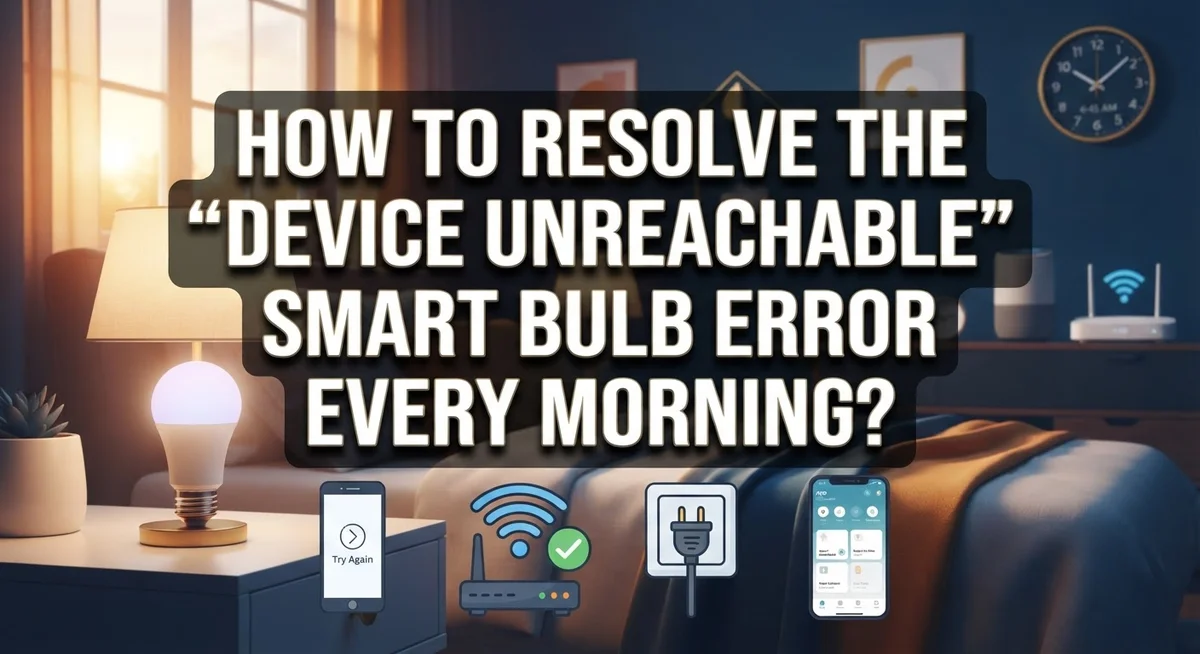
How to Resolve the ‘Device Unreachable’ Smart Bulb Error Every Morning?
Waking up to a smart bulb that will not turn on is annoying. You open the app and see the dreaded “device unreachable” message. This happens more often after a long night of inactivity.
Many smart bulb owners face this issue every single morning. Brands like Kasa and Shelly are commonly affected. The good news is that this problem is fixable in most cases.
This article breaks down exactly why this happens. We will explore how your Wi-Fi network settings play a huge role. You will learn why 2.4 GHz connections matter for smart devices.
In a Nutshell
- Restart your devices first. Power cycle the bulb and your router. This clears small glitches that build up overnight.
- Check your Wi-Fi band. Smart bulbs need a 2.4 GHz network. They often cannot connect to 5 GHz signals at all.
- Avoid the guest network. A guest Wi-Fi blocks local discovery between your phone and the bulb. Always use your main home network.
- Look at firmware updates. A failed update can leave your bulb stuck in an unreachable state. You may need to run a firmware recovery to fix this.
- Confirm the bulb is in range. Signal drops overnight if the bulb sits too far from your router. Move it closer if the app cannot find it.
- Use pairing mode as a last resort. If nothing else works, force the bulb into pairing mode. This resets its connection and often solves the morning error instantly.
What Causes the ‘Device Unreachable’ Error
The “Device Unreachable” error means your smart bulb lost its Wi-Fi connection. Your app cannot talk to the bulb anymore, so you see this message when you try to control it.
This error happens most often after your bulb sits idle overnight. Smart bulbs stay on a Wi-Fi network just like your phone does. When the connection drops, the bulb becomes invisible to your app.
Several things cause this problem. Your bulb might be too far from your router. Wi-Fi signals weaken over distance, especially through walls and floors. Overnight, your router may also restart or refresh its connection list, which drops devices that were sleeping.
Your network settings can also trigger this issue. Smart bulbs work best on 2.4 GHz Wi-Fi bands. If your router broadcasts only 5 GHz, or if you connected the bulb to a guest network, local communication breaks down. Guest networks isolate devices from each other on purpose, so your phone cannot find the bulb.
Firmware updates gone wrong create a bigger problem. If your bulb tried to update and failed, it may get stuck in an unreachable state. The bulb becomes locked and won’t respond to any commands until you fix it.
Power issues also play a role. If your bulb loses power overnight or your router restarts without warning, both devices lose sync. When they come back online, they don’t automatically reconnect to each other.
Understanding these causes helps you fix the problem faster. Most morning errors stem from connection drops or network settings, not broken hardware. Simple power cycles and network checks usually solve the issue within minutes.
Why This Error Happens More Often Overnight
Your smart bulb sits idle all night while you sleep. During this time, several things happen that trigger the “Device Unreachable” error when you wake up.
First, your bulb enters a low power state. Smart bulbs reduce their activity during idle periods to save energy. This sleep mode makes them less responsive to network signals. When your phone tries to reach the bulb in the morning, it takes longer to wake up and reconnect.
Second, your Wi-Fi network itself changes overnight. Your router may have performed an automatic restart or update. It might have also reassigned IP addresses to your devices. Your bulb’s stored connection information becomes outdated. The bulb then struggles to find the network it remembers.
Third, signal strength drops during nighttime hours. Fewer devices are active on your network. Your router may adjust its broadcast power. Walls, furniture, and other obstacles can also weaken the signal more at night when conditions are different. Your bulb loses its connection before you even wake up.
Fourth, firmware updates run automatically on many networks during off hours. If an update fails while your bulb is in sleep mode, the bulb gets stuck in an unreachable state. This is one of the most stubborn causes of the morning error.
Finally, your bulb’s connection may simply timeout after hours of inactivity. Smart bulbs have connection limits built in. If the bulb doesn’t communicate with your network for several hours, it drops the connection entirely.
Understanding these overnight factors helps you prevent the error. The solution focuses on keeping your bulb active and connected while you sleep.
Step-by-Step Fix: Power Cycling Your Bulb and Router
Power cycling your bulb and router is the first real fix you should try. This method works because it clears temporary connection errors and resets your devices to a clean state.
Start with your smart bulb. Turn off the bulb using your wall switch or app. Wait for 30 seconds. This pause lets the bulb fully discharge. Turn the bulb back on. Your bulb should restart fresh and attempt to reconnect to your Wi-Fi network.
Next, power cycle your router. Unplug the router from its power outlet. Wait for 60 seconds. This longer wait time helps clear your router’s memory and resets all connected devices. Plug the router back in and wait 2 to 3 minutes for it to fully boot up.
Check your bulb’s connection status. Open your smart home app after the router restarts. Look for your bulb in the device list. It should show as “connected” or “online.” If it still shows unreachable, the bulb needs more help.
Why this works so well. Power cycling removes temporary glitches that build up overnight. Your router handles many connections at once. Restarting it frees up memory and refreshes its Wi-Fi broadcast. Your bulb also benefits from a fresh start and reconnects with current network settings.
Timing matters here. Do not skip the waiting periods. Waiting lets capacitors discharge completely. This ensures a true restart, not just a quick toggle. Many people rush this step and the error returns the next morning.
If your bulb reconnects after this process, you have solved the issue. If it stays unreachable, move to checking your Wi-Fi band settings next.
Checking Wi-Fi Band, Range, and Network Settings
Your Wi-Fi band and range are the most common culprits behind morning disconnections. Smart bulbs need specific network conditions to stay connected.
Most smart bulbs only work on 2.4 GHz networks, not 5 GHz. Many modern routers broadcast both bands simultaneously. Your bulb might connect to 5 GHz by mistake, then drop off because it cannot maintain that connection overnight. Check your router settings and verify your bulb connects to the 2.4 GHz band specifically.
Signal range matters significantly. Your bulb needs to stay within your router’s coverage area at all times. Even a few extra feet can cause overnight disconnections. Move your router closer to the bulb’s location, or relocate the bulb nearer to your router if possible.
Guest networks create a major problem. Many smart bulbs cannot work on isolated guest Wi-Fi networks because they block local device discovery. If your bulb connects to a guest network, it loses communication with your app and other devices. Switch your bulb to your primary home network instead.
Check your network bandwidth settings too. Some routers limit how many devices connect simultaneously. If your network is crowded with phones, computers, and other smart devices, your bulb gets disconnected first. Access your router’s admin panel and verify the bulb appears in your connected devices list.
Verify these settings before moving forward: Confirm your bulb uses 2.4 GHz, not 5 GHz. Measure the distance between your bulb and router. Remove the bulb from any guest networks. Check your router’s device list to see if the bulb appears.
These simple checks often resolve morning unreachable errors without requiring advanced troubleshooting.
Diagnosing and Recovering from Firmware Update Failures
Firmware update failures are a common reason your smart bulb shows as unreachable every morning. When an update doesn’t complete properly, your bulb can get stuck in a broken state where it cannot reconnect to your network at all.
How to identify a failed firmware update: Check your smart home app for any error messages during the update process. Look for notifications that say “update failed” or “update interrupted.” Your bulb may have restarted multiple times without successfully installing the new software. Some apps show a progress bar that freezes or stops moving. If you see any of these signs, a failed update is likely causing your morning disconnections.
Recovery steps for firmware failures: First, force your bulb into pairing mode. This usually means holding down the physical button on the bulb for 10 to 15 seconds until it flashes in a specific pattern. Check your bulb’s manual for the exact timing. Next, remove the bulb from your app completely. Delete it from your device list rather than just disconnecting it.
Once you’ve removed it, reconnect your bulb as if it were brand new. Your app will guide you through the setup process again. During this fresh setup, your bulb will download and install the firmware cleanly without the previous corruption.
Prevention tip: Avoid disconnecting power during firmware updates. Let your bulb complete the entire process without interruption, even if it takes several minutes. If your bulb loses power during an update, the recovery process becomes necessary.
This recovery method works because it clears the corrupted firmware and installs a fresh version from scratch.
Resetting and Re-Pairing Your Smart Bulb
When your smart bulb won’t reconnect after a firmware update fails, you need to reset it completely and pair it fresh. This process clears corrupted files that prevent your bulb from communicating with your app or network.
Start by forcing your bulb into pairing mode. Most smart bulbs enter pairing mode when you turn them on and off rapidly using your wall switch. The exact pattern varies by brand, but typically involves 5 to 10 quick on and off cycles. Watch for a specific light pattern, like blinking or color changes, which signals the bulb is ready to pair.
Once the bulb enters pairing mode, remove it completely from your smart home app. Go to your app’s device list and delete the bulb. This step ensures the app won’t try to reconnect to corrupted data stored from the failed update.
Now reconnect your bulb as if you just purchased it. Open your app and select “Add Device” or “Pair New Device.” Follow the setup wizard exactly as you would for a brand new bulb. The app will search for your bulb in pairing mode and establish a fresh connection.
During this reconnection, make sure you’re on a 2.4 GHz Wi-Fi network. Enter your network password when prompted. The bulb will download the latest firmware automatically during this setup process.
Test the connection immediately. Control your bulb from the app to confirm it responds. Leave it on overnight and check it the next morning. If the bulb stays connected, your firmware recovery succeeded. This method works because it bypasses the corrupted update entirely and installs everything fresh from the start.
Common Mistakes That Cause Repeated Disconnections
Many people make simple mistakes that cause their smart bulbs to disconnect every morning. Understanding these errors helps you fix the problem quickly.
Connecting to the wrong Wi-Fi band is the biggest mistake. Smart bulbs need 2.4 GHz networks, not 5 GHz. Your router likely broadcasts both bands at the same time. If your phone connects to 5 GHz, your bulb cannot reach the same network. Check your router settings and connect your bulb to 2.4 GHz specifically.
Using a guest network is another common error. Guest networks isolate devices from your main network. Your smart home app cannot find or communicate with bulbs on guest Wi-Fi. Move your bulbs to your primary network instead.
Skipping the router restart is a mistake many people make. A simple restart clears connection issues and refreshes your network. Turn off your router for 30 seconds, then power it back on. Wait two minutes before checking your bulb connection.
Ignoring failed firmware updates causes permanent disconnections. If an update fails, your bulb gets stuck in a broken state. The app shows it as unreachable every time. You must force the bulb into pairing mode and reconnect it completely to fix this.
Placing bulbs too far from your router matters too. Weak signals cause overnight disconnections. Move your bulb closer to your router or add a Wi-Fi extender. Distance becomes a bigger problem at night when fewer devices use your network.
Not checking your app before troubleshooting wastes time. Open your app first and see exactly what status your bulb shows. This tells you whether the problem is a connection issue or something else entirely.
Advanced Troubleshooting for Persistent Connectivity Issues
When your smart bulb shows “Device Unreachable” every morning, the issue usually stems from connection problems that develop overnight. Advanced troubleshooting requires a systematic approach to identify what breaks the connection during idle periods.
Start by checking your router’s Wi-Fi stability. Many people assume their router works fine, but overnight disconnections suggest the router loses connection or restarts automatically. Access your router settings and disable any power saving features. These features put your router into sleep mode, which disconnects all devices.
Next, examine your bulb’s distance from the router. Signal strength weakens significantly overnight when atmospheric conditions change or when other devices interfere. Move your router closer to the bulb location, or relocate the bulb to a more central position in your home.
Check your Wi-Fi channel settings. Crowded channels cause interference and morning disconnections. Switch your 2.4 GHz network to a less congested channel (typically channels 1, 6, or 11 work best). Your router settings show which channels nearby networks use.
Review your app’s connection logs if available. These logs reveal exactly when your bulb disconnects and why. Some apps show error codes that pinpoint the root cause.
Test your network’s local discovery feature. This function allows your app to find and communicate with bulbs on your home network. If local discovery fails, your bulb appears unreachable even when it’s connected to Wi-Fi.
Finally, check whether your internet connection drops overnight. Contact your internet provider to confirm your service remains stable during off-peak hours. Unstable internet causes bulbs to lose connection and fail to reconnect automatically.
Final Thoughts
The “Device Unreachable” error feels frustrating every morning. But now you know why it happens.
Your smart bulb loses connection overnight for simple reasons. Weak Wi-Fi signals, wrong network bands, and failed updates cause most problems.
The good news is that fixing this error takes just a few minutes. Power cycling your bulb and router solves many cases instantly.
Checking your Wi-Fi band matters more than people think. Your bulb needs a 2.4 GHz connection to work properly. Many bulbs simply cannot connect to 5 GHz networks.
Guest networks cause hidden problems too. They block the local discovery your bulb needs to communicate with your app.
Firmware issues need extra attention. A failed update can leave your bulb stuck permanently. Resetting the bulb and pairing it fresh usually fixes this.
Remember to keep your bulb within range of your router. Distance and walls weaken signals, especially overnight when networks sometimes reset.
Consistency is key here. Once you fix the root cause, your bulb should stay connected morning after morning.
Test your setup after each fix. Open your app and control the bulb directly. This confirms everything works before you move on.
If problems continue, work through each step again. Sometimes multiple issues combine to create the unreachable error.
Smart home technology should make life easier, not harder. With these steps, your morning routine stays smooth and simple.
Your smart bulb will reconnect reliably once you address Wi-Fi bands, network settings, and firmware health. Apply these fixes today, and enjoy a hassle free smart home experience every single morning.
Frequently Asked Questions
Why does my smart bulb show “Device Unreachable” every single morning?
Your bulb loses its Wi-Fi connection overnight. This happens because the bulb enters a low power state or your router drops the connection during idle hours. When you wake up and try to control it, the app cannot find the device. The fix starts with a simple power cycle of both your bulb and router.
Can a guest Wi-Fi network cause this error?
Yes. Guest networks isolate devices from your main network, which blocks local discovery. Your app cannot communicate with the bulb even if it has internet access. Switch your bulb to your primary Wi-Fi network instead. Make sure you select the 2.4 GHz band, not 5 GHz.
What happens if a firmware update fails on my bulb?
A failed update can leave your bulb stuck in a broken state permanently. It stops responding to any commands. You need to perform a firmware recovery to fix this. Most bulbs have a reset button or pairing mode you can force to restart the update process.
How far can my smart bulb be from the router?
Most smart bulbs work best within 30 to 50 feet of your router with clear line of sight. Walls and metal objects weaken the signal. If your bulb is at the edge of range, it may disconnect during the night when other devices also use the network.
Should I restart my router to fix this error?
Yes. A router restart clears connection issues and refreshes your network. Power off your router for 30 seconds, then turn it back on. Wait a few minutes for it to fully restart before checking your bulb connection.