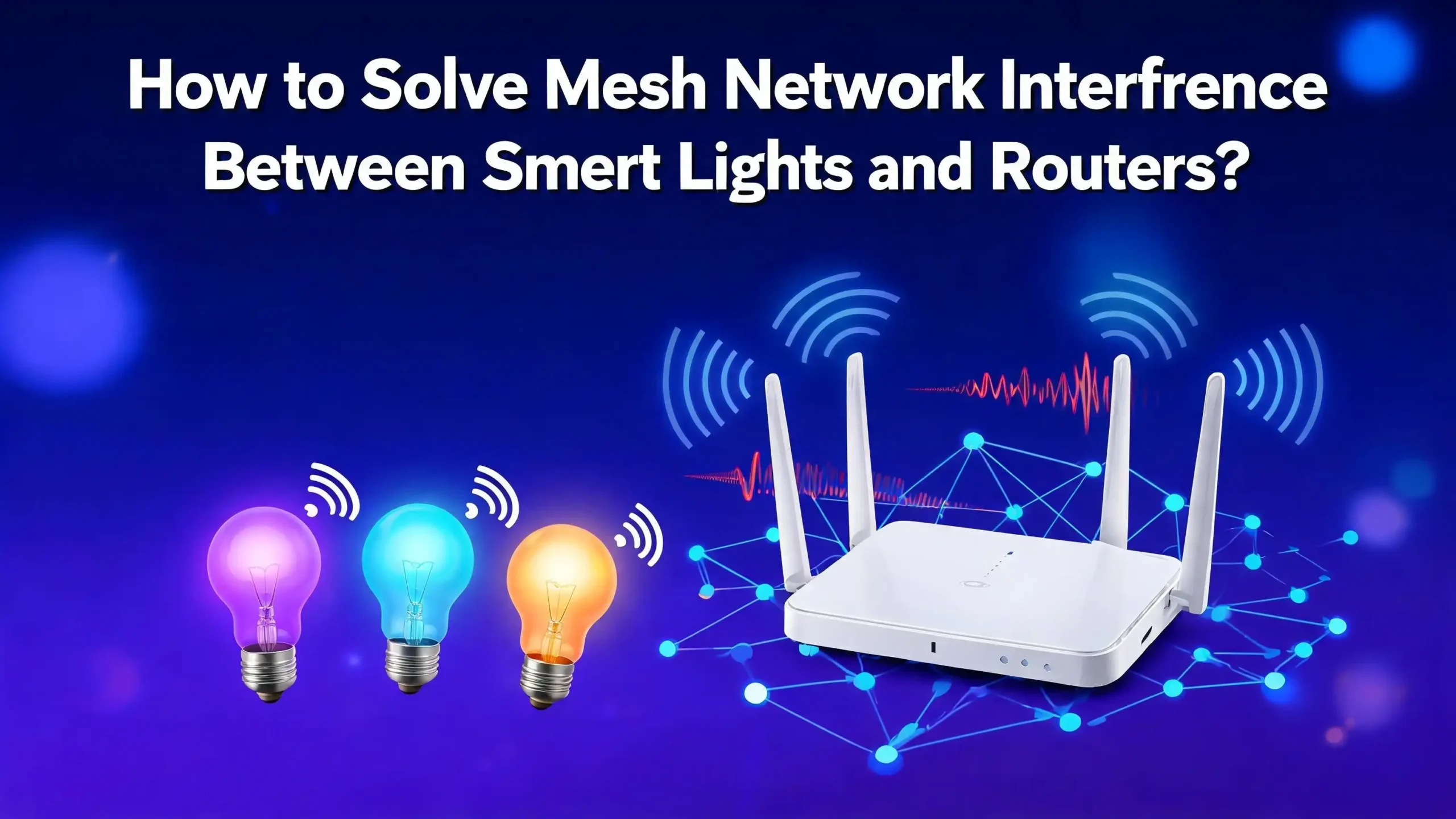
How to Solve Mesh Network Interference Between Smart Lights and Routers?
If your smart lights randomly flicker, disconnect, or make your internet crawl to a near stop, you are not alone.
Mesh network interference between smart lights and routers is one of the most frustrating and underreported problems in modern smart homes. The good news? It is completely fixable.
In this guide, you will get clear, practical, and step-by-step solutions. You will learn exactly why this interference happens and what you can do about it today — no technical degree needed.
Key Takeaways
- Smart lights and mesh routers often share the 2.4 GHz frequency band, which causes them to compete for the same wireless space, creating drops, lag, and connection failures.
- Channel overlap is a major root cause. Zigbee-based smart lights on channels 11 to 14 directly collide with WiFi channels 1 and 6, and you can fix this by manually assigning non-overlapping channels.
- Band steering on mesh routers is a hidden culprit. When your router auto-assigns devices to 5 GHz, smart lights that only support 2.4 GHz lose their connection entirely. Disabling band steering for your smart home SSID solves this.
- Creating a dedicated IoT SSID or VLAN for your smart lights removes them from your main network traffic, reducing congestion and interference significantly.
- Physical placement of mesh nodes and smart light hubs matters more than most people think. Keeping Zigbee coordinators and WiFi access points at least 1 to 3 meters apart reduces cross-device signal pollution dramatically.
- Keeping firmware updated on both your mesh router and smart lights eliminates many software-triggered connection drops and interference bugs that manufacturers patch over time.
Why Mesh Networks and Smart Lights Fight Over Frequency?
To solve any problem, you need to understand what causes it first. Mesh networks use multiple router nodes placed around your home to create seamless WiFi coverage. These nodes communicate with each other and with your devices using radio frequencies, most commonly 2.4 GHz and 5 GHz.
Smart lights — including popular WiFi-based bulbs, Zigbee devices, and Z-Wave devices — also use radio frequencies to receive commands and stay connected. WiFi smart bulbs operate directly on 2.4 GHz. Zigbee devices operate between 2.405 GHz and 2.480 GHz, which overlaps heavily with the 2.4 GHz WiFi band.
This overlap is the core of the problem. When your mesh router broadcasts on the same frequency slice as your smart lights, the two systems interfere with each other. The result is dropped connections, slow response times, and even full 2.4 GHz band crashes that take down all your smart home devices at once.
Z-Wave devices are less affected because they operate at sub-1 GHz frequencies (around 908 MHz in the US), giving them natural separation from WiFi. However, WiFi-based and Zigbee-based smart lights are highly vulnerable to this type of conflict, and most modern smart homes rely heavily on both of these technologies.
Understanding this frequency competition is your first step toward fixing it for good.
How to Identify If Your Smart Lights Are Causing Interference?
Before you start changing settings, you need to confirm that your smart lights are the interference source and not something else. Many homeowners waste hours fixing the wrong problem.
Start by using a free WiFi analyzer app on your phone. Tools like WiFi Analyzer (Android) or Network Analyzer (iOS) show you every wireless network nearby, which channels they use, and how strong the signals are. Look at the 2.4 GHz band and note which channels are crowded.
Next, do a simple test. Turn off all your smart lights or flip the physical wall switches connected to them. Then check if your internet speed or mesh network stability improves. If your connection improves noticeably when smart lights are off, that confirms the interference. You can also unplug your smart light hub or bridge if you use one, such as a Philips Hue Bridge or a Zigbee coordinator dongle.
Check your router’s admin panel for a list of connected devices. If you see dozens of smart bulbs all connected to the 2.4 GHz band, they are consuming channel capacity. A router’s 2.4 GHz band typically supports a limited number of simultaneous connections reliably, and flooding it with smart bulbs leaves little room for phones and computers.
Also look for patterns. Does your WiFi slow down at specific times, like when smart home automations run at night? That pattern points directly to smart device congestion rather than a broader network issue.
How to Choose the Right WiFi Channel to Stop the Overlap?
One of the most effective fixes you can apply right now is changing your WiFi channel manually. Most mesh routers default to “auto” channel selection, which sounds smart but often places your network directly on top of your smart lights’ frequency range.
For 2.4 GHz networks, always use channels 1, 6, or 11. These are the only three non-overlapping channels in the 2.4 GHz band in the US and most other regions. Using any other channel, like 3, 7, or 9, creates partial overlaps that are actually worse than full overlaps because they produce more signal distortion.
For Zigbee users specifically, channel selection becomes even more critical. Here is the key fact: Zigbee channel 11 falls near WiFi channel 1, Zigbee channel 15 sits between WiFi channels 1 and 6, Zigbee channel 20 falls between WiFi channels 6 and 11, and Zigbee channel 25 sits above WiFi channel 11. The safest Zigbee channels to use alongside WiFi are channels 15, 20, and 25, as they have the least overlap with the three main WiFi channels.
To set your WiFi to a specific channel, log into your router’s admin panel. For most mesh systems, this is done through the companion app. Look for the wireless settings section and switch from “auto” to a fixed channel. Set your 2.4 GHz band to channel 1 or 11, then set your Zigbee coordinator to channel 25 or 20. This combination gives both systems the clearest possible path to communicate without stepping on each other.
How to Disable Band Steering for Smart Lights?
Band steering is a feature most mesh routers enable by default. It automatically pushes devices to connect on 5 GHz instead of 2.4 GHz when the signal is strong enough. This sounds helpful for speed, but it breaks smart lights almost every time.
Most smart lights, including popular WiFi bulbs, only support 2.4 GHz. When band steering tries to push them to 5 GHz, the bulbs cannot connect. They drop off the network, show as unresponsive, and often require a full reset to reconnect. This is why many people see their smart lights lose connection even after a solid initial setup.
The fix is to create a separate 2.4 GHz-only SSID specifically for your smart home devices. Most mesh systems allow you to create a second network name (SSID) with fixed settings. Name this something like “SmartHome_2.4G” and lock it to 2.4 GHz only with band steering disabled.
Connect all your smart bulbs and IoT devices to this dedicated SSID. Keep your main network for phones, laptops, and streaming devices where band steering can work normally and steer those devices to the faster 5 GHz band.
In mesh systems like TP-Link Deco, Google Nest, Eero, and Netgear Orbi, you can access these settings through the mobile app or web interface. Look for terms like “Smart Connect,” “Band Steering,” or “Preferred Band” in the wireless settings. Disabling smart connect on your IoT SSID effectively stops the router from pushing incompatible devices away from 2.4 GHz.
How to Set Up a Dedicated IoT Network or VLAN?
Creating a separate network for your smart lights is one of the most powerful and long-lasting solutions available. This approach does two things at once: it removes smart lights from your main network traffic, and it adds a layer of security by isolating potentially vulnerable IoT devices.
A VLAN (Virtual Local Area Network) creates a logically separate network on the same physical hardware. Your main SSID and IoT SSID can run on the same mesh nodes, but the traffic stays separated. Smart lights on the IoT VLAN cannot communicate with your laptop or phone on the main network, reducing both interference and security risks.
Many newer mesh systems support this natively. TP-Link Deco has a built-in IoT Network feature you can enable directly in the Deco app. Eero supports guest networks with device isolation. Netgear Orbi and ASUS routers support full VLAN configuration for advanced users.
If your mesh system supports a guest network, that works as a simpler version of this. Enable the guest network, give it a clear name, and connect all smart lights to it. The guest network typically isolates devices from each other and from the main network, which reduces cross-device traffic and interference.
For users with more advanced setups using systems like Ubiquiti UniFi or pfSense, a full VLAN with dedicated firewall rules gives even more control. You can restrict smart lights from accessing anything other than what they need, keeping your main network clean and fast.
How to Physically Separate Devices to Reduce Signal Collision?
Hardware distance matters just as much as software settings. Many people configure everything perfectly in software but place their Zigbee hub, smart light bridge, and mesh router all within 30 centimeters of each other. That physical proximity guarantees interference regardless of channel settings.
Keep your Zigbee coordinator or smart light hub at least 1 to 3 meters away from your closest mesh node. The recommended minimum distance cited by most Zigbee specialists is half a meter, but 1 to 3 meters is safer and significantly more effective at reducing radio frequency noise.
If you use a USB Zigbee dongle connected to a computer or smart home server like Home Assistant, use a USB extension cable. A USB 3.0 cable that is 1 to 2 meters long lets you position the Zigbee adapter away from both the computer and the router. This simple physical adjustment makes a dramatic difference in Zigbee network stability.
Also consider where you place your mesh nodes relative to clusters of smart lights. If you have 10 smart bulbs in one room, avoid placing a mesh node directly inside that room. Position the node in a hallway or adjacent room so the WiFi signal still covers the area but is not broadcasting directly on top of all those 2.4 GHz smart lights simultaneously.
For wired mesh backhaul setups where nodes connect to each other using Ethernet cables rather than wireless, the interference problem between nodes is eliminated. If your home is wired or you can run Ethernet, connecting your mesh nodes via cable frees up the 2.4 GHz band almost entirely for smart devices.
How to Manage the Number of Devices on Your 2.4 GHz Band?
Network congestion is a silent interference problem. The 2.4 GHz band supports only three non-overlapping channels and operates at slower speeds than 5 GHz. When you connect 20, 30, or 50 smart bulbs to the same 2.4 GHz network along with phones and tablets, the band becomes saturated.
Most consumer-grade mesh systems can handle 50 to 100 connected devices total, but performance drops noticeably when too many compete on 2.4 GHz simultaneously. Smart lights consume very little bandwidth individually, but each device requires a connection slot and generates periodic heartbeat signals that add up across a large smart home.
Start by auditing your device list in your router’s admin panel. Identify every device connected to 2.4 GHz. Remove devices that should be on 5 GHz but ended up on 2.4 GHz due to roaming issues. Assign static IP addresses or DHCP reservations to your smart lights so the router does not waste resources assigning and reassigning addresses dynamically.
You can also stagger your smart light automations. If 20 lights all turn on simultaneously at sunset, they all send connection requests at the same second. Spacing automations by 1 or 2 seconds per group reduces the burst traffic that causes temporary network congestion and apparent interference.
Consider upgrading to mesh systems that support WiFi 6 or WiFi 6E. WiFi 6 introduces OFDMA (Orthogonal Frequency Division Multiple Access), which allows the router to serve multiple devices simultaneously on the same channel, dramatically improving performance in environments dense with IoT devices.
How to Fix Zigbee-Specific Interference Issues?
Zigbee is a popular protocol for smart lights from brands like IKEA Tradfri, Philips Hue, and Sengled. While Zigbee builds its own mesh network among devices, it is uniquely vulnerable to WiFi interference because it shares the 2.4 GHz spectrum.
The most important Zigbee-specific fix is changing the Zigbee channel in your coordinator software. If you use Home Assistant with a Zigbee stick like the SkyConnect or a ConBee, you can change the Zigbee channel in the Zigbee Management settings. Set it to channel 25 or channel 20, which creates the most separation from your WiFi channels.
Zigbee also benefits from having more repeater devices in the network. Zigbee devices are either coordinators (the hub), routers (powered devices that repeat signals), or end devices (battery-powered sensors). Most powered Zigbee smart lights also act as routers, extending the Zigbee mesh. Adding more mains-powered smart lights or Zigbee plugs improves the overall mesh coverage and reduces each device’s need to connect directly to the coordinator.
Avoid relying on battery-powered Zigbee devices as the backbone of your mesh. They are end devices only and do not repeat signals. A network with too many end devices and too few routers creates weak links that show up as random disconnections.
Also, avoid USB 3.0 ports when connecting a Zigbee dongle. USB 3.0 generates radio frequency noise in the 2.4 GHz range. This was confirmed in a well-known Intel white paper. Use a USB 2.0 port or a USB 2.0 extension cable to keep your Zigbee coordinator clear of USB 3.0 interference.
How to Use QoS Settings to Prioritize Smart Home Traffic?
Quality of Service (QoS) is a mesh router feature that lets you control which devices and types of traffic get bandwidth priority. While QoS is most often used to prioritize gaming or video streaming, you can also use it to ensure smart home devices get consistent, uninterrupted access to the network.
Most mesh systems offer device-level QoS in their companion apps. In Google Nest WiFi, you can tap on any device and set it as a priority device for a set time period. In TP-Link Deco, you can go to the QoS section and add smart home hubs like your Philips Hue Bridge or SmartThings Hub to the priority list.
Prioritizing your smart home hub rather than individual bulbs is the smarter approach. The hub handles all the communication for your lights. Giving it consistent bandwidth ensures commands pass through reliably even when other devices are streaming or downloading.
Keep in mind that QoS is most effective when your connection is already congested. If your 2.4 GHz band is overloaded with too many devices, QoS helps manage the chaos but does not replace the need to reduce device count or create a separate IoT network. Think of QoS as a traffic manager, not a traffic reducer.
Some advanced mesh systems offer category-based QoS where you can prioritize “smart home” as a device category. This automatically applies priority rules to all devices the router identifies as IoT or smart home gadgets, which saves time compared to setting up individual device rules.
How to Update Firmware on Routers and Smart Lights?
Outdated firmware is one of the most overlooked causes of smart home interference and disconnection problems. Both your mesh router and your smart lights receive software updates that fix bugs, improve wireless stability, and patch communication issues.
Router firmware updates can change how the router manages 2.4 GHz traffic, fix band-steering bugs, and improve channel selection algorithms. Many users have reported that updating their mesh system firmware resolved smart light disconnections overnight without any other changes.
To update your mesh router firmware, open the companion app for your system. Most modern mesh systems check for updates automatically, but you should verify this is enabled. In TP-Link Deco, go to More > Firmware Update. In Google Nest, go to Settings > Network & General > Software Updates. In Eero, updates are automatic and pushed by default.
For smart lights, the update process depends on the brand and hub. Philips Hue updates firmware through the Hue app. IKEA Tradfri updates through the IKEA Home Smart app when the gateway is connected. Smart lights running directly on WiFi, like Govee or Kasa bulbs, update through their own brand apps.
After any firmware update on either device, restart both your mesh router and your smart light hub. This clears cached network states that sometimes persist across updates and cause connection inconsistencies. A clean restart after an update lets both systems re-establish their connection from scratch, which often eliminates the interference symptoms entirely.
How to Switch to Less Congested Protocols Like Z-Wave or Thread?
If you have tried every WiFi and Zigbee fix and still face persistent interference, the most permanent solution is switching some or all of your smart lights to protocols that operate outside the crowded 2.4 GHz band.
Z-Wave operates at 908.42 MHz in the US (and similar sub-1 GHz frequencies in other regions), completely avoiding the 2.4 GHz congestion zone. Z-Wave signals pass through walls well at lower frequencies and support mesh networking natively. Because Z-Wave uses a completely different slice of the radio spectrum, it does not interfere with your WiFi network at all.
Thread is a newer protocol built on the same physical layer as Zigbee (IEEE 802.15.4) but uses IPv6 for device communication. Thread is the backbone of the Matter smart home standard. While Thread still uses 2.4 GHz, it is specifically designed for coexistence with WiFi through careful channel management and low-power radio design. Matter-over-Thread devices from Apple Home, Google Home, and Amazon Alexa all benefit from improved interference handling compared to older Zigbee or WiFi-based bulbs.
Switching protocols requires buying compatible smart lights, but many newer bulbs from major brands now support Matter natively. If you are planning to expand your smart lighting anyway, choosing Matter-over-Thread bulbs going forward reduces your 2.4 GHz load and improves your overall smart home stability.
Bluetooth Mesh is another low-interference option for smart lights, though it has range limitations that make it less practical for whole-home setups without additional infrastructure.
How to Optimize Mesh Node Placement for Smart Home Environments?
Most mesh node placement guides focus on internet coverage. But for smart home users, placement also affects how well smart lights stay connected. Getting this right makes a measurable difference.
Place mesh nodes in open areas, elevated on shelves or mounted on walls, with clear line-of-sight to the rooms where your smart lights live. Avoid tucking nodes behind TVs, inside cabinets, or in corners surrounded by metal objects. Metal absorbs and reflects radio signals, creating dead zones right where your smart lights need coverage.
The general rule for mesh node spacing is that nodes should be placed halfway between the center of coverage and the edge of the previous node’s signal. Most mesh kits recommend spacing nodes no more than 30 to 40 feet apart for reliable 2.4 GHz coverage. In a smart home context, closer spacing with more nodes is better than fewer nodes spread further apart, because 2.4 GHz signals weaken quickly through walls and furniture.
In homes with many smart lights spread across multiple floors, make sure at least one mesh node covers each floor. 2.4 GHz signals struggle to penetrate between floors, especially through concrete or older construction. A node on each floor ensures every smart light has a strong, nearby signal to connect to.
Also avoid placing mesh nodes directly next to microwave ovens, baby monitors, or cordless phone bases. These devices emit 2.4 GHz signals when in use and create temporary interference bursts that knock smart lights offline.
How to Assign Static IP Addresses to Smart Lights?
Dynamic IP addressing is a subtle but real cause of smart light instability on mesh networks. By default, your mesh router assigns IP addresses dynamically through DHCP. Devices request an address when they connect, and the router assigns one from a pool. When a smart light reconnects after being power-cycled or after a WiFi hiccup, it may receive a different IP address.
Smart home hubs and apps that reference specific IP addresses lose track of your smart lights when addresses change. This causes lights to appear offline in your app even though they are physically powered and connected to WiFi.
The fix is to assign a static IP or a DHCP reservation to each smart light (or at least to your smart home hub). A DHCP reservation tells the router to always give a specific device the same IP address based on its MAC address. The device still uses DHCP to request an address, but the router always provides the same one.
To set this up, log into your router’s admin panel. Find the DHCP reservation or static IP section. Locate your smart light hub’s MAC address (usually printed on the device or found in the app) and assign it a fixed address outside the dynamic DHCP pool.
For individual smart bulbs, reserving IPs for each one may be impractical in a large home, but reserving addresses for your hub, bridge, or coordinator is straightforward and makes a noticeable difference in reliability. This single step eliminates a class of disconnection problems that many homeowners spend hours troubleshooting without ever identifying the actual cause.
How to Monitor Your Network for Ongoing Interference Issues?
Solving interference is not always a one-time fix. Your wireless environment changes as neighbors add networks, you add new devices, or seasonal electronics like holiday light strings create new interference sources. Ongoing monitoring helps you catch new problems before they become persistent.
Free tools like WiFi Analyzer on Android or the Wireless Diagnostics tool built into macOS show you a real-time view of channel usage and signal overlap. Check these tools every few months or any time your smart lights start behaving erratically.
For more detailed monitoring, mesh systems like Eero Pro, Netgear Orbi, or Ubiquiti UniFi offer detailed client reports showing which devices are connected, how often they reconnect, and how strong their signal is. If a smart light shows frequent reconnections in the log, that tells you it has a weak signal or is experiencing interference at its current location.
Paid tools like NetSpot (available for Mac and Windows) create heatmaps of your WiFi signal strength throughout your home. Running a scan after your initial setup, and again after making changes, shows you clearly whether your adjustments improved coverage in areas with smart lights.
Also monitor your 2.4 GHz channel occupancy over time. If you are on channel 1 and a neighbor’s new mesh system starts broadcasting on the same channel, your smart lights will begin dropping connections. Switching to channel 6 or 11 in that case quickly solves the problem. Being proactive about this takes 10 minutes every few months and prevents hours of frustrated troubleshooting.
Frequently Asked Questions
Why do my smart lights keep disconnecting from my mesh network?
Smart lights most often disconnect from mesh networks because of 2.4 GHz band congestion, band steering pushing them toward 5 GHz (which they do not support), or channel overlap between your WiFi and Zigbee frequencies. The most effective fixes are disabling band steering on a dedicated 2.4 GHz SSID, assigning Zigbee to a non-overlapping channel like channel 25, and reducing the number of devices on your 2.4 GHz band by creating a separate IoT network.
Can smart lights actually slow down my internet speed?
Yes. WiFi-based smart lights connect directly to your 2.4 GHz WiFi network and consume connection slots and bandwidth. When you have many smart bulbs, they collectively produce enough wireless traffic and channel noise to slow down other devices on the same band. Zigbee lights create interference that can degrade your 2.4 GHz WiFi quality. Separating smart lights onto their own SSID or switching to Z-Wave or Thread protocols reduces this impact significantly.
What is the best WiFi channel for smart lights?
For 2.4 GHz WiFi-based smart lights, use channel 1 or channel 11 as your dedicated IoT SSID channel. These are the two end channels with the least chance of creating cascading interference. If you also use Zigbee, set your Zigbee coordinator to channel 25, which sits above WiFi channel 11 and has minimal overlap. For 5 GHz devices, channels 36, 40, 44, and 48 in the lower UNII-1 band are the most stable choices.
Do Zigbee smart lights interfere with WiFi?
Yes. Zigbee operates between 2.405 GHz and 2.480 GHz, which overlaps directly with the 2.4 GHz WiFi band. When Zigbee devices and WiFi devices share overlapping frequency channels, they produce radio frequency interference that degrades both networks. The solution is to keep Zigbee on channel 20 or 25, keep your WiFi on channel 1 or 11, physically separate your Zigbee coordinator from your WiFi router by at least 1 meter, and avoid USB 3.0 ports for your Zigbee dongle.
Should I create a separate network for my smart lights?
Absolutely. Creating a dedicated IoT SSID (network name) or a VLAN for your smart lights is one of the most effective long-term solutions available. It removes smart lights from your main network, reduces 2.4 GHz congestion, prevents band steering issues, and also adds security by isolating IoT devices from your personal computers and phones. Most modern mesh systems support this through a built-in IoT network setting or a guest network option.
Why won’t my smart lights pair with my mesh router?
Smart lights almost always fail to pair because of 5 GHz interference from band steering during setup. When you try to pair a smart bulb, your phone may be on 5 GHz while the bulb only supports 2.4 GHz, causing the pairing process to fail. The fastest fix is to temporarily disable the 5 GHz band on your router, complete the pairing process, and then re-enable 5 GHz. Alternatively, move close to your router during setup, as proximity increases the chance your phone connects to 2.4 GHz rather than 5 GHz.
Does switching to Matter smart lights solve interference problems?
Matter-over-Thread smart lights reduce interference compared to older WiFi or Zigbee-based bulbs because Thread is designed to coexist with WiFi more efficiently. However, Thread still uses the 2.4 GHz band, so proper channel management is still important. The advantage is that Thread devices are generally better at handling channel conflicts gracefully and recovering quickly from interference events. If you are setting up a new smart lighting system, choosing Matter-compatible devices is a strong long-term strategy.