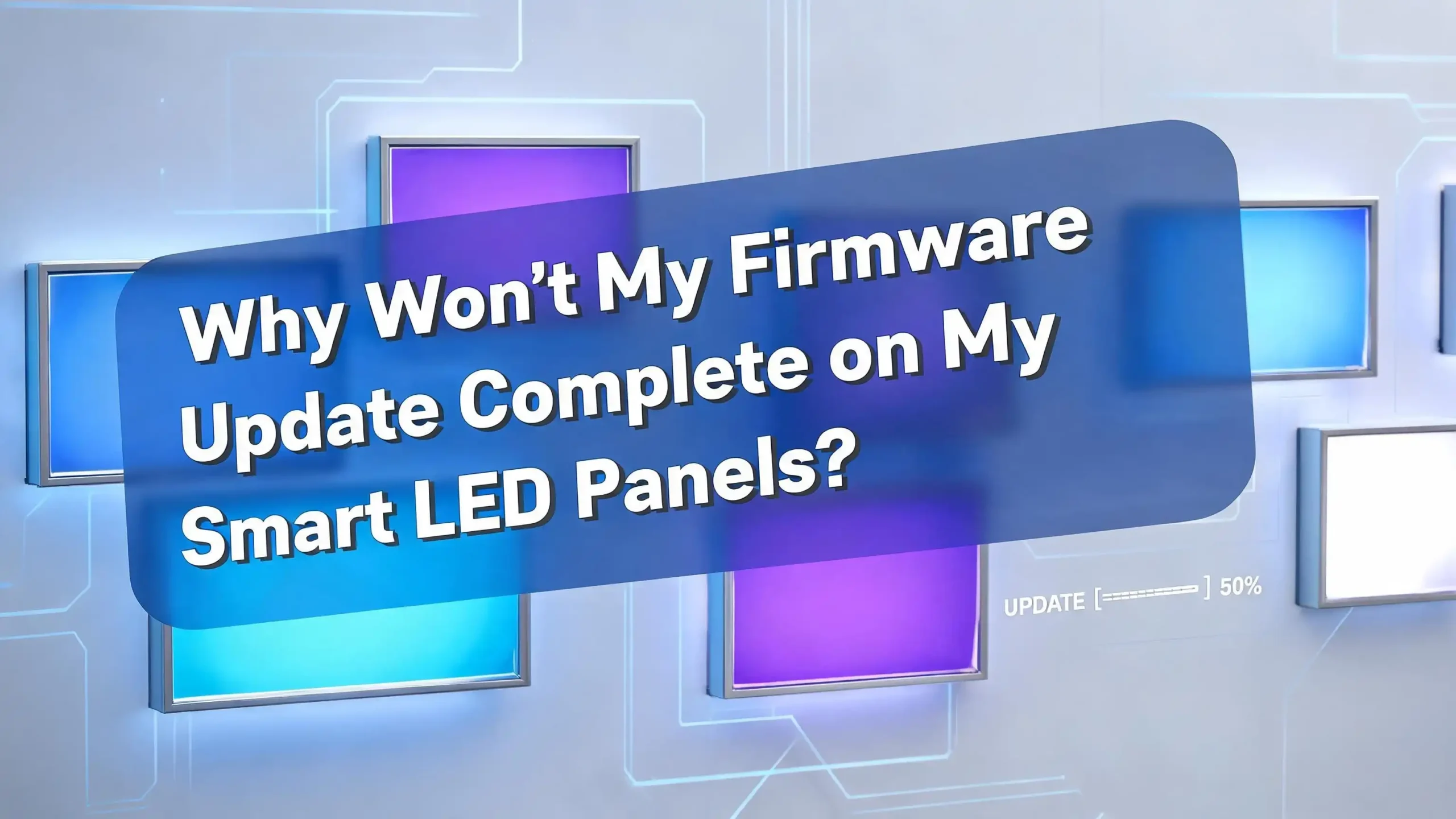
Why Won’t My Smart LED Panel Firmware Update Complete?
Are you staring at a frozen update bar on your smart LED panel app, wondering what went wrong? You tap “Update Firmware,” watch the progress bar crawl to 40%, then — nothing. The app throws an error.
The panel goes offline. Or worse, the lights start blinking and refuse to respond to any commands. This experience is incredibly frustrating, especially after spending good money on a smart lighting setup you were excited to use.
The good news is that a firmware update failure on smart LED panels is almost never permanent. In most cases, the problem comes down to a handful of fixable causes like a shaky WiFi signal, a brief power interruption, or a temporary glitch in the manufacturer’s update server.
This guide walks you through every possible reason your smart LED panel firmware update won’t complete, and gives you clear, step-by-step solutions for each one. Read through to the end because the answer to your specific problem is almost certainly here.
Key Takeaways
- A failed firmware update does not mean a broken panel. Most smart LED panels that appear “bricked” after a failed update can be recovered using a factory reset and a clean re-setup in the companion app. Do not throw the hardware away before trying these steps.
- WiFi frequency is one of the biggest culprits. Smart LED panels almost universally require a 2.4 GHz WiFi connection to receive firmware updates. If your router broadcasts a combined 2.4 GHz and 5 GHz network under the same name, your phone or panel may be connecting to the 5 GHz band without your knowledge, blocking the update.
- Power stability matters as much as connectivity. If the panel loses power even for a split second during a firmware flash, the process corrupts mid-way. Always ensure your LED panels are plugged directly into a stable power outlet before starting any update.
- Never spam the “Update” button. Retrying a firmware update multiple times back-to-back increases the chance of deeper firmware corruption. One careful, controlled retry on a stable connection is always better than five rushed attempts.
- App version and server status affect update success. An outdated companion app or a manufacturer’s server outage can silently block firmware updates. Checking both before you troubleshoot your hardware will save you a lot of unnecessary steps.
- Batch your updates when updating multiple panels. Updating all panels at the same time puts a heavy load on your WiFi and the manufacturer’s servers. Updating two or three panels at a time with breaks in between leads to far fewer failed updates.
Why Firmware Updates Matter for Smart LED Panels?
Before jumping into fixes, it helps to understand what firmware actually does for your smart LED panels. Firmware is the core operating software that runs inside the panel itself. It controls how the panel communicates with your app, how it processes lighting commands, and how it interacts with voice assistants like Alexa or Google Home.
Manufacturers release firmware updates to fix bugs, improve color accuracy, add new features, and patch security vulnerabilities. Skipping an update is not always dangerous, but staying multiple versions behind can cause features to stop working, integrations to break, and in some cases, the panel to become incompatible with newer versions of the companion app.
When a firmware update fails partway through, the panel can get stuck in a state where the old firmware is partially overwritten but the new firmware never fully loaded. This is what causes the blinking lights, app disconnections, and “device offline” messages that many users panic about.
Understanding this process helps you see exactly why each troubleshooting step in this guide targets the root cause instead of just masking symptoms.
Check Your WiFi Band First
This is the single most common reason firmware updates fail on smart LED panels, and it is one of the easiest fixes available. Smart LED panels from virtually every major brand connect exclusively over 2.4 GHz WiFi. They cannot connect over 5 GHz, and they cannot receive firmware updates over a 5 GHz connection.
The problem shows up most often in homes with a dual-band or tri-band router that broadcasts both 2.4 GHz and 5 GHz under the same network name. Your phone, which prefers the faster 5 GHz band, might be on 5 GHz while your panel sits on 2.4 GHz. When the app tries to push a firmware update to the panel, the phone and the panel are on different frequency bands, causing the update to time out or fail immediately.
To fix this, go into your router settings and temporarily split the two bands into separate networks with different names, for example “HomeNetwork_2.4G” and “HomeNetwork_5G.” Connect your phone to the 2.4 GHz network. Then open your LED panel app and try the firmware update again. Many users who have tried everything else find that this single step solves the problem completely.
Some newer routers use a feature called “Band Steering,” which automatically moves devices to the best band. This feature can work against you during a firmware update. Disabling Band Steering temporarily in your router settings during the update process gives you much more reliable results.
Make Sure Your Power Supply Is Stable
Power interruptions during a firmware update are one of the most damaging things that can happen to your smart LED panels. The moment the firmware flashing process starts, the panel writes new code directly to its internal memory chip. If power cuts out during this write process, the memory ends up with a corrupt mix of old and new code that the panel cannot run properly.
This is why users often describe their LED panel as “frozen” or “not responding” after a failed update — the panel is trying to boot from incomplete firmware data and getting stuck in a loop.
Before starting any firmware update, take a few simple precautions. Ensure the panel is plugged directly into a wall outlet rather than a power strip or smart plug. Smart plugs and surge protectors can sometimes introduce micro-interruptions in power delivery that are invisible to you but catastrophic to a firmware flash process. If your panels run through a smart plug, unplug them from the smart plug and connect them directly to the wall for the duration of the update.
Also make sure no one else in your home will accidentally flip the switch or pull a power cord during the update. A simple “updating, do not unplug” note on the power strip can prevent a frustrating situation. Firmware updates on smart LED panels typically take between two and eight minutes. Keeping everything stable for just that window makes a significant difference.
Check the Manufacturer’s Server Status
Many users spend hours troubleshooting their WiFi, their app, and their panels, never realizing the actual problem is on the manufacturer’s end. Smart LED panel firmware updates are delivered over the cloud, meaning your panel has to download the new firmware file from the manufacturer’s servers. If those servers are down, overloaded, or pushing a buggy update file, the download will fail no matter how perfect your home network is.
This issue is especially common right after a major firmware release. When a manufacturer pushes a new update to millions of devices at the same time, the sudden spike in download requests can overwhelm their servers, causing slow downloads that time out or partially complete before stalling.
To check for this, search the brand’s name along with “server status” or “service status” in a web browser. Many smart home brands maintain a public status page that shows whether their cloud services are running normally. You can also check platforms like Reddit, Twitter, or the brand’s official community forums to see if other users are reporting the same update failure at the same time.
If the servers are the problem, the best solution is simply to wait. Come back in a few hours or the following morning and try the update again. Avoid running major firmware updates on multiple panels during peak evening hours when network traffic is typically highest across all smart home platforms.
Update Your Companion App First
Your smart LED panel’s firmware update is delivered and managed through the manufacturer’s companion app on your smartphone. If that app is outdated, it may not be able to communicate properly with the newer firmware file being pushed by the manufacturer’s servers. This mismatch can cause the update to stall, fail, or not appear at all.
Before you attempt any firmware update on your LED panels, open your phone’s app store and check whether a newer version of the companion app is available. Install any available app updates and restart your phone before opening the app again.
This step is especially important for brands like Govee and Nanoleaf, which release frequent app updates alongside firmware updates for their panels. Running an old version of the Govee Home app, for example, can prevent the firmware update notification from appearing entirely, or can cause the update to fail partway through even when your WiFi signal is strong.
After updating the app, log out of your account and log back in before trying the firmware update. This refreshes your session token and ensures the app is communicating with the latest version of the manufacturer’s cloud infrastructure. A stale login session in the app is a surprisingly common cause of update failures that very few troubleshooting guides mention.
Restart Everything Before Retrying
When your firmware update fails, your first instinct might be to immediately tap “Try Again.” Resist that urge. Hitting the update button repeatedly without resetting the state of your panel and app can cause multiple partial firmware writes to layer on top of each other, making the corruption worse.
Instead, take a deliberate, methodical approach to restarting everything before your next attempt. Start by closing the companion app completely, not just minimizing it. On both iOS and Android, swipe the app away from your recent apps list to fully kill the background process. Then power-cycle your smart LED panels by unplugging them from the wall for a full 30 seconds before plugging them back in.
Wait two to three minutes after plugging the panels back in before opening the app. This gives the panels time to fully boot up, connect to your WiFi network, and register with the manufacturer’s cloud. Opening the app too quickly after a power cycle often shows you a stale “offline” status that triggers another failed update attempt.
After reopening the app, check that your panel shows as “online” before you try the firmware update again. If the panel shows as offline, address the connectivity issue first. Trying to push a firmware update to a panel that the app cannot even reliably reach is always going to fail, regardless of what your WiFi settings look like.
Move Your Router or Panel Closer Together
WiFi signal strength has a direct impact on the success rate of firmware updates. A smart LED panel that shows “connected” in the app at low signal strength can still fail firmware updates regularly because the connection is not stable enough to sustain the continuous data transfer the update requires.
Unlike regular app commands, which are tiny packets of data, a firmware update is a large file transfer that needs to stay connected without interruption for several minutes. A marginal WiFi signal that works fine for changing colors or adjusting brightness may drop too many packets during a multi-minute firmware download to complete successfully.
To fix this, temporarily move your router closer to your LED panels, or move the panels to a location closer to the router before triggering the update. If moving either is not practical, a WiFi range extender or mesh node placed between the router and the panels can boost signal strength enough to complete the update reliably.
When checking signal strength, use your phone rather than trusting the app’s reported connection. Stand next to the panel and check your phone’s WiFi signal bars while connected to your 2.4 GHz network. If you see less than three bars of signal, adding a WiFi extender in that room is a worthwhile long-term fix for both firmware updates and general smart home reliability.
Disable VPNs and Firewall Restrictions
This is a fix that many users overlook entirely. If you use a VPN on your smartphone, it can interfere with the communication between your companion app and the manufacturer’s firmware update servers. VPNs route your internet traffic through a different server, which can block the specific ports or IP addresses that smart home firmware servers use to deliver updates.
Turn off your VPN completely before starting a firmware update. After the update completes, you can turn it back on. The same applies to any custom DNS settings, ad blockers, or Pi-hole configurations running on your home network. These tools sometimes block the manufacturer’s cloud domains, preventing the firmware file from being downloaded to your panel.
On the router side, some parental controls and firewall settings block outgoing connections to certain cloud services. Log into your router’s admin panel and temporarily set your smart LED panel’s IP address to bypass any firewall or content filtering rules during the update process.
Additionally, if you have a guest WiFi network, make sure your panels are not accidentally connected to it. Guest networks are specifically designed to block device-to-device communication, which prevents the app on your phone from talking directly to your panel during the update handshake.
Perform a Factory Reset on Your Smart LED Panel
If your panel is stuck in a broken state after a failed update — blinking continuously, showing as permanently offline, or freezing on one color — a factory reset is often the fastest and most reliable way to recover the device. A factory reset wipes the corrupted partial firmware and restores the panel to a known working state.
The factory reset process differs by brand, but it typically involves turning the panel off and on in a specific sequence, often called a “toggle pattern.” For most Govee panels, holding the reset button on the controller for five seconds initiates the reset. For Nanoleaf panels, holding the power button on the controller for five to seven seconds until the lights flash triggers the reset.
Before you reset, delete the panel’s entry from your companion app. Leaving the old, corrupted device profile in the app while trying to re-add the panel creates confusion and often causes the re-setup process to fail. Delete the device first, then reset the hardware, then add it again as a completely new device.
After the factory reset, add the panel back to your app on a stable 2.4 GHz network. Once the panel is fully connected and showing as online, wait at least 15 minutes before attempting the firmware update again. This delay gives the panel time to fully register on the manufacturer’s cloud and ensures the update process starts from a clean state.
Try Updating in Smaller Batches
If you have multiple smart LED panels installed throughout your home, attempting to update them all simultaneously is one of the most reliable ways to cause update failures. Batch updates put a heavy load on your local WiFi network and on the manufacturer’s update servers at the same time.
When several panels download the firmware file simultaneously, they compete for bandwidth on your 2.4 GHz network. On many home routers, the 2.4 GHz band has a maximum throughput of around 150 to 300 Mbps shared across all connected devices. Multiple simultaneous firmware downloads can saturate this bandwidth, causing individual update sessions to time out.
Change your approach by updating two or three panels at a time. Start the update on a small group, wait for the app to confirm the updates are complete and all panels show as online, and then move on to the next group. Allow 15 to 20 minutes between batches so each set of panels can stabilize on the new firmware before the next batch begins.
This batching strategy also helps you identify problem panels more easily. If one panel consistently fails during its batch while others succeed, you know exactly which device needs deeper troubleshooting rather than having to sort through a pile of failed updates all at once.
Check for App Permissions and Phone Settings
Your smartphone’s operating system settings can silently block the background processes that firmware updates depend on. On both iOS and Android, apps can be restricted from running background tasks, accessing your local network, or staying awake during long operations — all of which can interrupt a firmware update midway through.
On Android, go to Settings, then Apps, find your LED panel’s companion app, and check that Background Activity, Local Network Access, and Battery Optimization are all correctly configured. Set the app to “Unrestricted” under Battery Optimization so Android does not kill the app’s background process during the firmware transfer.
On iOS, go to Settings, scroll to your companion app, and make sure Local Network permission is turned on. Also make sure the app has permission to run in the background. iOS has aggressive background app refresh restrictions that can pause a firmware update if your phone locks during the process.
Keep your phone screen on and the companion app in the foreground for the entire duration of the firmware update. Do not switch to another app, do not let the screen time out, and do not receive calls during the update if you can avoid it. Keeping the app active and visible on screen throughout the update process is one of the simplest ways to prevent failures.
Contact the Manufacturer’s Support if Nothing Works
If you have worked through every step in this guide and your smart LED panel still refuses to complete its firmware update, it is time to contact the manufacturer’s customer support team directly. This is especially true if the panel appears completely unresponsive after a failed update, or if the same panel has failed multiple firmware updates in a row even under ideal conditions.
Before contacting support, gather some key information that will speed up the process. Note your panel’s model number, the current firmware version shown in the app, the specific error message you received, and the steps you have already tried. Manufacturers have internal diagnostic tools that can sometimes push firmware directly to a specific device ID, bypassing the normal update flow that keeps failing for you.
In many cases, if a firmware update has genuinely corrupted a panel beyond what a factory reset can fix, the manufacturer will offer a warranty replacement. Most reputable smart LED panel brands stand behind their products and will replace a device that became non-functional due to a firmware update failure, particularly if the panel is less than a year old.
Document everything with screenshots before reaching out. Screenshots of the error message, the firmware version screen, and any offline indicators in the app give support agents the context they need to escalate your case faster and with fewer back-and-forth questions.
Prevent Future Firmware Update Failures
Once you have resolved your current firmware update issue, taking a few simple precautions will dramatically reduce the chances of it happening again. The most effective prevention strategy starts with how and when you trigger firmware updates.
Never update your smart LED panels the same day a new firmware version is released. Wait 48 to 72 hours after a new firmware version becomes available. This gives the manufacturer time to identify and fix any immediate bugs in the new version, and it also gives the update servers time to handle the initial surge of users updating on day one. Users who wait a few days almost always have smoother update experiences than those who update immediately.
Keep your companion app updated at all times, not just when you are about to perform a firmware update. Regular app updates ensure the update client on your phone stays compatible with the firmware delivery system the manufacturer uses.
Enable automatic firmware updates only if your panels are in a location with consistently strong WiFi signal. For panels in rooms with marginal signal strength, disable automatic updates and trigger manual updates only when you are present and can monitor the process. This prevents the panel from attempting a silent background update at 3 AM with no one watching, which is a common cause of failed updates that users discover the next morning.
FAQs
Why does my smart LED panel get stuck at 0% during a firmware update?
A firmware update stuck at 0% almost always means the panel cannot download the update file at all. This is typically caused by a WiFi connection problem such as the panel being on a 5 GHz band instead of 2.4 GHz, a VPN on your phone blocking the manufacturer’s servers, or the manufacturer’s servers being temporarily down. Check your WiFi band settings first, then check the manufacturer’s service status page to rule out a server-side issue.
Can a failed firmware update permanently brick my smart LED panel?
A complete, permanent brick is rare but possible in extreme cases. In most situations, a panel that appears bricked after a failed update can be recovered through a factory reset and a clean re-setup in the companion app. If the panel does not respond to a factory reset and never broadcasts a pairing signal again, contact the manufacturer for a warranty replacement, as the firmware chip may have suffered corruption beyond what a software reset can fix.
How long should a smart LED panel firmware update take?
Most smart LED panel firmware updates complete within two to eight minutes depending on the size of the update file and the speed of your WiFi connection. If the update progress bar has not moved for more than 15 minutes, the update has likely stalled. Close the app, power-cycle the panel, wait two minutes, and then try again with a fresh attempt.
Should I update all my smart LED panels at the same time?
No, updating all panels simultaneously increases the risk of failures due to WiFi congestion and server load. Update two or three panels at a time, confirm they complete successfully and come back online, then move to the next group. Allowing 15 to 20 minutes between batches gives the network and the manufacturer’s servers time to stabilize between update sessions.
Does the smart LED panel firmware update work on a 5 GHz WiFi network?
No. Smart LED panels use 2.4 GHz WiFi exclusively. They cannot connect to or receive updates over a 5 GHz network. If your router broadcasts both frequencies under the same network name, temporarily separate them in your router settings and connect both your phone and your panels to the 2.4 GHz network before attempting the firmware update.
What should I do if the LED panel shows as offline after a failed firmware update?
If your panel shows as offline after a failed update, do not immediately retry the update. First, power-cycle the panel by unplugging it for 30 seconds and plugging it back in. Wait two to three minutes for it to reconnect to your network. If it still shows offline, perform a factory reset using the manufacturer’s reset procedure, delete the device from the app, and re-add it as a new device. Once the panel is confirmed as online and stable, then attempt the firmware update again.
Why does the firmware update fail even when my WiFi is strong?
Strong WiFi signal does not always mean stable connectivity. Other factors like router firewall rules, guest network restrictions, VPN configurations, outdated app versions, or manufacturer server issues can all cause update failures regardless of signal strength. Work through each potential cause systematically rather than assuming good signal strength rules out a connectivity-related problem.
Is it safe to use my smart LED panels right after a firmware update?
Yes, once the firmware update completes and the app shows the panels as online with the updated firmware version, it is safe to use them normally. Some panels may take a minute or two to restart and reconnect after the update. If a panel asks you to re-enter your WiFi password after the update, follow the in-app instructions to bring it back online before resuming normal use.