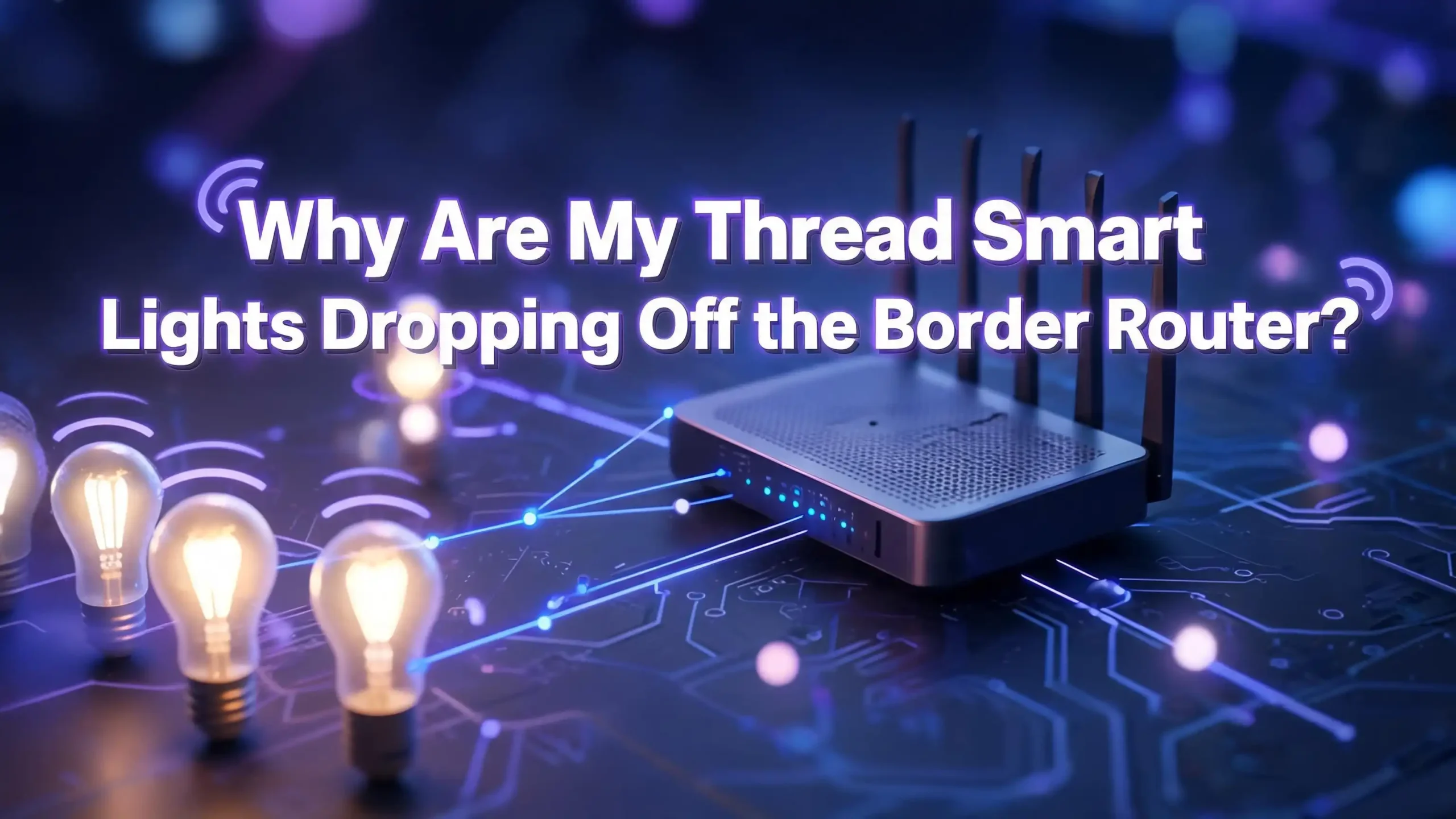
Why Are My Thread Smart Lights Dropping Off the Border Router?
You set up your Thread smart lights with high expectations. The promise was simple: a fast, reliable mesh network that just works. But instead, your lights keep going offline. They drop off the border router without warning, leaving you frustrated and tapping your phone screen over and over.
You are not alone. Thousands of smart home users report the same problem. Thread smart lights disconnect from the border router, vanish from the app, and sometimes come back on their own minutes or hours later. The border router looks perfectly healthy. Everything else in your smart home seems fine. Yet those lights refuse to stay connected.
The good news? This problem is fixable. The causes are well documented, and the solutions are practical. This post will walk you through every common reason your Thread smart lights drop off the border router.
In a Nutshell
- Thread smart lights drop off the border router for several predictable reasons. The most common culprit is a weak or broken mesh path between the light and the border router. Even if the border router looks healthy, the mesh network behind it may have gaps or weak links that cause devices to lose their connection.
- Wi-Fi interference is another major factor. Thread operates on the 2.4 GHz band, and overlapping Wi-Fi channels can disrupt communication between your lights and the border router. A simple channel adjustment on your Wi-Fi router can make a dramatic difference.
- Outdated firmware on your border router or smart lights causes instability. Early versions of the Matter and Thread protocols had known bugs that manufacturers have since patched. Devices still running Matter 1.0 firmware are especially prone to disconnection problems.
- Multiple border routers from different ecosystems can create conflicting Thread networks. When Apple, Google, and Amazon devices each spin up their own Thread network, your lights may bounce between networks or lose their route entirely. Sticking to one primary ecosystem or sharing Thread credentials solves this.
- Physical placement of your border router and powered Thread devices matters more than most users realize. Moving a hub to another room or unplugging a single smart plug can reshape the entire mesh and cause lights in distant rooms to vanish.
What Is a Thread Border Router and Why Does It Matter
A Thread border router acts as the bridge between your Thread mesh network and your home IP network. It translates communication so your phone, voice assistant, and cloud services can talk to Thread devices like smart lights. Without it, your Thread devices have no path to the outside world.
Devices like the Apple TV 4K, HomePod Mini, Google Nest Hub, and Google TV Streamer all contain built in Thread border routers. Some third party hubs from brands like Aqara and IKEA also serve this function. Your border router is the single most important piece of hardware in your Thread setup.
Here is what many users miss: a border router that shows “online” in your app does not mean your Thread mesh is healthy. The border router only manages the gateway. The mesh network itself depends on the connections between all your powered Thread devices. If those connections break, lights drop off even though the border router appears perfectly normal. Think of it like a highway on ramp that works fine while the roads behind it are full of potholes.
How the Thread Mesh Network Actually Works
Thread uses a mesh topology. This means devices talk to each other and relay signals across the network. There are three types of devices in a Thread mesh. Border routers connect the mesh to your home network. Routers are powered devices like smart plugs and always on lights that relay signals. End devices are typically battery powered sensors or switches that only talk to the nearest router.
Your Thread smart lights usually function as routers when they have constant power. They help strengthen the mesh by passing signals to other devices. But if you turn off a light using a physical wall switch, that light leaves the mesh. This creates a gap that can affect other devices nearby.
The mesh heals itself over time, but this process can take 30 to 60 minutes. During that window, other devices may appear offline. Many users see lights drop off and immediately start troubleshooting, which often interrupts the healing process and makes things worse. Patience is a critical part of maintaining a Thread network.
Wi-Fi Channel Interference Is a Hidden Killer
Thread and Wi-Fi both operate on the 2.4 GHz frequency band. This shared spectrum creates a real risk of interference. The problem gets worse depending on which Thread channel your border router uses and which Wi-Fi channel your router selects.
Apple border routers typically use Thread channel 25. This channel overlaps directly with Wi-Fi channel 11. If your Wi-Fi router is set to channel 11 or uses automatic channel selection that lands on channel 11, your Thread devices will experience interference. This interference causes dropped connections, slow responses, and lights that vanish from your app.
The fix is straightforward. Log in to your Wi-Fi router settings and manually set your 2.4 GHz Wi-Fi to channel 1 or channel 6. These channels sit far enough from Thread channel 25 to avoid overlap. Disable automatic channel switching so your router does not drift back to a conflicting channel later. If you also run a Zigbee network, set Zigbee to channel 20 to create frequency separation between all three protocols.
Your Border Router Placement Needs to Change
Where you place your border router has a direct impact on Thread stability. Many users tuck their Apple TV or HomePod behind a TV cabinet or in a corner of the house. This limits the radio signal and weakens the connection to distant Thread devices.
Place your border router in a central, open location. Avoid metal shelves, thick walls, and enclosed entertainment centers. The border router needs a clear radio path to as many Thread devices as possible. If you cannot move the border router to the center of your home, you need more powered Thread devices acting as routers to bridge the gap.
An Ethernet connection to your border router provides the most stable results. Apple TV 4K, Google TV Streamer, and some Home Assistant setups support wired connections. A wired border router eliminates Wi-Fi variability from the equation entirely. If you have multiple Apple border routers, go into the Home app and manually set the Ethernet connected device as your preferred hub under “Hubs & Bridges.”
You Might Not Have Enough Powered Thread Devices
A common mistake is having too few powered Thread devices in the mesh. Each powered device, such as a smart plug or always on light, acts as a router that extends the network range. Without enough routers, your mesh has coverage gaps.
Battery powered devices like sensors and switches are end devices. They do not relay signals. They depend entirely on nearby powered routers for their connection. If your Thread smart lights are the only powered devices in a particular area, losing one light means losing the relay point for everything else in that zone.
The solution is to add more powered Thread devices along the path between your border router and distant lights. Smart plugs are ideal because they stay powered at all times and require no interaction. Place one in each room or hallway to create a strong chain of routers. Even if you do not use the plug to control anything, its presence strengthens the mesh. Aim for at least five to seven powered devices for a typical home to build reliable coverage.
Firmware and Software Updates Are Essential
Outdated firmware is one of the most overlooked causes of Thread instability. The Thread protocol and Matter standard have gone through several revisions since their initial release. Early versions, especially Matter 1.0, had significant bugs that caused devices to become unreachable or respond sluggishly.
Check for firmware updates on every Thread device you own. This includes your smart lights, border router, smart plugs, and any hubs. Some manufacturers like Eve and Nanoleaf require their own app for updates. Others support updates through Apple Home or Home Assistant directly.
Also update the software on your border router hardware. Apple TV, HomePod, and Google Nest devices receive regular OS updates that include Thread stack improvements. Running the latest version of tvOS, HomePodOS, or Google’s firmware can resolve connectivity issues that no amount of device rearranging will fix. If a device has never received a firmware update from its manufacturer, consider replacing it with a model that has active software support.
Multiple Border Routers Can Create Conflicting Networks
Having more than one border router sounds like it should improve your Thread network. In practice, it often causes problems. Each ecosystem, whether Apple, Google, or Amazon, may create its own separate Thread network with different credentials. Your lights can end up split across these networks.
When border routers from different platforms compete, devices may lose their preferred route. The mesh becomes fragmented. Some lights connect to one network while others connect to another. The result is inconsistent behavior and frequent dropoffs.
The best approach is to designate one ecosystem as your primary Thread platform. Commission all new Thread devices through that single platform. If you use Apple Home, make sure all your border routers share the same Thread credentials through iCloud Keychain. For Home Assistant users, the companion app can transfer credentials between border routers to keep everything on one unified network. Avoid adding border routers from different ecosystems unless you have verified they can share Thread credentials.
Unplugging Devices Disrupts the Entire Mesh
Every time you unplug a powered Thread device, you remove a router from the mesh. The network must find new paths, and this process takes time. If you unplug a device in a critical location, such as a hallway between two rooms, you can isolate an entire section of your home.
Never turn off Thread smart lights using a physical wall switch if you want them to stay in the mesh. Use the app or voice commands instead. The same applies to smart plugs. Moving a plug from one room to another forces the mesh to rebuild twice: once when you remove it and again when you place it elsewhere.
Turning off your border router at night to save energy is especially harmful. The entire Thread network loses its gateway, and every device must reconnect when power returns. This reconnection process can take up to an hour, and some devices may fail to rejoin automatically. Keep your border router powered at all times for a stable network.
Your Home Network Setup May Be Blocking Thread Traffic
Thread uses IPv6 and Multicast DNS (mDNS) for device communication and discovery. These protocols need to flow freely on your local network. Certain network configurations can silently block this traffic and cause Thread devices to drop off.
VPN connections, guest networks, and VLAN segmentation are common culprits. If your Thread devices are on a different network segment from your border router or controller, mDNS messages cannot reach them. Enterprise grade networking equipment from brands like Ubiquiti or TP-Link Omada often includes firewalls and access control lists that filter multicast traffic by default.
The fix is to keep your network simple. Place all smart home devices, border routers, and controllers on the same network segment. Disable any firewall rules that block IPv6 or mDNS traffic between devices. If you must use VLANs, configure an mDNS reflector or avahi daemon to bridge discovery traffic between segments. For most home users, a flat network with no segmentation delivers the best Thread performance.
Multi Admin Pairing Increases Network Traffic
Matter’s multi admin feature lets you control a single device from multiple platforms simultaneously. For example, both Apple Home and Home Assistant can directly control the same smart light. While convenient, this feature doubles or triples the Thread network traffic for each paired device.
Thread networks have very low bandwidth. They are designed for small, infrequent data packets. When you pair 20 or 30 devices to two or three ecosystems, the traffic load can overwhelm the mesh. Devices start timing out, going offline, and behaving erratically.
If you experience instability with a growing number of Thread devices, remove multi admin pairings and control devices through a single platform. You can then use bridge features, like Home Assistant’s HomeKit Bridge, to expose devices to other ecosystems without the extra Thread traffic. This approach cut network traffic in half for users who scaled past 50 Thread devices while restoring full stability to their mesh.
How to Properly Reboot Your Thread Network
When all else fails, a systematic reboot can reset your Thread network and resolve persistent issues. But the order matters. Rebooting everything at once can make things worse by forcing all devices to reconnect simultaneously.
Follow this sequence for the best results. First, reboot your internet router or modem. Wait five minutes. Then reboot your Wi-Fi access points. Wait another five minutes. Next, power cycle your Thread border routers one at a time, waiting at least five minutes between each one. Finally, reboot your smart home controller if you use one.
After the last device comes back online, wait 30 to 60 minutes before testing anything. The Thread mesh needs this time to rebuild its routing tables and establish stable paths. Do not start adding or removing devices during this window. Do not initiate another reboot. Let the network heal on its own. If specific lights still do not reconnect after an hour, power cycle those individual lights by removing and restoring power.
Signs You Need to Replace a Faulty Device
Sometimes the problem is not the network. It is a single defective device causing trouble for everything around it. A faulty Thread light can flood the mesh with bad data, consume routing resources, or fail to release its mesh role properly when it disconnects.
If one particular light keeps dropping while everything else stays stable, remove it from your network temporarily. Wait an hour for the mesh to heal. If the rest of your devices stabilize, you have found the problem. Check whether that light has a firmware update available. If not, and the manufacturer has not released updates in over a year, the device may be running outdated Matter 1.0 code that will never be fixed.
Some inexpensive Thread lights from lesser known brands never receive firmware updates after their initial release. These devices can become a persistent source of instability as the rest of the ecosystem evolves. Replace them with lights from manufacturers who have a proven track record of delivering over the air updates, such as Eve, Nanoleaf, or IKEA.
A Step by Step Troubleshooting Checklist
Start with the simplest fixes and work your way up. First, check your Wi-Fi channel and move it to channel 1 or 6 to avoid Thread interference. Second, verify that your border router has the latest firmware and is placed in a central, open location. Third, count your powered Thread devices and add smart plugs if you have fewer than five to seven routers in the mesh.
Fourth, check for any recently moved or unplugged devices. A missing smart plug or relocated border router can explain sudden dropoffs. Fifth, verify that all your Thread devices share the same network credentials and are not split across competing ecosystems. Sixth, disable multi admin pairings if your network has grown past 25 devices and you notice increasing instability.
Seventh, review your home network settings. Make sure IPv6 and mDNS traffic flow freely. Remove VPN configurations or VLAN restrictions that might block local discovery. Eighth, perform a systematic reboot in the correct order if problems persist. And ninth, isolate suspected faulty devices by removing them one at a time and monitoring network behavior for an hour after each removal.
Frequently Asked Questions
Why do my Thread lights keep going offline even though my border router shows as connected?
A connected border router only means the gateway between your Thread mesh and home network is working. The mesh itself can have gaps, weak routes, or missing powered devices that cause individual lights to lose their path to the border router. Check for unplugged devices, moved hubs, and coverage gaps in the areas where lights drop off most often.
How many Thread devices do I need for a stable mesh network?
Aim for at least five to seven powered Thread devices spread across your home. These act as routers that relay signals through the mesh. Battery powered devices do not count because they are end devices that cannot relay signals. More powered devices mean more redundant paths, which makes the network more resilient.
Can mixing Apple and Google border routers cause Thread lights to drop off?
Yes. Different ecosystems often create separate Thread networks with different credentials. Your lights may end up on one network while your controller looks for them on another. Stick to one primary ecosystem for Thread or ensure all border routers share the same Thread credentials through methods like iCloud Keychain or Home Assistant’s credential sharing feature.
Does turning off a Thread light with a wall switch affect other devices?
It can. When you cut power to a Thread light, it leaves the mesh. If that light was acting as a router, other devices that depended on it for signal relay lose their connection. Always control Thread lights through the app or voice commands. Keep the physical wall switch in the on position at all times.
How long does it take for a Thread mesh to recover after a disruption?
A Thread mesh can take 30 to 60 minutes to fully rebuild after a disruption. During this time, devices update their internal routing tables and find new paths. Avoid making additional changes during this healing window. Let the network stabilize on its own before testing or troubleshooting further.
Should I update firmware on my Thread smart lights and border router?
Absolutely. Firmware updates fix known bugs in the Thread stack and Matter protocol. Devices running Matter 1.0 are especially prone to connectivity issues that later updates resolved. Check for updates regularly through your manufacturer’s app, Apple Home, or Home Assistant, and always keep your border router’s operating system current.