How to Stop Smart Lights From Triggering Security Camera Motion Sensors?
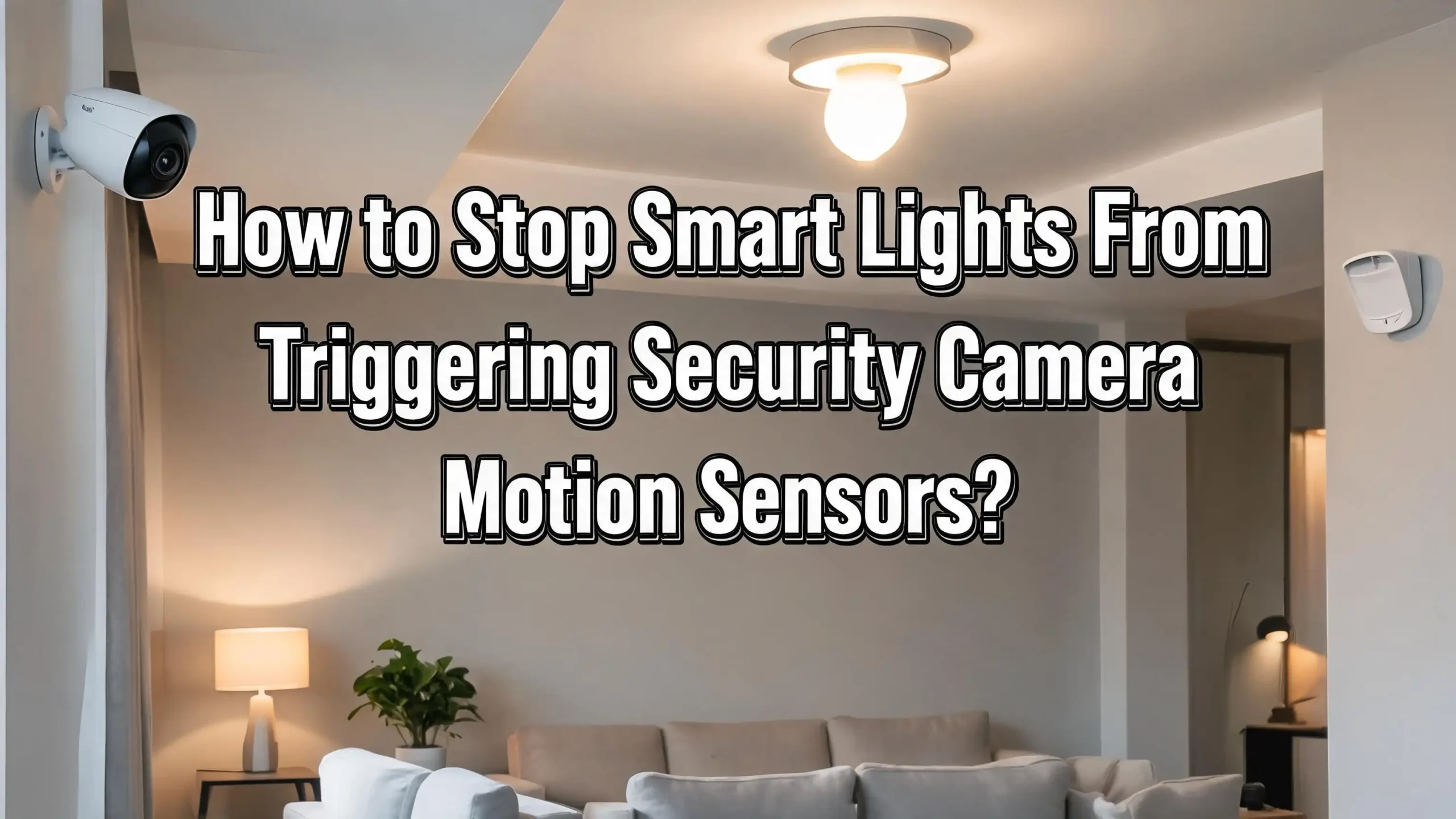
You finally set up your smart home with automated lights and security cameras. Everything should work together in perfect harmony. But instead, your phone buzzes every few minutes with false motion alerts. The culprit? Your smart lights keep triggering your security camera’s motion sensors.
This problem is far more common than most people realize. Security cameras use two main methods to detect motion: pixel comparison and passive infrared (PIR) sensing. Both of these methods can mistake sudden light changes for actual movement. A smart bulb that turns on or changes color shifts the pixels in a camera’s frame instantly.
A bulb that produces heat creates an infrared signature that PIR sensors read as a warm body moving through the space. The result is a flood of false notifications, wasted cloud storage, and a growing temptation to just turn off alerts entirely.
The good news? You do not have to choose between smart lighting and reliable security. This guide walks you through every practical fix, from quick setting tweaks to smarter placement strategies. Each solution builds on the last, so you can start simple and go deeper until the false alerts stop for good.
Key Takeaways
- Smart lights cause false motion alerts because security cameras detect sudden changes in brightness, color, or heat. Both pixel comparison cameras and PIR sensor cameras are vulnerable to this issue, though each type responds to a different aspect of the light change.
- Adjusting your camera’s motion sensitivity is the fastest first step. Lowering the sensitivity setting reduces the camera’s reaction to minor pixel shifts caused by lights turning on or off. Most camera apps let you do this in under a minute.
- Motion detection zones let you exclude problem areas. You can draw zones on your camera’s live view to ignore the area where your smart light sits. This keeps the camera focused on doorways, walkways, and entry points instead.
- AI smart detection filters make a major difference. Many modern cameras offer person or vehicle detection that uses artificial intelligence to identify the shape and movement pattern of a human body. Enabling this feature tells the camera to ignore everything that does not look like a person.
- Scheduling and automation rules prevent conflicts. You can set your smart home platform to pause motion recording for a few seconds whenever a light turns on. This brief delay lets the camera adjust to the new light level before it starts watching for motion again.
- Camera and light placement changes offer a permanent fix. Repositioning your camera so the smart bulb sits outside the direct field of view eliminates the trigger source entirely without reducing your security coverage.
Why Smart Lights Trigger Security Camera Motion Sensors
Security cameras detect motion through two primary technologies. Pixel comparison cameras analyze consecutive video frames and look for differences between them. Any change in brightness, shadow, or color across enough pixels triggers a motion event. A smart light turning on floods the frame with new visual data, and the camera reads this as something moving.
PIR sensor cameras detect changes in infrared heat radiation within their field of view. While LED smart bulbs produce less heat than old incandescent bulbs, they still emit some warmth. More importantly, the surfaces a bulb illuminates absorb that light energy and reflect infrared radiation. This rapid thermal shift mimics the heat signature of a person walking through the sensor’s range.
The problem grows worse with color changing smart bulbs. A shift from warm white to bright blue changes an enormous number of pixels in a single frame. The camera’s algorithm cannot tell the difference between this light change and an actual intruder crossing the scene.
How Pixel Comparison Detection Creates False Alerts
Pixel comparison is the most common motion detection method in home security cameras, especially wired PoE models. The camera captures a reference frame, then compares every new frame against it. If a certain percentage of pixels change beyond a set threshold, the system flags that change as motion.
Smart lights create an extreme version of this pixel shift. A room that goes from dark to fully lit changes nearly every pixel in the frame simultaneously. Even a dimmer adjustment or color temperature shift can alter enough pixels to cross the detection threshold. The camera does not understand that a light turned on. It only sees that the image looks dramatically different from one frame to the next.
This is also why the problem happens with lights turning off. A sudden drop to darkness creates the same massive pixel shift in the opposite direction. Cameras with slow frame rates may even catch a brief afterglow or flicker, generating multiple triggers from a single light event.
How PIR Sensors React to Heat From Smart Bulbs
PIR sensors work differently from pixel comparison. They contain a small crystal that generates voltage in response to infrared radiation. The sensor divides its field of view into zones, and it triggers an alert when it detects a heat signature moving from one zone to another.
Smart bulbs produce heat during operation. Even efficient LEDs generate warmth at the base and driver components. This heat radiates outward and warms nearby surfaces like lamp shades, ceiling mounts, and walls. When a bulb turns on, the sudden rise in surface temperature across the PIR sensor’s detection zone mimics a warm body entering the area.
The issue is most obvious with recessed ceiling lights. These fixtures sit close to the same mounting surface as many indoor cameras. The heat generated by the bulb spreads across the ceiling and reaches the PIR sensor quickly. Cameras with night vision IR emitters add another layer of complexity, because their own infrared light can reflect off surfaces and bounce back to the PIR sensor.
Lower Your Camera’s Motion Detection Sensitivity
The simplest fix takes less than a minute. Open your camera’s app, find the motion detection settings, and reduce the sensitivity slider. Most cameras offer a scale from 1 to 100 or from low to high. A lower sensitivity setting tells the camera to ignore small or moderate pixel changes and only alert you to large, sustained motion events.
Start by dropping the sensitivity to about 50 percent if it was set higher. Test this by turning your smart lights on and off several times. If alerts still trigger, lower the sensitivity further in small steps. The goal is to find the lowest setting that still catches a person walking through the frame but ignores the light change.
Be aware that lowering sensitivity too far can cause the camera to miss actual intruders who move slowly or stay at the edge of the frame. Check your camera’s recording history after each adjustment to make sure real events still get captured. A sensitivity setting between 30 and 50 works well for most indoor environments with smart lighting.
Set Up Motion Detection Zones to Exclude Light Sources
Motion detection zones give you precise control over which parts of the camera’s view trigger alerts. Most security camera apps let you draw rectangles or custom shapes on a live preview of the camera’s feed. Only movement within these drawn zones will generate a notification.
Open your camera’s detection zone settings and look at where your smart lights appear in the frame. If a ceiling light sits in the upper portion of the image, draw your detection zone to cover only the lower two thirds of the frame. This keeps the camera watching doors, windows, and walkways while ignoring the light fixture overhead.
You can also create multiple smaller zones that cover specific entry points like a front door, a hallway, or a staircase. This approach focuses the camera’s attention on the areas that matter most. Any light change outside these zones will not trigger an alert, even if the entire room floods with brightness.
Enable AI Smart Detection for Person and Vehicle Alerts
Many modern security cameras include AI powered smart detection that can distinguish between a person, a vehicle, an animal, and general motion. Enabling person detection and disabling general motion detection is one of the most effective ways to eliminate false alerts from smart lights.
When smart detection is active, the camera still processes every frame for pixel changes. But before it sends an alert, the AI algorithm analyzes the shape, size, and movement pattern of whatever triggered the change. A light turning on does not have a human silhouette or the movement trajectory of a walking person, so the system discards it.
Check your camera’s settings for options labeled “Smart Detection,” “Person Detection,” or “AI Alerts.” Turn on person detection and turn off “Any Motion” alerts. This single change can reduce false alerts by as much as 90 percent according to multiple camera manufacturers. The trade off is that you may miss alerts for non human events like a package being delivered by drone, but for most users this trade off is worthwhile.
Use Automation Rules to Pause Recording During Light Changes
Smart home platforms like Home Assistant, Apple HomeKit, Google Home, and Samsung SmartThings let you create automation rules that connect different devices. You can build a rule that temporarily disables your camera’s motion detection whenever a smart light turns on.
A typical automation looks like this: when the living room light turns on, pause the living room camera’s motion detection for 10 seconds, then re enable it. This gives the camera enough time to adjust its exposure and white balance to the new lighting conditions. By the time detection resumes, the frame has stabilized and no pixel shift occurs.
Set the delay to match how long your camera takes to adjust. Some cameras stabilize in 3 seconds, while others need up to 15 seconds after a major brightness change. Test different delay values and check whether false alerts still appear. If your smart home platform does not support direct camera control, some cameras offer their own scheduling features that can achieve a similar result.
Reposition Your Camera to Avoid Direct Light Exposure
Sometimes the best fix is physical. Moving your camera so the smart light source does not sit directly in the frame eliminates the trigger at its source. A camera aimed at a doorway does not need to see the ceiling fixture above it. Tilting the camera down by just a few degrees can push the light out of the field of view entirely.
For outdoor cameras, make sure no smart porch lights or pathway lights shine directly into the lens. A light source aimed at the camera creates lens flare and massive pixel changes with every on and off cycle. Angle the camera so it looks along the wall rather than directly at a mounted light.
Indoor cameras work best when mounted in a corner, angled downward across the room. This position naturally excludes ceiling lights from the frame while capturing the full floor area where people actually walk. If your camera has a wide angle lens, you may need to tilt it further down or use digital zoom to crop out the upper portion of the frame.
Adjust Smart Light Transition Speeds and Brightness Levels
Most smart lights support customizable transition times. Instead of switching from off to full brightness instantly, you can set the bulb to fade in over 2 to 5 seconds. This gradual change produces a slower pixel shift that falls below many cameras’ detection thresholds.
Open your smart light app and look for “transition time,” “fade speed,” or “ramp rate” settings. Set the transition to at least 2 seconds for any light that sits in a camera’s view. A 3 to 5 second fade works best for most setups because it gives the camera time to adjust frame by frame instead of detecting one sudden shift.
You can also reduce the maximum brightness of bulbs in monitored rooms. A light that peaks at 60 percent brightness creates less pixel contrast than one that jumps to 100 percent. This small reduction in brightness is often imperceptible to your eyes but makes a measurable difference in how the camera processes the change.
Switch to Dual Technology or Advanced Motion Sensors
If your security camera uses a basic PIR sensor and you still get false triggers from smart lights, consider upgrading to a dual technology sensor. These sensors combine PIR detection with microwave detection. Both technologies must trigger simultaneously before the system registers a motion event.
A smart light turning on will create a heat change that the PIR sensor notices. But it will not produce the microwave reflection pattern of a moving physical object. Because the microwave component does not confirm the event, the system ignores the PIR trigger. This dual verification dramatically reduces false alarms from all environmental sources, not just smart lights.
Some cameras and security systems also offer ultrasonic detection as a third layer. While these advanced sensors cost more than basic PIR units, the investment pays off quickly in reduced false alerts, less wasted storage, and greater trust in your security notifications.
Schedule Lights and Cameras on Separate Timelines
If your smart lights and cameras follow automated schedules, stagger their timing to prevent overlap. For example, if your porch light turns on at sunset, set your outdoor camera’s motion detection to pause 10 seconds before sunset and resume 20 seconds after.
This approach works especially well for routine events like morning wake up routines, evening light schedules, and bedtime shut offs. Your smart home app’s scheduling feature makes this easy to set up once and forget about.
For cameras that only record during specific hours, align the recording window to start after all scheduled lights have finished their transitions. If your hallway light turns on at 6:00 AM every morning, set the camera to begin motion detection at 6:01 AM. This one minute buffer prevents the daily light activation from generating a false alert.
Use IR Cut Filters and Night Vision Settings Wisely
Many security cameras switch between day mode and night mode using an IR cut filter. This mechanical filter clicks into place when ambient light drops below a certain level, and it clicks out when light returns. Each switch can briefly distort the image and trigger a false motion event.
Smart lights turning on in a dark room can cause the camera to switch from night vision mode back to day mode. This transition changes the entire image from black and white infrared to full color, creating a massive pixel shift. The camera interprets this mode switch as motion.
To reduce this issue, lock your camera into a fixed mode if your room always has some smart lighting active at night. Some cameras let you force day mode or night mode regardless of ambient light. Alternatively, set your smart night lights to a very low brightness that keeps the room above the camera’s night mode threshold, preventing the IR cut filter from switching back and forth.
Check for Firmware Updates and Software Patches
Camera manufacturers regularly release firmware updates that improve motion detection algorithms. An update might include better filtering for sudden brightness changes or improved AI detection models. Keeping your camera firmware current ensures you benefit from these improvements.
Check your camera app for available firmware updates at least once a month. Many cameras support automatic updates, which you should enable if available. Updated firmware can solve false alert problems that no amount of setting adjustment fixes because the underlying detection algorithm itself becomes smarter.
Also update your smart light firmware. Some smart bulbs have received updates that reduce power on flicker or smooth out their transition curves. These small changes at the light source can reduce the camera side trigger without any camera adjustment at all.
Create a Dedicated Lighting Profile for Monitored Rooms
Build a specific lighting profile for rooms where security cameras operate. This profile should use warm, steady light at moderate brightness levels. Avoid color cycling, party modes, or dramatic brightness swings in these rooms.
Set your smart lights in monitored areas to use a single color temperature, ideally warm white around 2700K. Warm tones produce less pixel contrast against typical wall colors than cool daylight tones. Disable any motion activated brightness boosting features on the light itself, since these rapid brightness spikes will trigger camera alerts.
If you use smart light strips behind furniture or under cabinets in camera view, set them to a static color at low brightness. Animated effects like rainbow cycles or breathing patterns create constant pixel changes that generate nonstop motion alerts. Save the dynamic lighting effects for rooms without active security cameras.
Test Your Setup and Fine Tune Over Several Days
After making changes, give your system at least 3 to 5 days of normal use before concluding the problem is solved. Light conditions change throughout the day and across different weather patterns. A fix that works on a sunny afternoon might fail on a cloudy evening when your lights behave differently.
Review your camera’s event history each morning. Look for any remaining false alerts and note what time they occurred. Cross reference those times with your smart light schedules. If a pattern emerges, you know exactly which light event still needs adjustment.
Keep a simple log of what settings you changed and when. This helps you track which adjustments made the biggest difference and avoid accidentally undoing a successful fix. After a week of zero false alerts from smart lights, you can be confident your setup is optimized.
Can LED smart bulbs trigger PIR motion sensors?
Yes, LED smart bulbs can trigger PIR motion sensors. Although LEDs produce less heat than incandescent bulbs, they still emit some thermal energy. The surfaces they illuminate absorb light and re emit infrared radiation. This sudden change in heat across the PIR sensor’s detection zone can be read as a warm body moving through the area. The effect is strongest with bright bulbs mounted close to the camera sensor.
Will lowering motion sensitivity cause me to miss real intruders?
It can, but only if you lower it too far. The key is to find the balance point where light changes fall below the threshold but human movement stays above it. A person walking through a room creates a much larger and more sustained pixel change than a light switching on. Start at medium sensitivity and test by walking through the camera’s view at different speeds. Adjust until the camera catches every walk through but ignores the light.
Does AI person detection work in the dark?
Most AI person detection features work with both daytime color footage and nighttime infrared footage. The AI model is trained on images in both modes, so it can identify human shapes in black and white infrared just as well as in full color. However, performance varies by camera model and firmware version. Cameras with higher resolution night vision tend to provide better AI detection accuracy in low light.
Can I completely eliminate false alerts from smart lights?
In most cases, yes. Combining two or three of the solutions in this guide will eliminate the problem for the vast majority of setups. Using AI person detection with properly configured detection zones and a short automation delay during light transitions addresses all three trigger mechanisms: pixel changes, PIR heat shifts, and IR filter mode switches. The small number of edge cases that remain usually involve very old camera hardware that lacks these features.
Do smart light color changes trigger more alerts than brightness changes?
Color changes often trigger more alerts because they affect a wider range of pixels in different ways. A brightness increase changes pixel intensity uniformly, but a color shift alters the hue, saturation, and brightness values of every pixel in the illuminated area simultaneously. This creates a more complex frame difference that cameras are more likely to flag. Sticking to white tones in monitored rooms reduces this effect significantly.