How to Fix Delay Lag Between Smart Switches and Bulbs?
You press the smart switch, and nothing happens. One second passes. Then two. Then the bulb finally flickers to life. That annoying delay between your smart switch and smart bulb can make your entire setup feel broken.
This lag is more common than you think. Thousands of smart home users deal with response times between 800 milliseconds and 5 full seconds every single day.
The good news is that this problem is fixable. The delay usually comes from a handful of known causes: cloud dependency, Wi-Fi congestion, protocol mismatches, firmware bugs, or poor device placement. Each one has a clear solution.
This post covers 15 actionable fixes that address every common source of delay between smart switches and smart bulbs.
Key Takeaways
- Cloud processing is the biggest source of lag. Every time your smart switch sends a command to a cloud server and waits for the response to come back, you add 800 to 2,400 milliseconds of delay. Switching to local processing can cut that to 15 to 45 milliseconds.
- Wi-Fi congestion on the 2.4 GHz band causes slowdowns. Most smart home devices share the same frequency as your phones, laptops, and tablets. Moving non-smart devices to the 5 GHz or 6 GHz band frees up space for your bulbs and switches.
- Multi-tap detection features add intentional delay. Many smart switches wait 700 milliseconds or more after a button press to check if you are going to double-tap or triple-tap. Disabling this feature gives you instant response.
- Zigbee channel interference with Wi-Fi is a hidden problem. If your Zigbee network and Wi-Fi router share overlapping frequencies, your commands will be slow or lost entirely. Changing the Zigbee channel to 20 or 25 usually fixes this.
- Firmware updates often contain latency fixes. Manufacturers regularly release updates that improve response time, fix communication bugs, and optimize signal processing. Keeping every device updated is one of the simplest things you can do.
- Matter over Thread is the fastest emerging standard. This protocol sends commands locally through a mesh network with very low power and very low latency, and it does not require a cloud connection or proprietary hub.
Why Smart Switches and Bulbs Have Delay in the First Place
The delay between a smart switch and a smart bulb exists because the two devices do not communicate directly in most setups. A traditional light switch sends electrical current through a wire to the bulb. The connection is physical and instant. A smart switch, on the other hand, sends a wireless signal to a hub, cloud server, or app, which then sends a second signal to the smart bulb.
This extra step creates latency. The signal has to travel from the switch to your Wi-Fi router, then to a cloud server that might be hundreds of miles away, then back to your router, and finally to the bulb. Each hop adds processing time. Network congestion, server load, and internet speed all make this worse.
Some setups also run through multiple platforms. For example, a Z-Wave switch might send a command to a SmartThings hub, which passes it to a cloud server, which triggers an automation, which sends a command to a Wi-Fi bulb. Every handoff between systems adds another layer of delay. Understanding this chain is the first step to fixing it.
Check Your Internet Connection and Router Health
A weak or overloaded internet connection can add significant delay to any cloud-based smart home command. If your router is old, positioned poorly, or handling too many devices, every smart command will suffer.
Start by running a speed test on a device connected to the same network your smart home devices use. Pay attention to ping time, not just download speed. A ping over 50 milliseconds indicates a problem. Smart home commands are tiny data packets, so raw bandwidth matters less than response time.
Restart your router if you have not done so recently. Routers accumulate memory leaks and connection tables over time that slow down packet routing. A simple reboot clears these issues. Many users report that a weekly router restart prevents lag buildup.
Check how many devices are connected to your network. A typical home router can handle 20 to 30 devices before performance drops. Smart bulbs, switches, cameras, speakers, and phones all count. If you are near the limit, consider upgrading to a router designed for high device counts, or add a dedicated access point for your smart home gear.
Pros: This fix costs nothing and takes minutes. Cons: It only helps if the lag is caused by network issues, and does not address local protocol problems.
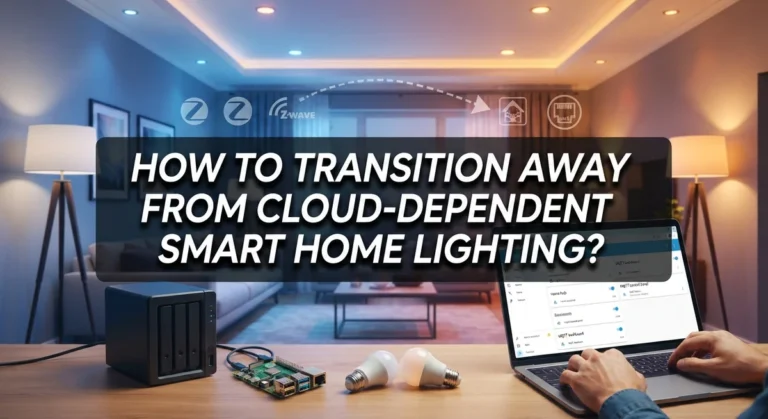
Move From Cloud to Local Processing
Cloud-based command execution is the single largest source of delay in most smart home setups. When your switch sends a signal to a distant server and waits for a response, you are adding the full round-trip time of your internet connection plus server processing time. That can easily be 1 to 3 seconds.
Local processing keeps everything inside your home network. Platforms like Home Assistant and Hubitat run on hardware in your house and process automations without ever touching the internet. Commands execute in 15 to 45 milliseconds because the data only travels a few feet instead of hundreds of miles.
To make this switch, you need a local hub or controller. Install the platform on a compatible device, pair your switches and bulbs to the hub, and create automations that run locally. Most Zigbee and Z-Wave devices work well with local hubs. Wi-Fi devices can also work, but they often still require a cloud connection for initial setup.
Pros: Dramatically reduces latency, eliminates dependency on internet uptime, and increases privacy. Cons: Requires upfront setup time and a learning curve, especially for Home Assistant. Some features like remote access need additional configuration.
Disable Multi-Tap and Scene Detection Delay
Many smart switches include multi-tap detection, a feature that listens for double-tap and triple-tap commands. This feature adds a built-in delay of 500 to 700 milliseconds to every single button press. The switch waits after your first tap to see if another tap is coming before it sends the command.
If you do not use multi-tap scenes, disabling this feature will give you instant response. The switch will send the command the moment you press the button instead of waiting. Most manufacturers call this “Instant On” mode, “Quick Tap” mode, or “Disable Button Delay.”
For example, Inovelli switches have a firmware parameter that controls this delay. You can set it through your hub’s device settings. Zooz switches offer a similar parameter in their Smart Bulb Mode configuration. TP-Link Kasa switches allow you to disable the double-tap feature through the app, which removes the 1 to 2 second delay many users experience.
Check your switch manufacturer’s documentation for the specific parameter or setting name. The tradeoff is simple: you lose multi-tap functionality but gain instant response.
Pros: Immediate and dramatic improvement in response speed. Zero cost. Cons: You lose double-tap and triple-tap scene control features on that switch.
Fix Zigbee and Wi-Fi Channel Interference
Zigbee devices and Wi-Fi routers both operate on the 2.4 GHz frequency band, and their channels can overlap. When they do, the signals interfere with each other. This causes delayed responses, dropped commands, and inconsistent behavior from your smart bulbs.
The fix is to separate the channels. Zigbee uses channels 11 through 26. Wi-Fi uses channels 1, 6, and 11 as the three non-overlapping options. Zigbee channel 25 sits above Wi-Fi channel 11, which gives you the cleanest separation. Zigbee channel 20 also works well if your Wi-Fi is on channel 1 or 6.
To change your Zigbee channel, open your hub’s settings. In Home Assistant with Zigbee2MQTT, go to the configuration panel and set the channel. In the Philips Hue app, go to bridge settings and select a new channel. Be aware that changing the Zigbee channel may require you to re-pair some devices.
On the Wi-Fi side, log into your router and manually set the 2.4 GHz channel to 1 or 6. Avoid using “Auto” mode, because the router may randomly switch to a channel that interferes with Zigbee.
Pros: Eliminates a very common hidden cause of lag and dropped commands. Cons: Changing Zigbee channels can temporarily disrupt your network and may require re-pairing devices.
Update Firmware on All Devices
Outdated firmware is a quiet source of lag that many users overlook. Manufacturers release firmware updates that fix communication bugs, improve signal processing, and reduce response times. Running old firmware means you are missing these improvements.
Start with your smart hub or controller. Check for updates in the settings or administration panel. Then move to your switches. Many Z-Wave and Zigbee switches can receive over-the-air (OTA) updates through your hub. Wi-Fi switches usually update through their manufacturer’s app.
Smart bulbs also receive firmware updates. Philips Hue, IKEA Tradfri, and other Zigbee bulbs regularly push updates that improve mesh network performance and response time. Open the respective app, check for available updates, and apply them.
After updating, restart your hub and give the mesh network 24 hours to stabilize. Zigbee and Z-Wave mesh networks recalculate their routing tables after firmware changes. During this period, some devices may be slightly slower than normal before settling into optimized routes.
Pros: Free, easy, and often fixes lag immediately. Updates can also add new features and patch security issues. Cons: OTA updates can occasionally fail or cause temporary instability. Always check community forums for known issues before applying a major update.
Use a Unified Protocol Instead of Mixing Standards
Running a mix of Wi-Fi, Zigbee, Z-Wave, and Bluetooth devices forces your smart home hub to act as a constant translator between different wireless languages. Each translation step adds processing time. A command that goes from a Z-Wave switch through a hub to a Wi-Fi bulb must be decoded, converted, and re-encoded at each step.
Sticking to a single protocol eliminates this overhead. If your switches and bulbs both use Zigbee, the hub processes the command once and sends it directly. There is no format conversion. The command travels through the mesh network in one consistent language.
Matter over Thread is quickly becoming the best option for protocol unification. Thread is a low-power mesh protocol that carries Matter commands locally, without cloud servers or proprietary bridges. Devices from different manufacturers can all speak the same language, and commands stay inside your local network.
If you already own mixed-protocol devices, you do not need to replace everything at once. Start by identifying your most-used switch and bulb pairs and replace them with devices that share the same protocol. Prioritize the rooms where lag bothers you the most.
Pros: Reduces processing overhead, simplifies troubleshooting, and future-proofs your setup. Cons: May require replacing existing devices over time. Matter over Thread device selection is still growing.
Strengthen Your Zigbee or Z-Wave Mesh Network
Weak mesh networks cause lag because devices struggle to find a reliable path for their signals. Zigbee and Z-Wave both use mesh networking, where each powered device can relay signals for other devices. If your mesh has gaps, commands take longer to arrive or get lost entirely.
The fix is to add router devices in strategic locations. Any Zigbee device that stays plugged in, like a smart plug or an always-on smart light, acts as a router and strengthens the mesh. Place these routers between your switches and bulbs to create strong, short signal paths.
Avoid long chains of hops. Z-Wave limits messages to a maximum of 4 hops between devices. Zigbee does not have a hard limit, but each hop still adds latency. The ideal setup has your switch communicating through one or two hops at most to reach the bulb.
Position your Zigbee coordinator or Z-Wave controller in a central location, away from metal objects, thick walls, and other electronics. Use a USB extension cable to move the coordinator away from your computer or hub, because USB 3.0 ports generate interference on the 2.4 GHz band.
Pros: Dramatically improves reliability and speed across your entire network. Cons: Requires purchasing additional router devices. Mesh optimization takes time and testing.
Separate Your Smart Home Devices on a Dedicated Network
When your smart bulbs share the same Wi-Fi network as your streaming devices, gaming consoles, and video calls, they are all competing for the same airtime. A 4K video stream can dominate the 2.4 GHz band and push smart home commands to the back of the queue.
Create a separate SSID or VLAN dedicated to your smart home devices. Many modern routers support guest networks or secondary SSIDs that you can configure specifically for IoT devices. This keeps smart home traffic isolated from bandwidth-heavy activities.
Move all devices that support 5 GHz or 6 GHz to those bands. Phones, laptops, tablets, and streaming devices should never sit on the 2.4 GHz band if they have a faster option. Reserve the 2.4 GHz band for smart home devices that require it.
If your router supports Quality of Service (QoS) settings, prioritize smart home traffic. QoS tells your router to handle smart switch commands before less time-sensitive data like file downloads or software updates. This ensures that your light commands go through immediately even during heavy network usage.
Pros: Reduces congestion and improves response time for all smart devices. Cons: Requires router configuration knowledge. Some older routers do not support VLANs or multiple SSIDs.
Reduce Automation Chain Length
Every step in an automation chain adds latency. If pressing a switch triggers a routine that checks a condition, runs a scene, and then sends individual commands to three bulbs, the total delay is the sum of every processing step. Long chains with cloud-dependent steps make this much worse.
Simplify your automations. Instead of using a chain of “If this, then that” cloud triggers, create direct device-to-device bindings where possible. Zigbee supports a feature called “binding” that lets a switch send commands directly to a bulb without going through the hub at all. This is the fastest possible connection.
Review your automations and remove unnecessary conditions, delays, and intermediate steps. If you are using a platform like Home Assistant, check whether your automations run locally or in the cloud. Move any cloud-dependent automations to local execution.
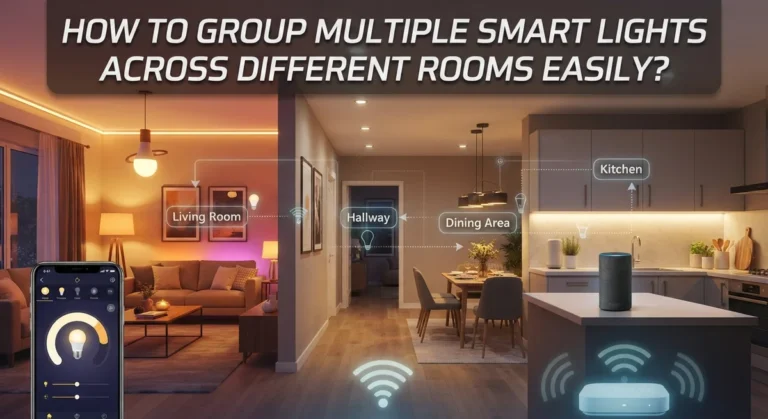
Group your bulbs at the protocol level instead of at the software level. A Zigbee group command sends one message to all bulbs simultaneously, while individual commands send separate messages to each bulb one at a time. Group commands are faster and more synchronized.
Pros: Can eliminate lag entirely for simple on/off commands. Zigbee binding works even if your hub goes offline. Cons: Direct binding has limited features compared to hub automations. Not all device combinations support binding.
Check Smart Bulb Mode on Your Switch
Many smart switches have a Smart Bulb Mode that changes how the switch interacts with connected bulbs. This mode typically keeps the relay always on so that your smart bulb never loses power. Without this mode, turning off the switch cuts power to the bulb, which takes it offline and causes a slow startup delay the next time you turn it on.
Enable Smart Bulb Mode in your switch settings if you are using smart bulbs. The switch will send a wireless command instead of physically cutting the circuit. This keeps the bulb powered, responsive, and ready to react instantly.
Some switches in Smart Bulb Mode also disable the physical relay click sound, which gives a cleaner experience. The switch becomes a wireless controller rather than a physical power toggle.
Check that your specific switch supports this mode. Inovelli, Zooz, and several other manufacturers include this option. The setting is usually a configuration parameter you can change through your hub’s device settings page. Refer to your manufacturer’s parameter guide for the exact number and values.
Pros: Keeps bulbs powered and responsive at all times. Prevents smart bulbs from going offline. Cons: If your hub or network goes down, you cannot turn off the lights at the switch since the relay stays on. Some switches require specific firmware versions for this feature.
Optimize Device Placement and Physical Distance
Physical distance and obstacles between your switch, hub, and bulb affect signal strength and response time. Walls, floors, metal objects, and large appliances all weaken wireless signals. A switch in the garage trying to control a bulb on the second floor through three walls will be slower than a switch and bulb in the same room.
Place your hub or controller in a central location in your home. Avoid putting it inside a metal cabinet, behind a TV, or in a basement corner. The hub should have clear line of sight to as many devices as possible.
For Zigbee setups, remember that every powered device acts as a signal repeater. Add smart plugs or always-on bulbs in hallways and rooms between distant devices. This creates a strong signal chain with short hops.
For Wi-Fi smart devices, make sure your router or access point covers the areas where your switches and bulbs are installed. Dead zones cause timeouts, which feel like lag. A Wi-Fi mesh system with multiple access points can eliminate dead zones and keep every device connected with a strong signal.
Pros: Improves reliability and speed without changing any software settings. Cons: May require purchasing additional devices like smart plugs or mesh routers to fill gaps.
Consider Switching to Matter Over Thread
Matter over Thread represents the newest and most promising approach to eliminating smart home lag. Thread is a low-power mesh protocol that runs locally, and Matter is the application layer that lets devices from different brands work together. Together, they deliver fast, local communication without cloud servers or proprietary hubs.
Thread devices form a mesh network similar to Zigbee, but with some important differences. Thread uses IPv6 addressing, which means every device gets a unique IP address on your local network. Commands route directly to the target device without translation. Response times are consistently low, often under 100 milliseconds.
A Thread Border Router connects the Thread mesh to your home IP network. Many modern smart speakers and displays from Apple, Google, and Amazon already include built-in Thread Border Routers. If you own one of these devices, you may already have the infrastructure you need.
The selection of Matter over Thread switches and bulbs is growing rapidly. Before you buy new devices, check that they support Matter over Thread specifically, not just Matter over Wi-Fi. The Thread version provides the mesh networking and local processing benefits that reduce lag.
Pros: Lowest latency available, no cloud dependency, cross-brand compatibility, and future-proof. Cons: Device selection is still expanding. Setting up Thread networks can require some learning.
Perform a Full System Restart and Network Heal
Sometimes the best fix is the simplest one. A full system restart clears temporary glitches, resets communication buffers, and forces devices to re-establish clean connections. This can instantly resolve lag that has built up over days or weeks.
Follow this order for the restart. First, power off your smart hub or controller. Wait 30 seconds. Then power off your router and wait another 30 seconds. Power the router back on and wait until it fully boots. Then power on your hub. Finally, give your smart switches and bulbs a few minutes to reconnect.
After the restart, run a network heal or mesh repair through your hub. In Home Assistant, you can trigger a Z-Wave network heal from the Z-Wave integration page. For Zigbee, the mesh will self-heal over 24 to 48 hours as devices discover optimal routing paths.
Schedule regular restarts. Many experienced smart home users set an automated weekly reboot for their hub and router. This prevents the gradual slowdown that comes from memory leaks and stale connection tables.
Pros: Free, fast, and resolves a surprising number of issues. Cons: Temporary disruption during the restart. Mesh networks take time to fully optimize after a heal.
When to Replace Outdated Hardware
If you have tried every software fix and your setup still lags, the hardware itself may be the bottleneck. Early-generation smart switches and bulbs often use slower processors, older radio chips, and less efficient firmware. They simply cannot match the speed of newer devices.
Z-Wave 500 series chips are noticeably slower than the newer 700 and 800 series. If your Z-Wave switch uses a 500 series chip, upgrading to an 800 series device can cut response times significantly. The same applies to Zigbee devices. Newer Zigbee 3.0 devices perform better than older Zigbee Home Automation or Zigbee Light Link devices.
Your hub matters too. An old Raspberry Pi running Home Assistant will process commands slower than a dedicated home automation box with more CPU power and RAM. If your hub’s CPU usage is consistently high, it may be struggling to keep up with your automation load.
Replace the weakest links first. Identify the switch and bulb pairs that give you the most lag and upgrade those. You do not need to replace your entire setup to see a meaningful improvement. Even swapping one slow switch for a modern alternative can transform the experience in that room.
Pros: Modern hardware is faster, more efficient, and supports the latest protocols. Cons: Costs money. Requires re-pairing and reconfiguring the new devices.
Frequently Asked Questions
Why is there a delay when I press my smart switch?
The most common cause is cloud-based command processing. Your switch sends a signal to a remote server, the server processes it, and then sends a command back to your bulb. This round trip can take 1 to 3 seconds. Multi-tap detection features also add 500 to 700 milliseconds of intentional delay. Moving to local processing and disabling multi-tap detection will fix most cases.
Can I use smart switches with smart bulbs without lag?
Yes. The key is to enable Smart Bulb Mode on your switch and pair both devices to a local hub. Smart Bulb Mode keeps the bulb powered at all times, and the local hub processes the command without cloud delays. Zigbee binding can even let the switch talk directly to the bulb with zero hub involvement.
Does Wi-Fi interference cause smart bulb lag?
Absolutely. Smart home devices on the 2.4 GHz band compete with every other Wi-Fi device in your home. Network congestion, channel overlap with Zigbee, and poor router placement all contribute to delayed responses. Creating a separate network for smart devices and choosing non-overlapping channels will reduce this interference.
Is Matter over Thread better than Zigbee for speed?
Both protocols offer fast local communication. Thread has the advantage of native IP addressing, which eliminates the need for a translation bridge. Zigbee requires a coordinator to translate between the Zigbee mesh and your IP network. In practice, both can deliver sub-100-millisecond response times when configured properly. Thread is the newer standard and has strong industry support for future development.
How often should I restart my smart home hub?
A weekly restart is a good habit for most smart home hubs and routers. This prevents memory leaks, clears stale connection tables, and forces devices to re-establish clean connections. Some users automate this with a scheduled reboot in the early morning hours to avoid disruption.
Will upgrading my router fix smart home lag?
It can help if your current router is old or overloaded. A modern router with support for multiple SSIDs, QoS settings, and high device counts will handle smart home traffic more efficiently. However, if your lag comes from cloud processing or protocol issues, a new router alone will not solve the problem. Address the root cause first, then upgrade the router if network congestion is still an issue.