Why Does My Smart Bulb Say Unreachable in the Google Home App?
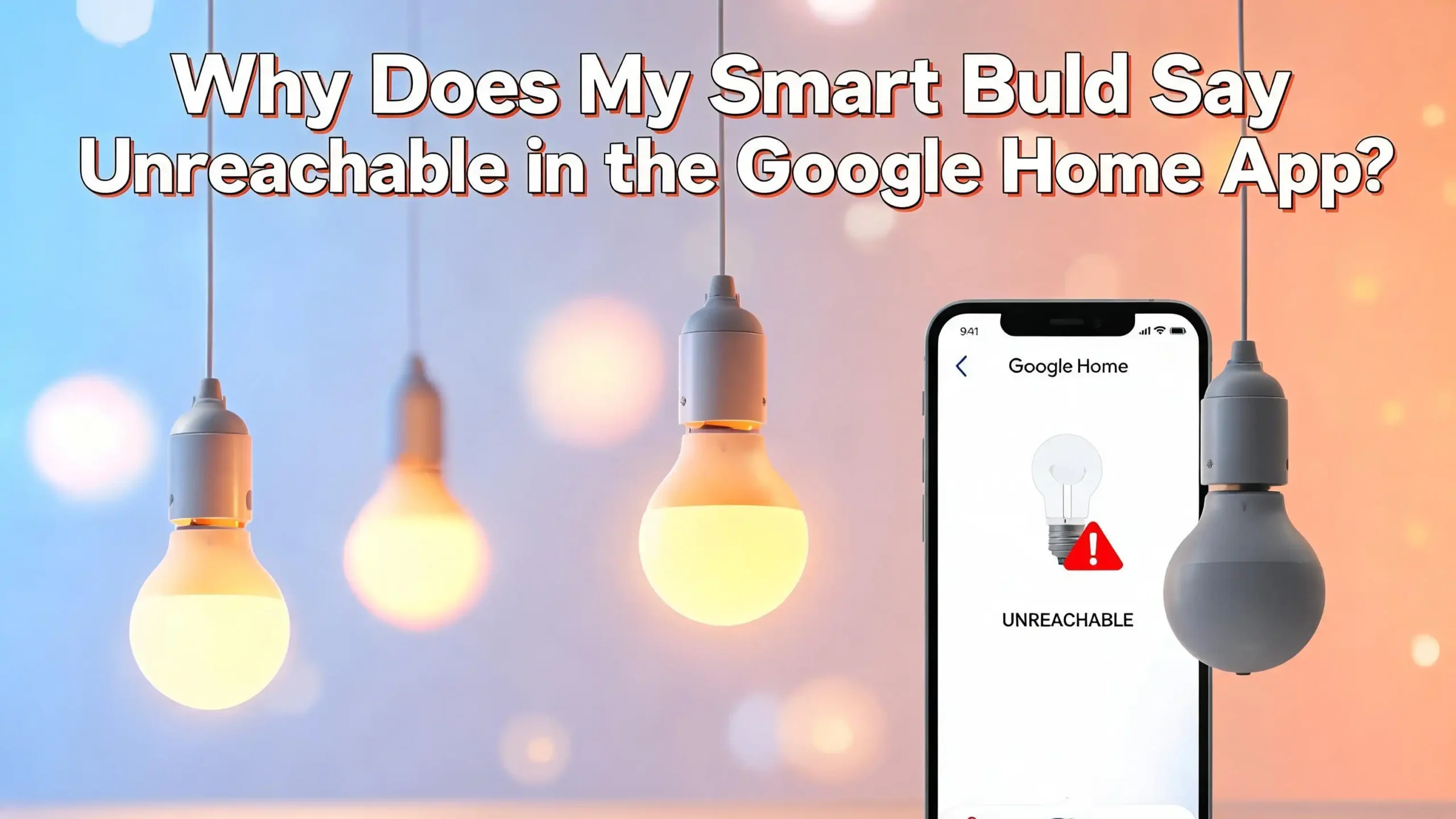
You open the Google Home app, ready to dim the lights and relax, and instead you see that dreaded word: “Unreachable.” Your smart bulb is physically in the socket, the power switch is on, and yet Google Home acts like the bulb does not exist. It is one of the most frustrating smart home problems, and it happens to thousands of users every single day.
The good news is that this problem almost always has a fix. The “unreachable” message does not mean your bulb is broken. It means the communication link between your bulb and Google Home has broken down somewhere. That somewhere could be your WiFi, the Google app, your router, a firmware bug, or a simple account mismatch.
This guide walks you through every known cause and every working solution. By the time you finish reading, you will know exactly why this happens and how to make it stop.
In a Nutshell
- WiFi is the most common culprit. Most smart bulbs only connect to the 2.4 GHz band, and if your router is pushing the wrong band or signal is weak, the bulb drops offline and shows as unreachable in Google Home.
- The Google Home app itself can get stuck. A stale cache, an outdated app version, or a signed-in account mismatch can cause the app to lose contact with your devices even when the bulb is perfectly fine.
- Third-party bulb integrations break easily. Brands like TP-Link Tapo, Smart Life, WiZ, and Eufy connect to Google Home through a “Works with Google” link. If that link expires or breaks, every bulb in that brand shows up as unreachable.
- Power cycles fix more than you think. A full restart of your bulb, router, and phone clears temporary errors that software fixes alone cannot solve.
- Google’s own servers can cause the issue. Google has had documented outages where all smart home devices showed offline regardless of their actual connection status.
- Factory resetting your bulb is a last resort that actually works. Removing the bulb and re-adding it from scratch clears corrupted pairing data and usually restores full control.
What Does “Unreachable” Actually Mean in Google Home?
Before jumping into fixes, it helps to understand what Google Home means when it says a device is unreachable. The term simply means that the Google Home app sent a command or a status check to your smart bulb and received no response within the expected time. It does not mean the bulb is permanently dead or broken.
Google Home communicates with smart bulbs in two main ways. Some bulbs connect directly over your local WiFi network, and Google Home talks to them through your router. Other bulbs connect through a third-party cloud service, meaning your command travels from the Google Home app, up to Google’s servers, across the internet to the bulb maker’s server, and then back down to your bulb. If any link in that chain breaks, the bulb shows as unreachable.
Understanding this chain is important because it tells you where to look when something goes wrong. A bulb that works fine in its own brand app but shows unreachable in Google Home usually has a broken cloud connection. A bulb that does not respond in either app usually has a WiFi or power problem. Knowing the difference saves you a lot of troubleshooting time.
Check the Obvious Things First: Power and Physical Connection
This sounds too simple, but it fixes the problem more often than most people expect. Before you dig into network settings or app configurations, always confirm that the bulb has power.
Check that the wall switch controlling the bulb’s socket is in the on position. Smart bulbs need constant power to stay connected to your WiFi network. If someone flipped the physical switch off, the bulb loses its WiFi connection immediately and shows as unreachable in Google Home. This is one of the most common causes, especially in homes where multiple people use the same lights.
Also check that the bulb is screwed in firmly. A loose bulb can have intermittent contact, which causes it to drop in and out of the Google Home app unpredictably. Remove the bulb, wait ten seconds, and screw it back in firmly. Once the bulb powers back on, give it thirty to sixty seconds to reconnect to your WiFi before checking the app again.
If you have a smart plug or a power strip with a surge protector that tripped, check that too. Any interruption in power will cause the bulb to drop offline, and the Google Home app will not update its status until it gets a fresh response from the bulb.
Restart Your Smart Bulb, Router, and Phone Together
A power cycle is often described as the single most effective first step in smart home troubleshooting, and that reputation is well-earned. Restarting your bulb, your router, and your phone at the same time clears temporary errors across the entire communication chain at once.
To restart your smart bulb, flip the wall switch off, wait at least ten to fifteen seconds, and then flip it back on. This gives the bulb’s internal processor a clean reset. Once it powers on, it will attempt to reconnect to your WiFi network automatically.
To restart your router, unplug it from the power outlet, wait thirty seconds, and then plug it back in. Wait for the router to fully boot up, which usually takes sixty to ninety seconds. Do not skip the waiting period. If you plug the router back in too quickly, it may not fully reset its DHCP table, and your devices may not get fresh IP addresses.
Finally, force close the Google Home app on your phone and reopen it. On Android, go to your recent apps, swipe the Google Home app away, and relaunch it. On iPhone, swipe up from the bottom of the screen, find the Google Home app, swipe it up to close it, and reopen it from your home screen. This forces the app to pull fresh status data from the server instead of showing cached information.
Fix the WiFi Band Problem That Causes Most Unreachable Errors
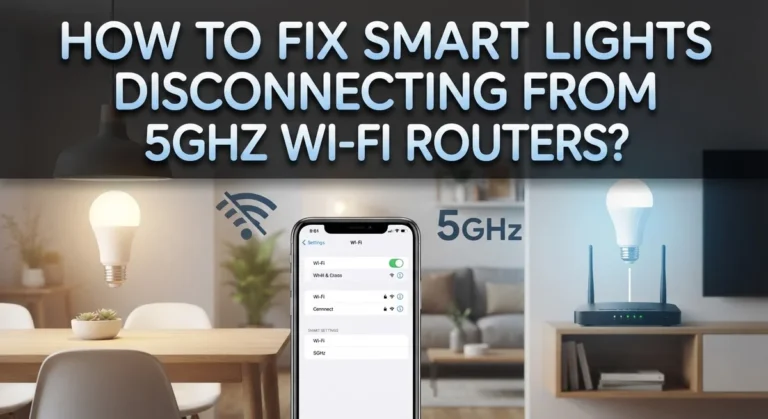
This is one of the most common technical causes of smart bulbs showing as unreachable, and it is also one of the most misunderstood. Almost every smart bulb on the market only supports the 2.4 GHz WiFi band. They do not work on the 5 GHz band. If your router is broadcasting both bands under the same network name, your phone might be connected to the 5 GHz band while the bulb is connected to the 2.4 GHz band, causing communication failures.
Modern routers, especially mesh systems, often combine both bands into a single network name using a feature called band steering. This is convenient for phones and laptops, but it confuses smart bulbs because the router constantly tries to push them to the faster 5 GHz band, which the bulb cannot use.
Here is how to check and fix the band issue:
- Log into your router’s admin panel, usually found at 192.168.1.1 or 192.168.0.1 in your browser.
- Look for wireless settings and find the option to separate your 2.4 GHz and 5 GHz networks into two different network names. For example, name them “HomeNetwork_2.4G” and “HomeNetwork_5G.”
- Connect your smart bulb to the 2.4 GHz network specifically.
- Connect your phone to either band, as phones can handle both.
After making this change, you may need to re-add your bulbs to the Google Home app because they will be connecting to what appears to be a new network. This is normal and worth the few minutes it takes to set up.
Check Your WiFi Signal Strength Near the Bulb
Even if your bulb is on the correct 2.4 GHz band, a weak WiFi signal can cause it to drop in and out of the Google Home app, showing as unreachable at random times. Smart bulbs have small, low-power antennas that are not as strong as the ones in your phone or laptop.
If your router is far from where the bulb is installed, the signal may be too weak for a stable connection. Walls, floors, large appliances, and even mirrors can block or degrade the WiFi signal significantly.
To check the signal, you can download a free WiFi analyzer app on your phone, stand near the bulb’s location, and check the signal strength reading for your 2.4 GHz network. A reading of -70 dBm or weaker is likely causing connection problems.
Practical ways to improve the signal:
- Move your router closer to the area where most of your smart bulbs are installed.
- Add a WiFi range extender or a mesh node in a central location in your home to boost coverage.
- Reduce interference by keeping your router away from microwaves, baby monitors, and cordless phones, all of which operate on the 2.4 GHz frequency and can disrupt your smart bulbs.
- Avoid placing smart bulbs in thick metal fixtures or inside enclosed cabinets, as these block the WiFi signal severely.
Update the Google Home App and Your Phone’s Operating System
An outdated Google Home app is a frequently overlooked cause of the unreachable error. Google regularly releases updates that fix bugs related to device connectivity and cloud communication. If you are running an older version of the app, it may be using outdated protocols that no longer work correctly with your bulb’s firmware.
On Android, open the Google Play Store, tap on your profile icon in the top right, tap “Manage apps and devices,” and check if Google Home has an available update. On iPhone, open the App Store, tap your profile icon, scroll down to see available updates, and update Google Home if an update is listed.
Similarly, check for operating system updates on your phone. iOS and Android updates often include security changes that affect how apps communicate with smart home devices. An outdated phone OS can create compatibility problems that show up as unreachable devices in the Google Home app.
After updating both the app and your phone’s OS, restart your phone and open Google Home fresh. Many users report that this single step resolves the unreachable error without any other changes needed.
Clear the Google Home App Cache
The Google Home app stores data locally on your phone to speed up loading times. Over time, this cached data can become corrupted or outdated, causing the app to display incorrect device statuses, including showing bulbs as unreachable when they are actually connected and working fine.
To clear the cache on Android:
- Open your phone’s Settings app.
- Go to Apps or Application Manager.
- Find and tap on Google Home.
- Tap Storage and then tap Clear Cache.
- Reopen the Google Home app.
On iPhone, the only way to clear an app’s cache is to uninstall and reinstall the app. Uninstalling the Google Home app from an iPhone does not remove your home or devices from your account. Everything is stored in the cloud, so reinstalling the app simply downloads a fresh version with a clean cache. Your bulbs and rooms will all reappear when you sign back in.
After clearing the cache, give the app a full minute to load fresh data before checking your bulb’s status. You should see the correct status once the app syncs with Google’s servers.
Relink the Third-Party Service in Google Home
If your smart bulb comes from a third-party brand like TP-Link, Smart Life, WiZ, Sengled, or Eufy, it connects to Google Home through a “Works with Google” integration. This integration requires an active link between your Google account and your bulb brand’s account. When this link breaks or expires, every device from that brand shows as unreachable in Google Home, even though the bulbs work perfectly in their own app.
This is a very common scenario and it has a straightforward fix. You need to unlink and relink the service.
Follow these steps to relink a third-party service:
- Open the Google Home app and tap the plus icon in the top left corner.
- Tap “Set up device” and then tap “Works with Google.”
- Search for your bulb’s brand name.
- Tap on it, and you will see a button to unlink or manage the account.
- Unlink the account completely.
- Sign back out of the brand’s app and sign back in.
- Go back to Google Home and re-link the service by searching for the brand again and following the sign-in steps.
Once relinked, your devices will reappear in Google Home and should show as available. If they do not appear automatically, tap the three-dot menu in Google Home and choose “Sync devices” to force a refresh.
Check That You Are Using the Right Google Account
This is a subtle problem that confuses many users. If you have multiple Google accounts on your phone, the Google Home app might be signed in to a different account than the one your bulbs are registered under. This causes the app to either not show your bulbs at all or show them as unreachable because the account it is checking does not have those devices registered to it.
Open the Google Home app and tap on your profile picture or account icon in the top right corner. Look at which email address is displayed. Compare it to the email address you used when you first set up your smart bulbs and your Google Home.
If you see the wrong account listed, switch accounts:
- Tap on the account icon in the Google Home app.
- Tap on the email address shown.
- Select the correct Google account from the dropdown list.
- Wait for the app to reload with the correct account’s data.
Similarly, check your bulb’s brand app to make sure it is also signed in to the correct account. An account mismatch between the Google Home app and the bulb’s native app is a common reason why the Works with Google link breaks and causes the unreachable error.
Check for Google Server Outages
Sometimes the problem has nothing to do with your home network or your bulb. Google’s smart home servers occasionally experience outages that cause all linked devices to show as offline or unreachable in the Google Home app, regardless of their actual connection status. This has happened multiple times and affected thousands of users simultaneously.
To check if there is an active outage, visit the Google Workspace Status Dashboard or check the Google Nest Community forums at support.google.com. You can also search on Reddit’s r/googlehome community, where users post in real time when widespread outages hit.
If there is a Google server outage, there is nothing you need to do on your end. The issue will resolve itself once Google restores service to their servers. In the meantime, you can often still control your smart bulbs using their own brand app, since that connection does not depend on Google’s servers.
Perform a Factory Reset on the Smart Bulb
If you have tried every step above and your smart bulb still shows as unreachable, a factory reset is your next move. A factory reset erases all saved WiFi credentials and pairing data from the bulb’s memory and returns it to its original out-of-the-box state. This eliminates any corrupted data that might be preventing it from connecting properly.
The reset process varies by brand, but most smart bulbs can be reset by rapidly toggling the wall switch. A common pattern is: turn the light on and off five or six times quickly, then leave it on. The bulb will usually flash rapidly to confirm the reset is complete.
After the factory reset:
- Open the bulb’s brand app and set it up from scratch.
- Follow the app’s pairing instructions to connect the bulb to your 2.4 GHz WiFi network.
- Once the bulb is successfully added to the brand app and responding normally, open Google Home.
- Tap the plus icon, go to “Works with Google,” and re-link your bulb brand’s service.
- The freshly paired bulb should appear in Google Home as available.
Do not skip the step of verifying that the bulb works in its own app before trying to add it to Google Home. Setting up the bulb in its native app first ensures the WiFi connection is stable before you introduce the Google Home layer.
When to Remove and Re-Add the Bulb in Google Home?
Sometimes the issue lives not in the bulb itself but in how Google Home has the bulb registered. Old or corrupted device entries in Google Home can cause a bulb to permanently show as unreachable even after you have fixed the underlying connection problem. Removing the device from Google Home and re-adding it gives the app a completely fresh start with that bulb.
Steps to remove and re-add a device in Google Home:
- Open the Google Home app and find the bulb that shows as unreachable.
- Tap and hold the device tile to open its settings.
- Tap the gear icon to go to device settings.
- Scroll down and tap “Unlink device” or “Remove device.”
- Confirm the removal.
- Next, tap the plus icon on the home screen.
- Tap “Set up device” and choose whether to add a new device or link a Works with Google service.
- Follow the setup steps to add the bulb back to your home.
Once the bulb is re-added, assign it to the correct room in your Google Home. This ensures voice commands and routines work correctly. After re-adding, test the bulb by tapping its tile in the app to turn it on and off. If it responds, the problem is solved.
Prevent the Unreachable Error From Happening Again
Now that you have fixed the issue, a few simple habits will keep your smart bulbs connected and reliable going forward. Prevention is much easier than troubleshooting, and most recurring unreachable errors come down to the same avoidable problems.
Keep your network stable by:
- Assigning static IP addresses to your smart bulbs in your router’s DHCP settings. This prevents the router from assigning a different IP address after a restart, which can confuse devices on the network.
- Keeping your router firmware up to date. Router manufacturers release updates that improve compatibility with smart home devices.
- Avoiding too many devices on the same WiFi channel. Use your router’s admin panel to check the channel congestion and switch to a less crowded channel if needed.
Keep your app and accounts in order by:
- Enabling automatic updates for the Google Home app so you always have the latest bug fixes.
- Periodically checking the Works with Google integrations in your Google account at myaccount.google.com under “Third-party apps with account access” to make sure all your bulb services are still properly linked.
- Keeping the wall switches that power your smart bulbs in the on position at all times, and using the Google Home app or voice commands to control the lights instead of physical switches.
A mesh WiFi system is one of the best investments you can make for a reliable smart home. Mesh systems provide consistent, strong coverage throughout your home and handle band steering in a smarter way that is less disruptive to smart devices.
FAQs
Why does my smart bulb say unreachable in Google Home but works in its own app?
This usually means the Works with Google link between your bulb’s brand account and your Google account has broken or expired. The bulb is connected to your WiFi and its own cloud server, but Google Home can no longer reach it through the integration. Fix this by unlinking and relinking the bulb’s service in the Google Home app under “Works with Google.”
Can a firmware update cause my smart bulb to show as unreachable?
Yes. Both the bulb’s firmware and the Google Home app receive regular updates, and occasionally these updates introduce bugs or compatibility issues that temporarily break the connection. Check the brand’s community forum or the Google Nest community to see if other users are reporting the same issue after a recent update. The fix is usually to wait for a follow-up patch or to factory reset the bulb and re-add it.
How do I fix smart bulb unreachable after a power outage?
After a power outage, restart your router first and wait for it to fully boot up before powering your smart bulbs back on. If the bulbs still show as unreachable, toggle the wall switch off and on to restart each bulb manually. Give each bulb sixty seconds to reconnect to your WiFi. If they still do not appear in Google Home, force close the app and reopen it to get a fresh status update.
Does Google Home only support 2.4 GHz WiFi for smart bulbs?
Smart bulbs themselves only support 2.4 GHz WiFi, not 5 GHz. The Google Home app runs on your phone and can use either band for its own internet connection. However, for the bulb to communicate with your network, it must be on the 2.4 GHz band. If your router combines both bands under one name, separate them and connect your bulbs explicitly to the 2.4 GHz network.
Why do all my smart bulbs show as unreachable at the same time?
When all your bulbs go unreachable simultaneously, the cause is usually your router going offline, a Google server outage, or a broken Works with Google integration. Check your internet connection first, then check the Google status page for any reported outages. If your internet is fine and there is no outage, try unlinking and relinking your bulb brand’s service in Google Home to restore the cloud connection.
How do I stop my smart bulb from going unreachable repeatedly?
The most effective long-term fixes are to separate your 2.4 GHz and 5 GHz WiFi bands so bulbs always connect to the correct band, assign static IP addresses to your bulbs in the router settings, and keep the physical wall switch always in the on position so the bulbs never lose power. Also keep the Google Home app and your bulb’s firmware updated to avoid compatibility bugs.
Is there a way to tell if Google Home itself is down?
Yes. Visit the Google Workspace Status Dashboard or search for real-time reports on Reddit’s r/googlehome community. You can also check DownDetector for Google Home outage reports from other users. If there is a confirmed outage, you only need to wait for Google to restore service. Your bulbs will automatically come back online once the servers are working again.