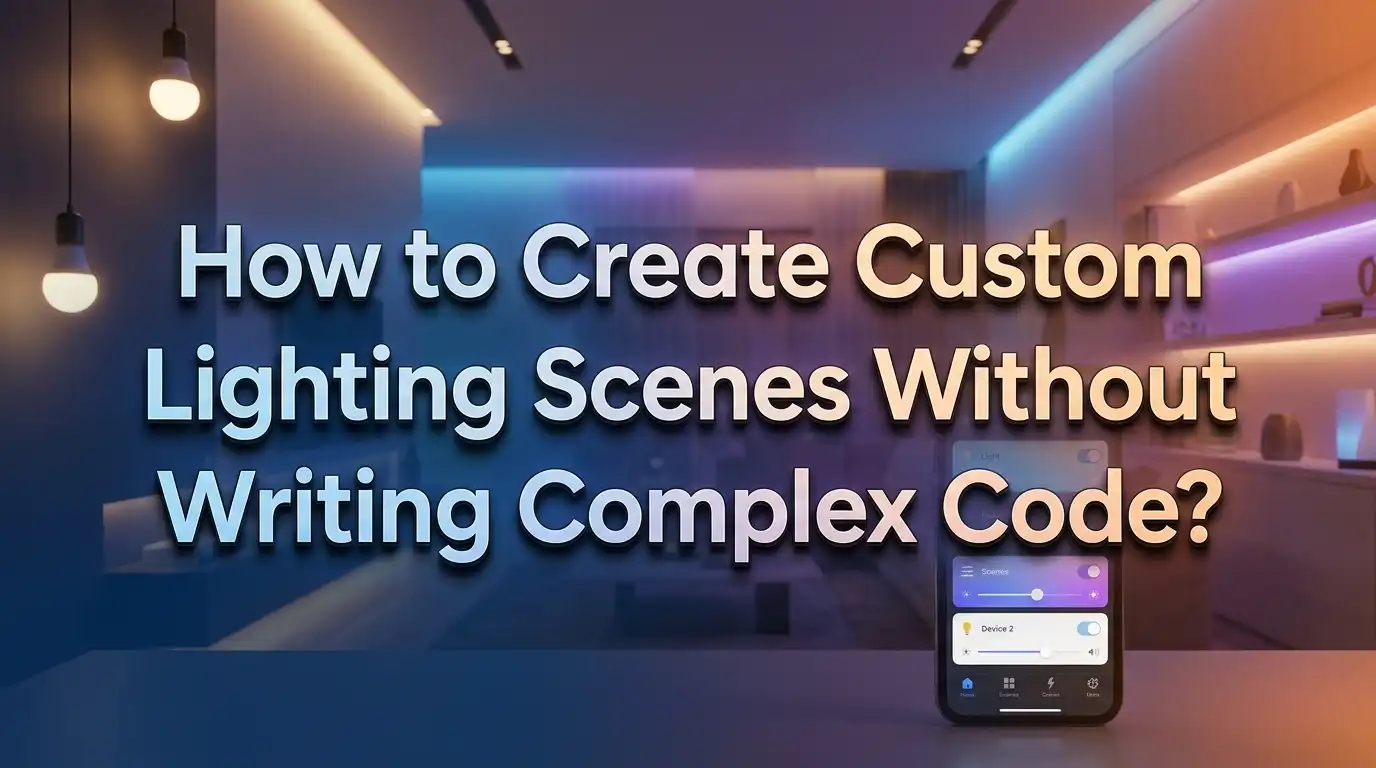
How to Create Custom Lighting Scenes Without Writing Complex Code?
You just moved into your new home. You want the living room to glow warm amber during movie night. You want the kitchen bright white while cooking. You want the bedroom to fade to a soft lavender before sleep. But then you open a tutorial and see lines of YAML, JSON, or Python staring back at you.
The good news? You do not need to write a single line of code to build beautiful, functional lighting scenes. Modern smart home platforms have made it possible for anyone to create custom lighting setups using simple apps, drag and drop editors, and voice commands.
This guide walks you through every step of building custom lighting scenes from scratch. By the end, you will have a fully personalized lighting system running in your home with zero programming required.
Key Takeaways
- Custom lighting scenes group multiple lights into one preset that you can activate with a single tap or voice command. Each scene stores the brightness, color, and on/off state for every light you include, so your entire room changes mood instantly.
- You do not need any coding skills to create scenes. Apps from major platforms like Apple Home, Google Home, Amazon Alexa, and manufacturer apps such as the Philips Hue app all offer visual scene builders with simple tap and slide controls.
- Triggers and automations let your scenes run on autopilot. You can set scenes to activate based on time of day, your location, motion sensor input, or even sunrise and sunset, all through point and click interfaces.
- The right smart bulbs matter more than technical knowledge. Choosing bulbs that support color, dimming, and your preferred ecosystem ensures a smooth setup. Compatibility is the foundation of a good scene.
- You can layer scenes across rooms for whole home control. Combine living room, kitchen, and hallway scenes into a single routine so one voice command or one tap transforms your entire home at once.
- Testing and adjusting scenes takes minutes, not hours. Every major app lets you preview a scene before saving it. Fine tuning brightness or color is as quick as moving a slider.
What Is a Lighting Scene and Why Does It Matter
A lighting scene is a saved group of light settings that you activate together. Think of it as a snapshot of your ideal room ambiance. One scene might set three living room bulbs to 40% brightness with a warm orange tone. Another scene might turn every light in the house off except a dim hallway nightlight.
Scenes matter because they remove repetitive manual adjustments. Without a scene, you would open an app, select each bulb individually, set the brightness, pick a color, and repeat for every fixture. That process gets old fast, especially if you want different moods at different times of day.
The real power of scenes is consistency. Every time you activate “Movie Night,” you get the exact same result. The colors match. The brightness levels align. Nothing is left to memory or guesswork. This consistency transforms how you experience your home because your lighting always fits the moment.
Most smart home platforms store scenes locally or in the cloud, depending on your setup. This means your scene survives app updates, phone changes, and power cycles. Once you build it, it stays ready for you.
Which Smart Home Platforms Support No Code Scene Building
Several major platforms let you build lighting scenes through a visual interface with no programming required. The most popular options include Apple Home, Google Home, Amazon Alexa, Samsung SmartThings, and manufacturer specific apps like the Philips Hue app.
Apple Home offers a clean scene builder on iPhone, iPad, and Mac. You tap “Add Scene,” choose your accessories, adjust their settings by tapping each one, and save. Apple also provides suggested scenes like “Good Morning” and “Good Night” with preset configurations you can customize.
Google Home lets you create scenes through its app and activate them with voice through Nest speakers. You select devices, set states, and save. Google also supports linking scenes from third party apps into its ecosystem.
Amazon Alexa uses Routines as its primary tool for scene building. You create a Routine, define a trigger (like a voice command), and then specify which lights change and how. Alexa Routines can control brightness, color, and power state for individual bulbs or groups.
Samsung SmartThings provides a dedicated Scenes feature where you select devices and configure their target states. It supports a wide range of third party devices and offers detailed control over dimming and color.
Each platform has strengths. Apple excels at simplicity. Google integrates well with voice. Alexa offers flexible trigger options. SmartThings supports the widest device range. Your best choice depends on the devices you already own.
How to Choose the Right Smart Bulbs for Custom Scenes
Your bulbs determine what your scenes can do. A bulb that only supports on and off gives you very little creative control. A full color, dimmable smart bulb opens up thousands of possible combinations for every room in your home.
Start by checking the color capabilities. White ambiance bulbs let you shift between warm and cool white tones. Full color (RGBW) bulbs add millions of color options. If you want a soft pink reading scene or a deep blue relaxation scene, you need full color bulbs.
Dimming range matters too. Some bulbs dim to only 10%, which still feels bright in a dark room. Better bulbs dim to 1% or lower, giving you true low light options for nighttime scenes. Check product specifications before purchasing.
Compatibility is critical. Make sure your bulbs work with your chosen platform. Most popular bulbs support multiple ecosystems, but some budget options only connect through their own app. Look for bulbs that support Matter or work with at least two major platforms for maximum flexibility.
Finally, consider the bulb’s connection type. Wi-Fi bulbs connect directly to your router. Zigbee and Z-Wave bulbs need a hub but create a more stable mesh network. Bluetooth bulbs are limited in range. For a home with more than five smart bulbs, a hub based system or Wi-Fi bulbs with a strong router will deliver the most reliable scene performance.
Step by Step: Creating Your First Scene in Apple Home
Apple Home makes scene creation simple. You need an iPhone, iPad, or Mac with the Home app installed. You also need at least one compatible smart home accessory added to your Home setup.
Step 1: Open the Home app. Tap the plus (+) button in the top right corner. Select “Add Scene.”
Step 2: You will see suggested scenes like “Good Morning,” “Good Night,” “Leave Home,” and “Arrive Home.” These come with preset icons and names. You can pick one or tap “Custom” to build something original.
Step 3: If you chose Custom, give your scene a name. Something descriptive works best. “Cooking Mode” or “Relax Evening” tells you exactly what the scene does.
Step 4: Tap “Add Accessories.” Select every light (or other device) you want included. Tap Done.
Step 5: Now tap each accessory in the list to adjust its settings. For lights, you can set on or off, brightness level, and color temperature or color. Adjust each one until the combination matches your desired mood.
Step 6: Tap “Test This Scene” to see it in action. Your lights will change in real time. If something looks off, go back and tweak.
Step 7: Tap Done to save. Your new scene now appears on the Home app dashboard. Tap it anytime to activate, or say “Hey Siri, set Cooking Mode.”
The entire process takes under five minutes. No code is involved at any point.
Step by Step: Building Scenes with Google Home
Google Home handles scenes through its app, available on Android and iOS. The process is straightforward and works well with Nest devices and third party smart lights.
Step 1: Open the Google Home app. Tap the “Routines” section or go to Settings and find the Routines option.
Step 2: Tap the plus (+) button to create a new Routine. Give it a name that describes the scene, like “Dinner Time” or “Bright Work Mode.”
Step 3: Under “Starters,” choose how you want to trigger this scene. Options include a voice command, a specific time of day, or sunrise/sunset. For a basic scene, a custom voice command works best. Type something like “Set dinner lights.”
Step 4: Under “Actions,” tap “Adjust home devices.” Select “Adjust lights, plugs, and more.”
Step 5: Pick each light you want to include. Set the brightness, color, and on/off state. Repeat for every fixture in the scene.
Step 6: Save the Routine. You can now activate it by saying your chosen voice command to any Google Nest speaker or by tapping the Routine in the app.
Google also supports importing scenes from connected lighting apps. If your bulbs have their own app with pre-built scenes, Google Home can often detect and list those scenes for voice activation. This gives you the visual design tools of the manufacturer app combined with Google’s voice control.
Step by Step: Using Alexa Routines for Lighting Scenes
Amazon Alexa does not have a dedicated “Scenes” feature like Apple Home. Instead, it uses Routines, which are even more flexible because they combine lighting changes with other actions like playing music or announcing messages.
Step 1: Open the Alexa app on your phone. Tap “More” at the bottom right, then select “Routines.”
Step 2: Tap the plus (+) button to create a new Routine.
Step 3: Under “When this happens,” choose your trigger. The most common choice is “Voice,” where you type a custom phrase like “Alexa, movie time.” You can also select a schedule, a device event, or a location trigger.
Step 4: Under “Add action,” tap “Smart Home.” Select “Control device” or “Control group.” Pick the light or group you want to adjust.
Step 5: Set the desired state. You can choose on or off, brightness percentage, and color (if the bulb supports it). Add multiple light actions to control several bulbs in one Routine.
Step 6: Tap Save. Your Routine is now live.
One helpful tip is to create Alexa light groups first. Go to Devices, tap the plus button, and select “Add Group.” Name it something like “Living Room Lights” and assign bulbs. Then your Routine can control the whole group in one action instead of adding bulbs one by one. This saves time and keeps things organized.
How to Use the Philips Hue App for Advanced Scenes
The Philips Hue app provides one of the most polished scene creation experiences available. It offers pre-designed scenes inspired by photographs, plus a full custom editor for building your own.
Open the app and select a room. Tap “Scenes” at the bottom. You will see a gallery of ready-made scenes with names like “Savanna Sunset,” “Arctic Aurora,” and “Tokyo.” Each one assigns specific colors to each bulb in the room based on a photograph.
To create a custom scene, tap the plus (+) button. You can choose a photo from your camera roll, and the app will extract colors from it to assign to your bulbs. This is a powerful feature because it lets you match your lighting to artwork, a vacation photo, or a seasonal palette.
For full manual control, tap each bulb dot on the scene editor screen. Drag it to a specific color on the color wheel or adjust the brightness slider. You control each bulb independently within the scene.
The Hue app also supports Dynamic Scenes, which slowly shift colors over time. Instead of a static snapshot, your lights gently transition between related colors. This creates a living, breathing ambiance that changes throughout the evening. You control the speed of the transition using a simple palette selector.
Once saved, your scene is available in the Hue app, through Apple Home, Google Home, and Alexa, depending on your integrations. You never touch a line of code.
Setting Up Time Based Automations for Your Scenes
A scene becomes truly useful when it runs automatically. Time based automations trigger your scenes at specific moments each day, so your home adjusts without you lifting a finger.
In Apple Home, tap the plus button and select “Add Automation.” Choose “A Time of Day Occurs.” Pick the time, the days of the week, and whether it should run only when someone is home. Then select your saved scene as the action. Tap Done.
In Google Home, create a Routine and choose “Scheduled time” as the Starter. Set the time and days. Add your lighting actions. Save the Routine.
In Alexa, create a Routine with “Schedule” as the trigger. Choose a specific time, recurring days, or even sunrise/sunset with an offset. For example, you can set your porch lights to turn on 30 minutes before sunset every day.
Sunrise and sunset triggers are especially powerful. They adjust automatically as the seasons change, so your lights always match the natural daylight cycle. Most platforms calculate sunrise and sunset based on your home’s location, keeping everything accurate year round.
Time based automations work best in combination with scenes you have already created. Build the scene once, attach it to a time trigger, and your home takes care of itself every single day.
Using Motion Sensors and Location Triggers Without Code
Beyond time, you can trigger lighting scenes with physical presence. Motion sensors and location data make your scenes respond to real activity in your home.
Motion sensors are small devices you place in rooms. When they detect movement, they send a signal to your smart home hub. You then create an automation that says: “When the hallway motion sensor detects movement, activate the Hallway Night Light scene.” All major platforms support this through their visual automation editors.
Location triggers use your phone’s GPS. Apple Home, Google Home, and Alexa all support geofencing, which means they know when you arrive home or leave. You can create an automation that activates “Welcome Home” scene when your phone enters a radius around your house. Similarly, a “Goodbye” scene can turn off all lights when every household member leaves.
In Apple Home, location based automations require a home hub (HomePod, Apple TV). You create them by selecting “People Arrive” or “People Leave” in the automation setup. You can even specify which household member triggers the automation.
In Alexa, location triggers are available through the Routine trigger menu. Select “Location” and set your home address with a geofence radius. The process is point and click with no code at all.
These triggers make your lighting feel intelligent. Lights respond to you, not the other way around.
Layering Scenes Across Multiple Rooms
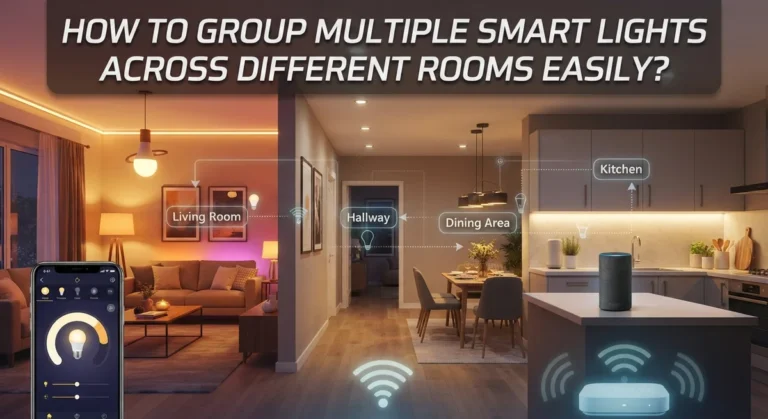
Single room scenes are a great start. But the real magic happens when you combine scenes from different rooms into one master command. Imagine saying “Good night” and watching every room in your house shift to its nighttime setting simultaneously.
In Apple Home, you can add accessories from any room into a single scene. When you create a custom scene, the “Add Accessories” screen shows devices from every room. Select the bedroom lamp, the living room overhead, the kitchen under cabinet lights, and the hallway fixture. Set each one individually, and your scene now spans the entire home.
In Google Home and Alexa, you achieve this through multi-action Routines. One Routine can include actions for devices across all rooms. In Alexa, add multiple “Smart Home” actions to a single Routine. Each action controls a different device or group. The Routine runs all actions in sequence when triggered.
Naming your multi-room scenes clearly helps you remember what each one does. Use names like “Whole House Off,” “Evening Wind Down,” or “Party Mode.” Descriptive names also make voice commands feel natural and easy to recall.
Layering gives you full home control from a single trigger point. It is one of the most satisfying results you can achieve with smart lighting, and it requires zero coding.
Troubleshooting Common Scene Setup Problems
Even with visual tools, you may hit a few bumps. Here are the most common issues and how to fix them.
Lights not responding to a scene? Check that each bulb is online and connected to your hub or Wi-Fi network. Open the manufacturer app and verify the device status. A bulb that shows “offline” needs a power check or a reconnection.
Scene activates but colors look wrong? Some bulbs interpret color values differently. A “warm white” on one brand may look slightly different on another. To fix this, adjust each bulb individually within the scene editor until the visual result matches across all fixtures.
Automation triggers at the wrong time? Confirm your time zone is set correctly in your smart home app. Also check whether you selected “Sunrise/Sunset” instead of a fixed time, as these shift daily and may not match your expectation.
Voice command does not work? Make sure the scene name or Routine trigger phrase is simple and unique. Avoid names that sound like common words or other device names. “Dinner” might conflict with other commands, but “Dinner Lights” will likely work fine.
Scene takes too long to activate? This can happen with Wi-Fi bulbs on an overloaded network. Reduce congestion by connecting smart home devices to a dedicated 2.4GHz band. Hub based systems like Zigbee generally respond faster because they use a separate wireless mesh.
Patience during setup pays off. Most problems have simple fixes that take only a minute or two.
Tips for Designing Scenes That Actually Feel Good
Building a scene is easy. Building a scene that feels right takes a little thought. Here are practical design tips to help you create lighting that improves your daily life.
Match the color temperature to the activity. Cool white (5000K and above) promotes focus and works well in home offices and kitchens. Warm white (2700K and below) creates relaxation and fits bedrooms and living rooms. Avoid cool light in the evening because it can disrupt your sleep cycle.
Use lower brightness than you think you need. Most people set their scenes too bright. Try setting evening scenes to 30% or 40% brightness. You will be surprised how comfortable a dimmer room feels, especially after sunset.
Create contrast between rooms. If your living room scene is warm and dim, keep the adjacent hallway slightly brighter with a neutral tone. This contrast gives your home visual depth and makes each room feel distinct.
Limit the number of colors in one scene. Two or three complementary colors look intentional. Five random colors look chaotic. Stick to a simple palette for the best visual result.
Build scenes for transitions, not just destinations. A “Winding Down” scene at 8 PM can use medium warmth. A “Bedtime” scene at 10 PM goes even dimmer and warmer. This gradual shift helps your body prepare for sleep naturally.
Good scene design is part art, part science. Experiment, adjust, and trust your eyes.
How Home Assistant Makes Scenes Accessible for Everyone
Home Assistant is an open source smart home platform that supports a visual scene editor alongside its advanced configuration options. While it has a reputation for being technical, its scene editor is completely code free.
To create a scene, go to Settings, then Scenes, and click “Add Scene.” Give it a name and pick an icon. Then select the devices you want to include. Adjust each device to its desired state using sliders and toggles. Click Save.
Home Assistant also offers a unique feature called snapshot scenes. You arrange your lights exactly how you want them manually, then tell Home Assistant to capture that state as a scene. This means you do not have to guess brightness percentages or color values. Just set the room up physically, take a snapshot, and the scene is created automatically.
The automation editor in Home Assistant uses a visual builder with dropdowns for triggers, conditions, and actions. You can create a time-triggered automation that activates your scene by selecting options from menus. No YAML editing is required for basic setups.
Home Assistant works with over 2,000 integrations, including Zigbee, Z-Wave, Wi-Fi, Bluetooth, and Matter devices. It runs locally on your network, which means faster response times and no dependence on cloud servers. For users who want deep customization without writing code, it offers an excellent middle ground between simplicity and power.
How to Activate Scenes with Voice Commands
Voice control is the fastest way to switch scenes. All three major voice assistants support scene activation out of the box once your scenes or routines are configured.
With Siri, just say the scene name. “Hey Siri, Good Night” will activate any Apple Home scene named “Good Night.” Siri recognizes scene names automatically because they register in the Home app. You do not need to set up any extra voice command.
With Google Assistant, say “Hey Google, activate” followed by the scene name. If you built the scene inside Google Home as a Routine, use the trigger phrase you defined. If the scene comes from a connected third party app, Google will recognize it by name after syncing devices.
With Alexa, you use the Routine trigger phrase. Say “Alexa, movie time” if that is the voice command you set in your Routine. Alexa also recognizes scenes imported from SmartThings or other connected platforms. You can say “Alexa, turn on Movie Night” if it appears as a scene in your device list.
For the best experience, keep scene names short, distinctive, and easy to pronounce. Avoid names that rhyme with each other or sound similar to existing device names. “Bright Work” is better than “Light Work” if you already have a device called “Light.”
Voice activation turns your custom scenes into instant, hands free mood changes. It is the most natural way to use the scenes you have built.
Using Adaptive and Dynamic Scenes for All Day Automation
Static scenes are great for specific moments. But adaptive lighting takes things further by shifting your lights gradually throughout the day, with no manual input at all.
Several platforms offer adaptive lighting features. The Philips Hue app includes Dynamic Scenes that slowly rotate colors over time. You set a color palette, and the lights drift between those tones at a speed you choose. This keeps a room feeling fresh without any sudden changes.
Apple Home supports Adaptive Lighting for compatible bulbs. This feature automatically adjusts color temperature throughout the day. Lights start cool and energizing in the morning, shift to neutral midday, and warm up as evening approaches. You enable it per bulb, and it runs in the background.
Home Assistant offers similar functionality through its Adaptive Lighting integration. It calculates the ideal color temperature and brightness based on time of day and sun position. You configure it once through the visual interface, and it manages your lights continuously.
Adaptive scenes work best as a baseline. Let adaptive lighting handle your default ambiance, and use manual scenes to override for specific activities like movie night or a dinner party. This combination gives you the convenience of automation with the creative control of custom scenes.
The result is a home that feels alive and responsive to the natural rhythm of each day, all without writing a single line of code.
Frequently Asked Questions
Do I need a smart home hub to create lighting scenes?
It depends on your bulbs and platform. Wi-Fi bulbs from brands like LIFX connect directly to your router and work with apps without a hub. Zigbee and Z-Wave bulbs require a hub such as a SmartThings hub or a Philips Hue Bridge. Apple Home features like automations need a home hub device such as a HomePod or Apple TV. Check your bulb’s connection type before purchasing to understand what additional hardware you may need.
Can I create scenes that include non-lighting devices?
Yes. Most platforms let you include other smart devices in a scene. Apple Home scenes can control locks, thermostats, blinds, and fans alongside lights. Alexa Routines can play music, adjust thermostat settings, and make announcements as part of the same routine. This makes your scenes more powerful because a single command can transform your entire environment, not just the lights.
What happens to my scenes if my internet goes down?
Hub based systems like Philips Hue and Home Assistant process scenes locally. Your scenes will still work even without internet. Cloud based platforms like some Alexa and Google Home routines may fail during an outage because they rely on remote servers. If reliability matters to you, choose a system that supports local processing for your most important scenes.
How many scenes can I create on one platform?
Most platforms do not impose a strict limit on the number of scenes. Apple Home, Google Home, and Alexa all support dozens or even hundreds of scenes and routines. The practical limit comes from your ability to remember and manage them. Keeping a focused list of 10 to 20 well-designed scenes usually delivers the best daily experience without overwhelming your interface.
Can I share my scenes with other people in my household?
Yes. Apple Home lets you invite household members who can then access and activate all shared scenes. Google Home supports household accounts where all members see the same routines. Alexa allows multiple profiles on a single account with shared access to routines and devices. Sharing ensures everyone in your home benefits from the scenes you create.
Is it possible to trigger one scene from another scene?
Not directly on most platforms. Scenes are standalone states, not sequences. However, you can chain behaviors using automations or routines. For example, you could create an automation that activates Scene B five minutes after Scene A runs. Alexa Routines support “Wait” actions that let you add delays between steps within a single routine, achieving a similar layered effect.