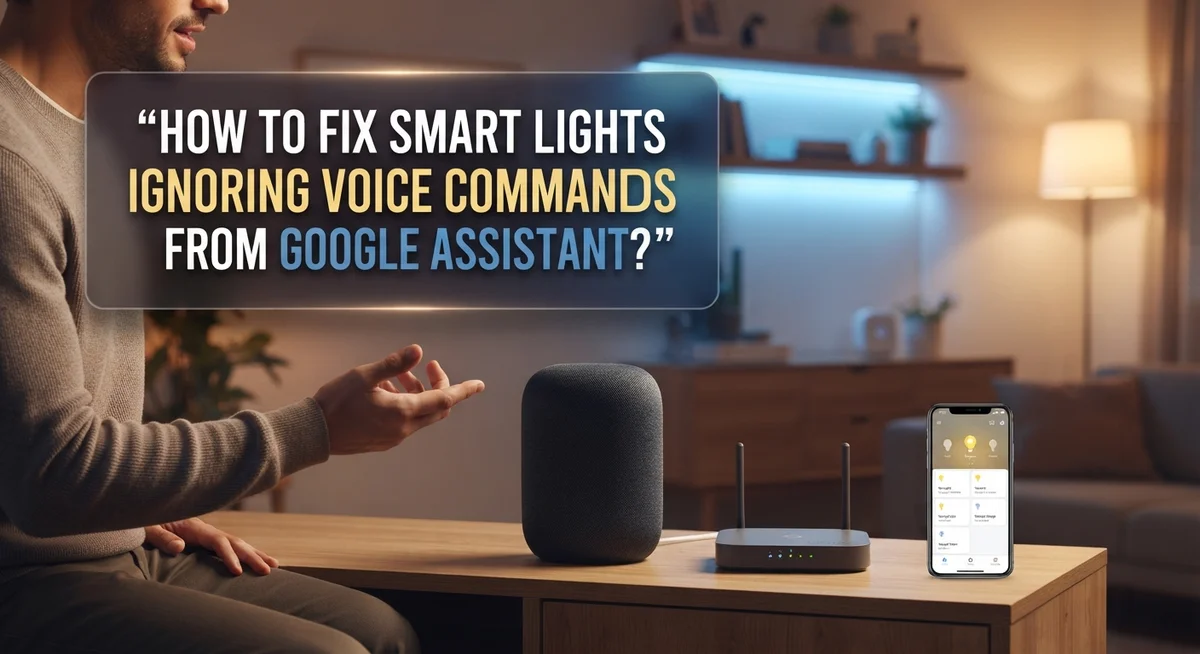
How to Fix Smart Lights Ignoring Voice Commands From Google Assistant?
You say “Hey Google, turn on the lights.” Nothing happens.
You try again, louder this time. Still nothing.
This is one of the most frustrating smart home problems. Your lights work fine when you tap the app. But voice commands seem to vanish into thin air.
The good news? You are not alone, and this problem has real solutions.
Smart lights often ignore Google Assistant because of a few common culprits. Sometimes it’s a simple sync issue between your lights and Google Home. Other times, software bugs or permission conflicts cause the disconnect.
This guide walks you through every fix, step by step. You will learn how to force a resync, power cycle your devices, and relink your smart light apps correctly.
By the end, your smart lights should respond to your voice again, just like they did on day one.
In a Nutshell
- Sync your devices first. Say “Hey Google, sync devices” to refresh the connection. This simple step solves many voice command problems instantly.
- Power cycle everything. Turn your lights off and on. Reboot your router too. This clears temporary glitches that block communication.
- Relink your smart light app. Unlink apps like Smart Life or Hue from Google Home. Then connect them again for a fresh start.
- Check your permissions. Revoke Google’s access in your light app settings. Reinstall the app to reset authentication properly.
- Rebuild broken routines. Delete old automations that stopped working. Create new ones to fix hidden syncing errors.
- Test with manual control. Toggle lights through the Google Home app first. This often restores voice responsiveness right away.
Why Smart Lights Stop Responding to Google Assistant
Smart lights stop responding to Google Assistant for several specific reasons. Understanding these causes helps you fix the problem faster.
Software bugs are the most common culprit. Your smart light app or Google Assistant receives an update that creates conflicts. The two systems no longer communicate properly, even though nothing is broken physically.
Syncing failures happen when your lights disconnect from your Google Home network. This occurs after power outages, router restarts, or when you move your router. Your lights exist in the system, but Google Assistant cannot find them anymore.
Voice recognition issues prevent Google Assistant from understanding your commands. You might use unclear phrasing, speak too softly, or use words the system does not recognize. Background noise also interferes with command processing.
Permission problems block communication between apps. You may have revoked access accidentally in your Google account settings. Your smart light app loses permission to work with Google Assistant, so commands get rejected.
Compatibility conflicts arise when your light brand does not fully support Google Assistant. Some older smart bulbs use outdated protocols. Newer Google Assistant features may not work with legacy devices.
Authentication failures occur when your login credentials expire or reset. Your Google account and smart light app lose their trusted connection. The system treats new commands as unauthorized requests.
Routine and automation glitches break pre-programmed actions. A routine you created stops working after a software update. Manual voice commands might work, but your saved automations fail.
Network congestion slows down communication between devices. Too many devices on your WiFi network overwhelm the connection. Commands get delayed or dropped entirely.
Most of these issues resolve quickly with basic troubleshooting. Power cycling your devices, syncing your system, and relinking your app fix the majority of cases. Permission checks and routine rebuilds handle the remaining problems.
Quick Fixes to Try First
Start with the simplest fix: say “Hey Google, sync devices” out loud. Google Assistant uses this command to force your smart lights back into the network. Wait about 30 seconds for the sync to complete. Your lights should reconnect automatically.
If syncing does not work, power cycle everything. Turn off your smart lights at the wall switch or unplug them. Leave them off for 10 seconds. Then turn them back on. While your lights restart, also reboot your internet router by unplugging it for 30 seconds.
Next, manually toggle your lights using the Google Home app. Open the app on your phone. Find your lights in the device list. Tap to turn them on and off a few times. This action refreshes the connection between your app and your lights. After manual control works, try a voice command again.
Check that your voice command is clear and simple. Say “turn on the living room lights” instead of “can you please turn on my lights if you have a moment.” Google Assistant works best with direct, straightforward instructions.
If nothing changes, unlink and relink your smart light app. Go to your light app’s settings. Find the Google Assistant permission option. Revoke access completely. Then reinstall the app fresh from your device’s app store. Sign back in and grant permissions again. This step clears out old authentication conflicts.
Delete any routines or automations that involve your lights. Open the Google Home app and remove these custom commands. Recreate them from scratch one at a time. Test each routine after you build it.
These quick fixes solve the problem in about 80 percent of cases. They take less than 15 minutes total. If your lights still ignore commands after these steps, deeper troubleshooting may be needed.
Step-by-Step Guide to Resyncing Your Smart Lights
Start by opening your Google Home app on your phone or tablet. Look for your smart light device in the app and tap on it to see its current status.
Next, tap the three dots menu in the upper right corner. Select “Settings” from the dropdown options. Scroll down until you find “Unlink service” or “Remove device” and tap it. This action breaks the connection between your light and Google Assistant completely.
Confirm the removal when the app asks you to verify. Wait about 30 seconds before moving to the next step. This pause lets your system clear the old connection data.
Now open the smart light app that came with your lights. This might be called Smart Life, Philips Hue, LIFX, or another brand name. Log in with your account credentials if needed.
Go to the app’s settings or account section. Look for Google Assistant permissions or connected services. Tap on Google Assistant and select “Revoke” or “Disconnect.” This removes old permission grants that may be causing conflicts.
Close the smart light app completely. Delete it from your phone entirely, then reinstall it fresh from your app store. This gives you a clean version without old cached data.
Open the reinstalled app and log back in. Navigate to the Google Assistant integration section. Tap “Link” or “Connect to Google Home.” Follow the prompts to grant permissions again.
Your app will ask you to sign in with your Google account. Do this and allow all requested permissions. The app will then search for your lights and add them back to your Google Home setup.
Return to your Google Home app. Your lights should now appear in the device list again. Test a voice command like “Hey Google, turn on the living room light” to confirm everything works.
If your lights still do not respond, move forward to checking your Google account security settings and rebuilding any routines you use regularly.
Fixing App Linking and Permission Conflicts
App linking problems happen when your smart light app loses its connection to Google Assistant. Permission conflicts occur when Google cannot access your light app’s features. Both issues stop voice commands from working.
Start by unlinking your smart light app from Google Home. Open the Google Home app and go to settings. Find your smart lights in the device list. Tap the three dots menu next to your lights. Select “Unlink service” or “Remove device.” Google will ask you to confirm. Say yes to remove the connection completely.
Next, revoke all permissions in your light app’s settings. Open your smart light app directly. Look for account settings or security options. Find the section that shows connected apps or authorized services. Look for Google Assistant or Google Home in the list. Tap it and select “Disconnect” or “Revoke access.” This removes all stored permissions.
Now reinstall your smart light app from scratch. Go to your phone’s app store. Find your smart light app and uninstall it completely. Wait 30 seconds. Download and install the app again. Open it and log in with your account credentials.
Reconnect your lights to Google Home. Open the Google Home app. Tap the plus icon to add a device. Search for your light brand or app name. Follow the setup steps. Google will ask for permission to access your lights. Grant all requested permissions. This creates a fresh connection.
After reconnecting, test your voice commands immediately. Say “Hey Google, turn on the lights.” If they respond, the app linking is fixed. If they still ignore you, your permission conflict is resolved but another issue may exist. Move forward with checking your Google account security settings or trying additional troubleshooting steps.
Resetting Routines and Automations
When your routines and automations stop working, the issue usually stems from corrupted settings or sync failures between your devices. These pre-programmed actions act as shortcuts for your voice commands, so fixing them often restores full functionality.
Start by opening your Google Home app and navigating to the Routines section. Look for any automation that controls your smart lights. Delete each routine one at a time and test your voice commands after removing each one. This helps you identify which routine caused the problem.
After deleting problematic routines, create new ones from scratch. Use simple commands like “Good morning” to turn on lights instead of complex multi-step actions. Test each new routine immediately after creating it to catch issues early.
If routines worked before but stopped responding, check your automation triggers. Sometimes voice commands fail because the routine uses outdated device names or incorrect room assignments. Open each routine and verify that your lights appear in the correct rooms within your Google Home setup.
Rebuild your automations gradually rather than recreating everything at once. This approach helps you spot which specific automation causes problems. Start with basic routines that control only one light or room.
Pay attention to routine timing as well. If you set an automation to run at a specific time, make sure your device’s clock is accurate. An incorrect time setting can prevent automations from triggering properly.
Once you recreate your routines, test them both manually and with voice commands. Say your trigger phrase out loud and verify the lights respond as expected. If voice commands still fail but manual triggers work, the problem likely exists elsewhere in your setup rather than in the routines themselves.
Common Mistakes That Cause Voice Command Failures
Many people make simple mistakes that stop their smart lights from responding to voice commands. Understanding these errors helps you fix the problem faster.
Using unclear or overly complex commands is the first mistake. Google Assistant works best with simple, direct phrases. Say “Hey Google, turn on the lights” instead of “Hey Google, could you please turn on the bedroom lights if you don’t mind.” Voice recognition struggles with long sentences and fancy wording. Keep your commands short and straightforward.
Forgetting to check Google account security settings causes hidden problems. Your Google account might have restricted permissions that block Assistant from controlling your lights. Open your Google account settings and review what access you’ve given to smart home devices. Make sure Assistant has permission to control your smart lights.
Failing to reboot devices after unlinking apps is another common error. When you disconnect your smart light app from Google Home, the connection needs a fresh start. Simply unlinking is not enough. You must power cycle both your smart lights and your internet router. Wait 30 seconds before turning them back on. This clears old connection data.
Neglecting to force a device sync leaves your system out of sync. Say “Hey Google, sync devices” to tell Assistant to find and reconnect all your smart lights. This command updates the connection between your lights and Google Home.
Not testing manual control first wastes troubleshooting time. Open your Google Home app and toggle your lights on and off manually. If manual control works but voice commands fail, the problem lies with voice recognition or app permissions, not your hardware.
These mistakes are easy to fix once you know about them. Start with simple commands and security checks before moving to more complex solutions.
Advanced Troubleshooting for Persistent Issues
When your smart lights continue ignoring voice commands despite basic fixes, you need a deeper approach. Start by forcing a complete device sync through Google Assistant. Say “Hey Google, sync devices” and wait for confirmation. This command pushes Google Assistant to rediscover all connected smart lights and refresh their status.
Next, power cycle everything in the correct order. Turn off your smart lights first, then unplug your internet router. Wait 30 seconds, then restart your router. Once your router fully boots up, turn the lights back on. This sequence clears temporary glitches that basic restarts miss.
If syncing and power cycling don’t work, check your Google account security settings directly. Open your Google Account page and review connected apps and devices. Remove any suspicious or duplicate entries for your smart light app. Sometimes multiple connections cause conflicts that prevent voice recognition from working properly.
Test manual control through the Google Home app next. Open the app and try toggling your lights on and off manually. If manual control works but voice commands don’t, the issue lies with voice recognition or command processing, not the connection itself. This tells you exactly where the problem lives.
For persistent failures, completely remove and reinstall your smart light app. This goes beyond unlinking. Delete the app from your phone entirely, restart your phone, then reinstall it fresh from your app store. Reconnect to Google Home afterward.
Finally, recreate your voice routines one at a time. Delete all existing routines related to your lights, then build new ones slowly. Test each new routine immediately after creation. This prevents corrupted routine settings from blocking multiple commands at once.
These advanced steps address sync failures, authentication problems, and software bugs that simple troubleshooting misses.
Final Thoughts
Smart lights ignoring Google Assistant commands can feel frustrating. But most problems have simple fixes.
Syncing issues cause the majority of these problems. A quick “Hey Google, sync devices” command often solves things right away.
Power cycling remains one of the most reliable fixes. Turn off your lights, router, and Google Home device. Wait a moment, then turn everything back on in order.
When basic fixes don’t work, look deeper. Unlinking and relinking your smart light app clears out old connection data. This helps Google Assistant recognize your devices again.
Permission conflicts often hide behind the scenes. Check your light app settings for Google Assistant permissions. Revoke access, then grant it again for a clean connection.
Remember that manual testing matters throughout this process. Toggle your lights using the Google Home app before trying voice commands. This confirms your devices actually work.
Routines and automations need attention too. Delete broken routines and build new ones step by step. Test each routine before adding the next one.
Avoid common mistakes that create new problems. Keep your voice commands simple and clear. Check your Google account security settings regularly.
Most importantly, always reboot devices after making changes. Skipping this step often brings back the same issues you just fixed.
Patience helps you troubleshoot effectively. Work through these steps one at a time rather than rushing. This approach helps you find the exact cause faster.
Your smart lights should respond reliably once you follow these steps. Voice command failures usually stem from sync problems, software bugs, or permission issues. Address these systematically and your smart home setup will work smoothly again.
If problems persist after trying everything, contact your smart light manufacturer’s support team. They can access account level diagnostics you can’t see yourself. This helps you get back to enjoying voice controlled convenience in your home.
Frequently Asked Questions
Why does my Google Assistant say my lights are unavailable?
Your lights show as unavailable when they lose connection to your Wi-Fi or Google Home network. This happens after app crashes, router restarts, or when devices drift out of sync. The fastest fix is saying “Hey Google, sync devices” to force reconnection. If that fails, power off your lights for 30 seconds, then turn them back on.
Check your router too. Make sure it’s working properly and your lights are connected to the same network as your Google Home device.
Can I fix voice command problems by toggling lights manually?
Yes, manual control often restores voice responsiveness. Open your Google Home app and toggle the lights on and off manually a few times. This action refreshes the connection between your lights and Google Assistant.
After manual toggling works, try voice commands again. Many users find this simple step solves the problem without needing deeper troubleshooting.
What should I do if unlinking my smart light app doesn’t help?
Unlinking alone isn’t always enough. You need to completely uninstall and reinstall the app after unlinking. This removes leftover files that cause permission conflicts.
After reinstalling, link the app again and wait a few minutes for everything to sync. Then test both manual control and voice commands before assuming it’s still broken.
Why do my routines and automations stop working with voice?
Routines sometimes develop bugs after app updates or syncing failures. Delete the routine completely and create it again from scratch. Build it step by step and test after each addition.
If one routine works but others don’t, the problem is usually in the routine itself, not your hardware.