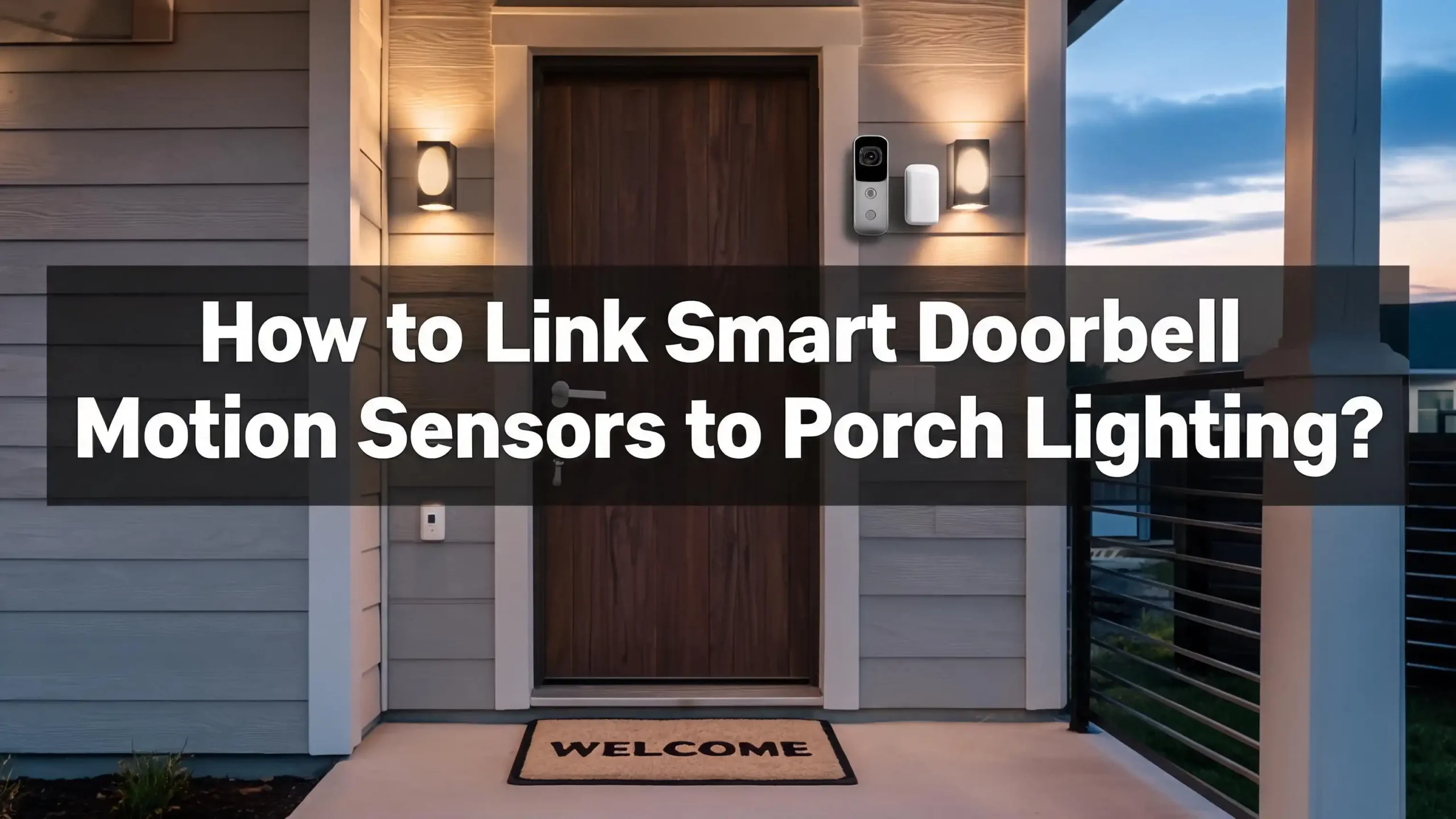
How to Link Smart Doorbell Motion Sensors to Porch Lighting?
Your smart doorbell already watches your front porch around the clock. It records visitors, sends motion alerts, and lets you see who is at the door from anywhere. But what if it could also turn on your porch lights the instant someone walks up? That one connection changes everything about how your home greets guests and wards off intruders.
Linking your smart doorbell’s motion sensor to your porch lighting is one of the simplest and most rewarding smart home upgrades you can make. The setup process is easier than most people think, yet many homeowners never attempt it because they assume it requires advanced wiring skills or expensive equipment.
This guide walks you through every method, platform, and troubleshooting step you need to make your porch lights respond to your doorbell’s motion sensor. Let’s get your porch working smarter.
In a Nutshell
- Smart doorbells from brands like Ring, Nest, and Eufy already have built in motion sensors that can trigger actions on other smart devices, including your porch lights. You do not need to buy a separate motion detector for your porch if your doorbell already has one.
- Voice assistants like Alexa and Google Home serve as the bridge between your doorbell and your smart lights. You can create routines inside these apps that tell your lights to turn on when the doorbell senses motion.
- Cloud automation platforms like IFTTT offer cross brand compatibility. If your doorbell and lights come from different manufacturers, IFTTT can connect them even when the native apps cannot.
- Wi-Fi stability at your front door is the single biggest factor that determines whether your automation works reliably. A weak signal causes missed motion events, which means your lights never receive the trigger command.
- You should always test your automation at night because doorbell motion detection behaves differently after dark. IR night vision, glare, and reduced sensitivity can prevent triggers from firing during the hours you need them most.
- Advanced platforms like Home Assistant give you full control over conditions, timing, brightness levels, and fallback actions. These systems require more setup but deliver far more reliable and customizable results.
Why You Should Connect Your Doorbell Motion Sensor to Porch Lights
Connecting your doorbell’s motion sensor to your porch lighting creates a security layer that works without any human input. The moment someone steps onto your porch, the lights come on. This immediate response deters potential intruders because a dark porch that suddenly floods with light signals that the home is monitored.
The practical benefits go beyond security. Guests arriving at night can see your door number, the steps, and the doorbell button itself. Delivery drivers can find the right house faster. You get a clearer picture on your doorbell camera because a well lit porch produces much better video than one relying solely on infrared night vision.
Energy savings are another advantage. Instead of leaving your porch light on all night, you let the doorbell’s motion sensor control it. The light stays off until someone approaches, then shuts off again after a set period. Over weeks and months, this saves a noticeable amount on your electricity bill.
This connection also reduces notification fatigue. Instead of checking your phone every time you get a motion alert, you can glance at your porch. If the light is on, someone is there. If not, it was probably a passing car or animal. Your porch light becomes a visual indicator that works even when your phone is in another room.
What You Need Before You Start
Before you begin linking your doorbell’s motion sensor to your porch lights, you need to confirm that your devices can communicate with each other. Start by checking the brand and model of your smart doorbell. Popular models from Ring, Google Nest, Eufy, and Arlo all support motion triggered automations, but the setup method varies by brand.
Next, look at your porch light. You need either a smart light bulb, a smart light switch, or a smart plug controlling your existing porch fixture. A standard bulb connected to a regular switch cannot receive commands from your doorbell. The light must connect to your home Wi-Fi network or to a smart home hub.
You also need a platform that links the two devices together. This could be a voice assistant app like Amazon Alexa or Google Home, an automation service like IFTTT, or a dedicated hub like Home Assistant or SmartThings. Your doorbell and light must both be compatible with at least one shared platform.
Finally, confirm your Wi-Fi signal strength at the front door. Open your doorbell app and look for signal or connection indicators. Many doorbell apps display the Wi-Fi signal as RSSI. A weak signal leads to dropped motion events, which means your automation will fail randomly. If your signal is weak, consider placing a mesh Wi-Fi node closer to the front door before proceeding.
Method 1: Using Amazon Alexa Routines
Amazon Alexa routines are the most popular way to link a smart doorbell to porch lights. If you own a Ring doorbell and any Alexa compatible smart light, this method takes about five minutes to set up.
Open the Alexa app on your phone. Tap “More” at the bottom right corner and select “Routines.” Tap the plus icon to create a new routine. Give it a name like “Porch Light On Motion.” Under “When this happens,” select “Smart Home” and then choose your Ring doorbell. Select “Motion Detected” as the trigger event.
Under “Add action,” select “Smart Home” again and choose your porch light. Set the action to turn the light on. You can also set a brightness level and color if your bulb supports those features. Tap “Save” to activate the routine.
To make the light turn off automatically, create a second routine. Use the same motion trigger but add a “Wait” action of five or ten minutes before the “turn off” action. This ensures the light stays on long enough for the visitor to reach the door but does not stay on all night.
You can also add a time condition so the routine only runs after sunset. Under “Anytime,” change it to a custom time range like 7:00 PM to 6:00 AM. This prevents the light from turning on during the day when it is not needed. Alexa routines run in the cloud, so both your doorbell and light need a stable internet connection for this to work.
Method 2: Using Google Home Automations
Google Home offers a similar automation feature for Nest doorbells and other compatible cameras. The process differs slightly from Alexa but achieves the same result.
Open the Google Home app and tap “Automations” at the bottom. Select “Add” to create a new automation. Under “Starters,” choose your Nest doorbell and select “Motion detected” as the trigger. You may also see “Person detected” if your doorbell supports that feature. Person detection is more accurate and reduces false triggers from passing cars or animals.
Under “Actions,” select your smart porch light and choose “Turn on.” You can adjust brightness and set a duration for how long the light stays on. Google Home lets you add conditions like time of day directly within the automation. Set it to run only between sunset and sunrise for the best results.
One important note: Google Home automations require your Nest doorbell and smart light to be in the same Google Home. If you set up the doorbell in one Home and the light in another, the automation will not work. Double check that both devices appear in the same Home and the same location within the app.
If your automation stops working after a few days, check whether the doorbell’s motion sensitivity settings changed. Google sometimes adjusts sensitivity based on activity patterns. Go into the Nest app, find your doorbell, and make sure the motion detection zone covers the area where visitors approach. A zone that is too small will miss people walking up from the side.
Method 3: Using IFTTT for Cross Brand Connections
IFTTT stands for “If This Then That,” and it works as a bridge between devices that do not share a native app. This is your best option when your doorbell and porch light come from different manufacturers that do not integrate with each other directly.
Create a free account on the IFTTT website or app. Tap “Create” to build a new applet. For the “If This” trigger, search for your doorbell brand. Select the trigger event, which is usually “New Motion Detected” or “Motion Detected at Front Door.” Connect your doorbell account if prompted.
For the “Then That” action, search for your smart light brand. Choose the action “Turn on lights” or “Set scene.” Select the specific light or group you want to activate. Save the applet and IFTTT will run this action every time the trigger fires.
The downside of IFTTT is speed. Because the service relies on cloud polling, there can be a delay of several seconds between the motion event and the light turning on. The free tier also limits you to a small number of applets. If speed matters to you, consider upgrading to a paid plan or switching to a direct integration through Alexa or Google Home.
IFTTT also supports filter code on paid plans. This lets you add conditions like “only run between 8 PM and 6 AM” or “only run if the light is currently off.” These filters reduce unnecessary triggers and make your automation smarter without requiring a separate smart home hub.
Method 4: Using a Smart Home Hub Like Home Assistant
Home Assistant is an open source platform that runs on a small computer in your home. It connects to hundreds of device brands and gives you complete control over every detail of your automations. This method requires more initial setup but delivers the most reliable and customizable results.
Install Home Assistant on a dedicated device like a Raspberry Pi or a mini PC. Add integrations for your doorbell and your smart lights. For Ring doorbells, use the Ring integration. For Nest, use the Nest integration. Your porch light can connect through Wi-Fi, Zigbee, Z-Wave, or any other protocol that Home Assistant supports.
Create an automation by going to Settings, then Automations, then “Create Automation.” Set the trigger to the motion sensor entity from your doorbell. Add a condition for time, such as “after sunset” and “before sunrise.” Set the action to turn on your porch light at the desired brightness.
Home Assistant lets you add a “wait for trigger” step that keeps the light on until motion stops, then starts a timer. This is more precise than a fixed duration because the light stays on as long as someone is on the porch. You can also set the light to a dim level during quiet hours and a bright level during evening hours.
The biggest advantage of Home Assistant is that automations run locally. They do not depend on cloud servers or internet connectivity. If your internet goes down, your doorbell motion sensor can still trigger your porch light as long as both devices connect to your local network.
How to Set Up Motion Zones for Better Accuracy
Motion zones determine which areas of your doorbell’s field of view trigger a motion event. Setting these zones correctly is critical for reliable porch light automation. If the zone is too wide, passing cars and sidewalk pedestrians will turn on your light constantly. If the zone is too narrow, visitors might not trigger it until they are standing at the door.
Open your doorbell app and find the motion settings. Most doorbells let you draw a custom zone on a preview image from the camera. Focus the zone on the walkway leading to your porch and the porch area itself. Exclude the street, the sidewalk, and any areas with frequent movement that should not trigger your lights.
Adjust the motion sensitivity slider to a medium level as a starting point. Test it by walking through the zone several times from different angles. Check whether every approach triggers a motion event in the app. If some approaches are missed, increase the sensitivity slightly. If you get too many false alerts, decrease it.
Many doorbells offer separate sensitivity settings for people, vehicles, animals, and packages. If your doorbell supports person detection, use that as the trigger instead of general motion. This dramatically reduces false triggers while still catching every real visitor. Your porch light will turn on for people but not for a cat crossing the yard at 2 AM.
Review your motion zones every few months, especially after seasonal changes. Trees that gain or lose leaves can create new movement patterns that affect detection accuracy. A zone that worked well in winter may generate constant false alerts in summer.
Setting Time Based Conditions for Your Automation
Running your porch light automation around the clock wastes energy and creates unnecessary wear on smart bulbs. Time based conditions ensure the light only activates when you actually need it, which is almost always after dark.
Most automation platforms let you set a fixed time window. For example, you can tell Alexa to run the routine only between 7:00 PM and 6:00 AM. This works well but does not account for seasonal changes in daylight. In summer, it may still be light outside at 7:00 PM, while in winter, it is already dark by 5:00 PM.
A better approach is to use sunset and sunrise offsets. Home Assistant, SmartThings, and Google Home all support this. Set your condition to “after sunset minus 30 minutes” and “before sunrise plus 30 minutes.” This adjusts automatically throughout the year and ensures the automation starts just as it gets dark.
Some platforms also let you combine time conditions with other variables. You can create a rule that says “turn on the porch light at full brightness if motion is detected between sunset and 11 PM, but turn it on at 30% brightness if motion is detected between 11 PM and sunrise.” This lower brightness level is less disruptive for sleeping household members while still providing security.
If your doorbell supports scheduling its own motion detection, coordinate that schedule with your light automation. A doorbell set to ignore motion during certain hours will never send the trigger event, and your light will never turn on. Make sure the doorbell’s motion schedule is at least as wide as your light automation’s time window.
Troubleshooting: Automation Not Triggering
The most frustrating problem with doorbell to light automations is when they simply stop working. The good news is that the cause almost always falls into one of a few categories, and each has a clear fix.
Start by checking whether the doorbell is creating motion events. Open your doorbell app and look at the event history. Walk in front of the doorbell and see if a new motion event appears. If it does not, the problem is with the doorbell’s detection settings, not the automation. Adjust motion zones, increase sensitivity, and confirm the doorbell has a strong Wi-Fi signal.
If motion events appear in the doorbell app but the light does not turn on, the problem is in the connection between the doorbell and the automation platform. For Alexa users, go to Skills and disable then re-enable the Ring skill. For Google Home users, unlink and relink your Nest account. This refresh clears stale authentication tokens that accumulate over time.
Wi-Fi instability is the most common hidden cause. Doorbells sit on the outside of your home where the signal is weakest. If the doorbell drops its connection even briefly, the motion event never reaches the cloud, and the automation never fires. Place a mesh Wi-Fi node within 15 feet of your front door and ensure the doorbell connects to your 2.4 GHz network, which has better range through walls than 5 GHz.
Check for conflicting conditions in your routine. A “do not disturb” setting, a time window that expired, or a “someone is home” condition can all block the routine silently. Simplify your routine to the basics for testing: motion detected equals light on, with no conditions. Once it works reliably, add conditions back one at a time.
Troubleshooting: Automation Fails at Night
Night time failures are so common that they deserve their own section. Your automation may work perfectly during the day but miss triggers after dark. This happens because doorbell cameras switch to infrared mode at night, which changes how they detect motion.
IR night vision relies on detecting changes in heat signatures rather than visual movement. If your porch has a glass storm door, a metallic door frame, or a shiny surface nearby, IR light can reflect back into the camera and reduce detection accuracy. Try adjusting the angle of your doorbell slightly or adding a wedge mount to tilt it away from reflective surfaces.
A dim porch light that stays on at a low level can dramatically improve night detection. The camera may stay in color mode rather than switching to IR, which often provides better motion sensing. Set your smart bulb to 10% brightness as a baseline, and let the automation boost it to 100% when motion is detected.
Expand your motion zone slightly for nighttime use. The doorbell sensor needs a larger target area in low light conditions to reliably detect approaching visitors. If your daytime zone covers just the top three steps, extend it to include the walkway leading up to those steps.
Cold temperatures can also affect battery powered doorbells. In winter, the battery may drain faster, causing the doorbell to enter a low power mode that reduces motion sensitivity. If you have a battery doorbell and experience winter night failures, check the battery level regularly and consider adding a solar charging panel to maintain consistent power.
Choosing the Right Smart Light for Your Porch
Not every smart light works well for porch automation. The light you choose affects response time, brightness, and long term reliability. Pick a light that connects to the same platform as your doorbell for the simplest setup and fastest response.
Smart bulbs are the easiest option. You unscrew your existing porch bulb and screw in a smart one. Most smart bulbs connect through Wi-Fi or a hub like Zigbee or Z-Wave. Wi-Fi bulbs are simpler to install because they connect directly to your router without extra hardware. However, they can slow down your network if you add too many Wi-Fi devices.
Smart switches are a better long term solution. A smart switch replaces your existing wall switch and makes any bulb in the fixture controllable through your smart home system. The advantage is that you can use any standard bulb, including bright outdoor rated LED bulbs that may outperform smart bulbs in harsh weather.
If your porch light fixture is hardwired without a standard bulb socket, consider a smart relay or a smart plug. A relay installs behind the fixture’s wiring and adds smart control without changing the visible hardware. A smart plug works only if your fixture plugs into an outlet, which is less common for porch lights.
Look for lights rated for outdoor use with an IP44 or higher rating. Porch fixtures expose bulbs to temperature swings, humidity, and sometimes rain. An indoor rated smart bulb may fail after a few months in an exposed porch fixture. Also check the response time. Some bulbs take a second or two to turn on after receiving a command, which creates a noticeable delay after the doorbell senses motion.
Advanced Tips: Making Your Automation Smarter
Once your basic automation works, you can add layers of intelligence that make it more useful and less annoying. These advanced techniques require a platform like Home Assistant, SmartThings, or detailed Alexa routines.
Create different brightness levels based on the time of night. Early evening visitors might see the light come on at full brightness, while a 3 AM trigger sets the light to 50% to avoid waking up the household. You can build this with two separate routines that have different time windows and brightness settings.
Add a “person only” filter if your doorbell supports it. This tells the automation to ignore motion from animals, blowing leaves, and passing headlights. Only a detected person triggers the porch light. This single change can eliminate 90% of false activations.
Use color changes as a visual signal. If your smart bulb supports color, set the automation to turn the light white for general motion but flash it blue when the doorbell button is pressed. This lets you distinguish between someone approaching and someone actively ringing the bell, even from inside the house.
Consider adding a second action to your automation. Along with turning on the porch light, you can send a notification to a smart speaker, display the camera feed on a smart display, or activate a second light inside the house. Linking multiple actions to one trigger creates a coordinated response that is far more effective than any single device acting alone.
Set up a “vacation mode” that increases sensitivity and extends the light on duration when you are away from home. Some platforms let you trigger this automatically based on your phone’s location. When your phone leaves your home Wi-Fi network, the system switches to vacation settings and provides maximum porch coverage until you return.
Keeping Your Automation Reliable Over Time
A doorbell to light automation is not a “set it and forget it” project. Several factors can cause it to degrade over time, and periodic maintenance keeps everything running smoothly.
Check your Wi-Fi signal at the front door every few months. Router firmware updates, new devices on the network, and physical changes like new furniture can affect signal strength. If your doorbell’s RSSI drops below acceptable levels, reposition your mesh node or adjust your router’s antenna.
Update your doorbell firmware and smart light firmware whenever new versions become available. Manufacturers frequently patch connectivity issues and improve motion detection accuracy through updates. An outdated doorbell may develop new bugs that cause missed triggers or false alerts.
Review your automation rules after any platform update. Alexa, Google Home, and Home Assistant all receive updates that can change how routines work. A feature that existed last month might move to a new menu or require a different configuration. If your automation suddenly stops working after an update, check the routine editor for any changes.
Replace smart bulb batteries or check power connections annually. Battery powered bulbs, solar powered lights, and battery doorbells all lose capacity over time. A doorbell battery that lasted eight months when new might only last four months after two years of use. Set a calendar reminder to check power levels before they reach critical lows.
Finally, test your automation once a month by walking up to your porch after dark. Confirm the light turns on within a few seconds, stays on for the right duration, and turns off when expected. A quick monthly test catches small problems before they become persistent failures.
Frequently Asked Questions
Can I link a Ring doorbell to non Ring porch lights?
Yes. You can link a Ring doorbell to almost any smart porch light through Amazon Alexa routines. Add both the Ring doorbell and the smart light to your Alexa app. Create a routine with “motion detected on Ring doorbell” as the trigger and “turn on porch light” as the action. You can also use IFTTT to connect Ring to lights from brands that Alexa does not support. The key requirement is that both devices must connect to at least one shared automation platform.
Does this work with battery powered doorbells?
It works, but battery powered doorbells may have limitations. To preserve battery life, many battery doorbells use a motion cooldown period that prevents back to back triggers. This means your porch light might not turn on for a second visitor who arrives within a few minutes of the first. Battery doorbells may also reduce motion sensitivity in cold weather to conserve power. Wired doorbells generally provide more consistent and frequent motion triggers.
Will my porch light turn on for every car that drives by?
It depends on how you configure your motion zones and sensitivity. If your doorbell’s motion zone includes the street, passing cars will trigger the light. Narrow the motion zone to cover only your walkway and porch area. If your doorbell supports person detection, use that as the trigger instead of general motion. This filters out vehicles, animals, and other non human movement.
How fast does the porch light turn on after motion is detected?
Response time varies by platform. Cloud based automations through Alexa or Google Home typically add a delay of one to five seconds between the motion event and the light turning on. Local automations through Home Assistant or SmartThings can respond in under one second. Wi-Fi signal strength, internet speed, and server load all affect cloud based response times. If speed is critical, a local automation platform delivers the fastest results.
Can I set different light behaviors for different times of day?
Yes. Most automation platforms allow you to create multiple routines with different time conditions. You can set the porch light to turn on at 100% brightness between sunset and 10 PM, then switch to a 30% brightness routine between 10 PM and sunrise. Some platforms also let you change the light color based on the time. Home Assistant offers the most flexibility for creating time based brightness and color schedules.
What happens if my internet goes down?
Cloud based automations through Alexa, Google Home, and IFTTT will stop working during an internet outage because the doorbell cannot send motion events to the cloud server. Local automation platforms like Home Assistant continue to work as long as both the doorbell and the light connect to your local network. If reliable operation during outages matters to you, choose devices and platforms that support local processing.