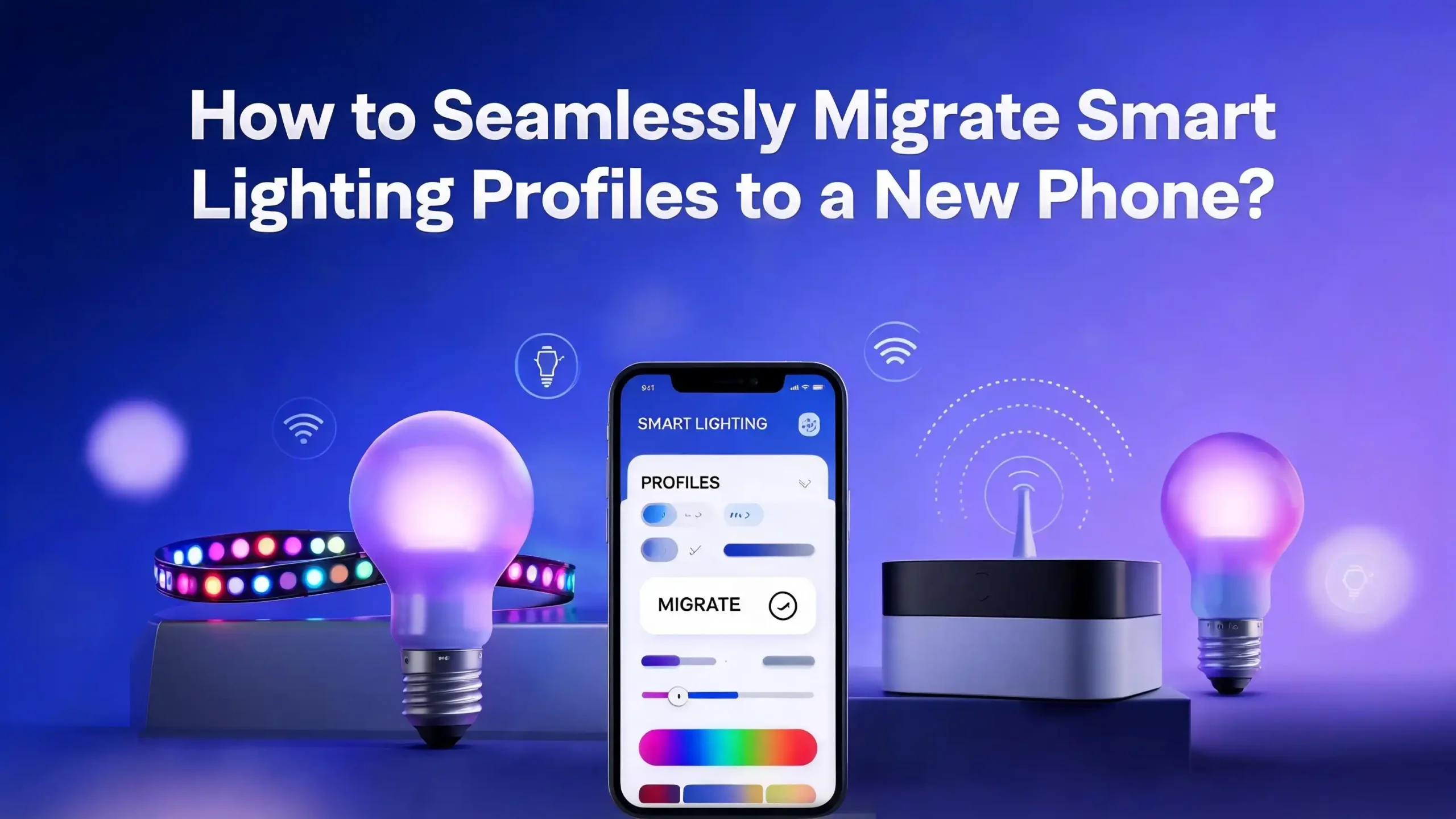
How to Seamlessly Migrate Smart Lighting Profiles to a New Phone?
Getting a new phone feels exciting until you realize your smart bulbs, scenes, schedules, and routines are still tied to the old device. Your living room lamp stops responding to voice commands.
Your sunrise wake up routine goes silent. Your custom movie night scene vanishes from the app. You start wondering if you must rebuild everything from scratch.
The good news is you do not have to. Most smart lighting platforms store your profiles in the cloud, which means a clean transfer is possible with the right steps. This guide walks you through every stage so your smart lights work on day one with your new phone.
In a Nutshell
- Most smart lighting profiles live in the cloud, not on your phone. Logging in with the same account on a new device usually restores everything within minutes.
- Always check your account email and password before switching phones. A locked out account is the most common reason migration fails.
- Keep your old phone active until the new one works. Do not factory reset the old device until every bulb, scene, and routine appears on the new phone.
- Hubs like the Philips Hue Bridge store data locally too, so you may need to press the physical pairing button during the first launch.
- Update both your router firmware and the lighting app before migration to avoid pairing errors.
- Voice assistants like Alexa and Google Home sync separately, so relinking accounts is part of the process.
Understand Where Your Smart Lighting Data Is Actually Stored
Before you do anything, you need to know where your profiles live. Smart lighting data is stored in three possible places: the cloud, a local hub, or your phone. Each storage type affects how migration works.
Cloud based systems like Smart Life, Tuya, Govee, LIFX, and Wiz keep your scenes, schedules, and device list on remote servers. Your phone only displays this data, so a fresh install on a new phone pulls everything back once you sign in.
Hub based systems like Philips Hue or SmartThings store device pairings on a physical hub at home. The hub remembers your bulbs, but your phone needs to reconnect to it. Your scenes and rooms are usually saved on the hub itself.
A small number of older or budget apps store data only on the phone. These setups need a manual backup or full re device setup. Check your app settings for a backup or export option before assuming everything is cloud based.
Once you know your storage type, the migration path becomes clear. Cloud setups need only a login. Hub setups need a login plus a button press. Local only setups need a backup file or fresh pairing.
Make a Full List of Your Smart Lighting Devices First
Before you touch the new phone, open your current app and write down every device. A complete inventory protects you from forgetting a hidden bulb in a guest room, garage, or porch light.
Note each bulb name, room assignment, brand, and firmware version if shown. Take screenshots of your scenes and routines so you have a visual reference if anything needs rebuilding later.
Pay attention to grouped devices. Many users create groups like Kitchen Lights or Bedroom Ceiling, and these group names often need to match exactly across voice assistants. Record the exact spelling of every group and scene name.
Also list third party connections. If your lights connect to Alexa, Google Home, Apple Home, IFTTT, or SmartThings, write those down too. Each integration may need to be relinked after the migration.
Finally, check for automation rules tied to other devices. A motion sensor that triggers your hallway light is a separate routine that may live in a different app. Note where each rule is stored so you can rebuild any broken chains.
This inventory takes about ten minutes but saves hours if something goes wrong. Keep it on paper or in a notes app you can access from either phone.
Confirm Your Account Credentials Before You Switch
The single most common reason migrations fail is a forgotten password. Verify your login on the old phone first by logging out and logging back in. If it works there, it will work on the new phone.
Check the email address tied to your account. Many people sign up with an old or work email they no longer use. Update the email to a current one through the app settings before switching phones.
If two factor authentication is enabled, make sure you have access to the backup codes or the phone number that receives the security code. Losing access to two factor codes can lock you out for days while support resets your account.
Some apps use phone number based login instead of email. If you changed your phone number recently, update it in the app before migration. The verification text must reach you on the new phone.
For social logins like Google, Apple, or Facebook sign in, confirm those accounts still work on both phones. Sign in with the exact same method you originally used, since creating a new account with a different method will not load your existing devices.
Write your verified credentials in a secure password manager. You will need them within the first five minutes of setting up the new phone.
Update Your Smart Lighting App on the Old Phone First
Many migration problems come from version mismatches. Update the app on your old phone before installing it on the new one. This ensures both devices use the same data structure and feature set.
Open your app store and check for updates to your lighting apps. Install any pending updates and open the app once to confirm everything still works. An outdated app can fail to sync new scenes to the cloud, which means those scenes will not appear on the new phone.
After updating, force a manual sync if your app offers one. Look in the settings menu for a refresh or sync option. Wait for confirmation that the sync completed before moving on.
Some apps require you to accept new terms of service after an update. Read and accept these on the old phone so the new phone does not get stuck on a popup during first launch.
Also update your hub firmware if you have one. Open the hub settings inside the app and check for available updates. Hub firmware updates can take five to fifteen minutes and should never be interrupted.
Once everything is current, you have a stable baseline. Your new phone will pull this clean version when you sign in.
Back Up Your Routines, Scenes, and Schedules
Even though most data lives in the cloud, a manual backup gives you peace of mind. Take detailed screenshots of every scene, schedule, and routine before switching phones.
Capture the color values, brightness levels, and transition timings of each scene. Color hex codes are especially important because they may shift slightly after a re sync. Write them down next to the screenshot.
For schedules, note the exact trigger times, days of the week, and which devices they affect. Sunrise and sunset based schedules also need their location setting recorded. A schedule with the wrong location will fire at the wrong time on your new phone.
Some advanced apps like Hue Essentials or Home Assistant offer a true export feature. Look for a settings option labeled Export, Backup, or Save Configuration. Save the resulting file to a cloud storage service like Google Drive, iCloud, or Dropbox so you can access it from the new phone.
If your app supports sharing scenes through a link or QR code, generate those codes now. They make rebuilding a specific scene much faster if the automatic sync misses it.
This backup step takes time, but it acts as your safety net. You will likely never need it, but you will be grateful if you do.
Set Up the New Phone with the Same Network and Region
Your new phone needs to match the old phone in two key ways before migration: network and region. Connect the new phone to the same Wi Fi network your smart lights use.
Most smart bulbs operate on the 2.4 GHz band, not 5 GHz. If your router separates these into different network names, join the 2.4 GHz network during setup. Many pairing errors come from being on the wrong band during the first launch of the app.
Set the phone region to match your account region. A Smart Life account created in the United States will not load devices if the phone is set to a European region. Check the region setting in both the phone settings and the app.
Confirm the time zone matches your home location. Schedules use the phone time zone in some apps, which means a wrong time zone will shift every sunrise routine by hours.
If your old phone used a VPN, disable the VPN on the new phone during initial setup. VPN traffic can block the local discovery that some hubs and bulbs use to pair.
With network, region, and time aligned, the new phone is ready to receive your smart lighting profiles.
Install the Lighting App and Sign In with the Same Account
Now comes the main step. Download the same lighting app from your app store. Use the exact app name your old phone uses to avoid downloading a similar looking but different product.
Open the app and choose Sign In, not Sign Up. Creating a new account is the number one mistake during migration and results in an empty device list. Enter your verified credentials carefully.
Complete any two factor authentication prompt. The code may go to your email, your old phone number, or an authenticator app. Keep your old phone nearby in case it receives the verification message.
After signing in, wait a full minute before touching anything. The app needs time to download your device list, scenes, schedules, and rooms from the cloud. A progress spinner or loading bar usually shows the sync status.
Once the home screen loads, scroll through every room and group. Tap a few bulbs to confirm they respond. If they do, your migration is nearly complete. If not, move on to the troubleshooting steps in the next sections.
Do not delete the app from your old phone yet. You may need it again for a few days as a backup control point.
Reconnect Your Smart Lighting Hub If You Have One
Hub based systems need an extra step. Open the app and look for a Bridge or Hub setup option, even if your devices already appear. This step authorizes the new phone to talk to the hub.
For Philips Hue users, the app will prompt you to press the round button on top of the Hue Bridge. You have about thirty seconds to press it once the prompt appears. The bridge light will flash to confirm pairing.
SmartThings, Aqara, and similar hub systems use a similar pairing pattern. Some require you to enter a code printed on the bottom of the hub, while others use a QR code scan. Keep the hub nearby and powered on during this step.
If the app cannot find the hub, check that the hub is connected to the same Wi Fi network as your new phone. A blinking blue or green light on the hub usually means it is online. A red or yellow light signals a connection problem that needs to be fixed before pairing.
After successful pairing, your scenes and rooms should populate. Hub stored data does not need to be redownloaded because it lives on the hub itself, not in the cloud.
This step is invisible to many users but critical for systems built around a central bridge.
Relink Voice Assistants Like Alexa and Google Home
Voice control is a separate layer that does not migrate automatically. Open your Alexa or Google Home app on the new phone and check whether your lighting skill is still linked.
In most cases, the link survives because it is tied to your Alexa or Google account, not your phone. Test by saying a voice command like turn on the kitchen lights. If it works, you are done with this step.
If it fails, open the assistant app and find the linked services or skills section. Locate your lighting brand and tap Unlink, then Link again. You will be asked to sign in to your lighting account one more time.
After relinking, run a device discovery. Alexa users can say discover devices, and Google Home users can tap the plus sign and choose Set Up Device. This refreshes the list of bulbs and groups.
Check that group names still match. If Alexa knew your lights as Bedroom Lamp but the lighting app now calls them Bedroom Lamp 1, voice commands will fail. Rename inside the lighting app to match what your assistant expects.
Apple Home users follow a similar pattern through the Home app. The HomeKit pairing usually stays intact, but a fresh sign in to the lighting app on the new phone may be needed.
Test Every Bulb, Group, and Scene Methodically
Do not assume everything works after sign in. Walk through your home and test each bulb individually. Tap it in the app, change the color, and adjust the brightness.
Use your inventory list from earlier. Check off each device as it responds. Bulbs that appear offline are usually fine but need a quick power cycle or a tap of the refresh button to come back online.
Test every group next. Tap a group like Living Room and confirm all member bulbs change together. A group that responds partially may have a stale device link that needs to be removed and re added.
Run each scene. Watch the lights actually change to the saved colors and brightness levels. Compare against your screenshots from the backup step. If a scene looks off, edit and save it again to refresh the values.
Trigger your schedules manually if your app allows it. A sunrise simulation routine should ramp the lights up correctly. If timing feels off, recheck the time zone and location settings on your new phone.
This methodical test catches small problems early. Fixing one bulb now is much easier than realizing three weeks later that your porch light never reconnected.
Troubleshoot Common Migration Problems
Even with careful prep, some issues pop up. The most common problem is an empty device list after sign in. This usually means you signed into the wrong account or the wrong regional server.
Try signing out and back in once. If devices still do not appear, contact the app support team and ask which server region your account uses. Some apps default new installs to a different region than the original account.
Bulbs that show as offline may need a router restart. Turn off the router, wait thirty seconds, and turn it back on. Wait two to three minutes for everything to reconnect before testing again.
If a single bulb refuses to respond, power cycle it by switching the wall switch off and on. Some bulbs need a fast on off on sequence to reset their connection. Check your bulb manual for the exact pattern.
Voice commands that worked yesterday but fail today usually need a relink. Sign out of the lighting skill in your assistant app and link it again with a fresh sign in.
For stubborn problems, the nuclear option is to remove the bulb from the app and re add it. This loses the bulb history but always works.
Keep Your Old Phone as a Backup for a Week
Resist the urge to factory reset your old phone immediately. Leave the lighting app installed and signed in for at least seven days. This gives you a working fallback while you verify the new phone setup.
During this week, use only the new phone for daily control. Note any features that misbehave or scenes that look slightly different. Small issues often surface only after a few real world uses.
If something breaks, the old phone lets you compare settings side by side. You can see exactly how a scene was configured before and reproduce it on the new phone.
Once a full week passes without problems, you can confidently remove the lighting app from the old phone. Sign out of the app before uninstalling to release the device slot if your service limits active sessions.
If you plan to sell or give away the old phone, do a factory reset only after signing out of every smart home app. A buyer who powers on your old phone should not see your devices listed.
This patient approach has saved many users from frustrating midnight troubleshooting sessions.
Maintain Good Habits to Make Future Migrations Easier
Your next phone upgrade will be smoother if you build a few habits now. Keep your account email and password current in a password manager.
Review your scenes and schedules every few months. Delete ones you no longer use. A clean profile migrates faster and leaves less room for sync errors.
Take fresh screenshots of your setup once a year. Store them in a folder labeled Smart Home Backup in your cloud storage. Treat these screenshots as part of your home documentation.
Enable automatic app updates so your lighting apps stay current. Outdated apps slowly fall behind on features and may lose support entirely after a year or two.
If your brand offers a paid cloud backup or premium tier with export features, consider whether it is worth it for your setup. Heavy users with dozens of scenes often find the small fee pays for itself in time saved.
Finally, document your hub model, network details, and account list in one place. Future you, or anyone who inherits your smart home, will appreciate it.
Frequently Asked Questions
Do I lose my smart lighting scenes when I switch phones?
In most cases, no. Scenes are stored in the cloud or on a hub, not on your phone. Signing in with the same account on the new phone restores them automatically. Only apps that store data locally on the phone risk data loss, and even then, screenshots and manual notes act as a backup.
Do I need to reset my smart bulbs before using a new phone?
No. Resetting bulbs is unnecessary and creates extra work. Your bulbs are paired with your account, not your phone. A new phone with the same account login connects to the existing setup without any reset.
Can I use both my old and new phone to control the same lights?
Yes. Most smart lighting apps allow multiple devices to control the same account simultaneously. Keep both phones active during the first week to verify the new setup before retiring the old one.
What if my smart light brand stops supporting their app?
If the brand discontinues their app, look for compatible third party apps that support the same protocol. Many bulbs use standards like Matter, Zigbee, or Wi Fi that other apps can also control. As a last resort, contact the manufacturer for migration options.
How long does smart lighting migration usually take?
For a typical home with one or two brands and ten to twenty bulbs, expect twenty to forty minutes from start to finish. Larger setups with multiple hubs and voice assistants can take up to two hours. Most of that time is testing rather than active setup.
Will my Alexa or Google Home routines still work after the migration?
Yes, voice assistant routines live in the assistant account, not on your phone. They continue working as long as your lighting account stays linked. If voice commands fail, relink the lighting skill inside the assistant app to refresh the connection.