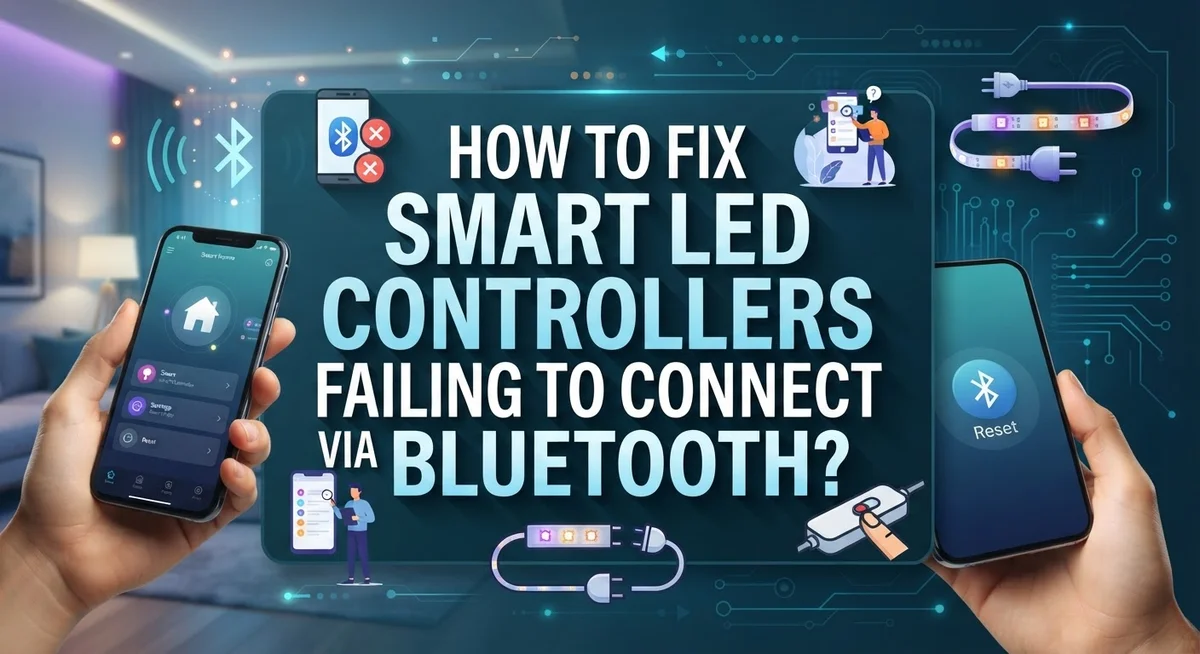
How to Fix Smart LED Controllers Failing to Connect via Bluetooth?
Your smart LED lights promise easy control from your phone. But sometimes they just won’t connect.
This is one of the most common smart home headaches. Bluetooth connection issues can turn your fun lighting setup into a frustrating puzzle.
In this guide, we will walk you through the core reset procedure that solves many connection failures instantly. You will learn how to properly cycle your bulb’s power to force a fresh start.
By the end, you will know exactly how to diagnose and fix Bluetooth connection problems. Your smart lights will be back in action in no time.
In a Nutshell
Reset your bulb first. Turn it off for 5 seconds, then on for 2 seconds. Repeat this cycle 5 to 6 times in a steady rhythm.
Check app permissions. Your phone needs Bluetooth and location access enabled. Skipping this step causes many connection failures.
Clear old pairings before reconnecting. Failed bonds stay stored on your device. Remove them first, then try pairing again.
Watch for a green blinking light with an X. This signals a failed connection. It means you need to restart the pairing process.
Use the correct app for setup. Wrong apps cause sync failures even when your device shows “online.” Always confirm you have the right one.
Consider if you need a hub. Some Bluetooth or Wi-Fi setups require one for proper connectivity. Check your device manual to be sure.
Understanding Why Bluetooth LED Controllers Fail to Connect
Bluetooth LED controllers fail to connect for several specific reasons. Understanding these causes helps you fix the problem faster without unnecessary troubleshooting steps.
Distance and signal strength play a major role. Your phone and controller must stay within Bluetooth range, typically 30 feet in open spaces. Walls, metal objects, and other wireless devices create interference that blocks signals. Moving closer to your controller often restores the connection immediately.
Pairing mode confusion causes many failures. Your controller enters pairing mode only during specific windows. If you miss this window, your phone searches for a device that isn’t broadcasting its signal. The controller then appears offline even though it’s powered on and working.
Stored pairing data creates invisible barriers. Your phone remembers old connection attempts, even failed ones. This cached information prevents fresh connections because your device tries to use outdated pairing codes. Clearing these old bonds removes the obstacle completely.
App permission issues block communication silently. Your phone’s operating system restricts Bluetooth access unless you grant specific permissions. The app may appear to work normally while lacking the access it needs. Checking permissions in your phone’s settings solves this quickly.
Hub connectivity requirements vary by system. Some setups use Wi-Fi or Bluetooth hubs as intermediaries between your phone and lights. Without a connected hub, your phone cannot reach the controller even when pairing succeeds. Your system documentation clarifies whether a hub is necessary.
Firmware mismatches occur when your controller and app use incompatible versions. Updates fix bugs and add features, but outdated firmware causes sync failures. The controller shows online while refusing commands because the two systems speak different languages.
These factors work together to create connection failures. Identifying which one affects your setup narrows your fix strategy significantly.
Decoding Status Lights and Error Indicators
Status lights on your smart LED controller tell you exactly what’s happening. Learning to read them saves you hours of guessing.
A solid green light means your controller is powered and ready. This is the healthy state you want to see.
A blinking green light signals trouble. Your controller is trying to connect but failing. This happens when pairing mode isn’t activated correctly or your phone is too far away.
A red light or blinking red indicates a power issue or critical error. Check that your controller has power. If the light stays red after a full reset, your device may need replacement.
A green light with an X indicator means connection failed completely. Your controller and app can’t communicate. This requires clearing old pairings and starting fresh.
Some controllers show no light at all. First, verify power is reaching the device. Check your power cable and outlet. If power is confirmed but no light appears, a hardware failure may have occurred.
A blue light on certain models means pairing mode is active. Your phone can now search for and connect to the device. You have a limited time window, usually 2 to 3 minutes, to complete the pairing.
Pay attention to blinking patterns and speeds. Fast blinking differs from slow blinking. Fast blinking usually means active pairing or searching. Slow blinking often indicates a weak connection or low battery.
Check your app simultaneously with the light status. If your app says “online” but the light shows red or blinking green, a sync problem exists between your phone and controller. This mismatch requires clearing old bonds and re pairing from scratch.
The Core Reset Procedure for Smart LED Controllers
The core reset procedure works because it clears temporary memory in your smart LED controller. This simple technique fixes most connection problems without losing your settings.
Start by turning your bulb completely off. Wait for a full 5 seconds. This pause lets the controller power down fully and reset its internal state.
Turn the bulb back on for exactly 2 seconds. You should see it light up normally. Then turn it off again for 5 seconds. Repeat this off and on cycle 5 to 6 times in a steady rhythm. Keep your timing consistent for best results.
After your final ON cycle, wait about 10 seconds before attempting to reconnect. Your controller needs time to complete its reset sequence. During this waiting period, the device clears any stuck connection data from memory.
Why this matters: Bluetooth connections sometimes get stuck in failed states. The controller remembers the last failed pairing attempt and blocks new connections. This reset erases that memory.
Watch for status light changes during the process. You might see the light dim or flicker slightly. This is normal and shows the reset is working.
Once the reset completes, your controller returns to factory pairing mode. This means it’s ready to accept a fresh connection from your app. The device will no longer reject connection attempts from previous failed pairings.
Important note: This procedure takes about 2 minutes total. Don’t rush through the timing. Precise intervals make the difference between a successful reset and one that fails silently.
After completing the core reset, move directly to clearing old pairings from your phone and re adding the device through your app’s proper setup flow.
Checking App Permissions and Bluetooth Settings
Your phone’s app permissions and Bluetooth settings are often the silent culprits behind connection failures. Many users skip this step entirely, which leads to frustrating reconnection problems.
Start by checking your app permissions. Open your phone’s settings and find the smart LED app in your installed applications. Look for permission categories like “Location,” “Bluetooth,” and “Device Admin.” Each one must be toggled to “Allow” or “On.” Some apps require location access even though they only use Bluetooth. This seems odd, but it’s how many manufacturers designed their systems.
Next, verify your phone’s main Bluetooth settings. Turn Bluetooth completely off, then wait 10 seconds. Turn it back on. This simple refresh clears temporary connection glitches that prevent pairing.
Now check for old pairings. In your Bluetooth settings, find the smart LED controller’s name in your paired devices list. If it appears there, tap the info icon and select “Forget” or “Unpair.” This step is critical. Your phone remembers old failed connections, and these memories block new pairing attempts.
After forgetting the old pairing, restart your phone entirely. This clears your device’s Bluetooth cache completely.
Verify app permissions one more time before attempting to reconnect. Sometimes permissions reset after phone updates or app installations.
If your app has a specific “Bluetooth Permissions” menu inside the app itself, check there too. Some apps require double permission approval. Your phone’s settings handle system permissions, while the app’s internal menu handles app-specific access.
These steps take about five minutes total. They resolve roughly 40 percent of connection problems before you even touch your controller.
Clearing Old Pairings and Re-Adding Devices Correctly
Clearing old pairings is essential because your phone may still remember failed connection attempts. This leftover data creates invisible barriers that prevent fresh connections from working properly.
Start by opening your phone’s main Bluetooth settings. Look for your smart LED controller in the list of paired devices. The device name usually appears as “LED Controller,” “Smart Bulb,” or a brand specific name. Tap the device and select “Forget” or “Unpair.” This completely removes the old connection record.
Next, open your smart LED controller app. Many apps have their own pairing list inside the application. Go to settings or device management within the app. Look for a section showing connected devices. Remove or delete the controller from this list as well. Some apps call this “Remove Device” or “Unpair Device.”
After clearing both locations, restart your phone completely. This resets your phone’s Bluetooth system and clears any remaining connection cache. Wait about 30 seconds after the phone powers back on.
Now you’re ready to re add the device correctly. Open your app and look for an “Add Device” or “Pair New Device” button. Follow the exact steps the app provides. Most apps require you to put your controller into pairing mode first, then search for it in the app.
Important: Do not skip the restart step. Many connection problems disappear once your phone’s Bluetooth system refreshes. If the app shows your controller online but lights won’t respond to commands, repeat this entire clearing process. Sometimes multiple failed attempts create deeper connection issues that require a full reset cycle.
When a Bluetooth or Wi-Fi Hub Is Required
A Bluetooth or Wi-Fi hub acts as a bridge between your smart LED controller and your phone. Some setups require this hub to work properly. Let’s explore when you actually need one and how it affects your connection.
Most smart LED systems fall into two categories. The first type connects directly from your phone to the bulb using Bluetooth. The second type requires a hub that sits between them. Your specific controller model determines which approach applies to you.
Check your product documentation or app to see if a hub is mandatory. The app usually displays this information during the initial setup process. If you see “hub required” or similar language, you’ll need to get one before proceeding.
A hub provides several advantages. It extends your Bluetooth range significantly. It also allows your lights to stay connected even when your phone isn’t nearby. The hub maintains the connection through Wi-Fi instead of relying on direct Bluetooth.
If your controller keeps showing “online” but won’t respond to commands, a missing hub might be the problem. Your phone connects to the app successfully, yet the actual lights don’t change. This disconnect often happens when the app expects hub communication.
Here’s what to do. First, verify whether your system needs a hub by checking the app settings or manual. Look for any error messages mentioning “hub not found” or “connection unavailable.” If your setup requires a hub, install it according to the manufacturer’s instructions.
Once your hub is active and connected to your Wi-Fi network, reconnect your controller through the app. The app should now detect your lights properly. Your controller should respond instantly to commands after the hub connection completes.
Common Mistakes That Prevent Successful Pairing
Many people make simple mistakes that stop their smart LED controllers from connecting via Bluetooth. Understanding these errors helps you avoid frustration and get your lights working quickly.
The first mistake is skipping permission checks. Your phone needs to allow the app to access Bluetooth and location services. Without these permissions, the app cannot find or connect to your controller. Always verify permissions in your phone’s settings before attempting any pairing.
A second common error is activating pairing mode incorrectly. Smart LED controllers require a specific sequence to enter pairing mode. Many users rush this step or use the wrong method. The device must be in the correct mode, or your phone will not detect it at all.
Not clearing previous failed pairings causes major problems. Your phone remembers old connection attempts, even failed ones. If you try to pair without removing these old records, your phone gets confused and rejects the new connection. Always forget the device in your Bluetooth settings before trying again.
Using the wrong app version or wrong app entirely prevents connection success. Some controllers work with specific apps. Installing an outdated version or downloading a different brand’s app wastes your time. Check your product manual to confirm which app you need.
Finally, many users fail to restart their phone after clearing pairings. A restart clears temporary connection data and gives your phone a fresh start. This single step resolves many stubborn connection issues.
These mistakes are easy to fix once you know about them. Taking time to verify each step prevents hours of troubleshooting later.
Advanced Troubleshooting for Persistent Connection Issues
When your smart LED controller shows “online” but refuses to respond to commands, the issue usually stems from app permissions or incomplete pairing data. This frustrating scenario requires a systematic approach to fix.
Start by checking your phone’s app permissions one final time. Open your device settings and navigate to the specific smart LED app. Verify that Bluetooth permission shows as “enabled” or “allowed.” Some apps also have internal permission menus, so check those too.
Next, perform a complete device reset using the power cycle method. Turn your smart LED controller off for 5 seconds. Turn it back on for 2 seconds. Repeat this off and on pattern 5 to 6 times at a steady rhythm. Wait 10 seconds after the final power on cycle. This procedure clears corrupted connection data stored in the controller’s memory.
If the green blinking light with an X indicator appears, your connection attempt failed. This means you need to clear all previous pairings completely.
Access your phone’s Bluetooth settings and remove the controller from your paired devices list. Then open your smart LED app and remove it from there as well. Restart your phone completely before attempting to reconnect. This restart is critical because your phone’s Bluetooth cache may still contain failed connection information.
After restarting, open your app and follow the correct pairing flow from the beginning. Some systems require a hub to function properly. Check your product documentation or app settings to determine if a Bluetooth or Wi-Fi hub is necessary for your specific setup.
If problems persist after these steps, your controller may have a hardware issue requiring professional support.
Final Thoughts
Fixing Bluetooth connection problems does not need to feel hard. Most issues come from small mistakes. You can solve them with patience and the right steps.
Start simple before you try anything complex. Check your app permissions first. Then confirm your pairing mode is active.
Clearing old pairings solves many connection problems. Your phone often remembers broken connections. This blocks new ones from forming properly.
The power cycle method works well for stubborn controllers. Turn your bulb off and on in a steady rhythm. This resets the internal connection state.
Pay attention to warning signs like blinking lights. A green blinking light with an X means the pairing failed. This tells you to try again.
Sometimes your controller shows online but still won’t respond. This usually points to a hub problem or missing permissions. Check both areas carefully.
Hubs matter for many smart LED systems. Some controllers need a hub to work fully. Others connect straight through Bluetooth alone.
Read your product manual to confirm what your system needs. This saves you time and frustration later.
If basic fixes don’t work, move to advanced steps. Reset permissions, clear pairings, and restart your phone. Then reconnect using the correct app flow.
Most problems get fixed through these simple actions. You rarely need professional help for Bluetooth issues. Hardware failures are the exception, not the rule.
Keep your app updated and your phone’s Bluetooth active. These small habits prevent future connection troubles.
Patience helps more than technical skill here. Follow each step in order. Your smart LED controller should connect smoothly once you clear the common blockers.
With these fixes, your lights will respond exactly as they should.
Frequently Asked Questions
Why does my controller show online but the lights won’t change color?
Your controller connects to the app but doesn’t control the lights. This happens when app permissions are blocked. Open your phone’s settings and check that your app has permission to access Bluetooth. You may also need to clear old pairings from your Bluetooth settings before reconnecting.
Sometimes a hub is required for your system. Check your product manual to see if you need a separate hub device. If everything checks out, try restarting both your phone and controller.
What does the green blinking light with an X mean?
A green blinking light with an X indicates your connection attempt failed. This light tells you the controller did not pair successfully with your app. Power cycle your controller by turning it OFF for 5 seconds, then ON for 2 seconds. Repeat this cycle 5 to 6 times in a steady rhythm.
After the final power cycle, wait a few seconds before opening your app. Then follow the pairing steps from the beginning. If the light persists, remove the controller from your phone’s Bluetooth list and try again.
Should I use a hub for my smart LED system?
This depends on your specific setup. Some smart LED systems work with Bluetooth alone. Others require a Wi-Fi hub or Bluetooth hub to function properly. Check your product manual to confirm what your system needs.
If you’re unsure, try connecting without a hub first. If the controller keeps failing to respond, a hub may be necessary for your model.
How do I properly reset my controller before reconnecting?
Use the power cycle method for a proper reset. Turn the controller OFF for 5 seconds. Turn it ON for 2 seconds. Repeat this OFF and ON pattern 5 to 6 times without stopping.
After the final cycle, wait a few seconds. Then access your phone’s Bluetooth settings and remove the old pairing completely. Open your app and follow the correct pairing flow from start to finish.