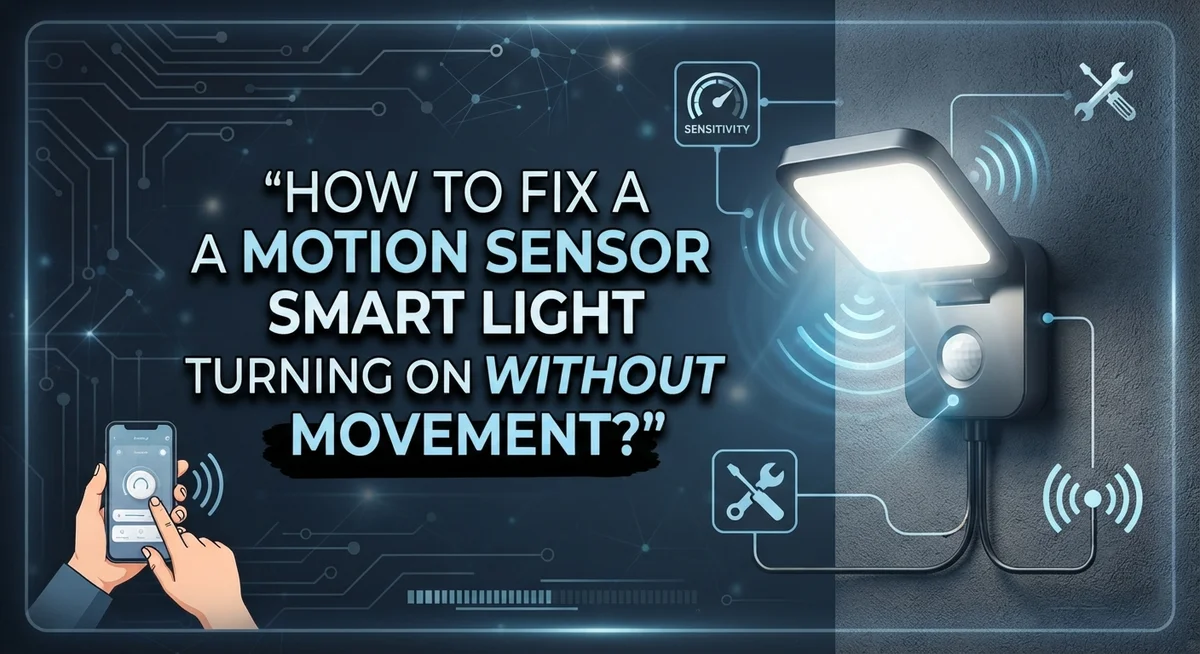
How to Fix a Motion Sensor Smart Light Turning On Without Movement?
Does your smart light turn on when nobody is around? This can feel strange and even a little creepy. But don’t worry, you are not alone.
Many smart homeowners face this exact problem. Your motion sensor light might react to pets, shadows, or even heat from nearby objects. Sometimes, the sensor itself is just miscalibrated.
The good news is that you can fix this issue yourself. You do not need to call an electrician for most cases.
In this guide, we will look at why these false triggers happen. We will explore how heat sources and poor placement confuse your sensor.
We will also walk you through simple reset procedures. These steps often solve the problem in minutes.
By the end of this article, you will know exactly how to stop your light from turning on without movement. Let’s get your smart light working correctly again.
In a Nutshell
- Check the sensor placement first. Keep it away from heat sources like vents or windows. Heat and activity nearby can trick the sensor into thinking there is movement.
- Look for a mode switch. Most smart lights have a small switch on the sensor or base. This switch can turn motion detection on or off completely.
- Try a full reset. For circuit breakers, turn off power for one minute, then turn it back on. For switches, wait five to seven seconds before turning the light back on.
- Review the sensitivity settings. Lights that stay on constantly usually point to sensitivity that is set too high. Lower it through your app or the sensor dial.
- Inspect for obstructions. Dust, spider webs, or misaligned sensors can cause false readings. A quick clean and realignment often solves this.
- Complete the entire reset cycle. Skipping steps is a common mistake that leaves the problem unsolved. Patience during reset makes a real difference.
Why Motion Sensor Lights Trigger Without Movement
Motion sensor smart lights trigger without movement for several clear reasons. Understanding these causes helps you fix the problem faster.
Heat sources create false activations. Your sensor picks up infrared radiation from warm objects. Vents, sunlight through windows, and radiators all emit heat. When the sensor detects this warmth, it thinks someone moved nearby. This is one of the most common causes of unwanted triggering.
Sensitivity settings that are too high make lights respond to minor activity. A breeze moving curtains or a pet walking past can activate the sensor. Even distant movement in adjacent rooms sometimes triggers the light. The sensor becomes too reactive to its surroundings.
Sensor placement problems cause regular false triggers. If your sensor faces a busy hallway or outdoor area, it picks up movement you don’t intend. Sensors pointed at reflective surfaces bounce signals back, creating confusion about actual motion.
Physical obstructions interfere with sensor accuracy. Dust buildup, spider webs, or debris on the sensor lens blocks its view. This makes the sensor misread what it detects. Misaligned sensors also send incorrect signals.
Continuous light activation usually means your sensor has a malfunction or extreme sensitivity issues. The light stays on because the sensor constantly thinks it detects movement.
Nearby electronic devices sometimes interfere with sensor function. Other wireless gadgets or electrical equipment can disrupt the sensor’s ability to work correctly.
The good news is that most of these issues have simple fixes. You can adjust placement, clean the sensor, or recalibrate sensitivity settings. A full reset often solves the problem completely.
Common Causes: Heat Sources, Sensitivity, and Placement
Heat sources are one of the most common reasons your motion sensor light activates without any movement. These sensors detect infrared radiation, which is essentially heat energy. When a heat source sits near your sensor, it tricks the device into thinking someone moved.
Common heat sources include heating vents, air conditioning units, sunny windows, and radiators. Even a car engine running in your driveway can trigger the sensor. If your light turns on repeatedly at the same time each day, a heat source is likely the culprit. Check your sensor’s surroundings for these warm objects.
Sensitivity settings control how easily your sensor responds to movement. When sensitivity is set too high, the light reacts to minor activity like rustling leaves, passing animals, or even insects flying near the sensor. Lights that stay on constantly often indicate sensitivity calibration problems rather than actual motion.
Sensor placement determines how well your device performs. Position your sensor away from direct sunlight and heat sources. Mount it at the correct height, usually 5 to 8 feet off the ground. Avoid placing it near corners or obstacles that block its detection range.
The sensor’s field of view matters significantly. Most motion sensors cover a specific angle, typically 90 to 180 degrees. If you place the sensor facing a busy street or a neighbor’s activity, false triggers become frequent.
Test your placement by temporarily moving the sensor to different locations. Observe whether false activations decrease in a new spot. Once you find an optimal location away from heat and unnecessary movement, your light should perform reliably.
Step-by-Step: Resetting Your Motion Sensor Smart Light
A reset brings your motion sensor smart light back to factory settings. This clears any software glitches that cause false triggers.
Start with a circuit breaker reset. Turn off the breaker that powers your light for exactly one minute. Count the seconds slowly. This gives the device time to fully discharge. After one minute, switch the breaker back on. Your light should now reset completely.
If you use a switch reset instead, flip the light off at the wall switch. Wait five to seven seconds. During this pause, the internal circuits power down. Then turn the light back on. The device should remain off after this reset if it worked correctly.
Check that your reset was successful. The light should not turn on by itself for at least several minutes. If it activates again immediately, the reset did not work. You may need to repeat the process or try a different reset method.
Some smart lights have a manual reset button on the sensor itself. Look for a small button labeled “reset” on the device. Press and hold it for ten seconds. Release and wait for the light to power cycle.
Document what happens after each reset. Note the time and whether the light stays off. This information helps you identify patterns. If the light still triggers without movement after a full reset, the issue likely stems from sensitivity settings or sensor placement rather than a software problem.
A successful reset should eliminate false activations caused by temporary glitches. Move forward to check your sensor placement and sensitivity levels if problems continue.
Adjusting Sensitivity and Detection Range Settings
Most motion sensor smart lights have sensitivity controls that you can adjust to reduce false triggers. These settings determine how much movement the sensor needs to detect before activating your light.
Start by locating your sensitivity adjustment. Many models have a dial or slider on the sensor itself. Some lights include sensitivity controls in a mobile app or web dashboard. Check your product manual to find the exact location for your specific device.
Lower the sensitivity setting gradually. Begin by turning the dial down one or two notches from its current position. Test the light for several minutes to see if false activations decrease. Make small changes rather than big jumps, since drastic adjustments often cause problems in the opposite direction.
Detection range controls how far your sensor looks for movement. If your light activates from activity outside your desired area, reduce the range setting. This prevents the sensor from responding to traffic on nearby streets, passing vehicles, or movement from neighboring properties.
Adjust range settings during daytime testing. This helps you see exactly what area the sensor covers. Move around your space at different distances and note when the light activates. Use this information to set the range appropriately for your needs.
Time delay settings control how long the light stays on after detecting movement. Increasing this delay keeps your light on longer, which can mask sensitivity issues temporarily. However, this is a workaround rather than a real solution.
Document your adjustment steps. Write down the original settings and each change you make. This creates a record if you need to troubleshoot further or restore previous settings. Many false triggers disappear once you find the right sensitivity and range combination for your specific location.
Repositioning the Sensor for Accurate Detection
Sensor positioning is one of the most effective ways to stop false triggers. Your motion sensor needs a clear view of the area you want to monitor without obstacles blocking its path.
Mount your sensor at the correct height. Most motion sensors work best when installed 6 to 8 feet above the ground. This height gives you the widest detection area and reduces false activations from ground level activity like pets or rolling objects.
Point the sensor directly at the space you need to protect. Avoid angling it toward walls, corners, or ceiling areas where it cannot detect real movement. The sensor’s field of view spreads out like a cone, so aim it straight ahead for maximum accuracy.
Keep the sensor away from heat sources and moving objects. Position it at least 10 feet away from heating vents, air conditioning units, and sunny windows. These heat sources create air currents that trigger false alarms. Also avoid placing sensors near ceiling fans or areas with reflective surfaces.
Check for physical obstructions around your sensor. Dust, cobwebs, or condensation on the lens reduce detection accuracy. Clean the sensor lens gently with a soft cloth every few months.
Test your new position during different times of day. Watch how the sensor responds to normal activity in that area. If false triggers continue, move the sensor slightly and test again.
Avoid placing sensors in high traffic zones where they receive constant movement. This keeps your light from staying on all the time. Instead, position sensors to monitor entry points and specific areas where you actually need automatic lighting.
Disabling Motion Detection Mode When Needed
Many motion sensor smart lights include a mode switch that lets you turn off motion detection completely. This switch is usually located on the sensor itself or on the lamp base. Look for a toggle or button labeled “motion,” “sensor,” or “auto/manual.”
Find the mode switch first. Check your light’s user manual if you cannot locate it visually. Some models hide the switch under a plastic cover or inside the battery compartment. Take a photo of the switch location for future reference.
Flip the switch to manual or off mode. This disables motion detection entirely. Your light will then respond only to manual controls like wall switches, remote controls, or app commands. The light will not turn on automatically when it detects movement.
Test your light after switching modes. Turn it on using your manual control method. Walk around the room to confirm the light stays on without flickering or responding to your motion.
Know when to use manual mode. Manual mode works well during daytime hours when you want consistent lighting. It also helps if you have pets or frequent household activity that triggers false activations. Switch back to motion detection mode when you need automatic functionality, like during nighttime hours.
Some lights let you schedule when motion detection is active. You might disable motion sensing during the day and enable it at night. Check your app settings or device controls for scheduling options.
If your light has no mode switch, contact the manufacturer for guidance. Older models or budget options may not include this feature. In those cases, adjusting sensitivity settings remains your best option for reducing false triggers.
Mistakes to Avoid During Troubleshooting
When troubleshooting your motion sensor smart light, avoid these common mistakes that can waste your time and make the problem worse.
First, don’t skip the full reset cycle. Many people turn off the light switch for just a few seconds, then turn it back on. This isn’t enough. You need to turn off your circuit breaker for a full minute before switching it back on. A quick flip won’t clear the sensor’s memory properly.
Second, resist the urge to keep adjusting sensitivity settings rapidly. Some people turn the dial up and down multiple times in quick succession, then test immediately. Your sensor needs time to recalibrate after each change. Make one adjustment, wait several minutes, then test the results before making another change.
Third, don’t position your sensor near heat sources and then ignore that placement. Many false triggers happen because sensors sit too close to heating vents, air conditioning units, or direct sunlight. These heat sources confuse the sensor into thinking movement is happening. Once you move the sensor, give it time to stabilize in its new location.
Fourth, avoid testing only at night. False triggers often appear differently depending on time of day and lighting conditions. Test your sensor during daylight hours and evening hours to get a complete picture of its behavior.
Finally, don’t assume your light has a mode switch without checking your manual first. Many people miss this feature entirely because they don’t look for it. Spend five minutes reviewing your manual before assuming the switch doesn’t exist. This simple step can solve your problem instantly without any other troubleshooting needed.
When to Suspect a Sensor Malfunction or Hardware Fault
A motion sensor malfunction happens when your light turns on repeatedly without any actual movement nearby. You should suspect a hardware fault if this pattern continues even after you’ve adjusted the sensor position and sensitivity settings.
Watch for these warning signs of a failing sensor. If your light stays on continuously for hours, the sensor likely cannot detect the “no movement” state anymore. When the light activates in response to wind, rain, or animals passing by outdoors, your sensor may be too sensitive or damaged. If the light turns on at random intervals with no logical pattern, internal circuitry problems could be the cause.
Test whether your reset procedures worked correctly. After you complete a full reset cycle, your light should remain off for at least 30 seconds in a dark room with no movement. If it turns back on immediately, a hardware fault is likely present.
Check the sensor lens and housing carefully. Dust, moisture, or physical damage on the lens prevents proper detection. Look for cracks in the plastic casing or loose internal components. These issues require sensor replacement rather than adjustment.
Pay attention to how your light behaves during different times of day. A faulty sensor often triggers lights at inconsistent intervals. This differs from false triggers caused by heat sources or nearby activity, which typically happen at predictable times.
If you’ve repositioned your sensor away from heat sources, disabled motion detection mode, and completed multiple reset cycles without improvement, your hardware likely needs professional service or replacement. Document when the false triggers occur and how frequently they happen. This information helps technicians diagnose the exact problem faster.
Final Thoughts
Fixing a motion sensor smart light takes patience and a step by step approach. Most false triggers come from simple issues like sensor placement or sensitivity settings. You don’t need technical skills to solve these problems.
Start with the basics first. Check your sensor position and move it away from heat sources. Adjust sensitivity settings to match your space.
A proper reset often solves the problem quickly. Turn off your circuit breaker for one full minute. Then switch it back on and test your light.
If resets don’t work, look for a mode switch. Many lights let you disable motion detection entirely. This gives you manual control when needed.
Don’t rush through troubleshooting steps. Skipping the full reset cycle wastes your time. Testing only at night hides daytime problems too.
Sometimes hardware issues cause the trouble. Dust or damage on the sensor lens blocks proper detection. Physical wear affects how your light responds to movement.
Watch your light over several days. Note when false triggers happen most often. This pattern helps you identify the real cause.
Most motion sensor problems have simple solutions. Placement, sensitivity, and resets fix the majority of cases. Hardware failure is less common but still possible.
Stay calm during this process. Work through each step methodically without jumping around. Your light will likely work correctly once you find the root cause.
Keep your manual handy for reference throughout this process. It contains specific details about your model’s features. This information helps you troubleshoot faster and avoid guesswork entirely.
Frequently Asked Questions
Why does my motion sensor light stay on all the time?
Your light stays on continuously when the sensor cannot properly detect movement patterns. This happens due to two main causes. First, the sensitivity setting may be too high, making the sensor trigger from minor vibrations or air currents. Second, your sensor placement near heat sources like radiators or sunlight creates false activations.
Start by checking your sensitivity dial or app settings. Lower the sensitivity gradually and test the light over several hours. If heat is nearby, reposition your sensor away from those sources.
How do I turn off motion detection on my smart light?
Many motion sensor lights have a mode switch located on the sensor itself or on the lamp base. Look for a small dial or toggle marked with options like “motion,” “on,” or “off.” Check your manual to identify the exact location for your model.
Switching to manual mode disables motion detection completely. Your light will then respond only to wall switches or app controls. If your model lacks a visible mode switch, contact the manufacturer for instructions on disabling the feature through your app or settings menu.
What’s the correct way to reset my motion sensor light?
A proper reset clears any miscalibration issues. Turn off your light using the wall switch and wait 5 to 7 seconds. Then turn it back on. Your light should remain off after this cycle if the reset worked.
For a deeper reset, locate your circuit breaker and switch off the breaker controlling that light for one full minute. Turn it back on. This method clears all stored settings and can fix stubborn false triggers.
Can dust or dirt cause false motion detection?
Yes. Dust and moisture on your sensor lens block proper detection. Inspect the lens carefully for any buildup, fingerprints, or condensation. Gently clean the lens with a soft, dry cloth.
Physical damage to the lens also prevents accurate sensing. If you notice cracks or cloudiness that cleaning doesn’t fix, the sensor likely needs replacement.