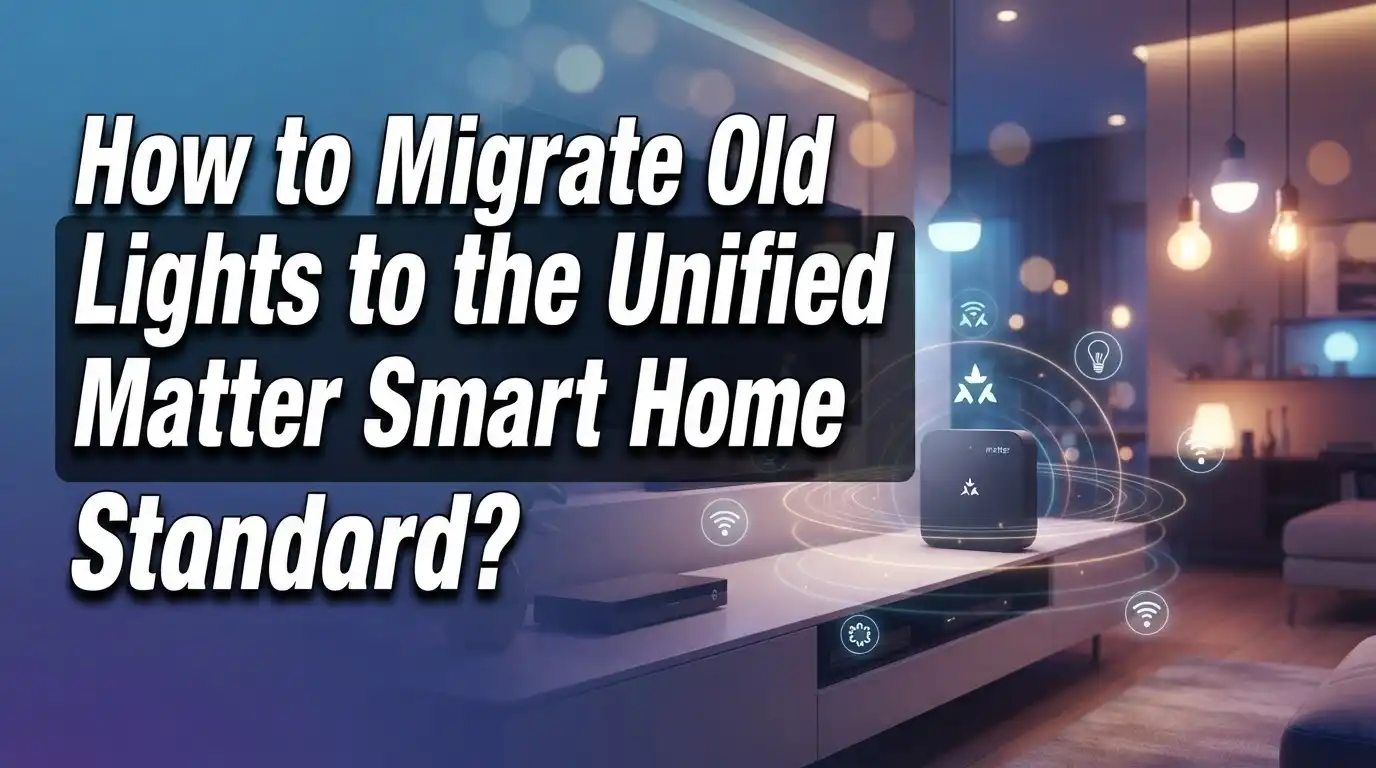
How to Migrate Old Smart Lights to the Unified Matter Smart Home Standard?
Do you have a pile of smart lights that all use different apps? You are not alone. Many smart homes turn into a mess of separate systems that do not talk to each other.
Matter changes this problem. It is a unified smart home standard that lets your devices work together, no matter who made them.
This new standard makes device setup simple. It also improves how your gadgets connect and communicate with each other.
If you already own smart lights, you might wonder how to bring them into this new system. The good news is that migration is often easier than you think.
In this guide, we will walk through the full migration process. You will learn how to check device compatibility and spot older bulbs that may need an upgrade.
In a Nutshell
- Check hardware first. Matter support depends on your device’s chip. Older bulbs without Wi-Fi often cannot update to this standard.
- Swap bulbs for simplicity. The easiest fix is unscrewing old bulbs and installing new Matter compatible ones. This method needs no rewiring at all.
- Confirm Wi-Fi connectivity. Newer smart devices with Wi-Fi are much more likely to work with Matter. This connection type helps ensure smooth performance.
- Avoid assumptions. Do not assume every smart device will automatically gain Matter support. Some products simply lack the necessary hardware.
- Follow setup guides. Always use official step by step guides for configuration. This helps you avoid errors during the pairing process.
- Know your options. You can either update existing hardware or replace it entirely. Choose based on your budget and current device age.
What Is Matter and Why It Matters for Smart Lighting
Matter is a unified smart home standard that lets all your devices work together smoothly. Instead of managing separate apps for each light brand, Matter creates one common language for your smart home.
Why does this matter for your lights? Smart lighting was fragmented before Matter arrived. You might own bulbs from three different companies, each requiring its own app and setup process. Matter eliminates this frustration by allowing devices from different manufacturers to communicate directly.
The standard works across Wi-Fi and other connection types. Your lights can talk to your hub, your phone, and other smart devices without barriers. This means fewer app crashes, faster responses, and simpler control.
What makes Matter different? Traditional smart bulbs lock you into one ecosystem. A light from Brand A works best with Brand A’s hub and app. Matter breaks these walls down completely.
Migration to Matter gives you real freedom. You can mix and match devices without worrying about compatibility issues. Your smart home becomes more flexible and future proof.
The practical benefit is that setup becomes straightforward. Once your Matter hub is ready, adding new lights takes minutes instead of hours. You follow one consistent process for every device.
For existing smart lights, the situation varies. Some older devices can receive software updates to support Matter. Others need hardware upgrades or replacement. This is why checking your specific device matters before starting migration.
Understanding Matter helps you make smart decisions about your lighting system. You gain control, flexibility, and simplicity. Your smart home finally works the way you want it to work.
Checking Whether Your Existing Smart Lights Are Matter-Compatible
Before you start swapping out your smart lights, you need to know what you actually have. Not every old smart bulb or fixture will work with Matter. The key is understanding your device’s hardware.
Start by checking the device itself. Look for a label or sticker on your smart bulb or fixture. This label usually lists the manufacturer and model number. Write this information down. You will need it to search for Matter compatibility details.
Next, visit the manufacturer’s official website. Search for your specific model number. Look for a section about Matter support or firmware updates. Some older devices can receive software updates that add Matter capability. Others cannot, no matter what you do. The hardware simply does not support it.
Pay attention to the connection type your lights use. Smart bulbs and fixtures that connect via Wi-Fi are generally more likely to support Matter. Devices using older Bluetooth or proprietary connections may not be compatible. Check whether your current system uses Wi-Fi, Bluetooth, or something else entirely.
Also verify when your devices were manufactured. Newer smart lights, especially those released in the last few years, have a better chance of Matter compatibility. Older models from five or more years ago rarely support this standard.
Do not assume anything. Just because a device is “smart” does not mean it works with Matter. Hardware limitations are real. Some devices simply lack the necessary chip to support this protocol.
Once you know what you have, you can make a clear decision. You will either update existing devices or replace them entirely. This information guides your entire migration strategy.
Firmware Updates vs Hardware Replacement: Understanding Your Options
When you face old smart lights, you have two main paths forward: firmware updates or hardware replacement. Understanding which option works for your situation saves time and money.
Firmware updates work only if your device’s hardware already supports Matter. Think of firmware as software that runs on your device. If your light’s internal chip can handle Matter, a simple software update might activate it. You download the update through the manufacturer’s app. The process usually takes minutes. Your existing bulbs stay in place.
However, most older smart lights cannot receive Matter support through updates alone. Their hardware simply was not built for it. The chip inside lacks the necessary capabilities. In these cases, firmware updates will not help.
Hardware replacement means removing your old bulbs and installing new ones that support Matter. This is straightforward. You unscrew the old bulb and screw in a new one. No rewiring happens. No electrician visit is needed. New smart bulbs designed for Matter work immediately with compatible hubs and apps.
Here is how to decide: Check your device manufacturer’s website first. Look for official Matter support announcements. If they confirm your model gets a firmware update, try that route. If they say your device is not compatible, replacement is your answer.
The replacement option actually offers a bonus. New Matter bulbs often include better features than older models. You gain improved reliability and faster response times. Plus, you avoid keeping outdated technology in your home.
Most people find replacement simpler than waiting for updates that may never arrive. You get a fresh start with your smart lighting system immediately.
Step-by-Step Guide to Migrating Smart Bulbs to Matter
Start by removing your old smart bulbs from their fixtures. Turn off the power at the switch for safety. Unscrew each bulb carefully and set them aside. This step takes just a few minutes and requires no special tools.
Next, install your new Matter compatible smart bulbs into the same fixtures. Make sure the bulbs match your fixture type, whether that’s standard screw in or other formats. Turn the power back on and wait for the bulbs to initialize. Most bulbs need about 30 seconds to fully power up.
Open the Matter app or your smart home platform on your phone. Look for the option to add new devices. The app will search for nearby Matter devices automatically. Position your phone close to the bulbs during this discovery phase for best results.
When the app finds your bulbs, select each one and follow the on screen prompts. You will need to enter your Wi Fi password so the bulbs can connect to your network. Give each bulb a clear name like “Living Room” or “Bedroom” so you can control them easily later.
Test each bulb by turning it on and off through the app. Adjust brightness and color if your bulbs support these features. Confirm that all controls respond properly before moving to the next bulb.
The entire process takes about 15 to 20 minutes for a typical room. No rewiring is needed since you are only swapping the bulbs themselves. Once complete, your new bulbs work with any Matter compatible hub or app on your network. You have successfully migrated to the unified standard.
Setting Up Matter-Compatible Bulbs Across Your Smart Home Ecosystem
Setting up Matter compatible bulbs across your smart home requires a straightforward approach. Start by identifying which rooms matter most to you. Many people begin with high traffic areas like living rooms and bedrooms where they use lights daily.
Before you install anything, check that your smart home hub supports Matter. Your hub acts as the brain for all your Matter devices. Without a compatible hub, your bulbs cannot communicate properly. Common hubs include smart speakers and home control systems that have been updated to support Matter.
Next, gather your new Matter compatible bulbs. Make sure they match your fixture types. Standard E26 or E27 bulbs work in most lamps and ceiling fixtures. Specialty bulbs exist for recessed lights and other applications.
Install one bulb at a time to avoid confusion. Remove the old bulb, screw in the new one, and immediately add it to your system before moving to the next location. This prevents you from forgetting which bulbs you have already set up.
When adding bulbs to your smart home platform, keep your phone close to the fixture. The connection works better when your device is nearby. Select “add new device” in your app and follow the prompts that appear. Your system will scan for the new bulb and ask you to confirm its location.
Test each bulb right away. Turn it on and off through your app to verify it responds correctly. Adjust brightness if your bulbs support dimming features.
Work room by room rather than all at once. This method helps you catch problems early and ensures consistent setup. You can expand to other areas once you feel confident with the process.
Tips for a Smooth Transition to Matter Lighting
Before you start migrating your smart lights, prepare your space and gather what you need. This planning step saves time and prevents frustration during the actual transition.
Check your smart home hub first. Your hub must support the Matter protocol to communicate with new bulbs. Look at your hub’s settings or visit the manufacturer’s website to confirm Matter compatibility. If your hub doesn’t support Matter yet, check if a firmware update is available. Some hubs received Matter support through updates.
Inventory your current setup. Count how many smart bulbs you have and note their locations. Write down which rooms have smart lights and how many fixtures are in each room. This simple list prevents you from forgetting any bulbs during migration.
Gather your new Matter compatible bulbs. Before installation day, have all your new bulbs ready and nearby. Check that each bulb’s packaging mentions Matter support. Verify the bulb type matches your fixtures (standard screw base, bayonet, or other types).
Clear your installation area. Make sure you have good lighting and a safe workspace. Remove clutter around light fixtures so you can work safely. If fixtures are in high places, set up a stable ladder beforehand.
Back up your old automation routines. Take screenshots of any automations or scenes you created with your old smart lights. Note which lights trigger which routines. This information helps you recreate your automations after migration.
Plan your migration schedule. Decide whether you’ll migrate one room at a time or tackle your entire home in one session. Most people find room by room migration less stressful. This approach also lets you test each bulb immediately after installation.
Common Migration Mistakes and How to Avoid Them
Many people assume their older smart lights will automatically work with Matter once they update software. This is incorrect. Matter support depends on your device’s hardware, not just software updates. Older bulbs may lack the necessary chip to communicate using the Matter protocol, making them incompatible no matter what you do.
Before you attempt migration, verify whether your existing lights can actually support Matter. Check the manufacturer’s specifications or contact their support team directly. Some devices genuinely cannot be updated to work with Matter because they were built without the required hardware. Accepting this early saves you frustration later.
Another common mistake involves rushing the setup process. People often install multiple new bulbs at once, then try to add them all to their system simultaneously. This creates confusion about which bulb is which and makes troubleshooting harder if something goes wrong. Install one bulb, test it completely, then move to the next one.
Don’t forget to check whether your smart home hub supports Matter. Your hub is the central device that communicates with all your smart lights. If your hub doesn’t support Matter, your new bulbs won’t connect properly. Verify this compatibility before purchasing any new equipment.
Many people also fail to remove their old automation routines before migration. Your existing scenes and schedules may reference the old bulbs by name or ID. When you remove those old bulbs from your system, those automations can break. Take screenshots of your current routines and recreate them with the new Matter bulbs.
Finally, avoid mixing old and new bulbs during transition. Keep them completely separate until you’ve fully switched over. This prevents accidental connections to outdated devices and keeps your system organized throughout the migration process.
Troubleshooting Matter Setup and Connectivity Issues
When you start moving your old smart lights to Matter, connection problems often pop up. The good news is that most issues have simple fixes.
Check your Wi-Fi network first. Matter devices need a strong, stable connection. Make sure your router is close to your smart lights. If your signal is weak, move the router or add a Wi-Fi extender to improve coverage in problem areas.
Verify your hub supports Matter. Your smart home hub must have Matter capability built in. Some older hubs cannot receive software updates for Matter support. Check your hub’s documentation or contact the manufacturer to confirm compatibility before troubleshooting further.
Restart your devices in the right order. Power off your smart home hub completely. Wait 30 seconds, then turn it back on. Next, restart each smart bulb by switching it off at the wall for 10 seconds. This simple reset often fixes connection drops and pairing failures.
Check for firmware updates. Your hub and bulbs may need the latest software. Look in your app settings for available updates. Install them one at a time and wait for each to complete before moving to the next device.
Reduce interference sources. Microwaves, cordless phones, and baby monitors can disrupt Wi-Fi signals. Keep your smart lights away from these devices. Also, avoid placing bulbs near metal objects or inside metal fixtures, as these block wireless signals.
Remove old devices from your app. Lingering connections to your previous system can confuse your hub. Delete old smart light profiles completely before adding new Matter bulbs. This prevents conflicts and speeds up the pairing process significantly.
Final Thoughts
Moving to Matter feels like a big task at first. But you now have a clear path forward.
Start small if you feel unsure. Swap one or two bulbs first. See how they connect to your hub.
This lets you test your setup without risk. You can fix small problems before they grow big.
Remember that hardware matters most. Older bulbs without Wi-Fi support cannot join Matter through software updates alone. Check compatibility before you buy anything new.
Your smart home hub plays a key role too. It must support Matter to bridge your devices properly. Without this, your new bulbs will not communicate well.
Take time to back up your routines before you switch. This saves you from rebuilding automations from scratch. A little prep work now saves hours later.
Patience helps during this transition. Matter setup guides walk you through each step. Follow them closely instead of rushing through screens.
Mixing old and new bulbs can cause confusion. Try to migrate rooms fully instead of leaving gaps. This keeps your system simple and easy to manage.
Connectivity issues will likely happen at some point. Most problems trace back to Wi-Fi strength or outdated firmware. Check these first before assuming bigger issues exist.
The good news is that Matter simplifies things once everything connects. You get one standard that works across brands. No more juggling five different apps for five different lights.
Your effort pays off with a smoother smart home experience. Take it step by step and your migration will succeed. Soon your whole lighting setup will run on one unified system.
Frequently Asked Questions
Can I upgrade my old smart lights to Matter without buying new bulbs?
It depends on your bulb’s hardware. Older smart lights rarely support Matter through software updates alone. Most require hardware changes because Matter needs specific chipsets built into the device.
Your best option is to check your bulb’s manufacturer website. Look for a Matter compatibility list. If your model isn’t listed, you’ll likely need new bulbs. Some older devices simply lack the internal components to support Matter, no matter how many updates they receive.
What’s the easiest way to switch to Matter compatible smart lights?
Smart bulbs offer the simplest migration path. You unscrew your old bulbs and screw in Matter compatible ones. No rewiring. No electrician needed.
Just follow these steps: remove the old bulbs, install new ones, then use your smart home app to add them. The setup process is straightforward when you use bulbs designed for Matter from the start.
Do all my smart lights need to be Matter compatible at the same time?
No. You can migrate gradually. Start with one room or a few bulbs to test everything works. Once you feel confident, add more bulbs over time.
This approach reduces stress and helps you catch any issues early. You don’t need to replace everything on day one.
What if my smart home hub doesn’t support Matter?
Your hub must have Matter capability to use Matter bulbs effectively. Check your hub’s specifications on the manufacturer’s website.
If it doesn’t support Matter, you have two choices: upgrade to a Matter compatible hub or keep using your old system. Some newer hubs added Matter support through updates, so check for the latest firmware first.