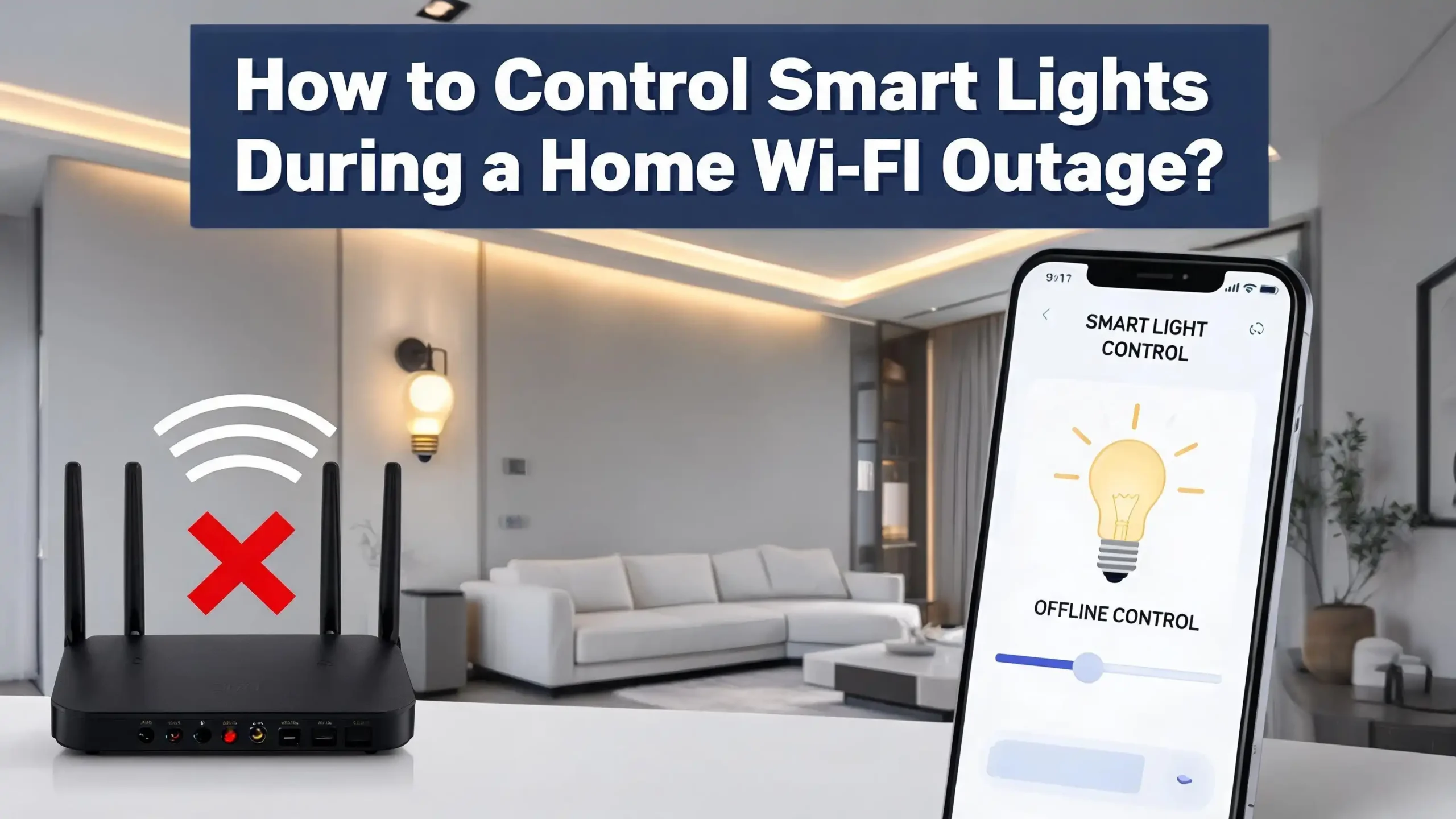
How to Control Smart Lights During a Home Wi-Fi Outage?
Your Wi-Fi just dropped. The room goes dark. You tap the smart bulb app on your phone, but nothing happens. Sound familiar?
A home Wi-Fi outage can turn your smart lights into expensive paperweights within seconds. The good news is that you still have many ways to take back control.
This guide shows you exactly how to operate smart bulbs, plugs, and switches when the internet fails. Each method comes with clear steps, plus the pros and cons. By the end, you will never be stuck in the dark again.
In a Nutshell
- Most smart bulbs still respond to physical wall switches, even when Wi-Fi is down. Flip the switch off and back on to reset power and turn the light on at full brightness.
- Bluetooth smart bulbs work without internet because they pair directly with your phone. They give you a strong backup option when the router fails.
- Zigbee, Z Wave, and Thread devices use a local hub, not the cloud. Your automations and app control keep running during a Wi-Fi outage.
- Matter over Thread is the new standard for local control. It lets your lights talk to Apple Home, Google Home, or Alexa without internet.
- A mobile hotspot or cellular backup router can replace your main Wi-Fi in minutes. This is the easiest fix if you already use cloud based brands.
- Manual remotes, dimmer switches, and smart buttons offer the most reliable backup. They never depend on a working internet connection.
Why Smart Lights Stop Working When Wi-Fi Goes Down
Most popular smart bulbs use Wi-Fi as their main control method. Brands like TP-Link Tapo, Wyze, and many budget bulbs talk directly to your router. The router then sends commands to the cloud. Your phone app connects through that same cloud.
When the router fails, this whole chain breaks. The bulb still gets electricity, but it cannot receive any new commands. The app shows the device as offline. Voice assistants like Alexa or Google reply with errors. Even local automations may stop working.
Some brands cache schedules on the bulb itself. So a sunset routine may still fire on time. But anything you try to change in real time will fail. This is why many smart home users switch to local protocols.
The bulb is not broken. It just lost its main path of communication. Once Wi-Fi returns, every device usually reconnects within a minute. Knowing this fact alone calms a lot of stress during outages. The fixes below help you keep control while you wait.
Method 1: Use the Physical Wall Switch as a Manual Override
The simplest fix is the one many users forget. Your wall switch still controls the power flow to the bulb. Flip it off, then flip it back on. The bulb turns on at default brightness and color.
This works because smart bulbs default to on when they receive fresh power. The behavior is built in for safety reasons. It guarantees you always have light during emergencies.
Step by step:
- Find the wall switch that powers the bulb circuit.
- Turn it off for two seconds.
- Turn it back on.
- The bulb lights up at full white or last saved state.
Pros: Always works, needs no extra tools, and costs nothing. It is the fastest method during a sudden outage.
Cons: You lose color, dimming, and scene options. You also cannot turn the bulb back off without removing power again. Some bulbs forget the last color setting and reset to harsh white. Repeated power cycling can also wear the bulb electronics over time.
Still, this is the universal backup. Every smart bulb on the market responds to it.
Method 2: Switch to Bluetooth Direct Control
Many modern smart bulbs include Bluetooth as a secondary radio. Brands like Philips Hue, GE Cync, LIFX, and Govee often support direct Bluetooth pairing. This lets your phone control the bulb without any router involvement.
To use this method, open the brand app while your phone is near the bulb. The app should detect the bulb over Bluetooth and let you turn it on, dim it, or change colors. Some apps switch to Bluetooth automatically when Wi-Fi is unavailable.
Quick setup:
- Open your smart bulb app.
- Enable Bluetooth on your phone.
- Stay within 30 feet of the bulb.
- Look for a local control or Bluetooth mode option in settings.
- Send a command and watch the bulb respond.
Pros: Works fully offline. Keeps full color and dimming features. Setup is usually quick if your phone already paired with the bulbs before.
Cons: Range is limited to about 30 feet. Walls and floors weaken the signal. Only one phone can control the bulb at a time in many cases. Voice assistants do not work over Bluetooth alone.
This method is a strong middle ground. You keep most smart features without depending on Wi-Fi.
Method 3: Move to Zigbee Smart Bulbs and a Local Hub
Zigbee is a low power mesh protocol that runs separately from Wi-Fi. Bulbs talk to a hub through their own private network. Brands like Philips Hue, IKEA Tradfri, and Sengled all use Zigbee.
The hub does the thinking locally. Even if your internet drops, the hub still sends commands to your bulbs. Your phone connects to the hub over your local network. So if your router still works as a switch, you keep full control.
Setup steps:
- Buy a Zigbee hub like the Hue Bridge or a SmartThings hub.
- Connect the hub to your router with an Ethernet cable.
- Add Zigbee bulbs to the hub through the official app.
- Test by switching off your modem and using the app.
Pros: Local control stays alive during internet outages. Mesh networks extend range as you add more bulbs. Zigbee uses very little bandwidth and never clogs your Wi-Fi.
Cons: Requires an upfront hub purchase. Setup is slightly more complex than plug and play Wi-Fi bulbs. Remote access from outside your home still needs internet.
For people who want reliability above all, Zigbee is one of the best paths.
Method 4: Try Z Wave Devices for Reliable Offline Use
Z Wave is similar to Zigbee but runs on a different frequency band, around 900 MHz. This keeps it free from Wi-Fi interference. It also gives Z Wave better wall penetration in many homes.
Z Wave devices need a compatible hub like Hubitat, Home Assistant Yellow, or older SmartThings models. Once paired, the hub controls every device locally. The cloud is only used for remote access, not for daily commands.
How to set it up:
- Choose a Z Wave hub that works without cloud reliance.
- Plug the hub into power and Ethernet.
- Use the hub app to add Z Wave bulbs or smart switches.
- Build your scenes and schedules inside the hub.
Pros: Excellent range and reliability. No Wi-Fi interference at all. Local execution means automations run even if the modem is unplugged.
Cons: Z Wave bulbs are less common than Zigbee ones. Many users prefer Z Wave for switches and plugs instead. The devices cost a bit more than basic Wi-Fi bulbs.
Z Wave is a favorite among advanced smart home builders. It offers some of the strongest offline performance you can buy.
Method 5: Use Matter Over Thread for Modern Local Control
Matter is the newest smart home standard, backed by Apple, Google, Amazon, and Samsung. Matter devices can run on Wi-Fi or on Thread, a low power mesh similar to Zigbee. Both options support local control by design.
A Matter bulb paired through a Thread border router will keep working even if your internet is down. Apple HomePods, newer Echo Hubs, and Google Nest Hubs can all act as Thread border routers.
Steps to switch to Matter:
- Buy a Matter compatible bulb that supports Thread.
- Add it to Apple Home, Google Home, or Alexa using the QR code.
- Confirm the bulb shows up under a Thread network.
- Test offline by turning off your modem and using your voice assistant on the same Wi-Fi.
Pros: Works across many ecosystems. Local control is built into the standard. Voice control still works inside the home during outages.
Cons: Matter is still maturing. Some early bugs remain. You need a hub that supports Thread, which adds cost. Not every Matter bulb on the market uses Thread; some use Wi-Fi instead.
Matter is the future proof option for buyers planning a long term smart home.
Method 6: Set Up a Mobile Hotspot as a Backup Router
If your smart lights only work with Wi-Fi, give them a fake Wi-Fi to talk to. A mobile hotspot from your phone can replace your home network during an outage. The lights reconnect through the cellular link.
The trick is to match the hotspot SSID and password to your home Wi-Fi. Most Android phones let you change both fields. iPhones make this harder, so you may need to repair the bulbs once.
Quick guide:
- Open hotspot settings on your phone.
- Set the network name to match your home Wi-Fi exactly.
- Use the same Wi-Fi password.
- Turn the hotspot on and your bulbs reconnect within a minute.
Pros: Works with almost any Wi-Fi smart bulb brand. No new hardware needed if you already have a phone. Cloud features and voice control come back online quickly.
Cons: Uses cellular data, which adds cost. iPhones do not allow custom SSID names without workarounds. Some routers have unique 5 GHz settings that need adjustment. Battery drains fast on the host phone.
This is the fastest software only fix. Anyone with a smartphone can pull it off.
Method 7: Add a Cellular Backup Router for Always On Internet
A dedicated 4G or 5G backup router keeps your home internet alive during outages. Brands offer routers that auto switch to cellular when the main connection fails. Internet providers like AT&T, Spectrum, and Xfinity now sell built in backup options too.
These routers detect a drop within seconds. They connect through a SIM card and serve Wi-Fi to your devices. Your smart lights never notice the change.
How to install one:
- Buy a router with cellular failover and an active SIM plan.
- Place it next to your modem.
- Connect your existing Wi-Fi access points to it.
- Test by unplugging your modem and watching the lights stay online.
Pros: Fully automatic. Keeps every smart device working during outages. Useful for cameras, doorbells, alarms, and lights all at once.
Cons: Costs more upfront and adds a monthly cellular fee. Speeds may slow down during heavy use. Setup can confuse beginners who have never managed two routers.
For people who depend on smart lighting daily, this is the most reliable long term fix.
Method 8: Pair Smart Bulbs With a Physical Smart Remote
Physical remotes give you instant control without phones or apps. The Hue Dimmer Switch, Lutron Pico, and IKEA Tradfri remote all work over Zigbee or proprietary radios. They never depend on Wi-Fi at all.
Some remotes pair directly with bulbs. Others go through a hub but execute commands locally. Either way, you press a button and the light reacts.
Pairing steps:
- Choose a remote that matches your bulb brand.
- Hold the pairing button near the bulb or hub.
- Assign the remote to a room or scene.
- Mount it on the wall or keep it on a table.
Pros: Lightning fast response. No phone unlock or app loading needed. Family members and guests can use it without smart home knowledge.
Cons: Limited to specific brand ecosystems. Battery powered remotes need replacements every year or two. Some models only support a few buttons.
A physical remote is the closest thing to a normal light switch with smart features.
Method 9: Install Smart Switches Instead of Smart Bulbs
A smart switch replaces the wall switch itself, not the bulb. This means even basic LED bulbs become controllable. Many smart switches keep working as normal switches when Wi-Fi fails.
Brands like Lutron Caseta, Leviton, and Kasa offer reliable smart switches. Lutron uses its own Clear Connect radio, which never touches Wi-Fi. This makes it one of the strongest offline options on the market.
Installation steps:
- Turn off the breaker for the switch you plan to replace.
- Remove the old switch and label the wires.
- Install the smart switch following the included guide.
- Pair it with the brand app or hub.
Pros: Works manually during any outage. No bulb compatibility issues since any LED works. Keeps voice and app control when Wi-Fi is up.
Cons: Requires basic wiring knowledge or an electrician. Some homes lack a neutral wire, which limits choices. Smart switches cost more than smart bulbs.
This method is the most reliable way to mix smart features with old school dependability.
Method 10: Use Local Automations With Home Assistant
Home Assistant is free open source software that runs on a small computer like a Raspberry Pi. It controls your smart devices entirely from inside your home. The cloud is optional, not required.
Once you set it up, every automation runs locally. Lights respond in milliseconds because there is no round trip to a server. When Wi-Fi drops, only remote access fails. Local control keeps going.
Basic setup path:
- Install Home Assistant on a Raspberry Pi or mini PC.
- Add a Zigbee or Z Wave USB stick.
- Pair your bulbs and switches.
- Build automations in the dashboard.
Pros: Total privacy and control. Works completely offline once set up. Supports almost every smart device on the market through community add ons.
Cons: Steep learning curve for beginners. Initial setup can take hours. Hardware costs add up if you want a polished experience.
For tech minded users, Home Assistant turns Wi-Fi outages into a non issue.
Method 11: Try Apple Home With a HomePod or Apple TV Hub
Apple Home uses local processing through a home hub. A HomePod, HomePod Mini, or Apple TV acts as the brain. Devices added through HomeKit or Matter run automations locally.
When Wi-Fi drops, your iPhone may lose touch with the hub. But if you stay on the same local network, control continues. Pair this with Thread devices and you get a near bulletproof setup.
How to enable it:
- Set up a HomePod or Apple TV in your home.
- Open the Home app on your iPhone.
- Add HomeKit or Matter compatible bulbs.
- Build scenes and automations inside the app.
Pros: Easy to use for Apple owners. Strong privacy controls and local execution. Works with Siri voice commands inside the home.
Cons: Locked to the Apple ecosystem. Hubs cost more than basic bridges. Some smart bulb brands do not support HomeKit yet.
If you already use Apple devices, this is a smooth path to offline ready lights.
Method 12: Use Battery Powered Smart Buttons and Scene Controllers
Smart buttons are tiny battery powered devices you stick anywhere in your home. Press one and it triggers a scene through your local hub. They use Zigbee, Z Wave, or Thread, never Wi-Fi.
Examples include the Aqara Cube, Hue Tap Dial, and SwitchBot Remote. You can program one button to turn on movie lights, another to set bedtime mode, and a third to kill all lights at once.
Setup is simple:
- Pair the button with your hub.
- Assign actions for single press, double press, or long hold.
- Stick it on a wall, fridge, or nightstand.
- Train family members on what each press does.
Pros: Always ready, even during outages. Tiny and easy to place anywhere. Works for kids and elderly users who avoid apps.
Cons: Needs a compatible hub to function. Batteries last one or two years and then need swapping. Limited to preset actions, not free form commands.
Smart buttons fill the gap between physical switches and full app control.
Method 13: Keep Backup Light Sources for Emergencies
Sometimes the smartest move is a non smart backup. A few rechargeable lanterns, motion sensor night lights, or battery powered LED puck lights save the day. They cost little and work in any outage, even when power itself is gone.
Smart hardware fails. Power fails. People stub their toes in the dark. A backup plan with simple gear avoids those problems. Place lights in hallways, bathrooms, and the kitchen.
Recommended backup setups:
- One rechargeable lantern in each main room.
- Motion sensor night lights on stairs.
- A flashlight in every bedside drawer.
- A battery powered headlamp for hands free emergencies.
Pros: Cheap and dependable. Works during full power outages, not just Wi-Fi outages. Needs no setup or learning.
Cons: Not connected to your smart home. Batteries need recharging or replacing. Adds clutter if you use too many.
Even the best smart system benefits from a few dumb backups.
Method 14: Train Your Family to Handle Outages Calmly
The final method is human, not technical. Everyone in the home should know what to do when smart lights stop responding. A short briefing prevents panic and frustration.
Walk through the steps once together. Show how the wall switch still works. Point to the backup lantern. Explain how to flip the breaker if needed. Even kids can learn the basics in five minutes.
A simple family checklist:
- Try the wall switch first.
- Check if Wi-Fi is down by looking at the router lights.
- Use a backup lantern if needed.
- Wait or call the internet provider.
Pros: No cost at all. Works for any household. Builds confidence and reduces stress during outages.
Cons: Requires regular reminders, especially for guests. Some family members may resist learning tech basics.
A trained household handles outages better than the most expensive smart hub.
Frequently Asked Questions
Do smart bulbs still work when Wi-Fi is down?
Most smart bulbs keep their power and stay lit if they were already on. The wall switch still controls them. App control and voice commands stop until Wi-Fi returns. Bluetooth bulbs may keep working through your phone.
Which smart light brands work best without internet?
Philips Hue with the Hue Bridge, Lutron Caseta, IKEA Tradfri, and any Zigbee or Z Wave system are the strongest offline performers. Matter with Thread is also a great choice for new buyers.
Can Alexa or Google Home control lights without internet?
Standard Alexa and Google Home need internet to process voice commands. Newer Echo Hub and Nest Hub devices that support local Matter control can run some commands offline, but full voice processing still needs the cloud.
Will my smart light schedules run during a Wi-Fi outage?
It depends on the brand. Schedules stored on a local hub like Hue Bridge or Hubitat keep running. Schedules stored only in the cloud will pause until Wi-Fi returns.
Is it worth switching from Wi-Fi bulbs to Zigbee bulbs?
If you want reliability during outages, yes. Zigbee bulbs need a hub but offer faster response, better range, and full local control. They cost a bit more but pay off in dependability.
Can a phone hotspot really replace home Wi-Fi for smart lights?
Yes, as long as you match the SSID and password to your old network. The bulbs reconnect automatically and treat the hotspot like home Wi-Fi. Just watch your data usage.